Site Only Up With Cloudflare Under Attack Mode On? Fix It
Under Attack mode keeps the site up by hiding a load problem. How to read your logs, tell AI crawlers from scrapers and attacks, cache and limit the expensive URLs, and decide whether Sucuri belongs on top.

Key takeaways
- Under Attack mode hides a load problem. Find the URL that costs PHP time, then cache it or limit it.
- Read your access log first: top IPs, user agents, requests per minute, and the paths that dominate.
- Cloudflare does not cache HTML by default, so anonymous page views reach PHP unless you add a cache rule.
- On the Free plan you get 1 rate limiting rule with a 10 second window, 5 custom rules and 10 cache rules.
- Check the paths your webhooks and APIs use for the cf-mitigated header before leaving the mode on.
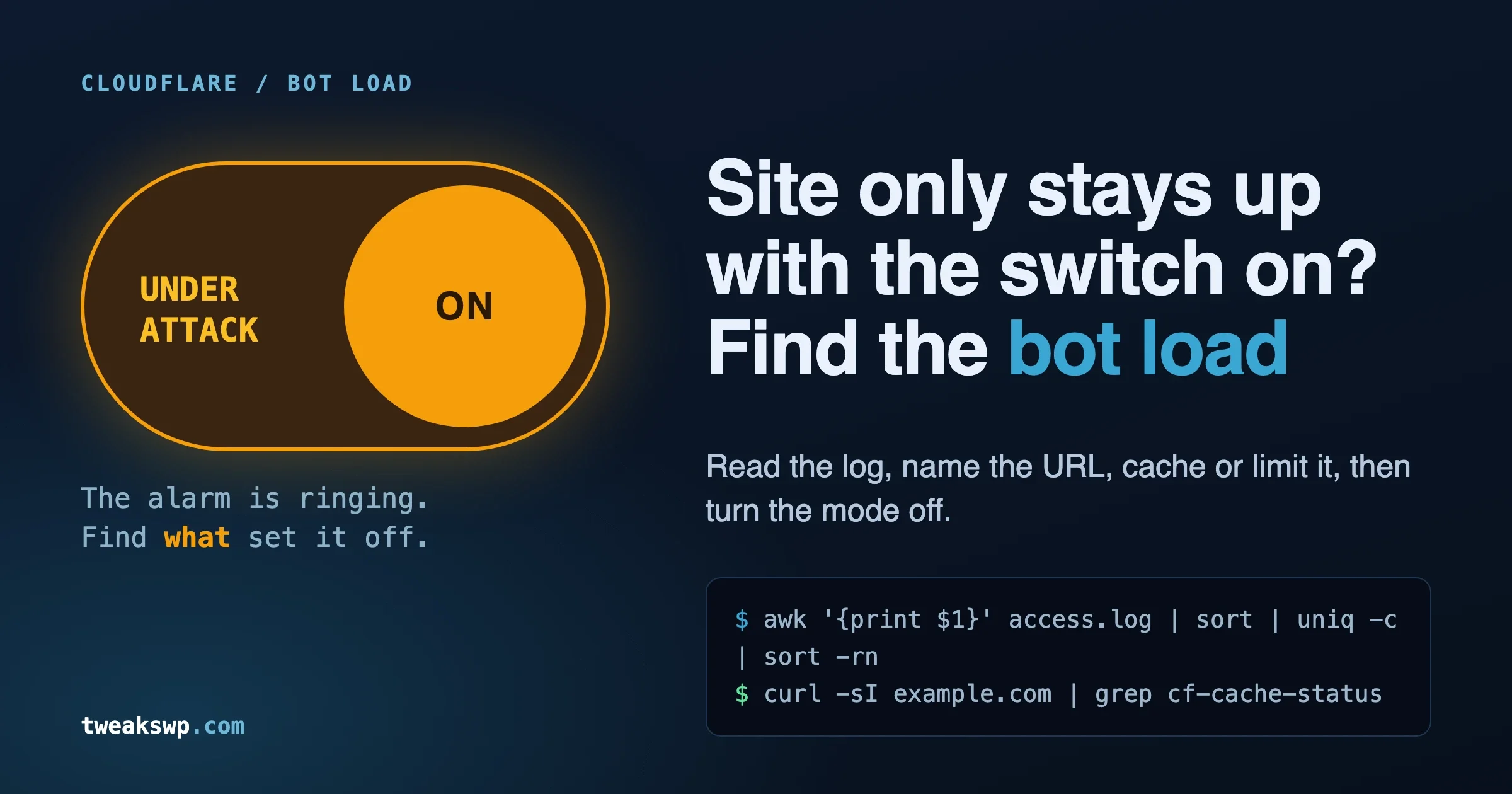
If your WordPress site only stays up while Cloudflare Under Attack mode is switched on, the mode is not fixing anything. It is hiding a load problem behind a JavaScript challenge. The challenge stops cheap bots before they reach PHP, so the server recovers, and you conclude the mode “works”. Switch it off and the load returns, because the thing that was generating it is still there.
The real cause is almost always the same: a stream of requests (AI crawlers, scrapers, a scanner, or a mix) landing on URLs that Cloudflare cannot cache and WordPress has to build from scratch. Search results, admin-ajax.php, xmlrpc.php, wp-login.php, deep pagination, filtered shop pages. Find which of those is eating your CPU, cache or limit exactly that, and Under Attack mode becomes an emergency lever again instead of a permanent setting.
This guide works in that order. How to read your own logs, how to tell an AI crawler from a scraper from an attack, which Cloudflare settings fit each, when Under Attack mode breaks things, and whether a second firewall layer such as Sucuri is worth adding. Every Cloudflare limit quoted here was read from Cloudflare’s documentation on 28 October 2026. The commands that run on your server were run by us on a synthetic log and a local PHP 8.5 install. The Cloudflare rule expressions were not run against a live zone, so test each one with the check shown next to it.
Why does Cloudflare Under Attack mode make the site stay up?
Because every visitor has to pass a browser check before the request is forwarded to your origin. Cloudflare describes it as a mode that “performs additional security checks to help mitigate layer 7 DDoS attacks” and presents an interstitial page. The check decides within about five seconds, and a visitor who passes does not see another challenge until the challenge passage expires. The default for the cf_clearance cookie is 30 minutes.
Most bots never run JavaScript, so they never get past the page. The requests that were costing you PHP time simply stop arriving. That is the whole mechanism.
Cloudflare is blunt about when to use Cloudflare Under Attack mode. The documentation calls it “one of the last resorts when a zone is under attack”, warns that it “will temporarily pause access to your site and impact your site analytics”, and says it “may affect some actions on your domain, such as your API traffic”. A permanent Under Attack setting means you have accepted all of those costs to avoid finding a cause.
What it costs you while it is on
- Every real first-time visitor sees a challenge page before your content. Search engine crawlers and feed readers that cannot run the challenge may be stopped too, so check how yours are treated.
- Anything that is not a browser gets the HTML challenge instead of the response it expected: payment webhooks, REST API clients, mobile apps, uptime monitors, your own cron loopback.
- Third-party analytics can undercount, since Cloudflare notes the mode needs JavaScript and expects an effect on analytics tools.
- WordPress Site Health loopback tests can fail. Cloudflare’s own troubleshooting page lists Under Attack mode as one thing that blocks them.
Treat it as a smoke alarm. It tells you something is wrong. The job is to find what.
How do I find out what is actually hitting my server?
Symptom: CPU or PHP workers pinned, slow admin, 502 or 504 errors, load that drops the moment you turn on a challenge. Quick check: your access log, not the Cloudflare dashboard first. The dashboard shows what Cloudflare saw. The log shows what reached PHP, which is the part that hurts.
One catch before any counting. Behind Cloudflare, the first field in a default access log is a Cloudflare address, not the visitor. Every request looks like it comes from a handful of IPs and your top-talkers list is useless. Fix that first, with the mod_remoteip or nginx real_ip settings from your server docs, or at the PHP level with this must-use plugin. It only trusts CF-Connecting-IP when the connection really came from a Cloudflare range, since the header is trivially forged by anyone who reaches your origin directly.
<?php
/**
 * Plugin Name: Cloudflare Real Visitor IP
 * Description: Trust CF-Connecting-IP only when the request really came from Cloudflare.
 * File: wp-content/mu-plugins/cf-real-ip.php
 */

( static function () {
	if ( empty( $_SERVER['REMOTE_ADDR'] ) || empty( $_SERVER['HTTP_CF_CONNECTING_IP'] ) ) {
		return;
	}

	// Ranges as published on 28 Oct 2026. Re-copy from
	// https://www.cloudflare.com/ips-v4 and https://www.cloudflare.com/ips-v6
	$ranges = array(
		'173.245.48.0/20', '103.21.244.0/22', '103.22.200.0/22', '103.31.4.0/22',
		'141.101.64.0/18', '108.162.192.0/18', '190.93.240.0/20', '188.114.96.0/20',
		'197.234.240.0/22', '198.41.128.0/17', '162.158.0.0/15', '104.16.0.0/13',
		'104.24.0.0/14', '172.64.0.0/13', '131.0.72.0/22',
		'2400:cb00::/32', '2606:4700::/32', '2803:f800::/32', '2405:b500::/32',
		'2405:8100::/32', '2a06:98c0::/29', '2c0f:f248::/32',
	);

	$in_range = static function ( string $ip, string $cidr ): bool {
		[ $subnet, $bits ] = explode( '/', $cidr );
		$ip_bin     = inet_pton( $ip );
		$subnet_bin = inet_pton( $subnet );
		if ( false === $ip_bin || false === $subnet_bin || strlen( $ip_bin ) !== strlen( $subnet_bin ) ) {
			return false;
		}
		$bits  = (int) $bits;
		$bytes = intdiv( $bits, 8 );
		if ( substr( $ip_bin, 0, $bytes ) !== substr( $subnet_bin, 0, $bytes ) ) {
			return false;
		}
		$rest = $bits % 8;
		if ( 0 === $rest ) {
			return true;
		}
		$mask = ( 0xFF << ( 8 - $rest ) ) & 0xFF;
		return ( ord( $ip_bin[ $bytes ] ) & $mask ) === ( ord( $subnet_bin[ $bytes ] ) & $mask );
	};

	foreach ( $ranges as $cidr ) {
		if ( $in_range( $_SERVER['REMOTE_ADDR'], $cidr ) ) {
			$visitor = filter_var( $_SERVER['HTTP_CF_CONNECTING_IP'], FILTER_VALIDATE_IP );
			if ( $visitor ) {
				$_SERVER['REMOTE_ADDR'] = $visitor;
			}
			return;
		}
	}
} )();
We tested the function with PHP 8.5 against four cases: a Cloudflare IPv4 address with a valid header (replaced), a non-Cloudflare address with a forged header (left alone), a Cloudflare IPv6 address (replaced), and a Cloudflare address with a garbage header (left alone). The range list goes stale, so the comment tells you where to refresh it. This only fixes what PHP sees. Your web server log still needs its own real-IP setting if you want clean log analysis.
With a real-IP log, run these five reads. They are plain awk and grep on the combined log format.
# 1. Who sends the most requests
awk '{print $1}' access.log | sort | uniq -c | sort -rn | head -20

# 2. Which user agents (the 6th quote-delimited field)
awk -F'"' '{print $6}' access.log | sort | uniq -c | sort -rn | head -20

# 3. Requests per minute, busiest first
awk '{print substr($4,2,17)}' access.log | sort | uniq -c | sort -rn | head -10

# 4. Which paths, with query strings stripped
awk '{p=$7; sub(/\?.*/,"",p); print p}' access.log | sort | uniq -c | sort -rn | head -20

# 5. The usual expensive suspects
echo "search:    $(grep -c -E '"GET /[^ ]*\?(.*&)?s=' access.log)"
echo "ajax:      $(grep -c 'admin-ajax.php' access.log)"
echo "xmlrpc:    $(grep -c 'xmlrpc.php' access.log)"
echo "login:     $(grep -c 'wp-login.php' access.log)"
echo "wp-cron:   $(grep -c 'wp-cron.php' access.log)"
Read the output like this. One or two IPs with thousands of hits is a scraper or a single abusive client. Hundreds of IPs each sending a few dozen requests, all asking for search or filter URLs, is a crawler fleet or a botnet. A spike in minute counts that lines up with the load graph tells you the window to study. And if search, ajax or xmlrpc dominate path counts, you already know which URL to protect.
On a plain tail of a busy log, restrict to the incident window rather than the whole file: tail -n 50000 access.log | awk .... Rotating logs lose context, and a week of normal traffic dilutes a two-hour flood.
Is it an AI crawler, a scraper or an attack?
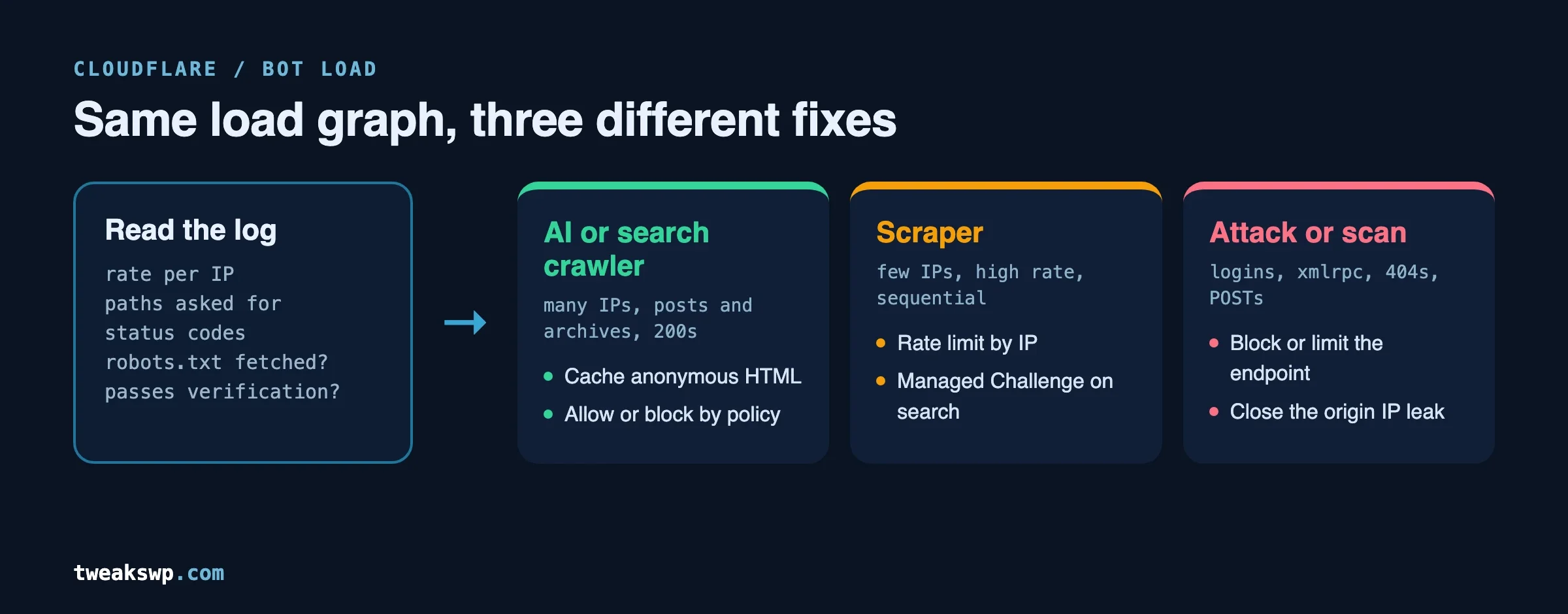
The three look similar in a load graph and need different responses. The log fields below separate them far better than a user agent does, since a user agent is a string the client picks.
| Signal in the log | AI or search crawler | Scraper | Attack or scan |
|---|---|---|---|
| Request rate per IP | Low to moderate, spread over many IPs | High from few IPs | Bursts, or very many IPs at once |
| Paths | Posts, archives, pagination, sitemap | Sequential posts, product pages, feeds | Login, xmlrpc, config files, random 404 paths |
| Status codes | Mostly 200 and 304 | Mostly 200 | Many 404, 403, 405 or POSTs |
| robots.txt | Usually fetched | Often ignored | Never fetched |
| Passes verification | Yes, for the real ones | No | No |
| Right response | Allow, cache, or block by policy | Rate limit or challenge | Block or challenge, rate limit the endpoint |
How do I verify a crawler is real?
Check where it comes from, not what it says. Forward-confirmed reverse DNS and the operator’s published IP ranges are the two methods that work today. We covered both with working commands in the post on crawlers that impersonate ClaudeBot, so we will not repeat them here. The point for this problem: an allow rule or a rate-limit exemption keyed on a user agent string is an open door, and attackers know it.
Cloudflare does the verification for you at its edge. Its verified bots list covers bots Cloudflare has confirmed as legitimate, and the rule field cf.client.bot is documented as indicating “whether the request originated from a known good bot or crawler”, with the same information as cf.bot_management.verified_bot. One catch: Cloudflare’s reference page for that second field says it requires an Enterprise plan with Bot Management, while its rate limiting page lists a Verified Bot field as available on Free. We could not test which plans expose which field in the rule builder, so check yours before relying on it.
What can Cloudflare do about AI crawlers specifically?
Three things, all in the dashboard.
- AI Crawl Control. Documented as available on all plans. It shows which AI services access your content, lets you set allow or block rules for individual crawlers, and tracks robots.txt compliance.
- AI bot policies. Under Security Settings, then Configure AI bot policies, you choose per behaviour: Search, Agent, or Training. Each can be set to block everywhere, block on pages with ads, or allow. Each option blocks verified bots of that type plus additional unverified bots that behave similarly.
- The older “Block AI bots” toggle. Cloudflare’s page lists it as deprecating on 15 September 2026 and describes updated defaults for new domains from that date, where Training and Agent bots are blocked on pages that show ads and Search stays allowed. Open the Security settings page for your own zone and read what it actually shows now, because defaults differ for zones created before and after that date.
Blocking is a content decision, separate from keeping the site up. If a crawler is honest and your server can serve its requests from cache, you may not need to block it at all. Which brings us to the real fix.
Why do bots take WordPress down when they barely trouble a static site?
Because most of the URLs they request cost real PHP and database time, and none of it is cached. Cloudflare’s default behaviour is to cache by file extension, and its documentation states plainly that the CDN “does not cache HTML or JSON by default”. Out of the box, your images, CSS and JavaScript come from the edge and every page view is built by WordPress.
The worst offenders on a typical site:
- Search results at
/?s=term. Unique term, unique query, no cache hit ever. Bots love them because a form field is easy to submit. - Archive, tag and date pagination a long way deep, which forces large offset queries.
- Shop filters and sort parameters that create millions of near-duplicate URLs.
admin-ajax.php, which boots WordPress for any plugin that uses it, including on the front end.xmlrpc.php, a PHP endpoint most sites do not use.wp-login.php, where each failed attempt runs a password hash check.wp-cron.php, which triggers a loopback each time it is requested while events are due.
Quick check: is your normal page cached at the edge at all?
curl -sI https://example.com/ | grep -i -E 'cf-cache-status|cf-ray|^server:|cache-control'A cf-cache-status: HIT on a normal page means Cloudflare is serving HTML. DYNAMIC means it went to your origin. For a standard WordPress setup you will usually see DYNAMIC unless you added a cache rule or a plugin that sets cache headers. That is the gap bots use. Our longer breakdown of every WordPress cache layer shows how to tell which layer you actually have.
How do I cache the pages bots hit, without breaking logged-in users?
Fix, settings first. Make the HTML of anonymous page views cacheable at the edge, and exclude anything personal. In the dashboard that is Caching, then Cache Rules. The Free plan allows 10 cache rules according to Cloudflare’s table.
A rule that caches HTML for visitors who have no WordPress or shop cookie, and skips the admin and checkout paths:
Rule name: Cache anonymous HTML
When incoming requests match (Expression Editor):

(http.host eq "example.com"
 and not starts_with(http.request.uri.path, "/wp-admin")
 and not starts_with(http.request.uri.path, "/wp-login.php")
 and not starts_with(http.request.uri.path, "/cart")
 and not starts_with(http.request.uri.path, "/checkout")
 and not starts_with(http.request.uri.path, "/my-account")
 and not http.cookie contains "wordpress_logged_in"
 and not http.cookie contains "comment_author"
 and not http.cookie contains "woocommerce_items_in_cart"
 and not http.cookie contains "wp_woocommerce_session")

Then:
  Cache eligibility: Eligible for cache
  Edge TTL: Ignore cache-control header, use this TTL: 1 hour
The expression avoids regex on purpose, since Cloudflare’s documentation says the matches operator needs a Business or Enterprise plan. Cloudflare also publishes a cache-bypass-on-cookie example in the same style. Adjust the cookie list to your plugins. Membership, LMS and community plugins set their own cookies and each one belongs in the exclusion list.
Check that it worked. Request a page twice as an anonymous visitor and read the status. The first call can be a MISS, the second should be a HIT.
for i in 1 2; do curl -sI https://example.com/sample-page/ | grep -i cf-cache-status; done

# And prove a logged-in request is NOT served from cache (use a real cookie from your browser)
curl -sI -H 'Cookie: wordpress_logged_in_abc=1' https://example.com/sample-page/ | grep -i cf-cache-status
The third request should not say HIT. If it does, your cookie exclusions are wrong and logged-in users could see cached pages, so fix that before anything else.
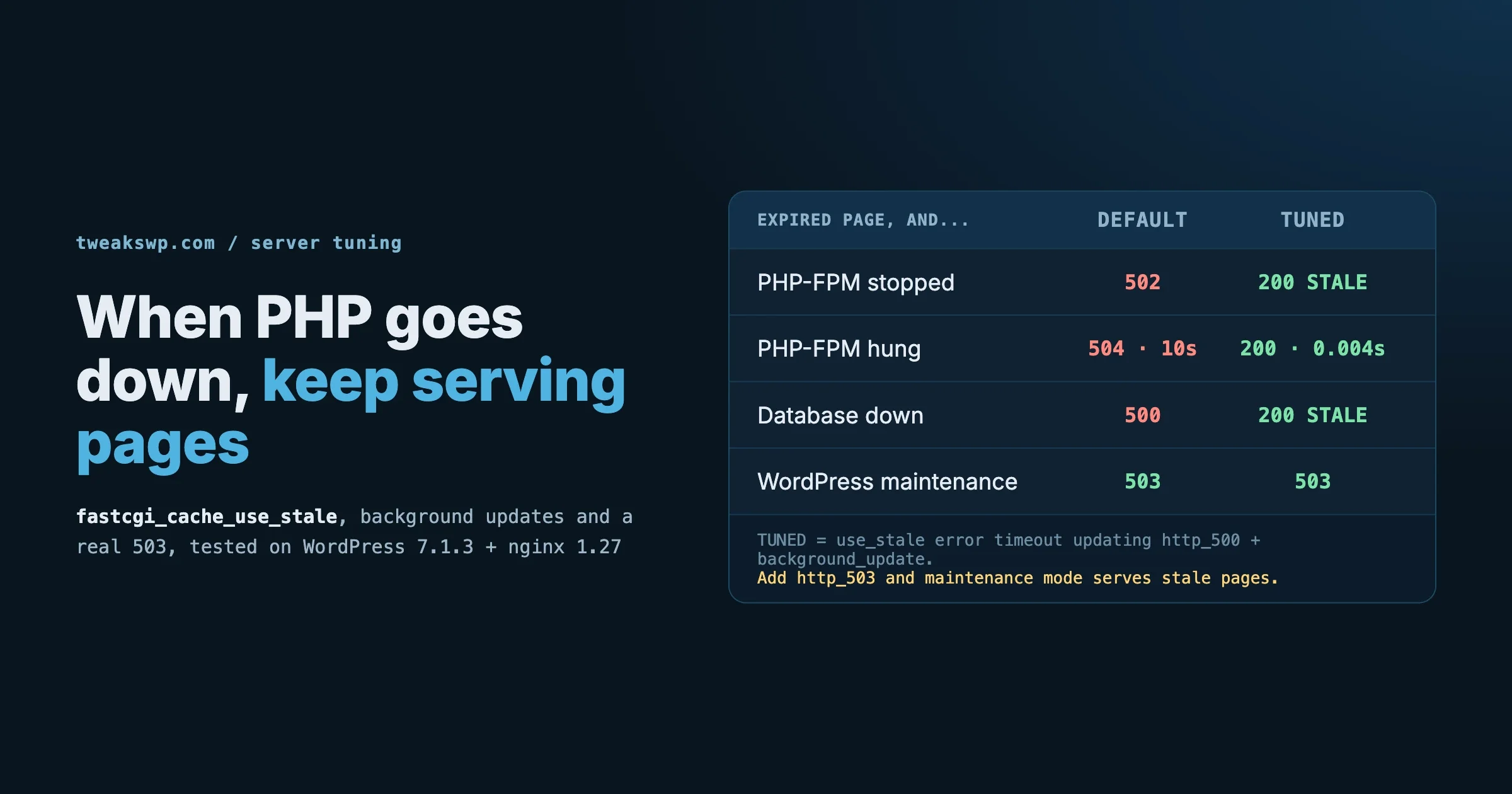
Prevention. Cached HTML goes stale. Purge on publish and update. Check that your caching plugin or the Cloudflare integration you use purges the edge when a post changes, and keep the Edge TTL short enough that a missed purge only shows stale content for an hour. If PHP still falls over, serving stale cached pages while PHP is down keeps visitors on content instead of error pages. Search pages are the exception. They stay uncacheable by design, so they need the next fix, not this one. If you want to know how your cache rules interact with cookies already in your stack, the post on cookies that bypass the page cache shows how to measure the real bypass rate from logs.
How do I rate limit or challenge only the expensive URLs?
A challenge or limit on the three or four URLs that cost the most does more for your server than a site-wide challenge, and real visitors never see it. Know what each Cloudflare plan gives you in its rate limiting rules before you design anything, because the Free plan is tight.
| Rate limiting rules (from Cloudflare docs) | Free | Pro | Business |
|---|---|---|---|
| Number of rules | 1 | 2 | 5 |
| Counting period | 10 s | up to 1 min | up to 10 min |
| Mitigation timeout | 10 s | up to 1 h | up to 1 day |
| Fields in the expression | Path, Verified Bot | Host, URI, Path, Full URI, Query, Verified Bot | Adds Method, Source IP, User Agent |
| Counted by | IP | IP | IP, IP with NAT support |
Two more facts from the same documentation that change how you set numbers. Counters are kept per Cloudflare data center, not globally, so a distributed crowd can send more in total than your limit suggests. And rate limiting is “not designed to allow a precise number of requests to reach your origin”, because counters lag by a few seconds. Set limits as a brake, not a meter.
Rule 1: search from clients that are not known good bots
Custom rules are separate from rate limiting rules and the Free plan includes 5. Challenge search requests from anything that is not a verified bot, since a human typing in a search box can pass a Managed Challenge and a bot usually cannot.
Rule name: Challenge search
Expression:
(starts_with(http.request.uri.query, "s=") or http.request.uri.query contains "&s=")
and not cf.client.bot

Action: Managed Challenge
Two cautions. Search that is submitted by JavaScript (live search boxes) cannot show a challenge page, since an XHR response that is a challenge breaks the widget. Cloudflare documents that a challenged response has the cf-mitigated: challenge header and an HTML body regardless of what was requested. If your theme uses live search, rate limit the AJAX endpoint instead of challenging it.
Rule 2: block xmlrpc.php if nothing needs it
# Do you use anything that needs XML-RPC? Check before blocking.
wp plugin is-active jetpack && echo "Jetpack active: it uses XML-RPC"
grep -c 'xmlrpc.php' access.log
Rule name: Block xmlrpc
Expression: (http.request.uri.path eq "/xmlrpc.php")
Action: BlockThe WordPress mobile app and some publishing tools also use XML-RPC, so confirm with the people who post to the site before you block it. If anything breaks, switch the action to Managed Challenge or remove the rule.
Rule 3: one rate limiting rule for the endpoint your log says matters most
On Free you get a single rule with a 10 second window. Pick the endpoint with the highest count from the log commands above. For a login-heavy attack that is /wp-login.php:
Rule name: Limit wp-login
Expression: (http.request.uri.path eq "/wp-login.php")
Characteristics: IP
Rate: 5 requests per 10 seconds
Action: Block, duration 10 seconds (the Free plan maximum)
Those numbers are a starting point, not a benchmark. A person fills in a login form once every few seconds at most. Raise it if your log shows legitimate users hitting it. On Pro, a one-minute window and a longer block are worth setting, and the Query field lets you aim a rule at admin-ajax.php actions or search specifically. For the layer below Cloudflare, Fail2ban for WordPress bans repeat offenders at the server firewall before WordPress boots.
Rule 4: run wp-cron from the system, not from visitors
Each hit on wp-cron.php while an event is due makes WordPress spawn a loopback. A bot hammering it multiplies PHP work. Turn the visitor-triggered cron off and let the server run it.
// wp-config.php
define( 'DISABLE_WP_CRON', true );
# crontab -e (run as the web user, every 5 minutes)
*/5 * * * * cd /var/www/example.com && wp cron event run --due-now --quietAdjust the path. Then monitor that jobs still run, because a silent cron failure is worse than the load you removed. Monitoring WP-Cron and Action Scheduler failures has the checks.
Site down under bot load right now?
Send us the access log window and the Cloudflare plan you are on. Our team reads the load, names the URL that costs PHP time and sets up the cache rule and limits for you.
What do Bot Fight Mode and Super Bot Fight Mode do for a WordPress site?
Bot Fight Mode is the free option. It issues challenges that cost the client CPU, and it cannot be tuned. Cloudflare’s documentation says it can challenge API and mobile traffic, and that “you cannot bypass or skip Bot Fight Mode using WAF custom rules or Page Rules” because it runs outside the ruleset engine. If it ever blocks something legitimate on the Free plan, your only option is to turn it off.
Super Bot Fight Mode comes with Pro, Business and Enterprise plans. It adds actions per bot category (definitely automated, likely automated, verified bots), static resource protection, analytics, and the ability to make exceptions with a custom rule that uses the Skip action. Custom rules run before it. It also has an Optimize for WordPress option that authorises your site’s own loopback requests, which Cloudflare added because bot detection was blocking Site Health tests. Cloudflare also warns that if you use Cloudflare Tunnel, you should keep “Definitely Automated” set to Allow, or tunnel connections can fail.
If you are on Free and cannot make exceptions, treat Bot Fight Mode as something you can try and abandon. If you are on Pro and above, use SBFM categories plus targeted skip rules for the paths that must stay open (see the next section).
When is Cloudflare Under Attack mode the wrong tool?
Any time a non-browser client needs your site. It cannot solve a JavaScript challenge, so it receives the challenge page where it expected data. The usual victims on WordPress sites:
- Payment gateway and subscription webhooks (Stripe, PayPal, and similar), which call a URL on your site and expect a quick 200.
- The REST API used by a mobile app, a headless front end or another site.
- Uptime monitors, which will either report the site as down or, worse, report a challenge page as “up”.
- WordPress loopback requests used by Site Health and scheduled events.
- Feed readers, newsletter tools that fetch RSS, and search engine crawlers that are not on the verified list.
Symptom check: the Cloudflare docs give the exact test. A challenged response carries cf-mitigated: challenge. Loop over the paths that matter and see which ones get challenged while Under Attack mode is on:
for p in /wp-json/ /feed/ /wp-cron.php "/?wc-api=wc_gateway_stripe" /wp-admin/admin-ajax.php; do
  printf '%-40s' "$p"
  curl -s -o /dev/null -D - "https://example.com$p" \
    | tr -d '\r' | awk 'NR==1{printf "%s  ", $2} tolower($1)=="cf-mitigated:"{printf "CHALLENGED"} END{print ""}'
done
Replace the gateway path with the real callback URL your payment plugin uses. A line ending in CHALLENGED means a non-browser client will be blocked on that path. We ran the loop against a public Cloudflare-fronted site to confirm it prints a status per path. We could not trigger a challenge, so the marker output itself is untested. Note the loop variable is p on purpose: in zsh, the default macOS shell, a variable called path overwrites your command search path and every command after it fails.
Fix: keep the mode off site-wide and apply it where it belongs. Cloudflare documents the selective approach with a configuration rule that sets the Security Level to “I’m Under Attack” for a path, for example starts_with(http.request.uri.path, "/wp-login.php"). For the opposite need, keeping webhooks and APIs open while the whole zone is in Under Attack mode, add a custom rule with the Skip action for those paths. Cloudflare’s docs describe skip rules as the way to let trusted traffic bypass specific security features.
Cloudflare also notes that to enable or disable Under Attack mode for part of your domain you should create a configuration rule, and that for specific ASNs, countries or IP ranges you should use IP Access Rules. In the new security dashboard, the security level setting is how you turn the mode on and off.
Should I use proxied or DNS-only records for a WordPress site?
Proxied for anything that serves web pages, DNS-only for things that are not HTTP. Cloudflare recommends proxying all A, AAAA and CNAME records that serve web traffic. A proxied record answers DNS queries with Cloudflare addresses, so your origin IP stays hidden and your WAF, cache and bot settings apply. A DNS-only record answers with the real origin IP, which, in Cloudflare’s words, “exposes your origin IP address to anyone who queries the record” and means Cloudflare provides no HTTP analytics for it.
This explains the strangest version of the Under Attack problem: you switch it on and the load does not drop. Bots are reaching the origin directly, so Cloudflare never sees them. The leak is usually a second DNS record on the same IP: mail, ftp, cpanel, a staging subdomain, or an old A record from before you moved to Cloudflare.
# Does any DNS-only name on this zone resolve to your origin?
for h in mail ftp cpanel webmail staging dev; do
  printf '%-10s %s\n' "$h" "$(dig +short A $h.example.com | head -1)"
done
dig +short A example.com   # should be Cloudflare addresses, not your server

# Does the origin answer when Cloudflare is bypassed? Replace ORIGIN_IP with your server IP.
curl -sI --resolve example.com:443:ORIGIN_IP https://example.com/ | head -5
If the last command returns a normal 200, anyone who finds your IP can skip Cloudflare entirely, and nothing you configure in the dashboard protects you from them. Fix the leaks in two steps. Proxy or delete the stray records (mail records stay DNS-only by nature, so keep mail on a host that is not your web server’s IP, or accept the exposure knowingly). Then make the origin refuse traffic that did not come through Cloudflare. Cloudflare documents Authenticated Origin Pulls for exactly this: without it, in Cloudflare’s words, “anyone who discovers your origin server’s IP address can send requests directly, bypassing Cloudflare and all its protections”. The other common approach is a firewall rule on the server that only accepts ports 80 and 443 from the Cloudflare ranges listed at cloudflare.com/ips-v4 and /ips-v6. Do it from a console session you can still reach if you lock yourself out.
Should I add Sucuri on top of Wordfence and Cloudflare?
Probably not as a third layer, and it helps to see what each one actually is before deciding.
- Wordfence runs inside your WordPress install. A request has already reached your server and started PHP before it can be judged. That is fine for exploit patterns and login rules, and it cannot stop a flood from costing you CPU, since every request in the flood still starts PHP.
- Cloudflare proxied sits at the edge. A challenged, blocked or cached request never reaches your server. That is where volume problems are solved.
- Sucuri Firewall is also an edge proxy. Sucuri’s own documentation says you change your DNS A record to its firewall IP addresses so all traffic goes through Sucuri, and lists WAF, DDoS protection on all plans, virtual patching and a CDN. That means it competes with Cloudflare for the same job instead of adding to it.
Running two reverse proxies in a chain means two caches to purge, two challenge systems, two places the visitor IP can be rewritten, and two sets of rules that can contradict each other. We have not tested that combination and do not recommend building it to fix a bot problem. Pick one edge. If you already have Cloudflare, tune it with the steps above before paying for a second service. If your host or agency prefers Sucuri’s network, use it as the edge and leave Cloudflare as DNS only.
Keep the plugin-level layer anyway. It catches things an edge does not, such as an attack through a vulnerable plugin that looks like a normal request to a normal URL. The difference between what a firewall filters and what an update actually fixes is the subject of Your Host’s Firewall Is Not the Patch.
What should my setup look like once the fire is out?
- Cloudflare Under Attack mode off by default, kept as an emergency switch with a note on who may use it and what to test after.
- Proxied DNS on every web record, no stray DNS-only names pointing at the origin, and the origin refusing non-Cloudflare traffic.
- Edge cache for anonymous HTML with a tested cookie exclusion list, so most bot hits on posts and pages are answered without PHP.
- Targeted challenges and limits on search, login, xmlrpc and any heavy AJAX action your log identified.
- A bot policy decided on purpose: which AI crawlers you allow, which you block, with AI Crawl Control showing what actually shows up.
- Real visitor IPs in your logs and in PHP, so rate limiting plugins and your own analysis see people, not Cloudflare.
- A weekly look at the five log commands, so a rise in one path is a note and not an outage.
How do I know the fix worked?
Turn Under Attack mode off during a quiet hour, with the log commands ready and the host’s CPU graph open. Look for four things: the request count per minute may stay high, but PHP worker use and CPU should not follow it; cf-cache-status: HIT appears on your popular pages; the challenged or blocked count in Cloudflare Security Analytics goes up for the paths you targeted; and the paths that matter to real users, tested with the curl loop above, are not challenged. If CPU climbs again, read the log for the path and add it to the list. Do not switch the mode back on and walk away.
FAQ
Is it safe to leave Cloudflare Under Attack mode on all the time?
It is not harmful in the sense of breaking your server, but Cloudflare says it is meant for emergencies, and it adds a challenge page for visitors, can disturb API traffic and analytics, and can block loopback requests. If the site only works with it on, there is an unfixed cause behind it.
How do I turn Cloudflare Under Attack mode on or off for only one part of my site?
Use a configuration rule that matches the path and sets the Security Level to “I’m Under Attack”, as Cloudflare documents for a path such as /admin. To exclude paths from a zone-wide setting, add a custom rule with the Skip action for them.
Will blocking AI crawlers hurt my search rankings?
Blocking AI Training bots is a different thing from blocking search engine crawlers, and Cloudflare’s bot policy presets split Search, Agent and Training behaviours for that reason. Check what your policy does to mixed-purpose crawlers, which Cloudflare documents as being treated as Training in its blocking options, and keep search crawlers allowed unless you have decided otherwise.
Why does a rate limit not stop a distributed flood?
Cloudflare keeps counters per data center and the Free plan counts by IP only, so many addresses each below the limit never trigger it. Use challenges and caching for distributed traffic, and rate limits for repeat offenders on a single endpoint.
Can I use the Free plan for all of this?
Most of it, with limits: 5 custom rules, 10 cache rules, 1 rate limiting rule with a 10 second window. Bot Fight Mode cannot be skipped by rules. The Pro plan adds more rate limiting rules, longer windows and Super Bot Fight Mode exceptions. Check the plan tables in Cloudflare’s documentation before you commit to a design.
Does a WordPress security plugin replace all this?
No. A plugin judges a request after your server has accepted it and started PHP. It complements the edge and cannot replace it for volume problems.
Where to start tonight
Run the five log commands on the hour that hurt. Name the one URL that dominates. Put a cache rule or a targeted challenge on that URL. Test the paths real clients depend on. Then switch Under Attack mode off during a quiet window and watch. The mode did its job by buying you time, so use the time on the cause.
Want a second pair of eyes on your setup?
We review Cloudflare rules, cache behaviour and origin exposure for WordPress sites, and write down what to keep and what to remove.
Plugins we build and run
We maintain these ourselves, which is why we can support them on your site.
- BuddyNextThe self-hosted community engine for WordPress
- BuddyXFree community theme, Pro when you outgrow it
- ReignPremium community theme. Add pieces, build anything
- JetonomyCommunity forum and Q&A for WordPress
- EventonomyEvents and RSVPs for WordPress communities
- LearnomyCourses and learning communities on WordPress
- ListoraDirectories and listings your members can browse
- SnipShareCode sharing built for developer communities
- WB Ad ManagerAd placements that turn traffic into revenue
- WP Career BoardA job board your community actually uses
- WP Sell ServicesSell services with offers, orders, and payouts
- MediaVersePhotos, video, and media albums for members
- WB GamificationPoints, badges, and rewards that keep members active
- Product RoadmapPublic roadmaps with voting your users trust