Freemius SDK Stored XSS: How to Find Every Bundled Copy on a Client Site (Anything Under 2.13.5)
Freemius SDK 2.13.5 fixes a high-severity stored XSS in admin notices. Find every bundled copy on a site or fleet, see which one loads, and check for a planted notice.

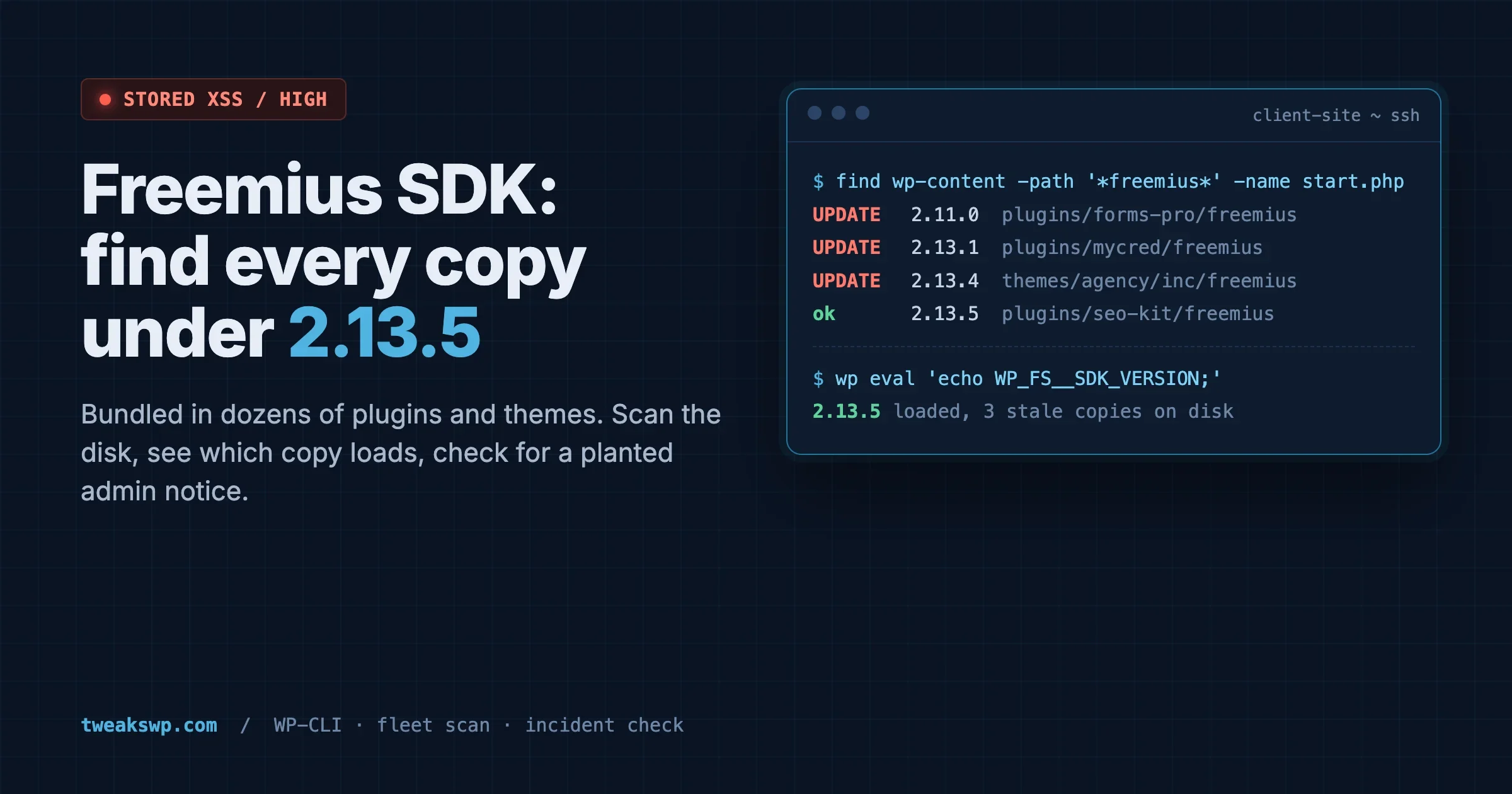
Short answer: any WordPress site that runs a plugin or theme with a bundled Freemius SDK older than 2.13.5 should be updated now. This Freemius SDK vulnerability is fixed in version 2.13.5, released on October 22, 2026, which closes a high-severity stored XSS in Freemius admin notices. An unauthenticated visitor could use a crafted URL to plant a persistent notice on a site running an opted-in Freemius product, and that notice could run JavaScript in an administrator’s browser when they interact with it. The fix is not a WordPress core update and not one plugin update. You have to find every copy of the SDK on the site, because dozens of vendors ship their own.
This guide gives you the exact commands to do that on one site and across a fleet, explains which copy WordPress actually runs, and shows how to check whether a malicious notice is already sitting in the database.
The Freemius SDK vulnerability fixed in 2.13.5
Freemius is a licensing, analytics and checkout SDK that thousands of commercial and freemium WordPress plugins and themes embed. It is not a plugin you install. It ships inside other products, usually in a folder called freemius/.
The official 2.13.5 release notes list three separately reported issues:
Issue | Severity | Who can trigger it | Condition |
|---|---|---|---|
Stored XSS in admin notices | High | Unauthenticated visitor with a crafted URL | Site runs an opted-in Freemius product; script fires when an admin interacts with the notice |
Installation metadata exposure | Low | Any logged-in user | Could read WordPress, PHP, plugin/theme and SDK versions, even when the product was not opted in |
Pricing page display issue | Low | Crafted URL | Could show wrong information or altered links on the pricing page; Freemius says product configuration and Checkout pricing were not changed |
Freemius credits Patchstack with reporting the metadata issue and coordinating disclosure, says two issues were reported privately by developers using the SDK, and notes that Wordfence identified an additional risk tied to one of the issues. Freemius says it shipped the release outside its normal schedule and recommends updating “as soon as possible”.
Is there a CVE? At the time of writing, the release notes do not name a CVE, and I could not find a published CVE, Wordfence or Patchstack database entry for the 2.13.5 issues. Do not wait for one. Plugin vendors are already shipping the update (for example, the Perform plugin’s pull request bumping its bundled SDK quotes the same notes), and once a CVE is assigned, vulnerability scanners will start flagging each plugin separately.
Why “stored” matters more than “reflected”
Freemius has had XSS bugs before. CVE-2023-33999 was a reflected XSS through fs_request_get in SDK versions up to 2.5.9, fixed in 2.5.10. CVE-2024-13362 was a reflected DOM-based XSS through a url parameter in versions up to 2.10.1. Both needed an admin to click a crafted link.
A stored XSS is worse for site maintainers. The payload sits in the database and waits. The attacker does not need your admin to click anything they sent. They plant the notice once, and the next time anyone with access to the dashboard interacts with it, the script runs with that admin’s session. From there, a script can do anything the admin can do in the browser: create a user, change an email, install a plugin.
That is why this guide has two halves: update every copy, and check for a notice that may already be there.
How WordPress loads bundled Freemius copies
Before running commands, it helps to know what the SDK does when several products bundle it. I read this from start.php in the 2.13.5 tag of the Freemius wordpress-sdk repository.
Every bundled copy has its own start.php, and near the top it declares its version:
$this_sdk_version = '2.13.5';When a plugin or theme includes its copy, start.php registers that copy in a site option called fs_active_plugins. The option holds two things:
plugins: every registered SDK path, with itsversion, itstype(plugin or theme) and theplugin_pathof the product that ships it.newest: the path and version of the newest copy among the active products.
Then the selection logic runs. If the copy being loaded is older than newest, and the newest copy’s start.php exists, the SDK calls fs_newest_sdk_plugin_first(), which rewrites the active_plugins option so the plugin holding the newest SDK loads first on the next request, and then it require_onces the newest copy instead of its own. The Freemius class can only be defined once, so after the first load every other copy returns early. The loaded version is stored in the WP_FS__SDK_VERSION constant and its folder in WP_FS__DIR.
What this means in practice:
- Only one copy runs per request, and it is normally the newest one among active plugins and the active theme.
- One updated plugin can cover the others at runtime. If any active product ships 2.13.5, that is the code that handles notices for all Freemius products on the site.
- That cover is fragile. Deactivate or delete the plugin with the newest copy, and the site quietly falls back to the next newest, which may be 2.11 or older.
- Load order has a known gap. The SDK’s own source has a comment (linked to issue #26) saying network-activated plugins and MU plugins load before site-activated plugins, so on multisite an older network-activated copy can win parts of the load.
- Old copies stay on disk. Inactive plugins still have their
freemius/folder inwp-content, and scanners will report each one.
So the goal is simple: no copy below 2.13.5 anywhere in wp-content, not just “the loaded copy is fine today”.
Step 1: Find every bundled copy on one site
Run this from the WordPress root over SSH. It does not need a database connection, so it works even on a broken site or a backup you have unpacked locally.
cd /path/to/wordpress

lt() { [ "$1" != "$2" ] && [ "$(printf '%s\n%s\n' "$1" "$2" | sort -V | head -n1)" = "$1" ]; }

find wp-content/plugins wp-content/themes wp-content/mu-plugins \
	-type f -name start.php -path '*freemius*' 2>/dev/null |
while read -r f; do
	v=$(grep -m1 -oE "this_sdk_version[[:space:]]*=[[:space:]]*'[^']+'" "$f" | grep -oE "[0-9][0-9.]*")
	if lt "${v:-0}" 2.13.5; then s=UPDATE; else s=ok; fi
	printf '%-7s %-9s %s\n' "$s" "${v:-unknown}" "$f"
done | sort -k2 -V
Sample output from a test site:
UPDATE 2.13.1 wp-content/plugins/mycred/freemius/start.phpA few notes on what this catches:
- The
-path '*freemius*'filter matches the usualfreemius/folder, Composer installs atvendor/freemius/wordpress-sdk/, and vendors who nest it underincludes/orlib/. - The
lthelper usessort -V, so2.13.10sorts above2.13.5correctly. A plain string comparison would get that wrong. - If a vendor renamed the folder to something without “freemius” in it, the first scan misses it. This slower catch-all finds any
start.phpthat declares an SDK version:
grep -rl --include=start.php "this_sdk_version" wp-contentCompare the two lists. On most sites they match.
Map each copy to its product
The folder after wp-content/plugins/ or wp-content/themes/ is the product slug. Pull the product version and update status in one go:
wp plugin list --fields=name,status,version,update_version --format=table
wp theme list --fields=name,status,version,update_version --format=table
Cross-reference the slugs from Step 1. Pay attention to the status column. An inactive plugin with an old SDK is not running, but it is still on disk, still reported by scanners, and one click away from running again. If nobody uses it, delete it.
Step 2: See which copy WordPress actually loads
The disk scan tells you what exists. The database tells you what runs. Read the registry the SDK keeps:
wp option get fs_active_plugins --format=json | jq -r '.plugins | to_entries[] | "\(.value.version)\t\(.value.type)\t\(.key)\t\(.value.plugin_path)"'Output looks like this, one row per registered copy:
2.13.1	plugin	mycred/freemius	mycred/mycred.php
2.13.5	theme	../themes/foo/inc/freemius	foo
Then check which copy won:
wp option get fs_active_plugins --format=json | jq -r '.newest | "\(.version) \(.sdk_path) (\(.plugin_path))"'And confirm from inside a full WordPress load, which is what a real admin request sees:
wp eval 'echo defined( "WP_FS__SDK_VERSION" ) ? WP_FS__SDK_VERSION . " from " . WP_FS__DIR . "\n" : "Freemius not loaded\n";'If the version printed here is below 2.13.5, the site is running vulnerable notice code right now. Treat that site as first in the queue.
If the registry lists a path that no longer exists on disk, that is a leftover from a deleted plugin. The SDK cleans those entries up itself on later loads, so you do not need to edit the option by hand.
Which products are opted in
The high-severity issue needs an opted-in product. Opting in creates an install record, and the SDK stores those records in the fs_accounts option under sites (plugins) and theme_sites (themes), keyed by slug:
wp eval '$a = get_option( "fs_accounts" );
echo "Opted-in plugins: " . implode( ", ", array_keys( (array) ( $a["sites"] ?? array() ) ) ) . "\n";
echo "Opted-in themes: " . implode( ", ", array_keys( (array) ( $a["theme_sites"] ?? array() ) ) ) . "\n";'
An empty list lowers the risk of the stored XSS on that site, but it does not remove the reason to update. Opt-in can happen any time an admin clicks “Allow & Continue” on a product’s activation screen, and paid licences are activated through the same install record.
Step 3: Check for a planted admin notice
This is the part most patch guides skip. Updating the SDK stops new malicious notices from being planted. It does not tell you whether one was planted before you updated.
Freemius stores its persistent (“sticky”) admin notices inside the same fs_accounts option, under the admin_notices key, grouped by the product that owns them. Each notice is an array with fields such as message, title, type, sticky and id. This command lists every stored notice and flags the ones that contain markup that has no business being in a licensing notice:
wp eval '
$a = get_option( "fs_accounts" );
$found = 0;
foreach ( (array) ( $a["admin_notices"] ?? array() ) as $manager => $notices ) {
	foreach ( (array) $notices as $id => $n ) {
		$blob = ( $n["title"] ?? "" ) . " " . ( $n["message"] ?? "" );
		$flag = preg_match( "/<script|javascript:|on[a-z]+\s*=|<iframe|<svg|data:text\/html/i", $blob ) ? "SUSPICIOUS" : "ok";
		printf( "%-10s %-25s %-25s %s\n", $flag, $manager, $id, substr( wp_strip_all_tags( $blob ), 0, 80 ) );
		$found++;
	}
}
echo $found ? "" : "No stored Freemius notices.\n";
'
Example output with one clean and one planted notice:
ok	mycred	n1	Hi Thanks for opting in
SUSPICIOUS mycred	n2	x click
Normal Freemius notices are plain text with the odd link: “thanks for opting in”, “your licence expires”, “please confirm your email”. Anything with an onclick, an onmouseover, a <script> tag, a javascript: URL or an SVG payload is a red flag.
For a quick second opinion without PHP, grep the raw option value:
wp option get fs_accounts --format=json | grep -Eio '<script|javascript:|on[a-z]+=' | sort | uniq -cMultisite
On multisite, the SDK can store notices at network level (in the network’s fs_accounts site option) or per site. Check both:
wp eval 'print_r( array_keys( (array) ( get_site_option( "fs_accounts" )["admin_notices"] ?? array() ) ) );'

for url in $(wp site list --field=url); do
	echo "== $url"
	wp option get fs_accounts --url="$url" --format=json 2>/dev/null | grep -Eio '<script|javascript:|on[a-z]+=' | sort | uniq -c
done
Removing a malicious notice
Back up the option first, then remove only the notice you found. Replace MANAGER and NOTICE_ID with the values from the scan output:
wp option get fs_accounts --format=json > ~/fs_accounts-backup-$(date +%F).json

wp eval '
$a = get_option( "fs_accounts" );
unset( $a["admin_notices"]["MANAGER"]["NOTICE_ID"] );
update_option( "fs_accounts", $a );
echo "Removed.\n";
'
Do not delete the whole fs_accounts option to “clean” a site. It holds licence activations and install records for every Freemius product, and deleting it logs every product out of its licence.
If you find one, treat it as an incident
A planted notice means someone targeted the site. Whether it fired depends on whether an admin interacted with it, and you usually cannot prove they did not. Work through these in order:
- Audit users. Look for administrators you do not recognise, including ones hidden from the Users screen. The hidden WordPress admin account audit covers the WP-CLI and SQL checks.
- Check recent changes. List plugins and themes changed in the window since the notice could have been planted:
find wp-content -type f -name '*.php' -mtime -14. - Revoke and rotate. Revoke application passwords, force a logout of all sessions, rotate salts and any API keys stored in options. The WordPress credential rotation checklist walks through each system in order.
- Check access logs for requests carrying long encoded query strings to
wp-adminor the front end around the time the notice appeared.
Step 4: Update every copy
The fix ships through each product’s own update. You cannot update the Freemius SDK on its own through the dashboard.
# See which affected products have an update waiting
wp plugin list --update=available --fields=name,version,update_version
wp theme list --update=available --fields=name,version,update_version

# Update one product, then re-run the Step 1 scan
wp plugin update mycred
After each update, re-run the scan from Step 1. A plugin update does not always include an SDK bump. Vendors who release on a fixed cadence may ship a feature release that still bundles 2.13.4. The scan is the only proof.
Premium versions of freemium products usually update through Freemius itself rather than WordPress.org, and need an active licence to pull the update. If update_version is empty for a premium product you know has a newer release, check the licence status on the product’s Account page in wp-admin.
Step 5: What to do when a vendor has not shipped an update
Some products will lag. Abandoned plugins will never update. You have four options, in rough order of preference.
Option A: Remove or replace the product
If the product is not used, deactivate and delete it. If it is used but abandoned, plan the replacement now. A plugin that has not picked up a high-severity fix in its bundled SDK is unlikely to pick up the next one either.
Option B: Make sure a patched copy is the one that loads
Because only the newest active copy runs, a site where at least one active product ships 2.13.5 is running the patched notice code. Confirm it with the WP_FS__SDK_VERSION check from Step 2. This is a stopgap, not a fix: write down which plugin provides the newest copy, and add a note to your maintenance log that deactivating it drops the site to an older SDK. On multisite, check network-activated plugins first, because of the load order caveat above.
Option C: Ask the vendor
Send the vendor the release link and the exact path and version from your scan. Something like “your plugin bundles Freemius 2.13.1 at wp-content/plugins/slug/freemius/; 2.13.5 fixes a high-severity stored XSS” gets a faster answer than “is your plugin affected?”. Most vendors only need to replace one folder and tag a release.
Option D: Replace the folder yourself (last resort, on staging first)
The SDK is a self-contained folder, and swapping it is what vendors do themselves when they bump it. You can do the same on a site you are responsible for, as long as you test it on staging and accept that the next vendor update will overwrite it:
cd /tmp
curl -sL https://github.com/Freemius/wordpress-sdk/archive/refs/tags/2.13.5.tar.gz | tar xz

PLUGIN=/path/to/wordpress/wp-content/plugins/slug
mv "$PLUGIN/freemius" "$PLUGIN/freemius.bak-$(date +%F)"
cp -R wordpress-sdk-2.13.5 "$PLUGIN/freemius"

# Confirm the new version is in place and loaded
grep -m1 "this_sdk_version" "$PLUGIN/freemius/start.php"
wp eval 'echo WP_FS__SDK_VERSION, "\n";'
Check the product’s admin pages (settings, account, pricing, licence activation) after the swap. A large jump, such as 2.4 to 2.13, can break a product that depends on older SDK behaviour. If something breaks, move the backup folder back. Delete the backup folder once you are happy, because it is still an old SDK sitting in wp-content.
A web application firewall rule can reduce exposure while you wait, but only if your WAF vendor has published a rule for this specific issue. Check with them rather than assuming a generic XSS filter covers it.
Step 6: Scan a whole fleet
On one site the commands above take a few minutes. On fifty client sites you want one report. This script reads a plain text file with one SSH host and WordPress path per line, runs the disk scan on each, and prints CSV you can sort and paste into a ticket:
#!/usr/bin/env bash
# Usage: ./freemius-fleet.sh sites.txt (one "ssh-host /path/to/wordpress" per line)
SCAN='find wp-content -type f -name start.php -path "*freemius*" 2>/dev/null | while read -r f; do v=$(grep -m1 -oE "this_sdk_version[[:space:]]*=[[:space:]]*.[0-9.]+" "$f" | grep -oE "[0-9][0-9.]*$"); echo "${v:-unknown} $f"; done'
while read -r host path; do
	[ -z "$host" ] && continue
	ssh -o BatchMode=yes "$host" "cd '$path' && $SCAN" < /dev/null | while read -r v f; do
		printf '%s,%s,%s\n' "$host" "$v" "$f"
	done
done < "$1"
An example sites.txt:
client-a /var/www/html
client-b /home/clientb/public_html
staging-c /srv/www/staging
Run it and sort by version so the oldest copies are at the top:
./freemius-fleet.sh sites.txt > freemius-fleet.csv
sort -t, -k2 -V freemius-fleet.csv | head -40
Two details make this reliable at scale. -o BatchMode=yes makes SSH fail fast on a host that wants a password instead of hanging the loop. The < /dev/null stops SSH from reading the rest of sites.txt as input, which is the classic reason a “loop over hosts” script only processes the first line.
For the loaded version per site, add a second pass that runs the Step 2 check on each host:
while read -r host path; do
	printf '%s,' "$host"
	ssh -o BatchMode=yes "$host" "cd '$path' && wp eval 'echo defined(\"WP_FS__SDK_VERSION\") ? WP_FS__SDK_VERSION : \"none\";'" < /dev/null
	echo
done < sites.txt
This is the same sweep pattern we used in the PHP2Shell PHP version check guide: a disk-level check that does not depend on WordPress booting, then a runtime check that shows what actually executes. Keep both scripts in your maintenance repo. The next bundled-library issue will need the same shape of answer.
Prioritising the fix list
When the fleet report comes back with a long list, sort it like this:
- Loaded version below 2.13.5 and an opted-in product. This is the full high-severity condition. Update today and run the notice check.
- Loaded version below 2.13.5, nothing opted in. Still exposed to the low-severity metadata issue, and one opt-in away from the high one. Update this week.
- Loaded version 2.13.5 or newer, but older copies on disk. Safe at runtime today. Update or remove the old copies in the normal maintenance cycle, and note which plugin provides the patched copy.
- Inactive plugins with old copies. Delete the plugin if nobody uses it. That clears the scanner noise too.
Common questions
Is my site vulnerable if I never clicked “Allow & Continue”?
Freemius describes the high-severity XSS as affecting sites running an opted-in product. If no Freemius product on the site has an install record, that specific condition is not met. The low-severity metadata issue applies even without opt-in. Update either way.
The plugin’s changelog does not mention Freemius. Is it patched?
Do not trust the changelog for this. Many vendors bump the SDK without mentioning it, and some mention it without bumping. The $this_sdk_version line in the plugin’s own start.php is the source of truth.
Do I need to clear a cache after updating?
Page caches do not affect wp-admin notices. If you run an object cache, the fs_accounts and fs_active_plugins options are read through it, so after removing a planted notice with wp eval run wp cache flush to make sure the dashboard does not render a cached copy.
Can a security plugin detect this Freemius SDK vulnerability?
Vulnerability scanners match product versions against their database, so they will flag affected plugins once entries for 2.13.5 are published. Until then, they may say nothing. The commands in this guide check the SDK version directly and do not depend on a database entry.
The checklist
- Run the Step 1 disk scan. List every copy below 2.13.5.
- Run the Step 2 checks. Note the loaded version and opted-in products.
- Run the Step 3 notice scan, on every site of a multisite network.
- If a notice is suspicious: back up
fs_accounts, remove that notice, then audit users and rotate credentials. - Update every product that bundles an old SDK. Re-run the disk scan after each update.
- For products with no update: remove, confirm a patched copy loads, ask the vendor, or swap the folder on staging first.
- Save the fleet script. Re-run it next week to catch the vendors who update late.
Sources: Freemius WordPress SDK 2.13.5 release notes, the SDK’s start.php, includes/fs-essential-functions.php and includes/managers/class-fs-admin-notice-manager.php at the 2.13.5 tag, and the Wordfence entry for the older 2.5.9 reflected XSS.
Plugins we build and run
We maintain these ourselves, which is why we can support them on your site.
- BuddyNextThe self-hosted community engine for WordPress
- BuddyXFree community theme, Pro when you outgrow it
- ReignPremium community theme. Add pieces, build anything
- JetonomyCommunity forum and Q&A for WordPress
- EventonomyEvents and RSVPs for WordPress communities
- LearnomyCourses and learning communities on WordPress
- ListoraDirectories and listings your members can browse
- SnipShareCode sharing built for developer communities
- WB Ad ManagerAd placements that turn traffic into revenue
- WP Career BoardA job board your community actually uses
- WP Sell ServicesSell services with offers, orders, and payouts
- MediaVersePhotos, video, and media albums for members
- WB GamificationPoints, badges, and rewards that keep members active
- Product RoadmapPublic roadmaps with voting your users trust