The Hidden WordPress Admin Account: A 15-Minute Audit and What to Do If You Find One
Some attacks create an admin account the Users screen cannot show. Run this 15-minute WP-CLI and SQL audit, then clean up and prevent a repeat.

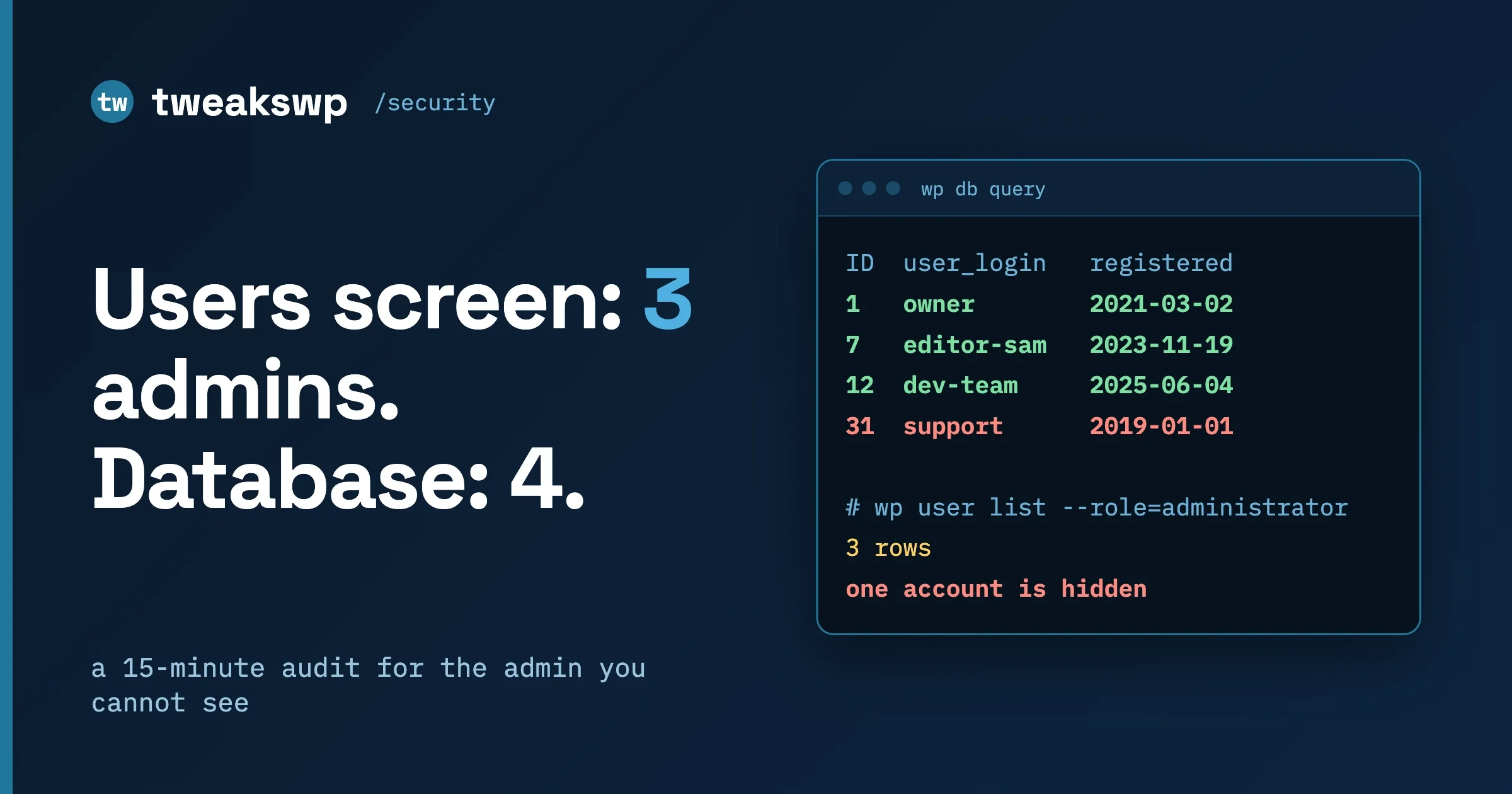
You can have an administrator account on your WordPress site that does not appear on the Users screen, and the only reliable way to find it is to ask the database directly. A campaign Patchstack documented in October 2026 does exactly this: a script runs inside an administrator’s own browser session while they do routine work, creates the account, and hides it with a must-use plugin. This guide gives you a 15-minute audit to run on every site you look after, what to do if it finds something, and how to make the next attack of this kind pay less.
In this guide
- How an attack can fire just because an administrator opened a screen, with no stolen cookie
- What the Patchstack campaign installs, and why updating the plugins is not enough
- The 15-minute hidden-admin audit with WP-CLI and one SQL query
- What to do if you find something (and what not to do)
- How to prevent the next one: fewer administrators, a low-privilege daily account, and DISALLOW_FILE_MODS
- Questions people ask
How can an attack run just because an administrator opened a page?
Stored cross-site scripting (XSS) lets an attacker save a piece of JavaScript in your site, for example inside a form submission or an order note. When an administrator later opens the screen that displays that data, the browser runs the script as if the site itself had written it. The script does not need to steal anything, because it already has what it needs: the administrator’s logged-in session.
The mechanism in plain steps: your browser sends your session cookie with every request to your own site, and a script running on a wp-admin page is allowed to send requests to that same site. So the script can ask WordPress to install a plugin or create a user, and WordPress treats the request as yours. Nonces (one-time tokens) do not help, because a script on the same page can read a valid one first.
Two things follow from this and shape everything in the rest of the guide.
- The trigger is routine work. Reading new form entries, checking recent orders and approving pending comments are all things administrators do daily, and each one displays data that a stranger may have written.
- The damage is limited by what the logged-in user may do. A script in an Editor session cannot create administrators or install plugins, which is why prevention leans on who does the daily work.
What did the Patchstack campaign actually do?
Patchstack published its analysis on 6 October 2026 under the title “Four ways back in: the WordPress XSS campaign that hides its own admin account” (read it here). We read it in full on 8 October 2026. The key points:
- The same JavaScript payload was seen on 4 October 2026 against WPC Product Bundles for WooCommerce (CVE-2026-93836) and the next day against Ninja Forms (CVE-2026-94504). Patchstack describes both as stored XSS flaws that an unauthenticated visitor can use.
- The fixed versions are WPC Product Bundles 8.6.7 and Ninja Forms 3.15.4. Anything at or below WPC Product Bundles 8.6.6 or Ninja Forms 3.15.3 is in the affected range.
- The attacker plants the script in WooCommerce order data or in a Ninja Forms submission. It runs when a logged-in administrator loads that content.
- Per Patchstack, the script installs a plugin through WordPress’s own installer, creates an administrator account, fetches a persistence installer and reports back to the attacker’s server.
The part that matters most for site managers is the persistence. Patchstack lists four ways the attacker keeps access, and each one survives a plugin update:
- A visible administrator. Created through the normal Add User screen, with a username drawn from innocent-sounding words such as support, updater, maintenance or backup, and an email at wordpress.org.
- A hidden administrator. The same account, hidden by a must-use plugin (a PHP file in
wp-content/mu-pluginsthat WordPress loads automatically on every request, with no activation step and no entry in the normal plugin list). Patchstack names the file patternclass-wp-query-<8 hex characters>.phpand says it filters the account out of the Users screen and reduces the role counts so the numbers still look right. - A magic login URL. A second must-use file,
class-wp-token-validate.php, accepts a?_wplogin=<token>parameter and signs the visitor in as the site’s oldest administrator. Valid tokens are kept in an option calledfz_emer_login_tokens. - An unauthenticated file manager. A fake plugin in
wp-content/plugins/wp-smart-thumbnails/, presenting itself as “WP Smart Thumbnails” by “MediaPress Labs”. Patchstack says it is heavily obfuscated, that it is built to run when requested directly over HTTP rather than being activated in WordPress, and that it exposes file list, upload, delete, rename, read and save operations without a login.
Patchstack also lists a marker option, fz_emer_done_v1, and the attacker’s domain imgcdn1.com as indicators of compromise.
The lesson: updating the plugins closes the door the script came in through. It does nothing about an account, two PHP files and a fake plugin already inside. If an administrator opened an affected screen before you updated, run the audit below.
Is this only a Ninja Forms and WPC Product Bundles problem?
No. It is a pattern, and WordPress core shipped two fixes of the same shape in the same week. The WordPress 7.1.3 Maintenance and Security Release, published on 6 October 2026 (release post, read 8 October 2026), lists seven security fixes. Two are relevant here:
- “A stored XSS on the Comments administration page, exploitable via pending comments,” credited to Thomas Chauchefoin at Trail of Bits. Pending comments are the ones waiting for moderation, and anyone can submit one. Opening the Comments screen to moderate them is exactly the routine work this guide is about.
- “A second-Order SQL injection in WordPress WXR export,” credited to Anthropic. WXR is the file format of the export tool under Tools in wp-admin. A second-order injection means the malicious input is stored first and only becomes harmful later, when it is used in a query. The release post gives no further detail, so we will not guess at the mechanics.
The post tells everyone to update immediately. We did not find a public report that these two core fixes were used in this campaign, and we are not claiming they were. The point is the shared shape: untrusted data, an administrator’s browser, an action taken with the administrator’s rights.
What should you do before the audit?
Do these three things first. They take a few minutes and make the audit safer.
- Update. Update WordPress to 7.1.3 or later, Ninja Forms to 3.15.4 or later, and WPC Product Bundles to 8.6.7 or later. The plugin changelogs on wordpress.org confirm the releases: Ninja Forms lists 3.15.4 (21 September 2026) with “strengthen output escaping in admin submission edit screen” among its security items, and WPC Product Bundles lists 8.6.7 as “Fixed: Vulnerability reported by lhking from Wordfence”. The changelog wording is brief, so we rely on Patchstack for the CVE-to-version mapping.
- Take a backup before you change anything. If the site is already compromised you want a copy of the evidence. A database export and a copy of
wp-contentis enough. - Open a shell on the server. The audit uses WP-CLI (the WordPress command line tool, run from the site’s root directory over SSH). Every command below is one line and each is explained.
Whether your host’s firewall already blocks this class of attack is a separate question, covered in Your Host’s Firewall Is Not the Patch: How to Test What Your Hosting Really Protects.
How do you run a 15-minute hidden-admin audit?
The audit has six checks. Run them in order, write down what each returns, and do not delete anything until you reach the “if you find something” section. Deleting first destroys the evidence you need to work out how far the intruder got.
All commands assume you are in the WordPress root (the folder containing wp-config.php). Where a command needs your database table prefix we use $(wp db prefix), which asks WP-CLI for it, so you do not need to know whether yours is wp_ or something else.
Check 1 (3 minutes): list administrators straight from the database
This is the check that matters most. The Users screen and the standard WP-CLI user list both ask WordPress to build the list, and a must-use plugin can change what WordPress returns. Patchstack describes the hiding mu-plugin as hooking into the user query itself. We would not trust any WordPress-built user list, including wp user list, on a site we suspect. Read the tables directly instead.
wp db query "SELECT u.ID, u.user_login, u.user_email, u.user_registered FROM $(wp db prefix)users u JOIN $(wp db prefix)usermeta m ON m.user_id = u.ID WHERE m.meta_key = '$(wp db prefix)capabilities' AND m.meta_value LIKE '%administrator%' ORDER BY u.user_registered DESC"What this does: wp db query sends SQL to your site’s database using the credentials in wp-config.php. The query joins the users table to the usermeta table, where WordPress stores each user’s role under a key called capabilities (prefixed with your table prefix), and keeps only rows whose role text contains “administrator”. It is a close variant of the query Patchstack suggests. On a multisite network, roles are stored per site, so repeat it for each site’s prefix and also check super admins.
Now compare. Open Users, then Administrators in wp-admin. Every row in the query output must appear on the screen. A row in the database and not on the screen is the hidden account.
For a quick count comparison:
wp user list --role=administrator --format=countThis asks WordPress for the number of administrators. If it disagrees with the number of rows in the SQL output, something is filtering the list. If the two numbers agree, do not relax yet, because the hiding code could affect both. The comparison that counts is database rows versus a person you can name for each one.
For each row ask whether the site owner knows who it is. Patchstack describes generic names (support, updater, maintenance, backup) and a wordpress.org email address. To see the newest accounts of any role:
wp db query "SELECT ID, user_login, user_email, user_registered FROM $(wp db prefix)users ORDER BY user_registered DESC LIMIT 10"This lists the ten most recently registered users, with no role filter. It catches an account created with a different role first and promoted later.
Check 2 (2 minutes): list the must-use plugins
A must-use plugin is a PHP file in wp-content/mu-plugins. WordPress loads every file there on every request, before regular plugins, and the Plugins screen shows them only on a separate “Must-Use” tab, so an administrator rarely looks. Many hosts put legitimate files here (caching, a managed-hosting helper), so the job is to know what belongs and to question the rest.
wp plugin list --status=must-useThis lists the must-use plugins WordPress detects. Then look at the folder itself, because the list shows only what WordPress parses:
ls -la wp-content/mu-plugins/This prints every file with its size and modification time. Then search for the specific names in the advisory:
find wp-content/mu-plugins -type f \( -name 'class-wp-query-*.php' -o -name 'class-wp-token-validate.php' \)If your site has no mu-plugins folder at all, these commands answer “No such file or directory”. That is normal on many sites and is a good sign here.
This finds files matching the two names Patchstack reports. Do not stop at an exact match. Attackers vary names, so also read the modification dates of everything in the folder. A file you did not install, dated after your last deliberate change, is a finding even if its name is not on any list. Patchstack’s own remediation says to remove the class-wp-* files from mu-plugins, so any file in that folder starting with class-wp- deserves a look.
Check 3 (2 minutes): look for the options the advisory names
Patchstack names two WordPress options the campaign uses, fz_emer_done_v1 and fz_emer_login_tokens. An option is a named value stored in the options table. Read them directly:
wp db query "SELECT option_id, option_name, LENGTH(option_value) AS bytes FROM $(wp db prefix)options WHERE option_name LIKE 'fz\_emer%'"This looks for any option whose name starts with fz_emer and prints its size without printing the value. An empty result is the answer you want. Any row means the persistence installer ran. The backslash before the underscore stops SQL from treating it as a single-character wildcard.
The fz_emer_login_tokens value holds the secret tokens for the magic login URL. If it exists, do not paste its contents into tickets or chats. Note that it exists, and rotate credentials as described below.
Check 4 (2 minutes): look for the fake plugin
The advisory says the fake plugin sits in wp-content/plugins/wp-smart-thumbnails/. Because Patchstack describes it as designed to run on direct HTTP requests rather than by being activated, it may show as inactive, or not appear the way you expect. Check the folder:
ls -la wp-content/plugins/wp-smart-thumbnails/This lists the folder if it exists and errors if it does not. Patchstack lists these files in it: wp-smart-thumbnails.php, emer-run.php, readme.txt and includes/class-thumb-cache.php. Also list all plugins, active or not, and look for any you do not recognise:
wp plugin list --fields=name,status,version,updateThis prints each plugin’s folder name, whether it is active, its version and whether an update is available. An inactive plugin you did not install is still a risk, because its files are still on disk and reachable.
Then verify the plugins that come from wordpress.org against their published checksums:
wp plugin verify-checksums --allThis check only covers plugins hosted on wordpress.org. Paid plugins are reported as skipped, so compare those by hand against a fresh copy from the vendor.
This compares each wordpress.org plugin’s files with the checksums wordpress.org publishes and reports files that were added, removed or changed. The same check exists for core:
wp core verify-checksumsThis does the same for WordPress core files.
Check 5 (3 minutes): look for a magic login URL and the attacker’s domain
The magic login works through a URL parameter, _wplogin. If your server keeps access logs, search them. The location varies by host, so the path below is a placeholder to replace:
grep -h '_wplogin=' /path/to/your/access.log*This prints every logged request containing that parameter. Any hit means someone tried the magic login, and a hit followed by a normal page response suggests it worked.
Then search your files and database for the attacker’s domain from the advisory:
grep -rl 'imgcdn1.com' wp-content/This lists every file under wp-content that mentions the domain. It will find the persistence files if they refer to it, but not code that was obfuscated. Patchstack says the fake plugin is packed in several layers, so a clean result here does not clear the plugin folder check above.
wp db search 'imgcdn1.com' --all-tablesThis searches every table for the string. It finds the stored script payload if it still sits in a form entry or an order, which tells you whether the planted script is still waiting for the next administrator to open it.
Check 6 (3 minutes): look at sessions and application passwords
An application password is a long-lived REST API credential created from a user profile. An attacker with administrator rights could have made one for any account. List them for each administrator in your check 1 output:
wp user application-password list ADMIN_ID --fields=uuid,name,created,last_usedReplace ADMIN_ID with the user ID from check 1. Anything nobody on the team created is a finding.
That is the whole audit: six checks, no changes to the site, and a written list of what exists. A clean list is good evidence these persistence methods are absent, not proof of a clean site.
What should you do if you find something?
Treat any positive from checks 1 to 5 as a compromised site. The order below matters.
- Keep evidence. Copy the suspicious files and the database rows somewhere off the server before you change anything. You need them to understand what happened and to tell the site owner.
- Limit access while you work. Put the site into maintenance mode or restrict wp-admin to your IP at the server level. The unauthenticated file manager is reachable without a login, so blocking the login is not enough.
- Do not just delete the plugin. Removing the fake plugin and the two mu-plugin files removes only what you found. An administrator with full rights could have changed other files, planted other backdoors, created application passwords or altered the database. You cannot see all of it from the outside.
- Restore from a clean backup if you have one. Pick a backup from before the first possible infection date. Patchstack saw the payload from 4 October 2026, but your own logs and the registration date of the rogue account tell you more than that. After restoring, update everything (WordPress, Ninja Forms, WPC Product Bundles and all other plugins) before the site is reachable again, otherwise the same script can run again.
- If there is no clean backup, rebuild the code: reinstall core and every plugin from its official source, delete everything in
wp-contentyou cannot account for, and read any custom code before keeping it. Our WordPress Malware Cleanup: Developer’s Step-by-Step Recovery Checklist covers the full file and database sweep, so we do not repeat it here. - Remove the rogue accounts after you have recorded their details. With WP-CLI:
wp user delete USER_ID --reassign=OWNER_IDdeletes the user and hands any content they created to another user, so nothing is lost. Replace both IDs. - Remove the persistence options named in the advisory, if they exist:
wp option delete fz_emer_done_v1andwp option delete fz_emer_login_tokens. Each command deletes one option by name. - Rotate every credential and the salts. Salts are the secret keys in
wp-config.phpthat WordPress uses to sign login cookies. Changing them logs everyone out and invalidates every stolen cookie.wp config shuffle-saltsreplaces them with new random values. Then end remaining sessions withwp user session destroy --all, and set a new strong password for every administrator and editor withwp user update USER_ID --user_pass='NEW_PASSWORD'. Also rotate the database password, SFTP and hosting panel passwords, and any API keys stored in the site (payment gateway, mail service), because an administrator can read many of them. - Revoke application passwords you did not create with
wp user application-password delete USER_ID UUID, using the UUID from check 6. - Tell the right people. If the site stores customer data, the owner may have duties to notify customers or regulators. That depends on where they operate and what was exposed, and it is a question for them and their lawyer, not legal advice from us.
- Re-run the audit on the restored or rebuilt site, and again a week later.
How do you prevent the next one?
You cannot stop strangers from submitting form entries, orders or comments, and you cannot stop plugin bugs from existing. You can control what an attacker’s script can do when it lands. Three changes cover most of it.
Why does having fewer administrators help?
A script that fires in an administrator’s browser has that administrator’s rights. Count your administrators with the check 1 query and ask of each: do they need to install plugins and create users? Most people who “need admin” need to edit content, manage orders or read form entries, so give them Editor, Shop Manager or a custom role. Keep one or two real administrators per site, and do not leave a standing account for every freelancer who ever touched it.
What is a low-privilege account for daily work?
The routine tasks that triggered this campaign are reading form entries, checking orders and moderating comments. None of them require the right to install plugins or create users. So do them from an account that cannot.
Create a separate user for daily moderation and reading. The Editor role includes moderating comments, and WooCommerce has a Shop Manager role for orders. For form entries, check the form plugin’s own access setting, because plugins differ in which role may read submissions. Use the full administrator account only for updates and settings, and keep the two accounts’ passwords and two-factor sign-in separate.
Check this works before you rely on it: log in as the daily user and try to open Users, Add New and Plugins, Add New. Both should refuse. With this setup, the same malicious script runs in a session that cannot create an administrator, and the campaign’s first step fails.
What does DISALLOW_FILE_MODS do?
DISALLOW_FILE_MODS is a constant you set in wp-config.php. When it is true, WordPress hides and blocks the admin screens for installing and updating plugins and themes, and for editing their files. Patchstack says the campaign’s first move is installing a plugin through WordPress’s own installer. With the constant set, that route is closed from inside wp-admin, even for an administrator.
wp config set DISALLOW_FILE_MODS true --rawThis writes the line into wp-config.php. The --raw flag stores a true boolean rather than the text string “true”.
The cost: you can no longer update plugins from the dashboard, so updates must come through your deployment process or your host’s tooling. That suits sites you manage and is a poor fit where the owner updates by clicking. Test your update workflow on a staging copy first. We have not verified how every hosting panel and WP-CLI version handles the constant.
It is also not a full fix. It does not stop a script that already holds an administrator session from creating a user, and it does not touch files an attacker can write by other means. Think of it as removing one convenient tool from the intruder’s hands.
Add check 1 and check 2 to a monthly routine on every site, and keep restorable backups off the server long enough to reach back before an infection you find weeks later.
Questions people ask
Can a hidden WordPress admin be found from the Users screen?
Not if a must-use plugin is filtering it out, which is what Patchstack describes in this campaign. Query the users and usermeta tables directly (check 1) and compare the result with the screen. Do not use a WordPress-built list as your only source on a site you suspect.
Is updating Ninja Forms and WPC Product Bundles enough?
No, it closes the entry point but does not remove what an earlier visit left behind. If an administrator could have opened an affected screen before you updated, run the audit. If you find the hidden account, the mu-plugin files or the fake plugin, treat the site as compromised and restore from a clean backup.
Why not just delete the rogue admin and the plugin?
Because the account and the plugin are only what you found. The intruder had administrator rights while the script ran, and the campaign sets up four separate ways back in. Deleting two of them leaves the others and anything else that was changed. Restore from before the infection, update, then rotate every credential and the salts.
When should you rotate salts and passwords?
Rotate them whenever you find any sign of compromise, and after restoring a backup taken before one. New salts invalidate every existing login cookie, which also removes any session an intruder may have stolen. Rotation costs your users one forced login.
Does a stored XSS in WordPress core mean my site was attacked?
No. The WordPress 7.1.3 release post describes fixes, not exploitation. It does mean the Comments screen and the export tool had flaws that are now closed, so update. We did not find a public report tying those core fixes to this campaign.
Will a low-privilege account really stop this attack?
It stops the part that creates an administrator, because that action needs rights the Editor role does not have. It does not make the content safe, and it does not protect an account that still has high privileges. Test the account by trying to open Add New User and Add New Plugin as that user.
If you would rather have someone run this audit and the cleanup for you, our WordPress security services page describes how we work, and our contact page is the quickest way to start a conversation about a site you are worried about.
Plugins we build and run
We maintain these ourselves, which is why we can support them on your site.
- BuddyNextThe self-hosted community engine for WordPress
- BuddyXFree community theme, Pro when you outgrow it
- ReignPremium community theme. Add pieces, build anything
- JetonomyCommunity forum and Q&A for WordPress
- EventonomyEvents and RSVPs for WordPress communities
- LearnomyCourses and learning communities on WordPress
- ListoraDirectories and listings your members can browse
- SnipShareCode sharing built for developer communities
- WB Ad ManagerAd placements that turn traffic into revenue
- WP Career BoardA job board your community actually uses
- WP Sell ServicesSell services with offers, orders, and payouts
- MediaVersePhotos, video, and media albums for members
- WB GamificationPoints, badges, and rewards that keep members active
- Product RoadmapPublic roadmaps with voting your users trust