Update the Same Day or Wait? A WordPress Update Policy for People Who Look After Many Sites
Security releases go out the same day, automatically, with proof. Feature releases get a copy first. A decision table, a three-step check and a rollback plan.

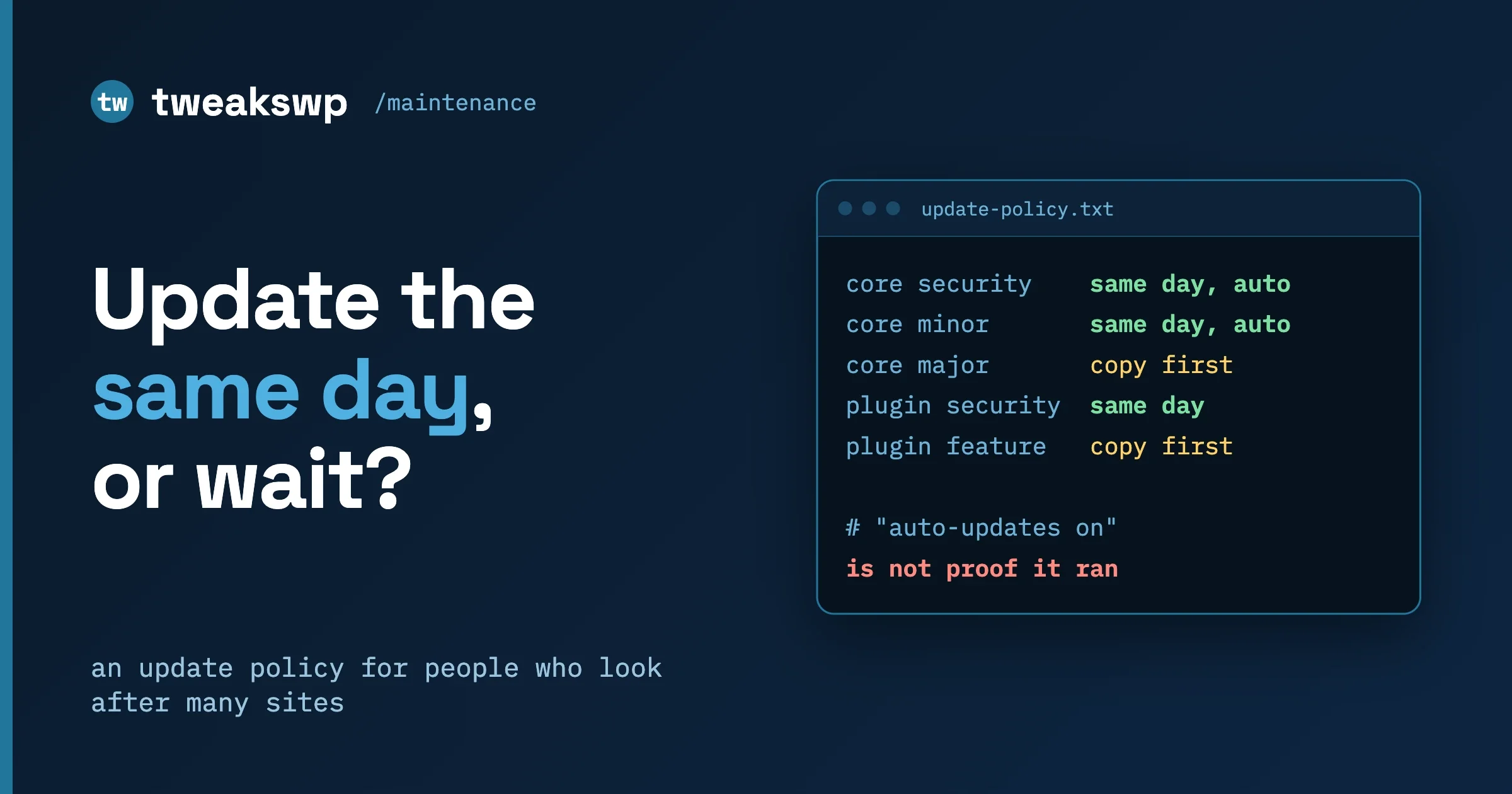
Security releases should be installed the same day, automatically, and then proven with a check, not assumed. Feature releases should be copied to a staging site first and rolled out on a schedule. The decision table below puts every release type on one of those two tracks.
This is a policy for people who look after many WordPress sites: freelancers, small agencies and in-house site managers with 10, 50 or 200 installs. The worked example is three WordPress core security releases that landed within about three weeks of each other (7.1.1, 7.1.2 and 7.1.3), but the policy does not depend on those numbers. It will still apply to the release after them.
In this guide
- The decision table by release type
- Why “auto-updates are on” is not proof, and a three-step check for every site
- Why waiting stopped working (the 7.1.2 timeline) and the conditions that made it worse
- A five-point smoke test, rollback options and older branches
- What to tell clients, and questions people ask
Should you update WordPress the same day or wait?
For a security release of WordPress core, update the same day. For a plugin or theme security release, update the same day as well, with a quick staging pass only when the plugin handles payments, logins or forms. For anything that changes features (a major WordPress release, a plugin with a new interface, a theme redesign), test a copy first and roll out over days, not minutes.
The reason: a security release publishes exactly where the hole is, so anyone can compare old and new files and build an attack, and the risk of waiting grows by the hour. A feature release carries a different risk (changed behaviour), and a few days of testing costs little.
What is the update policy by release type?
Adjust this for your own sites, but keep the shape: security is fast and automatic, features are slow and tested.
Release type | Update timing | Where to test | Rollback |
|---|---|---|---|
Core security release (for example 7.1.2) | Same day, automatically. Verify within hours that it ran. | Production, with the five-point smoke test right after. A copy first only if the site has heavy custom code in the theme. | Restore the pre-update backup. Do not downgrade core by hand on a security release unless you have no other choice. |
Core minor maintenance release (a .x release that fixes bugs, sometimes with security fixes) | Same day or next working day, automatically. | Production smoke test. Keep one staging site per hosting stack that updates first as an early warning. | Restore the backup. If only one plugin broke, deactivate that plugin instead. |
Core major release (a new X.Y version) | After a staged rollout. A copy first, then a low-risk site, then the rest over a week or two. | Full staging copy with real data. Click the money paths (login, checkout, forms). | Restore the backup taken immediately before the update. Major releases can change the database, so a file-only downgrade is not enough. |
Plugin security release | Same day. Read the changelog line first. | Production for most plugins. Staging first for payment, membership, login and form plugins, but the staging pass should take minutes, not days. | Reinstall the previous plugin version from the backup or the plugin’s version archive. If the old version is the vulnerable one, deactivate the plugin until a fix lands. |
Plugin feature release | Wait 3 to 7 days after release for large plugins, then update a staging copy, then roll out in batches. | Staging copy with the same theme and plugin set as production. | Restore the backup or reinstall the previous version. |
Theme update | Security fix: same day. Feature or redesign: staging first. Always check child theme overrides. | Staging, comparing the home page, a post, an archive and the cart or checkout page. | Switch back to the previous theme version from backup. Keep the old theme folder until the new one is proven. |
“Automatically” matters as much as “same day”: a policy that depends on someone logging in on release day fails the first time that person is on holiday.
The setup for turning on automatic updates across many sites, including inventory scripts and cron, is covered in WordPress Auto-Updates at Fleet Scale: The WP-CLI Setup. We do not repeat it here. This post is about the decision: which update goes on which track, and how you know it worked.
Why is “auto-updates are on” not proof that a site updated?
Because the setting says what WordPress is allowed to do, not what it did. A site can have automatic updates switched on in the dashboard and still sit on an old version for weeks. The cause is usually one of: a constant in wp-config.php that overrides the setting, a plugin or mu-plugin that filters updates off, a scheduled task (WP-Cron) that never runs, or a file system the web server cannot write to.
WordPress documents three values for the WP_AUTO_UPDATE_CORE constant in the automatic background updates documentation:
true: development, minor and major core updates are all enabled.false: development, minor and major core updates are all disabled.'minor': minor updates are enabled, development and major updates are disabled.
The same page says the existing-install default before WordPress 5.6 was minor updates only, and that existing installations keep that earlier behaviour unless major core updates are switched on by an administrator, a constant or a filter. So a site with no constant at all is still not something to guess about. Check it.
Does a release like 7.1.2 count as a minor update?
Yes. A change in the second number (7.0 to 7.1) is a major release; a change in the third (7.1.1 to 7.1.2) stays on the branch and is minor. The WP-CLI documentation for wp core update --minor uses the same example (4.3 to 4.3.3 is minor, 4.3 to 4.4.2 is not), the WordPress documentation lists “minor core updates, such as maintenance and security releases” among automatic background updates, and the 7.1.2 release post says sites that support automatic background updates will start the update on their own. So true and 'minor' both cover a security release like this; only false blocks it. We found no page that says “7.1.2 is a minor release” in those words, so this rests on the numbering rule and the documented examples.
The three-step check, per site
Do these in order. Each step answers one question.
Step 1: what version is running? This reads the version from files, so it works even if the database is down.
wp --path=/var/www/example.com core versionStep 2: what does the site allow? Read the constants, not the dashboard.
wp --path=/var/www/example.com config get WP_AUTO_UPDATE_CORE
wp --path=/var/www/example.com config get AUTOMATIC_UPDATER_DISABLED
If a constant is missing, wp config get prints an error that the constant is not defined. That is not a failure of the command. It means the constant is not set and WordPress falls back to its default, which is the case you need to confirm in step 3. A value of false for WP_AUTO_UPDATE_CORE, or true for AUTOMATIC_UPDATER_DISABLED, means the site will not take the security release by itself. The documentation says AUTOMATIC_UPDATER_DISABLED set to true turns off all types of automatic updates, core or otherwise, and calls disabling them strongly discouraged.
Step 3: did the update actually run? Compare the installed version to the latest release on that branch.
wp --path=/var/www/example.com core check-update --force-check
wp --path=/var/www/example.com core check-update --minor --force-check
If the first command lists an update and the site has been running for more than a few hours since the release, the automatic update did not happen. The second command shows only same-branch updates, which is the security-release case. The --force-check flag skips the cached answer. When the site says “up to date”, that is the confirmation. If an update is waiting and your policy says it should already have run, update it now with:
wp --path=/var/www/example.com core update --minorThen find out why it did not run on its own. The usual causes are in the fleet-scale post linked above.
A loop for many sites
Keep a plain text file with one WordPress path per line. This loop prints the path, the version and the two constants for each site, so one glance shows which sites need attention. We ran it against two local sites; for remote servers, WP-CLI’s --ssh option works in place of --path.
#!/usr/bin/env bash
# sites.txt: one WordPress path per line
while IFS= read -r path; do
  [ -z "$path" ] && continue
  ver=$(wp --path="$path" core version 2>/dev/null)
  auto=$(wp --path="$path" config get WP_AUTO_UPDATE_CORE 2>/dev/null || echo "not set")
  off=$(wp --path="$path" config get AUTOMATIC_UPDATER_DISABLED 2>/dev/null || echo "not set")
  printf '%s\t%s\tWP_AUTO_UPDATE_CORE=%s\tAUTOMATIC_UPDATER_DISABLED=%s\n' "$path" "$ver" "$auto" "$off"
done < sites.txt
To list plugins that have an update waiting on a site, filter on the update field:
wp --path=/var/www/example.com plugin list --update=available --fields=name,version,update_versionRun the loop on release day and again 24 hours later. Any site still behind goes on a short list that is worked the same day.
Why does waiting a few days no longer work for security releases?
Because the gap between the patch and the first attack is now measured in hours. The clearest recent example is WordPress 7.1.2, released on 22 September 2026 with a fix for CVE-2026-87902, rated critical. Here is what the sources say, and where they differ.
For who was exposed to that flaw and how to check a single site, our sister site has the full walkthrough: WordPress 7.1.2 Path Traversal: Who Is Exposed, What to Do.
- What the release post says. The WordPress 7.1.2 release post is dated 22 September 2026 and describes a security release with a fix for a critical vulnerability. The WordPress news feed stamps it 14:01 UTC that day. It names the issue as CVE-2026-87902 with the advisory GHSA-7hp8-65ch-5whp.
- What the advisory says. An unauthenticated attacker can make page template resolution include a chosen readable local PHP file outside the active theme directories. The affected range is WordPress 4.7.0 through 7.1.1. The advisory lists patched backports such as 4.7.37, 4.8.32 and 4.9.33, with matching releases up to 7.1.2.
- What Patchstack saw. In its follow-up analysis, Patchstack reports the first exploitation attempt at its firewall at 11:49 UTC on 22 September, and the first attempt to write a file to disk through
pearcmdat 15:34 UTC the same day. Public scanning tooling, including a named Nuclei template, was circulating on 23 September, with volume peaking around midday UTC. - What CISA did. The CVE was added to the Known Exploited Vulnerabilities catalog on 25 September 2026, with a due date of 28 September.
A note on the numbers. The release post’s feed timestamp (14:01 UTC) is later than Patchstack’s first-attempt time (11:49 UTC). Public sources do not tell us the exact minute the fixed files and advisory became available, so we do not state a precise number of hours between “patch” and “first probe”. What the sources do support is simple: the first attempts came the same day, and Patchstack says the payloads matched the exact encoding the patch addresses, which points to attackers working from the public diff. Within a day, the activity moved from probing harmless core files to writing PHP files to disk.
A policy of “wait three days and see if anyone complains” assumes the danger arrives after the bug reports. For a critical, unauthenticated flaw it arrives with the patch. That is the case for same-day, automatic updates for security releases, and it is why a firewall is a delay, not a replacement. For the firewall side, see Your Host’s Firewall Is Not the Patch: How to Test What Your Hosting Really Protects.
Is every security release equally urgent?
No. Click2Shell, fixed in 7.1.1 (17 September 2026 per both the release post and Patchstack), starts with a crafted URL, so, as Patchstack explains, an administrator has to load it, and it cannot install new themes where DISALLOW_FILE_MODS is on. The 7.1.3 release of 6 October 2026 carries 7 security fixes, including a stored XSS on the Comments screen and a second-order SQL injection in the WXR export. Urgency differs, but the policy should not: nobody triages seven fixes across 60 sites reliably on release morning, and “every security release goes out today” costs almost nothing.
On dates: the 7.1.1 release post, the WordPress news feed (Thursday 17 September 2026, 19:53 UTC) and Patchstack (“the 17 September release”) agree on 17 September. Patchstack’s articles are dated 18 September. State dates in UTC when you write a client timeline.
Which settings turned a file inclusion into code execution, and how do you check them?
The 7.1.2 flaw always allows a file inclusion. Whether it becomes code execution depends on how the server is set up. Patchstack lists the conditions in its 7.1.2 security release analysis. We read them as three, not two, and each one has a command.
Treat these as a way to see how close a site was to the worst case, not a reason to delay the update. Patchstack says neither check is a fix.
Condition 1: the active theme has a top-level directory starting with page-
The vulnerable code builds a template filename starting with page-, so the attack has to continue a real directory with that prefix. Patchstack notes that legacy default themes and a number of popular third-party themes have one, such as a page-templates folder. Check the active theme and its parent:
cd /var/www/example.com
for dir in "$(wp eval 'echo get_stylesheet_directory();')" "$(wp eval 'echo get_template_directory();')"; do
  find "$dir" -maxdepth 1 -type d -name 'page-*'
done
No output means no such directory. Any folder listed means the first condition is met.
Condition 2: register_argc_argv is enabled for web requests
This is the PHP setting. The PHP manual describes register_argc_argv as telling PHP whether to declare the argv and argc variables, which contain the GET information, and lists the default as 1 (on). It also notes that deriving $_SERVER['argc'] and $_SERVER['argv'] from the query string for non-CLI SAPIs has been deprecated as of PHP 8.5.0, and recommends setting it to 0. Patchstack says the setting is on by default in the official PHP Docker images and in cPanel environments on PHP below 8.5.
The catch: php -i reports the command line setting, not necessarily the web server’s. We checked with PHP’s built-in server on PHP 8.5.5 using a script that prints ini_get('register_argc_argv') and whether $_SERVER['argv'] exists. At 0 it reported off and no argv. At 1, with a query string like ?+config-show (the shape the attack’s second stage uses), it reported on and argv exposed, plus a PHP 8.5 deprecation notice.
On a real site, do this on staging, not on production:
- Create a temporary file in the web root containing
<?php echo ini_get('register_argc_argv') ? 'on' : 'off';. - Request it in a browser or with
curl. - Delete the file immediately.
If it prints off, the second condition fails. If it prints on, ask your host whether you can set register_argc_argv=0 in php.ini, a .user.ini file or the control panel. Patchstack lists disabling the setting as an interim mitigation.
Condition 3: pearcmd.php is readable on the server
The known route to code execution uses PEAR’s pearcmd.php. Patchstack’s analysis names three common locations. Check them:
ls /usr/local/lib/php/pearcmd.php /usr/share/php/pearcmd.php /usr/share/pear/pearcmd.php 2>/dev/nullNo output means none of those three exist. If a path prints, PEAR is installed there. Removing PEAR is a host-level decision; on shared hosting, raise it with the host.
In short: file inclusion on every unpatched site, code execution when the host lines up. Plenty did. The only fix is the update.
What should you test after every update?
Five checks, in this order, each short enough to do on a fleet. The deeper smoke-testing pattern is in the fleet-scale post; this is the minimum that catches a broken site before a customer does.
- The site responds. The home page and one post return a 200 status.
curl -s -o /dev/null -w '%{http_code}\n' https://example.com/prints just the status code. - The core files are intact.
wp core verify-checksumscompares core files with the checksums from WordPress.org and reports any that differ. It checks core only, not plugins or themes. A mismatch right after an update is worth investigating, because it can mean a failed copy or a modified file. - Login and admin work. Log in with a real account and open the dashboard and the Updates screen.
- The money path works. Submit one form, add a product to the cart, or open the checkout page. Whatever makes the site earn money or collect leads gets one real action. On a live store, stop before the payment step.
- The error log is quiet. Read the last 50 lines of the PHP error log for new fatal errors or warnings that were not there before the update.
If you deploy with Composer, see Fatal Error After Updating to WordPress 7.1.1 with Composer: What Broke and How to Fix It.
How do you roll back a bad update?
In order of preference:
- Restore the pre-update backup. Files and database together. For a quick database copy,
wp db export before-update.sqlwrites one to the current folder. This is the only option that fully undoes a major core release, which can change the database. - Deactivate the plugin or theme that broke. If the fatal error names a plugin,
wp plugin deactivate plugin-slugusually brings the site back in seconds, even when the admin is unreachable. This keeps the security update in place and removes only the broken part. - Reinstall the previous plugin or theme version.
wp plugin install plugin-slug --version=1.2.3 --forceinstalls a specific earlier version. Do this only if the earlier version is not the vulnerable one. - Downgrade core.
wp core download --version=7.1.1 --force --skip-contentreplaces core files with a named version and leaveswp-contentalone. Use it as a last resort for a security release, because you are putting the vulnerable code back. If you must, do it behind a firewall rule or a maintenance page and plan the real fix the same day.
On a security release “go back to the old version” is the worst instinct, because the old version is the one with the hole. Disable the broken piece, keep patched core, fix forward.
How do you confirm a backported fix on an older WordPress branch?
Many sites run an older branch, sometimes because a plugin or host holds them there. WordPress backports security fixes to older branches where necessary. The 7.1.2 release post states the fixes are backported to all branches eligible for security fixes, currently through 4.7, while also saying only the most recent version of WordPress is actively supported. In practice that means an old site can take a small security update without a major jump, but it is still an old site.
To confirm a backport, do not assume. Check three things:
- The version number.
wp core versionmust be at or above the patched release for your branch. The advisory for CVE-2026-87902 lists patched versions such as 4.7.37, 4.8.32 and 4.9.33 for those branches; the advisory and the release posts are the source for your branch’s number. - That the site can see the update.
wp core check-update --minor --force-checkshows a same-branch update if one exists. If it says the site is up to date but the version is below the patched number, something is blocking the check, such as a host that pins versions or a filter. - The file integrity.
wp core verify-checksumsconfirms the files match the stated version. A site can report a new version number but still have old files if a deployment copied only part of the release.
The version number is the only reliable signal of a backport; there is no separate “security patch applied” flag, and a host’s firewall rule is not the same as fixed files.
What should you tell clients?
Clients do not want a lecture on file inclusion. They want to know three things: was my site at risk, is it fixed, and what do you need from me. Keep a short template and fill in the facts. For a security release:
A security-release note can be this short: “WordPress released a security update on [date]. Your site was updated on [date and time, UTC]. We confirmed the new version is running and checked your home page, login and [main action]. No action is needed from you.” For a feature release, say what you are testing, when the live update is scheduled and that nothing changes for visitors until then.
Three habits make these believable: state the date and time, say what you checked (not “all good”), and say plainly when a site was behind. Surveys of the profession suggest this honesty is not yet routine. In its report WordPress Security Statistics 2026: Melapress Survey Results, Melapress reports 319 confirmed, valid responses collected between 31 March and 29 July 2026. Of them, 27.9 percent said they had a breach recovery plan, and 42.6 percent cited “someone reporting strange behavior on the website” as how they found out about an incident. Melapress sells a WordPress security plugin, and the report does not cover patch lag or auto-update adoption, so read it as an industry survey. It still shows what a written policy is for: sites that learn about trouble from a visitor have no check running.
How do you stop update fatigue across dozens of sites?
A pattern we see in community discussions is people with 50 or more sites who open each dashboard by hand and admit they skip some weeks. That is a process failure, not a discipline failure: hand checks scale with the number of sites, a loop does not. Automate same-day updates for security releases, read the loop’s report instead of dashboards, keep one fixed staging day a week for the slow track, and keep the “do not auto-update” list short, each entry with a named owner and a reason. Review that list monthly.
Questions people ask
Is it safe to turn on automatic updates for every site?
For core security and minor releases, yes, and it is the safer default, because the fixes are narrow and the risk of delay is higher than the risk of the update. For plugins, automatic updates are reasonable on simple sites. Keep payment, membership and heavily customised sites on the staged track, and always have a backup that runs before the update.
Does a web application firewall mean we can wait on updates?
No. A firewall filters requests that match known attack patterns. An update removes the vulnerable code. Rules can lag behind a new flaw, and some bugs are reached through legitimate requests. Use the firewall to buy a few hours, not days.
What if an update breaks my site on release day?
Restore the backup or deactivate the plugin or theme that the error names, then fix the conflict forward. Avoid downgrading core on a security release unless you must. The rollback section above gives the order.
How do you know if a site was exploited before it updated?
The version check will not tell you. Patchstack suggests looking in your access logs for OPML or RSS output returned from a normal page URL, which is the sign that a first-stage probe worked, and treating a 200 response carrying that content as a confirmed vulnerable window. Beyond that, review recently modified PHP files, unknown admin users and unexpected scheduled tasks. If the site was exposed and you find anything, treat it as an incident, not a patch.
Where to go from here
A written update policy, a loop that proves it worked and a rollback you have already rehearsed turn release day from a scramble into a routine. If you would rather not run that routine for every client yourself, our team does it as part of WordPress maintenance, with staging-tested updates and written reports, and our WordPress security services cover the audit side when a site was behind or something looks wrong. This is engineering guidance, not legal or compliance advice; if a contract or regulation sets update deadlines, follow those.
Plugins we build and run
We maintain these ourselves, which is why we can support them on your site.
- BuddyNextThe self-hosted community engine for WordPress
- BuddyXFree community theme, Pro when you outgrow it
- ReignPremium community theme. Add pieces, build anything
- JetonomyCommunity forum and Q&A for WordPress
- EventonomyEvents and RSVPs for WordPress communities
- LearnomyCourses and learning communities on WordPress
- ListoraDirectories and listings your members can browse
- SnipShareCode sharing built for developer communities
- WB Ad ManagerAd placements that turn traffic into revenue
- WP Career BoardA job board your community actually uses
- WP Sell ServicesSell services with offers, orders, and payouts
- MediaVersePhotos, video, and media albums for members
- WB GamificationPoints, badges, and rewards that keep members active
- Product RoadmapPublic roadmaps with voting your users trust