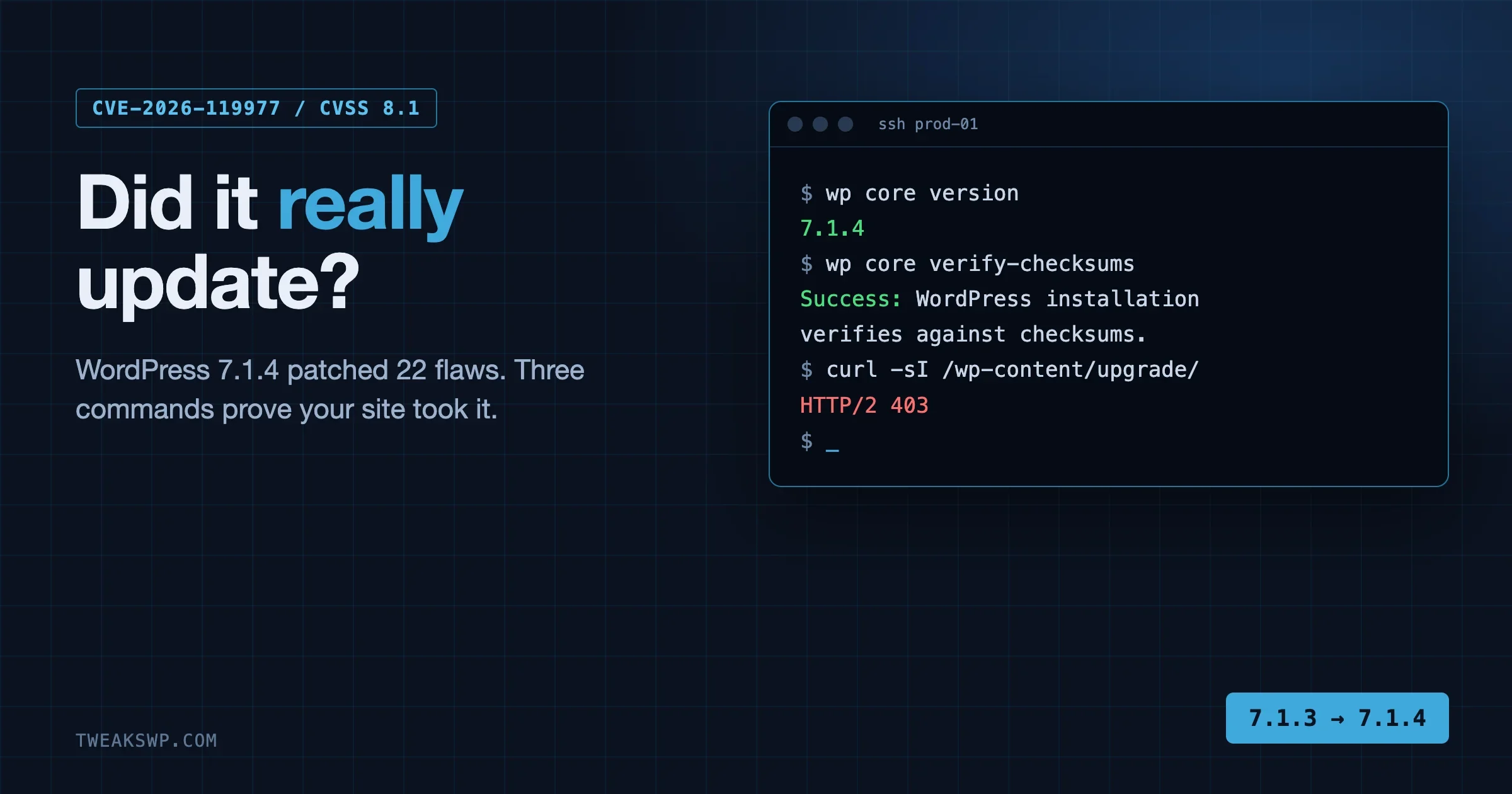
WordPress Auto-Updates at Fleet Scale: The WP-CLI Setup
Which of your sites were unpatched last Friday? A defensible auto-update policy, a WP-CLI fleet inventory you can query, verification that runs itself, and an emergency patch path for the next zero-day.

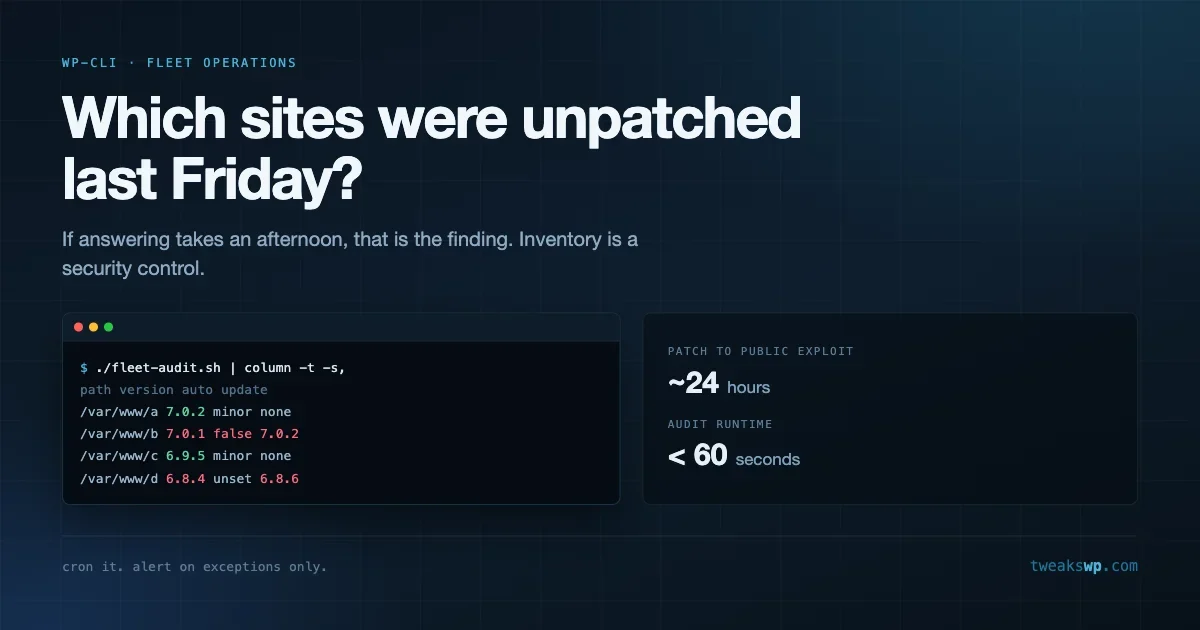
The question that decides whether a zero-day hurts you is not which security plugin you run. It is whether you can answer this in under a minute: which of my sites were running an unpatched version last Friday?
Most people managing more than ten WordPress sites cannot answer that. They can find out, given an afternoon and a spreadsheet. An afternoon is longer than the gap between a patch shipping and a public exploit appearing, which in the most recent core incident was roughly one day.
This is about building the boring machinery that makes that question cheap: a defensible auto-update policy, a fleet inventory you can query, and verification that runs without you remembering to run it. All of it in WP-CLI, none of it requiring a paid management service.
Start with the policy, not the tooling
Auto-updates get argued about as a binary. On means you lose control and an update might break a client site. Off means you patch on your own schedule. Both positions are wrong because they treat all updates as one category.
WordPress separates updates into four kinds, and they deserve four different answers:
- Core minor and security releases. Almost always safe. These are the ones that patch actively exploited flaws. Default to automatic.
- Core major releases. Occasionally break themes and plugins. Default to manual, tested on staging.
- Plugin updates. Highly variable. Depends on the plugin and how central it is.
- Theme updates. Usually low risk unless the theme is heavily customised.
The failure mode in most agencies is applying one answer to all four. Someone gets burned by a major release breaking a layout, disables everything, and three years later a core security release with a public exploit does not reach a hundred sites.
A defensible policy looks like this: core minor and security automatic everywhere, no exceptions. Core major manual with a staging test. Plugins automatic for the ones you trust and manual for the ones that touch checkout, payments or membership. Themes manual where the theme is customised.
Setting it in wp-config.php
The constants are blunt and worth knowing precisely, because several of them are commonly set by accident and never revisited.
# Disables the entire updater, including security releases. Almost never right.
wp config set AUTOMATIC_UPDATER_DISABLED true --raw

# Controls core updates specifically
wp config set WP_AUTO_UPDATE_CORE minor --raw
WP_AUTO_UPDATE_CORE takes three meaningful values:
trueapplies all core updates including majors'minor'applies minor and security releases only, which is the default and usually the right answerfalsedisables core auto-updates entirely
Note the quoting difference. minor is a string, so it needs no --raw flag, while the booleans do:
wp config set WP_AUTO_UPDATE_CORE minor
wp config get WP_AUTO_UPDATE_CORE
AUTOMATIC_UPDATER_DISABLED is the one that causes real damage. It kills the whole updater, and it is frequently set by hosting providers, by migration plugins, or by a developer debugging something years ago. Find it everywhere before you assume your fleet is patching itself.
Filters can override constants, so check for those too. A theme’s functions.php returning false from auto_update_core silently defeats a correct wp-config.php. Our reference on wp-config.php constants covers the full set alongside the debug and performance ones.
Building the inventory
You cannot have a policy you cannot verify. Start by producing one line per site with the facts that matter.
The single-site version:
wp core version
wp config get WP_AUTO_UPDATE_CORE 2>/dev/null || echo "not set"
wp config get AUTOMATIC_UPDATER_DISABLED 2>/dev/null || echo "not set"
Wrap that into something you can run across a server. Adjust the path glob for your layout:
#!/bin/bash
# fleet-audit.sh - one CSV line per site
echo "path,version,auto_core,updater_disabled,update_available"

for d in /var/www/*/public_html; do
  [ -f "$d/wp-config.php" ] || continue

  ver=$(wp core version --path="$d" --skip-plugins --skip-themes 2>/dev/null)
  auto=$(wp config get WP_AUTO_UPDATE_CORE --path="$d" 2>/dev/null || echo "unset")
  off=$(wp config get AUTOMATIC_UPDATER_DISABLED --path="$d" 2>/dev/null || echo "unset")
  upd=$(wp core check-update --path="$d" --field=version --format=csv 2>/dev/null | head -1)

  echo "$d,$ver,$auto,$off,${upd:-none}"
done
Run it, redirect to a file, and you have the answer to the question at the top of this article:
./fleet-audit.sh > /root/fleet-$(date +%F).csv
awk -F, '$5 != "none" && NR > 1 {print $1, "->", $2, "needs", $5}' /root/fleet-$(date +%F).csv
Keep the dated files. The value of an inventory is partly historical: when an advisory lands describing versions 6.9.0 through 6.9.4, you want to know what you were running last week, not only what you are running now.
The multisite wrinkle
On multisite, core version is network-wide but plugin activation is not, so a single version check covers the network while plugin state needs a per-site pass:
wp site list --field=url --path=/var/www/network
wp plugin list --path=/var/www/network --url=https://sub.example.com --status=active
Do not assume a network audit is done when the core version comes back clean.
Verifying that auto-updates actually ran
Configuration says what should happen. It does not prove anything happened. Three things silently prevent auto-updates on a correctly configured site.
WP-Cron is not firing. Auto-updates are driven by a scheduled event. If the site gets no traffic and DISABLE_WP_CRON is set without a real cron entry replacing it, the event never runs:
wp cron event list --fields=hook,next_run_relative --path="$d" | grep -i update
wp cron test --path="$d"
The hook to look for is wp_version_check. If it is missing or its next run is in the past, updates are not happening regardless of your constants.
The filesystem is not writable. The updater needs to write to the WordPress directory. Hardened permissions or a read-only deployment will fail the update, usually quietly:
wp eval 'var_dump( get_filesystem_method() );' --path="$d"Anything other than direct means the updater needs credentials it does not have in an unattended context.
A previous update left a lock. A failed update can leave a lock option behind that blocks subsequent attempts until it expires:
wp option get core_updater.lock --path="$d" 2>/dev/null
wp option delete core_updater.lock --path="$d"
Only delete that if you are certain no update is in flight. Deleting a live lock can produce two updaters running at once.
Making it run without you
An audit you have to remember is an audit that stops happening in month three. Put it in cron and have it tell you only when something is wrong:
0 7 * * * /root/bin/fleet-audit.sh > /root/fleet-$(date +\%F).csv 2>&1
15 7 * * * /root/bin/fleet-alert.sh
The alert script is deliberately simple. It reads today’s CSV and stays silent unless there is something to say:
#!/bin/bash
CSV="/root/fleet-$(date +%F).csv"
PROBLEMS=$(awk -F, 'NR > 1 && ($5 != "none" || $4 == "1") {print}' "$CSV")

if [ -n "$PROBLEMS" ]; then
  printf 'Sites needing attention:\n\n%s\n' "$PROBLEMS" \
    | mail -s "WP fleet: $(echo "$PROBLEMS" | wc -l) sites need updates" ops@example.com
fi
Silence means clean. That is the property that keeps people reading the alerts, and it is why “send me a daily report” is worse than “tell me when something is wrong”. A daily report becomes a filter rule within a fortnight.
Where update state actually lives
When the behaviour disagrees with the configuration, the answer is usually in the database. Three places hold the state that drives updating, and knowing them turns a guessing session into a lookup.
The update check results live in a site transient:
wp transient get update_core --network 2>/dev/null | head -20
wp option get _site_transient_update_core --format=json | head -30
That is what the admin reads when it tells you an update is available. It is populated by wp_version_check and it is cached, which is why a site can report itself up to date immediately after a release. Forcing a fresh check is better than waiting:
wp transient delete update_core --network
wp core check-update
Per-plugin and per-theme auto-update choices, the ones toggled in the admin list tables, live in their own options as arrays of slugs:
wp option get auto_update_plugins --format=json
wp option get auto_update_themes --format=json
Those are worth auditing because they are set through a UI, which means they are set by whoever had admin access, which is not necessarily you. A client who enabled auto-updates on a payment plugin has made a deployment decision without telling anyone.
Setting them from the command line is how you enforce a policy across a fleet rather than clicking through a hundred admin screens:
wp plugin auto-updates enable akismet wordpress-seo
wp plugin auto-updates disable woocommerce
wp plugin auto-updates status --all
Finally, the record of what the updater last did is in the site’s update log if you have one, and in the core_updater.lock option discussed above. There is no built-in durable history of applied updates, which is precisely why the dated inventory files earn their keep.
Smoke testing after the update
An update that completes is not an update that worked. The gap between those two is where unattended patching earns its bad reputation, and closing it costs about ten lines.
The cheapest useful check is whether WordPress still boots and the front page still returns 200:
wp eval 'echo "boot ok";' --path="$d"
curl -s -o /dev/null -w '%{http_code}' https://example.com/
The wp eval call is the more informative of the two. It loads the full WordPress stack including plugins and theme, so a fatal error anywhere in that chain surfaces immediately rather than at the next page view. A site that fails there is broken for every visitor.
Fold it into the patch loop so you find out during the maintenance window rather than the next morning:
wp core update --version="$TARGET" --path="$d" >/dev/null 2>&1
if ! wp eval 'echo 1;' --path="$d" >/dev/null 2>&1; then
  echo "BROKEN AFTER UPDATE: $d"
  continue
fi
code=$(curl -s -o /dev/null -w '%{http_code}' "https://$(basename "$(dirname "$d")")/")
echo "$d: updated, http $code"
Add checks that reflect what the site does. An ecommerce site should have the shop page checked, not only the home page, because a fatal in a payment gateway will not show on a static front page. The principle is to test the path that makes money.
Also check the error log rather than assuming silence means success:
tail -20 "$d/wp-content/debug.log" 2>/dev/null
wp eval 'echo ini_get("error_log");' --path="$d"
When it does break: rolling back
Core rollback is straightforward because core is versioned and downloadable. Point the updater at the previous version:
wp core update --version=7.0.1 --force
wp core update-db
wp core verify-checksums
The --force flag is required to move backwards, and the checksum verification afterwards confirms you actually landed on a clean copy of that version rather than a mixture.
Two warnings. Rolling core back to a version with a known exploited vulnerability trades one outage for a different kind, so this is a step on the way to fixing forward rather than a resting place. And if the update ran update-db and altered schema, going back can leave the database ahead of core. That is usually harmless for a minor release and is not something to gamble on for a major.
For plugins, rollback means installing a specific older version:
wp plugin install some-plugin --version=3.4.1 --force
wp plugin activate some-plugin
Which is why the database export before an emergency patch matters more than it feels like it does at the time. Files are recoverable from the plugin repository. Your database is not recoverable from anywhere except your backup.
The emergency path
Policy handles the routine case. When an advisory lands describing active exploitation, you need a path that skips the routine.
Update everything on a specific line, in parallel, and report:
#!/bin/bash
# emergency-patch.sh 7.0.2
TARGET="$1"

for d in /var/www/*/public_html; do
  [ -f "$d/wp-config.php" ] || continue
  (
    cur=$(wp core version --path="$d" --skip-plugins --skip-themes 2>/dev/null)
    wp core update --version="$TARGET" --path="$d" >/dev/null 2>&1
    new=$(wp core version --path="$d" --skip-plugins --skip-themes 2>/dev/null)
    echo "$d: $cur -> $new"
  ) &
done
wait
Two deliberate choices in that script. It reports the before and after version per site rather than trusting the exit code, because an update can fail in ways that still exit zero. And it backgrounds each site so a hundred sites take the time of the slowest one rather than the sum of all of them.
Take a database snapshot first if you have any doubt:
wp db export /root/backups/$(basename "$d")-$(date +%F).sql --path="$d"For a core minor release the risk is low enough that many people skip this. For anything touching a major version, do not. The full sequence for planned work is covered in our safe update workflow, and the incident that made all of this urgent is documented in our writeup of the wp2shell core RCE chain.
What to do about the sites you cannot auto-update
Some sites genuinely cannot take unattended updates. A heavily customised install with patched core files, a site under a change freeze, a client whose contract requires sign-off. Pretending otherwise does not help.
For those, the answer is not to leave them and hope. It is to make their exception explicit and time-boxed:
- Write the reason down somewhere queryable, not in someone’s memory. A file at the site root that your audit script reads is enough.
- Put a date on it. An exception without a review date is a permanent exception.
- Compensate elsewhere. A site that cannot patch quickly needs a WAF in front of it more than a site that can.
- Report it separately. Your alerting should distinguish “unpatched and nobody knows” from “unpatched and we decided that”.
Extending the audit script to read an exceptions file is a few lines:
note=""
[ -f "$d/.update-exception" ] && note=$(head -1 "$d/.update-exception")
echo "$d,$ver,$auto,$off,${upd:-none},\"$note\""
Now your report separates the sites you have decided about from the ones you have forgotten about. That distinction is the entire point of the exercise.
Two policies that look similar and are not
A distinction worth drawing sharply, because teams routinely pick the wrong one while believing they picked the safe one.
Delayed patching means you apply security releases on a schedule, typically after a review. The reasoning is that a patch might break something, so you test first. The cost is that your exposure window is your review cycle, and public exploit code does not wait for it.
Staged patching means you apply the same release everywhere on the same day, starting with the sites where breakage costs least. A staging site, then internal sites, then low-traffic client sites, then everything. The exposure window is hours rather than days, and you still find breakage before it reaches your most important site.
Both feel cautious. Only one of them is. Delayed patching optimises for the risk you can picture, which is an update breaking a site, and ignores the risk you cannot picture, which is an anonymous request executing code on a site you have not thought about in a year.
The numbers back the staged approach. Update-induced breakage is rare, recoverable and visible immediately. Compromise is common during an active exploitation window, expensive, and often invisible for weeks. Optimising against the rare recoverable failure while accepting the common expensive one is a bad trade that feels responsible.
Staged patching is also easy to implement with what is already in this article. Order your inventory by importance and run the emergency script against slices of it:
grep -v ",1," /root/fleet-$(date +%F).csv | cut -d, -f1 > /tmp/wave-all.txt
head -5 /tmp/wave-all.txt > /tmp/wave-1.txt
tail -n +6 /tmp/wave-all.txt > /tmp/wave-2.txt
Patch wave one, run the smoke checks, wait twenty minutes, then patch wave two. That is the entire process, and it fits inside the window between a patch shipping and an exploit being published.
Questions people are asking
Are core auto-updates actually safe?
For minor and security releases, yes, to a degree that surprises people who were burned by a major release years ago. Minors are narrow bug and security fixes with a deliberately small surface. The risk of a minor breaking your site is meaningfully lower than the risk of running unpatched through a week with public exploit code available.
My host manages updates. Do I need any of this?
You need the inventory regardless, because “the host handles it” is a claim you cannot verify without checking versions. Many managed hosts do handle it well and patch faster than you would. Confirm rather than assume, and confirm with a version number and a date rather than a support reply.
Should I enable plugin auto-updates too?
Selectively. Plugins vary enormously in release discipline, and an auto-updating plugin that touches checkout is a different risk from one that adds an admin column. A reasonable split is automatic for well-maintained plugins that do not handle money or authentication, manual for the rest.
What if an auto-update breaks a site at 3am?
WordPress attempts a rollback if a fatal error is detected after a plugin update, and core minors rarely fatal. The honest mitigation is monitoring that tells you the site is down rather than waiting for a client to notice. If your answer to a 3am outage is currently “a client emails me at 9am”, auto-updates are not your biggest problem.
How often should the audit run?
Daily is right for the inventory, because it costs almost nothing and gives you the history that makes advisories answerable. Alerting should be on change rather than on schedule.
Your checklist
- Decide a policy per update category rather than one policy for all four.
- Grep your fleet for
AUTOMATIC_UPDATER_DISABLEDand remove it wherever it is not deliberate. - Set
WP_AUTO_UPDATE_COREtominoras the baseline. - Check for filters on
auto_update_coreoverriding your constants. - Build the inventory script and run it daily into a dated file.
- Verify
wp_version_checkis scheduled and that the filesystem method isdirect. - Alert on exceptions only, never on a schedule.
- Document and date every site that cannot auto-update.
One more thing worth building while you are here: a record of when each site was last patched, not only what version it holds. Version alone cannot answer whether you were exposed during a specific window, because a site on 7.0.2 today might have arrived there yesterday or three weeks ago. Appending the update timestamp to your dated CSV closes that gap and costs one extra field.
None of this is sophisticated. It is a shell script, a cron entry and a decision written down. The reason it is worth an afternoon is that the alternative is discovering your exposure during an incident, at the point where every minute of the audit is a minute of a site being exploitable.
Plugins we build and run
We maintain these ourselves, which is why we can support them on your site.
- BuddyNextThe self-hosted community engine for WordPress
- BuddyXFree community theme, Pro when you outgrow it
- ReignPremium community theme. Add pieces, build anything
- JetonomyCommunity forum and Q&A for WordPress
- EventonomyEvents and RSVPs for WordPress communities
- LearnomyCourses and learning communities on WordPress
- ListoraDirectories and listings your members can browse
- SnipShareCode sharing built for developer communities
- WB Ad ManagerAd placements that turn traffic into revenue
- WP Career BoardA job board your community actually uses
- WP Sell ServicesSell services with offers, orders, and payouts
- MediaVersePhotos, video, and media albums for members
- WB GamificationPoints, badges, and rewards that keep members active
- Product RoadmapPublic roadmaps with voting your users trust














Related Posts
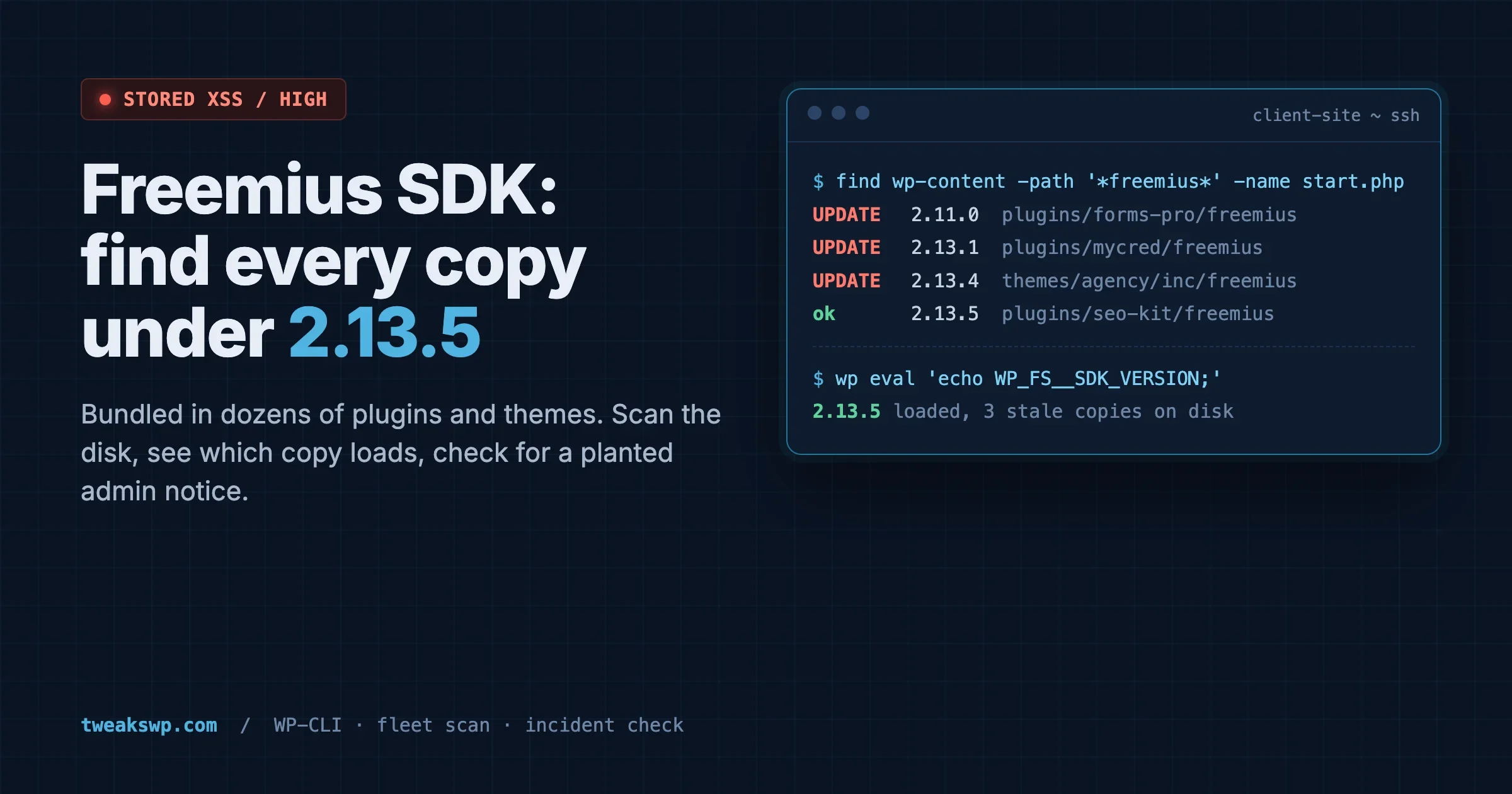
Freemius SDK Stored XSS: How to Find Every Bundled Copy on a Client Site (Anything Under 2.13.5)
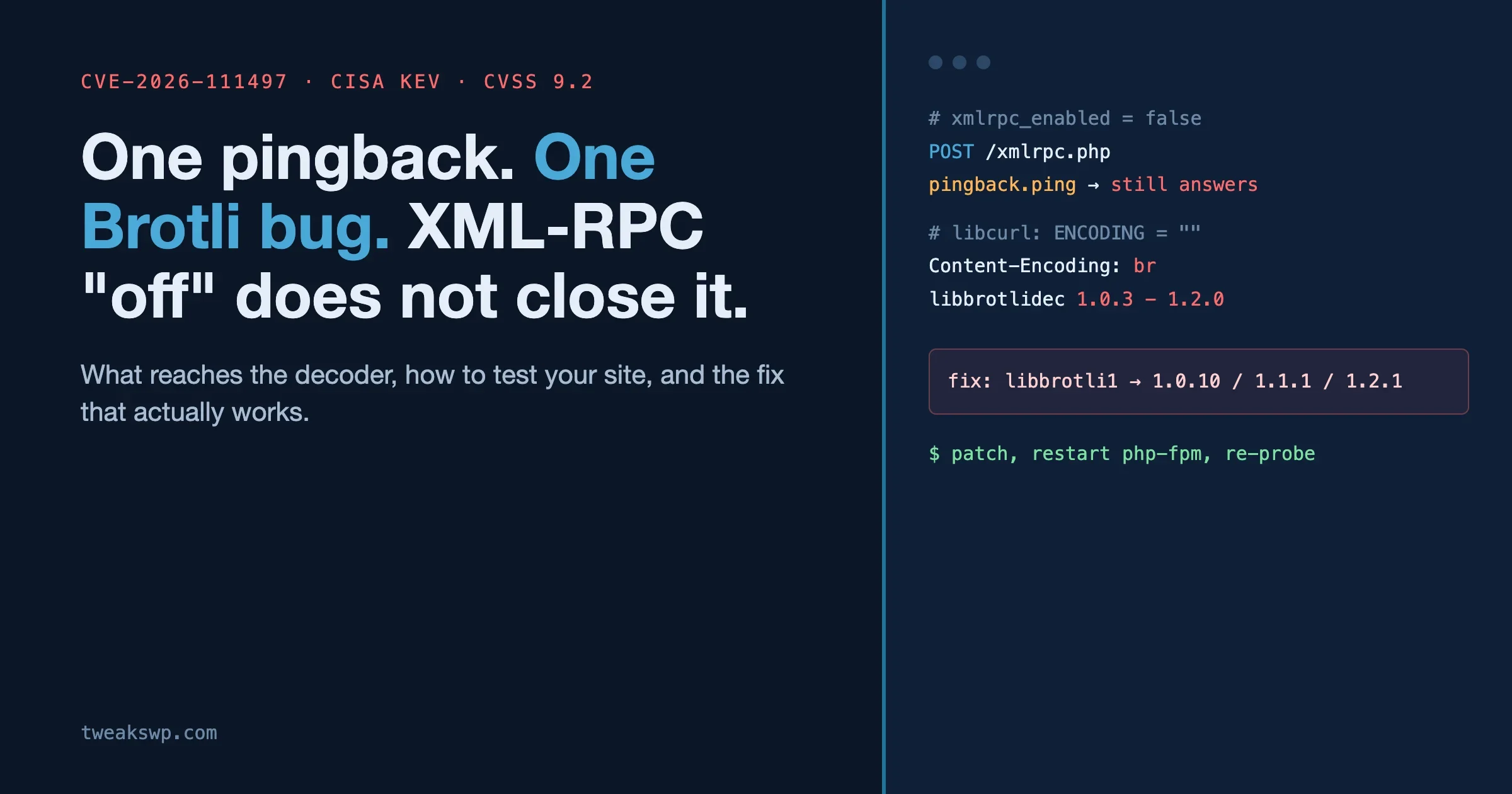
CVE-2026-111497: The Brotli Bug One xmlrpc.php Pingback Can Reach, and Why Turning Off XML-RPC the Usual Way Does Not Close It