How to Safely Update WordPress (Core, Plugins & Themes) Without Breaking Your Site
Outdated software is the top cause of hacked WordPress sites, but a bad update can break your live site. The safe update workflow - backup, test on staging, apply and verify - that lets you stay current without ever taking the site down.

Every WordPress site owner faces the same nagging tension. Those update notifications keep appearing, core, plugins, themes, and you know you should apply them, because outdated software is the leading cause of hacked WordPress sites. But you have also heard the horror stories: someone clicked update, and their site went white, their layout broke, or a feature stopped working, right in front of customers. So updates get delayed, which is exactly how sites end up running vulnerable, out-of-date code. The way out of this bind is not to avoid updates; it is to update safely, with a simple workflow that means an update can never take your live site down. Done right, you get the security of staying current without the risk of breaking things.
This guide covers why updates sometimes break sites, and the safe update workflow, backup, test, apply, that removes the risk. It is written so a non-developer can follow it and a developer can tighten it, because every site benefits from updating without fear.
Why updates matter, and why they sometimes break things
First, why you cannot just skip them: the overwhelming majority of WordPress hacks exploit known vulnerabilities in outdated core, plugins, or themes, holes that updates have already fixed. Running old software is like leaving a patched lock unpatched, and attackers scan specifically for it. A recent example is a supply-chain compromise that backdoored several popular commercial plugins; the vendor’s response was to release clean, fixed versions, and the sites that stayed safe were the ones that updated to them promptly. Staying current is not optional; it is your primary defense.
So why do updates occasionally break a site? Usually a conflict: a new plugin version behaves differently and clashes with your theme or another plugin, a core update changes something a plugin relied on, or custom code assumed behavior that changed. These are not reasons to avoid updating; they are reasons to update in a way that catches the problem before your visitors do. The breakage is real but almost entirely preventable with a little process.
The safe update workflow
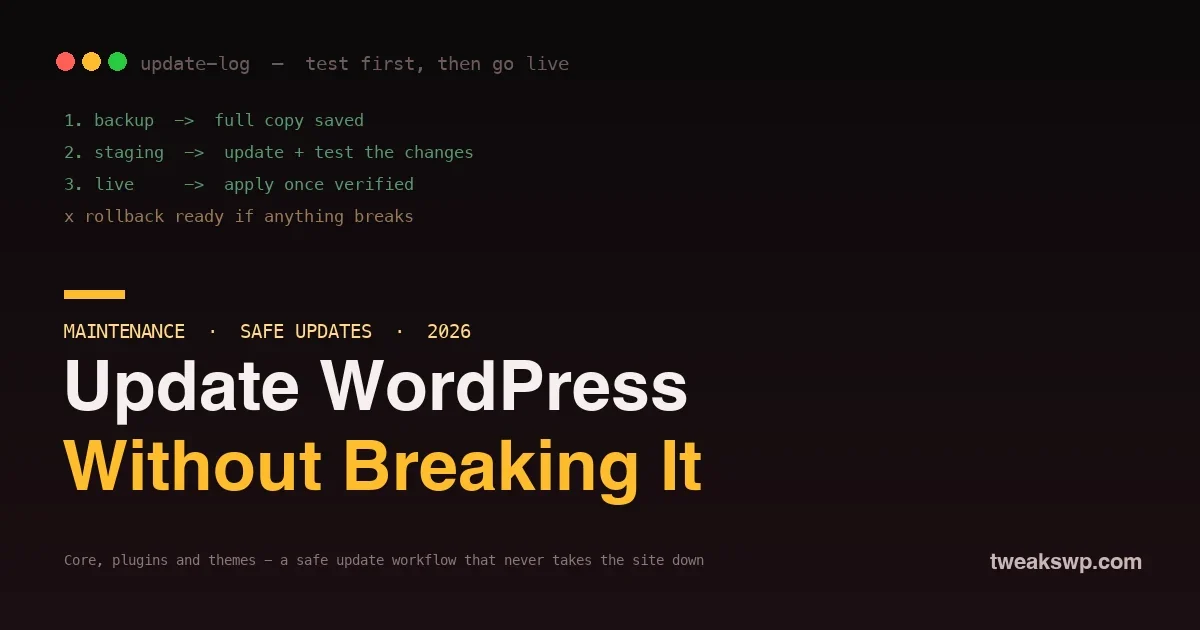
The whole solution is a repeatable sequence that ensures you can always get back to a working site. It has three core parts: back up first, test the update somewhere safe, then apply it live.
Step 1: Always back up before updating
The non-negotiable first step is a full, current backup, your files and your database, taken immediately before you update. This is your safety net: if anything goes wrong, you restore the backup and you are back to a working site, no matter how badly the update misbehaved. Use a backup plugin or your host’s backup feature, make sure it captures both files and database, and confirm the backup actually completed before you touch anything. A backup you took last week is not enough for an update you are doing today; take a fresh one first, every time. With a good backup in hand, the worst case of any update is a quick restore rather than a disaster.
Step 2: Test the update on a staging site
The single best way to make updates safe is to never test them on your live site. A staging site is a private copy of your site where you can apply updates and see what happens without any visitor ever being affected. Many hosts offer one-click staging, and some plugins create one for you; either way, the idea is the same, you have a duplicate of your real site to experiment on. Apply the updates on staging first, then click through your important pages, your homepage, a key post, your contact or checkout flow, and confirm everything still works and looks right. If an update breaks something on staging, you have found the problem in private, with no harm done, and you can investigate or hold that update. Only updates that pass on staging move to live. This one habit removes almost all update risk, because problems surface where they cannot hurt you.
Step 3: Apply to live, then verify
Once an update is backed up and tested, apply it to your live site, ideally during a quieter traffic period, and then immediately verify the live site the same way you checked staging: load your key pages and confirm they work. Because you already tested on staging and have a fresh backup, this step is low-risk, you are applying a change you have already seen succeed, with a safety net ready. If, despite testing, something behaves differently on live, your backup lets you roll straight back. This is the payoff of the workflow: applying to live becomes a confident, verified step rather than a nervous gamble.
The safe-update checklist
| Step | What to do | Why |
|---|---|---|
| 1. Back up | Fresh full backup (files + database) | Your instant rollback if anything breaks |
| 2. Stage | Copy the site to staging | A safe place to test with no visitor impact |
| 3. Update on staging | Apply the updates on the copy | Surfaces conflicts privately |
| 4. Test | Click through key pages on staging | Confirms nothing broke |
| 5. Apply live | Update the live site (quiet hours) | A verified change, not a gamble |
| 6. Verify | Re-check key pages on live | Catches any live-only difference |
Follow the six steps and an update can never surprise you: problems appear on staging, and even a live-only issue is one restore away from resolved. Once it is a routine, the whole cycle takes only a little longer than clicking update blindly, and it removes the fear entirely.
What actually causes updates to break sites
Understanding the common failure modes helps you test the right things and stay calm when one appears. The most frequent cause is a plugin conflict: a new plugin version changes behavior in a way that clashes with your theme or another plugin, so something that worked now does not. Next is a theme-or-custom-code assumption: your theme or a snippet relied on how something worked, and an update changed it. Occasionally a core update deprecates something an older plugin depended on, which is why keeping plugins current alongside core matters. And rarely, an update itself ships a bug that a point release quickly fixes. The pattern in almost all of these is a mismatch between components, which is exactly what testing on staging reveals: you see the mismatch on the copy, before it reaches anyone. None of these are reasons to fear updating; they are reasons to test, and they explain why the click-through check on your key pages, especially anything with custom functionality, is where problems show up.
How to handle updates when you cannot stage
Not every small site has staging available, and that is workable with extra care. If you cannot stage, the backup step becomes even more important, take a fresh full backup right before updating so a rollback is always possible. Update one thing at a time rather than everything at once, so if something breaks you know exactly which update caused it, instead of facing a pile of simultaneous changes. Update during low-traffic hours to limit any exposure. And check the site immediately after each update. This is more cautious and slower than staging, but it keeps you safe: a fresh backup plus one-at-a-time updates plus an immediate check means any breakage is quickly identified and quickly reversed. Where you can add staging, do, but even without it, backup-first and one-at-a-time updating keeps a site out of real trouble.
Preparing before you update
A little preparation makes the workflow smoother and the rare problem easier to handle. Before an update session, glance at what is being updated and whether any of it is a major version, so you can give those extra attention. Make sure your backup method is working and recent, since the whole safety net depends on it, and know how you would restore, whether through a plugin or your host, so a rollback is not the moment you first learn the process. Have a short list of your most important pages and flows to check, so testing is consistent and fast rather than a vague poke around. And choose a low-traffic time so any live step affects the fewest people. None of this takes long, and it turns updating from an anxious event into a calm, routine one where you already know your backup is good, your test list is ready, and your rollback path is clear. Preparation is what lets you update promptly and confidently rather than putting it off.
A smart auto-update strategy
WordPress can apply updates automatically, and used wisely this helps rather than hurts. The sensible approach is to auto-update the things most important to patch fast and least likely to break, and to manually handle the rest. Security releases of core are strong candidates for automatic updates, since they fix urgent holes and are designed to be safe. Minor plugin updates from plugins you trust can often be automated too. For major version updates, and for plugins central to your site’s function, prefer the manual, tested workflow, because those carry the most risk of a breaking change. Pair auto-updates with reliable backups so even an automatic update has a safety net. The goal is to close urgent security gaps quickly through automation while keeping the higher-risk updates under the deliberate, tested process. Balanced this way, auto-updates reduce the window your site spends vulnerable without exposing you to unattended breakage on the updates most likely to cause it.
Updates are one part of staying secure
Keeping everything current is the foundation of WordPress security, but it works alongside other measures. It pairs with strong login protection like two-factor authentication and blocking brute-force attempts, since updates close code holes while those guard the login. It sits with good backups, which both enable safe updating and protect you against anything else that goes wrong. And it complements performance and delivery choices like a CDN that keep the site healthy. The through-line is that a secure, reliable site is maintained, not set-and-forgotten, and a safe update routine is the habit that keeps the maintenance from ever becoming a crisis. Update regularly, update safely, and the single biggest security risk, running known-vulnerable code, simply never applies to your site.
Can I roll back just one plugin instead of the whole site?
Yes. If a single plugin update causes a problem, you can revert that one plugin to its previous version rather than restoring the entire site, which is quicker and less disruptive. Keeping a copy of the prior plugin version, or using a tool that supports rolling back a specific plugin, makes this easy. Full-site restore from backup is the catch-all, but a targeted single-plugin rollback is often the neater fix when you have pinpointed the culprit.
How do I know an update is a security update versus a feature update?
Update notes and changelogs usually indicate whether a release fixes a security issue, and security releases of core are often flagged clearly and shipped on their own. When in doubt, treat any update as worth applying promptly through your workflow, and prioritize anything marked as a security fix for immediate attention. The safe habit is to apply security fixes fast and give feature updates the full backup-and-test treatment, so you never delay a patch that closes an active hole.
Frequently asked questions
How often should I update WordPress?
Apply security updates as soon as they are available, since those close active vulnerabilities, and handle feature updates on a regular, deliberate schedule, weekly or every couple of weeks, using the tested workflow. The principle is to never sit on a security fix, while giving larger updates the backup-and-test treatment. Regular, prompt updating keeps you both safe and current without letting a big backlog build up that is harder to test all at once.
What do I do if an update breaks my site?
Restore your backup, which is exactly why you took one first, and you are back to a working site immediately. Then you can investigate the problem in a safe copy, identify which update caused it, and decide whether to hold that update, find a compatible version, or resolve the conflict. Because you backed up before updating, breakage is an inconvenience you reverse in minutes, not a lasting outage, which is the entire point of the workflow.
Is it safe to enable automatic updates?
For security releases and trusted minor updates, yes, and it is often wise, since it patches urgent holes fast, as long as you also keep reliable backups. For major versions and critical plugins, prefer manual, tested updates because they carry more risk of a breaking change. A mixed strategy, automate the low-risk, urgent updates and manually test the high-risk ones, gives you both speed on security and safety on the changes most likely to break something.
Do I need a staging site for a small blog?
It is ideal but not mandatory for a small site. If staging is available through your host, use it, since it removes almost all update risk. If not, a fresh full backup before each update, updating one thing at a time, and checking the site immediately after keeps a small blog safe. Staging is the gold standard, but disciplined backup-first, one-at-a-time updating is a solid substitute when staging is not an option.
Should I update plugins I am not actively using?
Better still, remove plugins you are not using, since even deactivated ones can carry vulnerabilities and add clutter. For plugins you keep but rarely use, still update them, because an outdated plugin is a risk whether or not you use its features. The cleanest approach is to run a lean set of needed plugins and keep all of them current, rather than leaving unused, outdated ones installed as a quiet liability.
What if I have many sites to keep updated?
For several sites, the same principles scale with the help of management tooling that lets you back up, update, and check multiple sites from one place, and staging remains valuable per site for anything with custom functionality. The volume makes discipline more important, not less: reliable automated backups across all sites, a consistent update routine, and prompt attention to security releases everywhere. Managing many sites is where a dependable, repeatable safe-update process pays off most, because a single skipped update on one neglected site is often how a whole portfolio gets a foothold taken.
The bottom line
The dilemma of WordPress updates, staying secure versus not breaking your site, dissolves once you update safely instead of nervously. Outdated software is the top cause of hacked sites, so you must stay current, and the way to do that without risk is a simple workflow: take a fresh full backup, test the update on a staging copy where no visitor is affected, then apply it to live and verify, with the backup ready to roll back if needed. Where staging is not available, backup-first and one-at-a-time updating keeps you safe, and a smart auto-update strategy patches urgent security holes fast while you handle the risky updates deliberately. Adopt this routine and updates stop being a gamble you avoid and become a confident habit, which means your site stays both current and stable, closing the single biggest security risk while never going down for it.
Plugins we build and run
We maintain these ourselves, which is why we can support them on your site.
- BuddyNextThe self-hosted community engine for WordPress
- BuddyXFree community theme, Pro when you outgrow it
- ReignPremium community theme. Add pieces, build anything
- JetonomyCommunity forum and Q&A for WordPress
- EventonomyEvents and RSVPs for WordPress communities
- LearnomyCourses and learning communities on WordPress
- ListoraDirectories and listings your members can browse
- SnipShareCode sharing built for developer communities
- WB Ad ManagerAd placements that turn traffic into revenue
- WP Career BoardA job board your community actually uses
- WP Sell ServicesSell services with offers, orders, and payouts
- MediaVersePhotos, video, and media albums for members
- WB GamificationPoints, badges, and rewards that keep members active
- Product RoadmapPublic roadmaps with voting your users trust














Related Posts
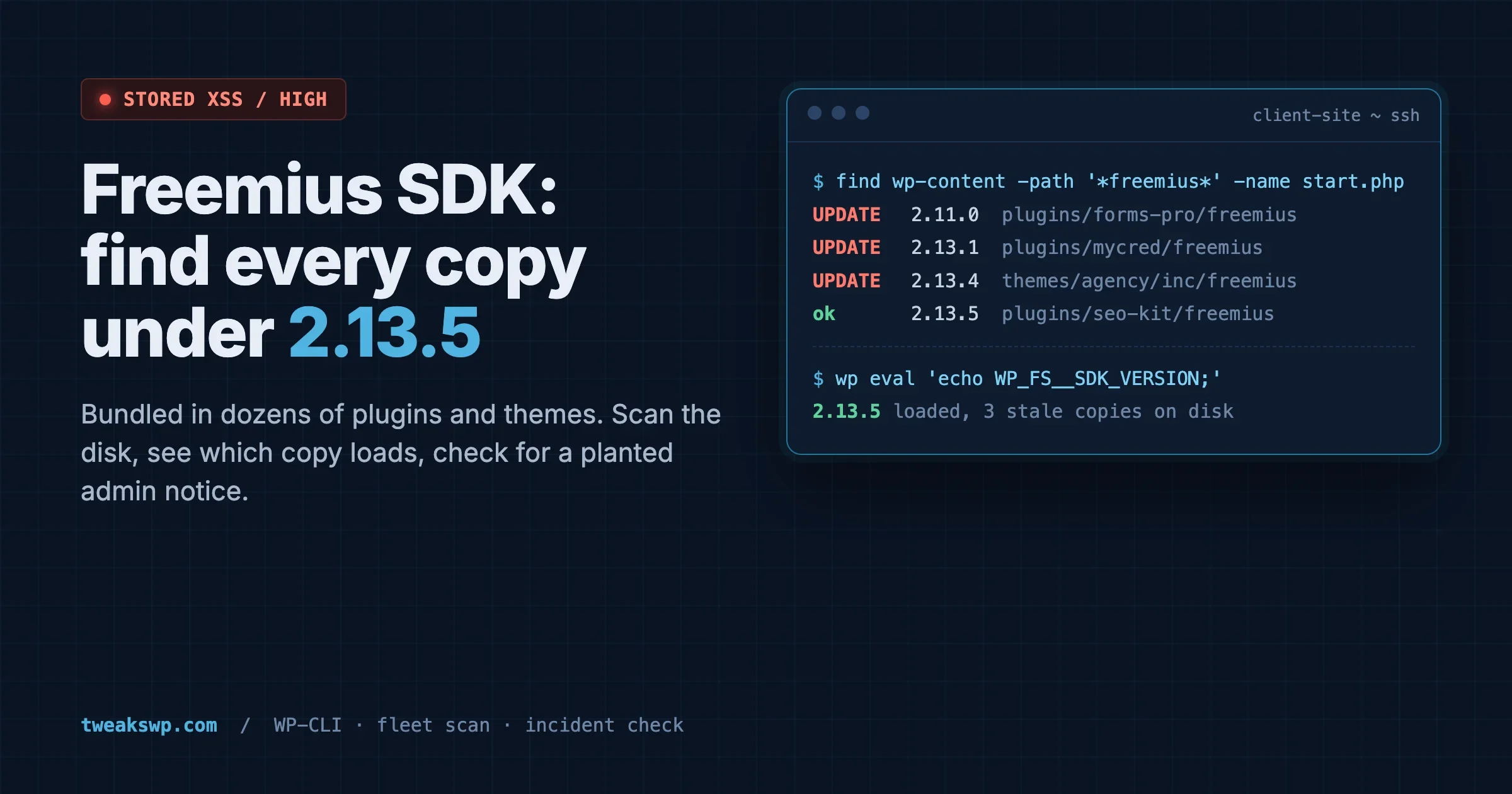
Freemius SDK Stored XSS: How to Find Every Bundled Copy on a Client Site (Anything Under 2.13.5)
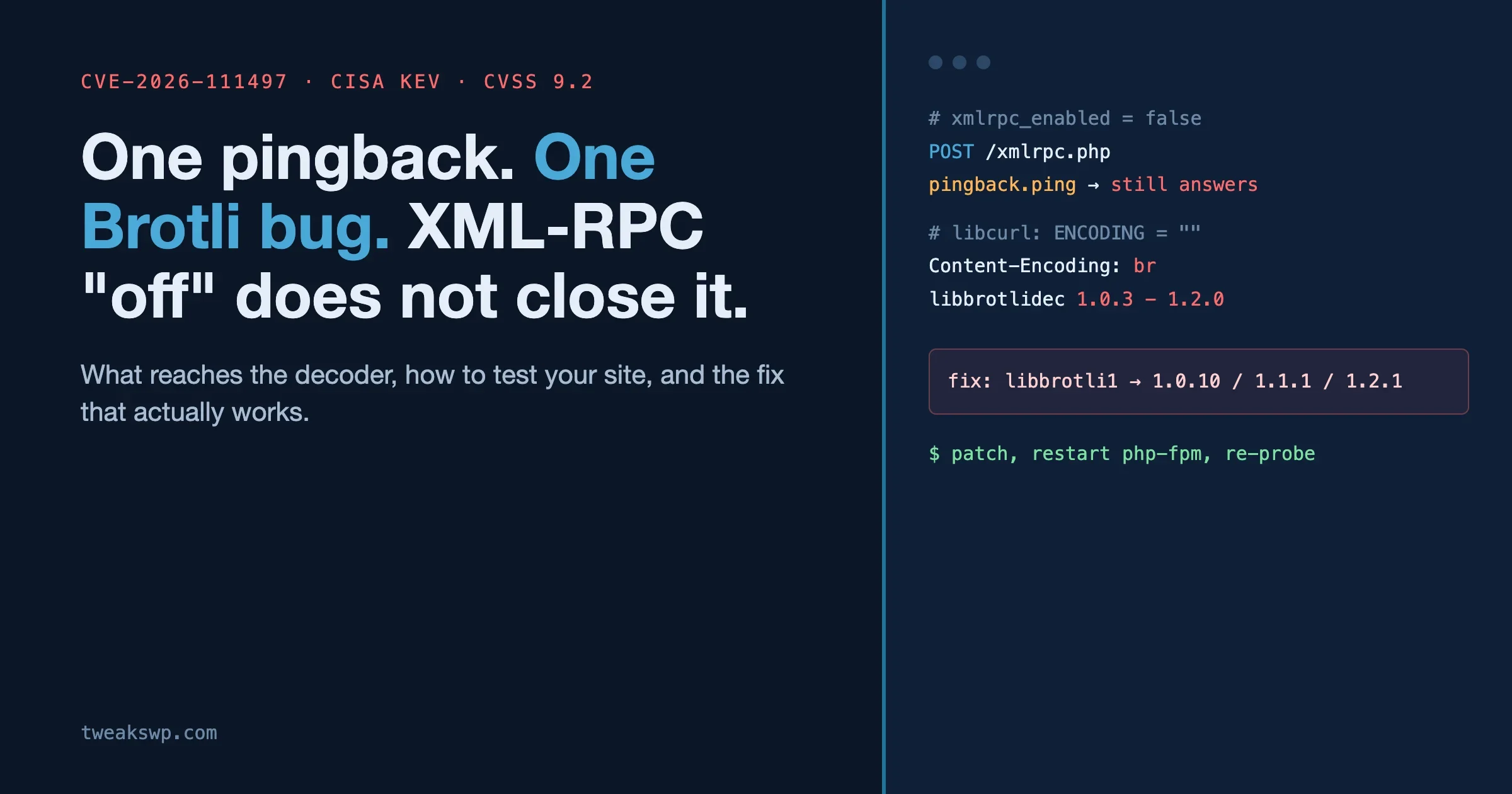
CVE-2026-111497: The Brotli Bug One xmlrpc.php Pingback Can Reach, and Why Turning Off XML-RPC the Usual Way Does Not Close It