WordPress Two-Factor Authentication (2FA): A Complete Setup Guide
Most WordPress hacks come down to a stolen password, and 2FA makes a stolen password useless on its own. What two-factor authentication is, which method to choose, how to set it up on WordPress, and how to handle recovery codes and team rollout.

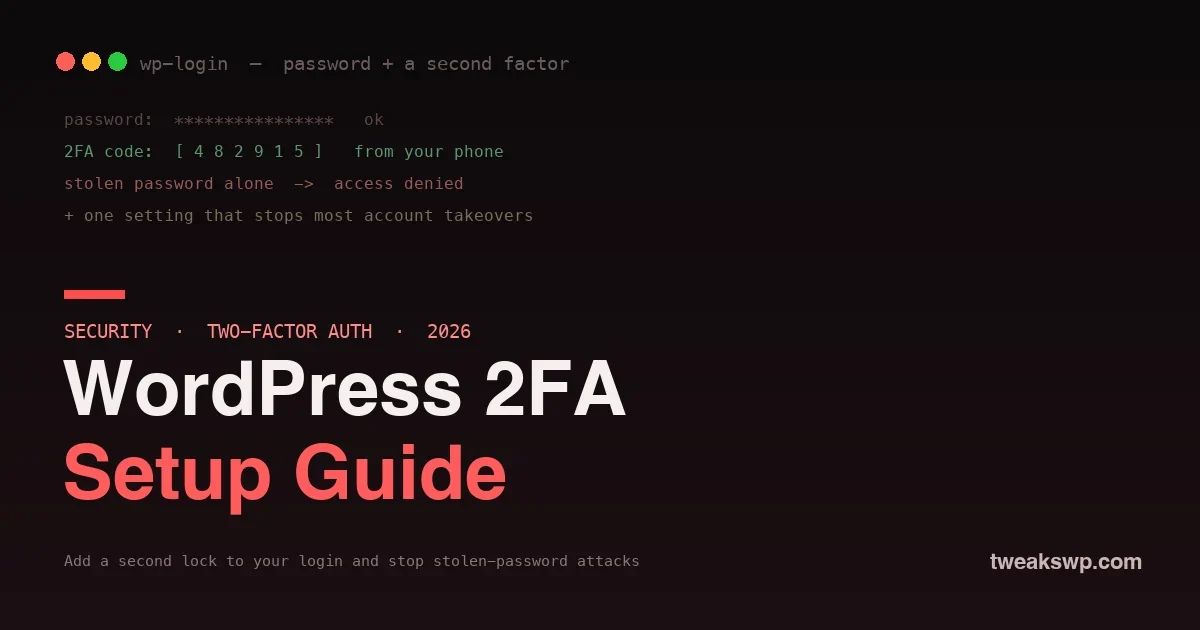
The most common way a WordPress site gets broken into is not a clever exploit. It is a stolen or guessed password. Attackers run millions of automated login attempts, buy leaked credentials in bulk, and phish admins, and if the only thing standing between them and your dashboard is a password, a compromised password is a compromised site. Two-factor authentication closes that door. With 2FA turned on, knowing your password is not enough; an attacker also needs a second factor, a code from your phone, that they do not have. It is the single highest-impact security setting you can add to a WordPress site, and it takes about ten minutes.
This guide explains what 2FA is, the different methods and which to choose, how to set it up on WordPress, and how to handle the practical parts everyone forgets, like recovery codes and rolling it out to a team. If your site has a login, this is worth doing today.
What two-factor authentication actually is
Two-factor authentication means proving who you are with two different kinds of evidence instead of one. The first factor is something you know, your password. The second is something you have, typically your phone, which generates or receives a one-time code. To log in, you provide both: the password, then the current code. The reason this is so effective is that the two factors are compromised in completely different ways. An attacker can steal your password through a leak, a phish, or a guess, but that gives them nothing without the code, and the code lives on a device they do not physically have. So even a fully compromised password, the thing that breaks most sites, becomes useless on its own. That is the whole value of 2FA: it makes a stolen password insufficient.
The 2FA methods, and which to choose
Not all second factors are equal, so it helps to know the options before you pick one.
- Authenticator app (TOTP). An app on your phone generates a new six-digit code every thirty seconds, and you enter the current one at login. This is the recommended default for most people: it is secure, free, works offline, and does not depend on your phone network. The codes are generated on your device, so there is nothing for an attacker to intercept.
- Email codes. A code is sent to your email address at login. This is easy and better than no 2FA, but it is only as secure as your email account, if that is compromised, so is your second factor, so it is a reasonable option for lower-risk sites but not the strongest choice.
- SMS text codes. A code is texted to your phone. It is convenient and familiar, but SMS is the weakest common method because texts can be intercepted or a phone number hijacked through a SIM-swap. Use it only if the alternatives are not workable.
- Security keys and passkeys. A physical hardware key or a device-based passkey is the strongest option, resistant even to phishing, and worth considering for high-value accounts. For the modern passkey approach on multi-user sites, see our guide to passkeys and session management.
For most WordPress sites, an authenticator app is the sweet spot of strong and simple, so unless you have a specific reason otherwise, that is the method to set up.
The methods compared
| Method | Security | Best for |
|---|---|---|
| Authenticator app (TOTP) | Strong | Most sites; the recommended default |
| Security key / passkey | Strongest | High-value accounts, phishing resistance |
| Email code | Moderate | Lower-risk sites; only as safe as your email |
| SMS text code | Weakest common | Last resort when apps are not workable |
Reading down the security column makes the choice clear: an authenticator app is the practical sweet spot for most sites, a security key or passkey is the strongest for accounts worth extra protection, and email or SMS are fallbacks rather than first choices. When in doubt, set up an authenticator app; it is strong, free, and works without a phone signal.
Why this matters more than almost any other setting
It is worth being blunt about the scale of the problem 2FA solves. Automated attacks hammer WordPress login pages constantly, trying leaked username-and-password pairs from the endless supply of data breaches, and because people reuse passwords, a credential leaked from some unrelated site is often the exact key to a WordPress account. Phishing adds to it, tricking admins into handing over passwords directly. Against all of that, a password alone is a single point of failure: the moment it is known, the account is open. 2FA changes the math entirely, because now the attacker needs the second factor too, which lives on a device they do not have and cannot phish or buy in a breach dump. This is why security professionals treat 2FA as close to mandatory: it neutralizes the single most common, most automated, most successful attack against WordPress. Few settings you can toggle in ten minutes move your risk as much.
How to set up 2FA on WordPress
WordPress does not enable 2FA by default, so you add it with a plugin, and several good ones exist, some dedicated to 2FA and some bundled into broader security plugins. The process is similar whichever you choose.
1. Install a 2FA plugin
From your dashboard, add a reputable two-factor authentication plugin, or use the 2FA feature of a security plugin you already run. Pick a well-reviewed, actively maintained option, since this guards your login. Activate it.
2. Choose your method and link your app
In the plugin’s settings for your user account, select the authenticator-app method. The plugin shows a QR code; open your authenticator app on your phone, scan the code, and the app adds your site and starts generating codes for it. This links your account to that app, and from now on the app produces the second factor for your logins.
3. Confirm it works
The plugin will ask you to enter a current code from your app to confirm the setup before it activates, which prevents you locking yourself out with a mis-scan. Enter the code, and 2FA is now on for your account. Test it by logging out and back in: after your password, you are asked for a code, you enter the current one from your app, and you are in.
4. Save your recovery codes
This step is the one people skip and regret. When you enable 2FA, the plugin gives you a set of backup or recovery codes, one-time codes that let you log in if you lose access to your phone. Save these somewhere safe and offline, a password manager or a printed copy, because they are your way back in if your phone is lost, stolen, or replaced. Without them, losing your phone can mean losing access to your own site.
Rolling out 2FA to a team
If your site has multiple users, editors, authors, shop managers, 2FA matters even more, because your security is only as strong as the least-protected account with access. The right approach is to require 2FA for all users with meaningful permissions, not just administrators, since an attacker who compromises an editor account can still do real damage. Most 2FA plugins let you enforce it by role, so you can require it for administrators, editors, and shop managers while leaving low-privilege subscriber accounts optional. Communicate the change, give people a short window to set it up, and provide simple instructions, because the rollout succeeds or fails on whether non-technical team members can get their authenticator app working. Enforcing 2FA across every account with access is what actually closes the stolen-password risk for the whole site, rather than protecting only the admin while leaving side doors open.
Common 2FA mistakes to avoid
A few predictable errors undercut 2FA, so steer clear of these.
- Skipping recovery codes. The most common and most painful mistake. Without them, a lost phone can lock you out of your own site. Save them offline the moment you enable 2FA.
- Protecting only the admin account. An editor or shop-manager account with real permissions is a valid way in. Require 2FA for every role that can do damage, not just administrators.
- Relying on SMS for a high-value site. SMS is the weakest method and defeatable by SIM-swaps. Use an authenticator app or a key where the account is worth protecting.
- Using email 2FA with a weak email account. If your email is not itself well-secured, email-based 2FA inherits its weakness. Secure the email too, or prefer an app.
- Not testing after setup. Always log out and back in to confirm 2FA works before you rely on it, so you catch a mis-scan while you still have access.
Avoid these and 2FA delivers its full protection without the self-inflicted lockouts and gaps that trip people up.
2FA is one layer, not the whole wall
Two-factor authentication dramatically reduces the risk of a stolen password, but it works best as part of a layered defense rather than the only measure. It pairs naturally with limiting login attempts and banning attackers at the server level, which our guide to Fail2ban covers, so brute-force attempts are stopped before they even reach the 2FA prompt. It sits alongside keeping WordPress and plugins updated, which closes the software holes 2FA cannot, and strong, unique passwords, which make the first factor harder too. And it complements protecting the content and data behind the login, as with avoiding the membership content leaks that bypass the login entirely. Think of 2FA as the strong lock on the front door, essential, high-impact, and worth doing first, while the other layers guard the windows and the walls. Together they make a site genuinely hard to break into; 2FA alone is a huge improvement over a password, but the full set is the goal.
Can attackers bypass 2FA?
Well-implemented 2FA is very hard to bypass, which is why it stops the overwhelming majority of stolen-password attacks, though no single measure is perfect. Sophisticated phishing can sometimes target codes in real time, which is why phishing-resistant options like security keys and passkeys exist for the highest-value accounts, and why 2FA works best alongside other layers. For the common automated and credential-stuffing attacks that break most sites, standard app-based 2FA is a decisive defense.
Should customers or members have 2FA too, or just staff?
Staff and anyone with content or admin permissions should have it, without question, since those accounts can damage the site. For customer or member accounts, 2FA is a valuable option to offer, and worth encouraging or requiring where those accounts hold sensitive data or purchasing ability. At minimum, protect every account that can change the site or access others’ data, and extend 2FA to customer accounts based on what those accounts can reach.
What 2FA does not protect against
To use 2FA wisely, know its limits, because it guards one specific door well and leaves others for different measures. It protects the login, so it stops an attacker who has your password from getting into the dashboard. It does not patch a vulnerable plugin that an attacker exploits without ever logging in, it does not stop malware already on your server, and it does not protect content that leaks through unprotected file URLs or APIs rather than through the login. That is not a criticism of 2FA; it is simply the wrong tool for those jobs, which is why it belongs in a layered defense. Keep your software updated to close code vulnerabilities, protect your files and data at their own layer, and use 2FA to lock the login, and each measure covers what the others cannot. A site relying on 2FA alone is far safer at the login and still exposed elsewhere, so treat it as the essential first layer, not the last.
Frequently asked questions
Will 2FA lock me out of my own site?
Only if you lose your second factor and your recovery codes, which is exactly why saving those codes is a required step, not an optional one. With recovery codes stored safely offline, you always have a way back in if your phone is lost or replaced. Set up the codes when you enable 2FA, keep them somewhere secure, and the lock-out risk is effectively removed.
Which authenticator app should I use?
Any reputable authenticator app works, since they all implement the same standard, so codes from one are equivalent to another. Choose a well-known, trusted app and, ideally, one that lets you back up or sync your accounts so a lost phone does not mean re-setting up everything. The specific app matters less than picking a trustworthy one and having a backup plan for your device.
Is email or SMS 2FA good enough?
Both are better than no 2FA, but both are weaker than an authenticator app. Email 2FA is only as secure as your email account, and SMS can be intercepted or defeated by a SIM-swap, so neither is ideal for a high-value site. If an authenticator app is workable for you and your users, prefer it; reserve email or SMS for cases where an app genuinely is not an option, and treat them as a step up from passwords alone rather than the strongest protection.
Do I need 2FA if I already have a strong password?
Yes, because a strong password still gets stolen. Data breaches, phishing, and malware can capture even a long, unique password, and once captured it is the only thing protecting your site. 2FA means a stolen password is not enough on its own, which is protection a strong password cannot provide by itself. The two work together: a strong password plus 2FA is far safer than either alone.
Does 2FA slow down logging in?
Only by a few seconds, the time to read a code from your app and type it, and only at login, not on every action. For the enormous reduction in account-takeover risk, that small friction is well worth it, and many plugins let you trust a device for a period so you are not prompted on every single login from your own computer. The inconvenience is minor and the protection is major.
Is there a downside to requiring 2FA for my whole team?
The main cost is a little onboarding effort, since each person has to set up an authenticator app and save recovery codes, which can be a small hurdle for non-technical users. That is easily managed with clear instructions and a short setup window, and the security payoff, closing the stolen-password risk across every account, far outweighs the minor friction. Plan the rollout, support your users through it, and the one-time setup cost buys lasting protection for the whole site.
The bottom line
Most WordPress hacks come down to a stolen or guessed password, and two-factor authentication is the single most effective setting for stopping them, because it makes a compromised password useless on its own. Add a 2FA plugin, choose an authenticator app as your method, link it by scanning a QR code, confirm it works, and, above all, save your recovery codes so you can never lock yourself out. Require it across every account with real permissions, not just the admin, and pair it with limited login attempts, updates, and strong passwords for a genuinely hardened login. It takes about ten minutes and closes the most common path attackers use, which makes it the first security upgrade every WordPress site owner should make. The password era of “one secret protects everything” is over; add the second factor and a stolen password stops being a stolen site.
Plugins we build and run
We maintain these ourselves, which is why we can support them on your site.
- BuddyNextThe self-hosted community engine for WordPress
- BuddyXFree community theme, Pro when you outgrow it
- ReignPremium community theme. Add pieces, build anything
- JetonomyCommunity forum and Q&A for WordPress
- EventonomyEvents and RSVPs for WordPress communities
- LearnomyCourses and learning communities on WordPress
- ListoraDirectories and listings your members can browse
- SnipShareCode sharing built for developer communities
- WB Ad ManagerAd placements that turn traffic into revenue
- WP Career BoardA job board your community actually uses
- WP Sell ServicesSell services with offers, orders, and payouts
- MediaVersePhotos, video, and media albums for members
- WB GamificationPoints, badges, and rewards that keep members active
- Product RoadmapPublic roadmaps with voting your users trust