Beyond Passwords: Setting Up Passkeys and Session Management for Multi-User WordPress Sites
Learn how to set up passkeys and session management for multi-user WordPress sites, reduce password risk, and improve account security with practical controls.
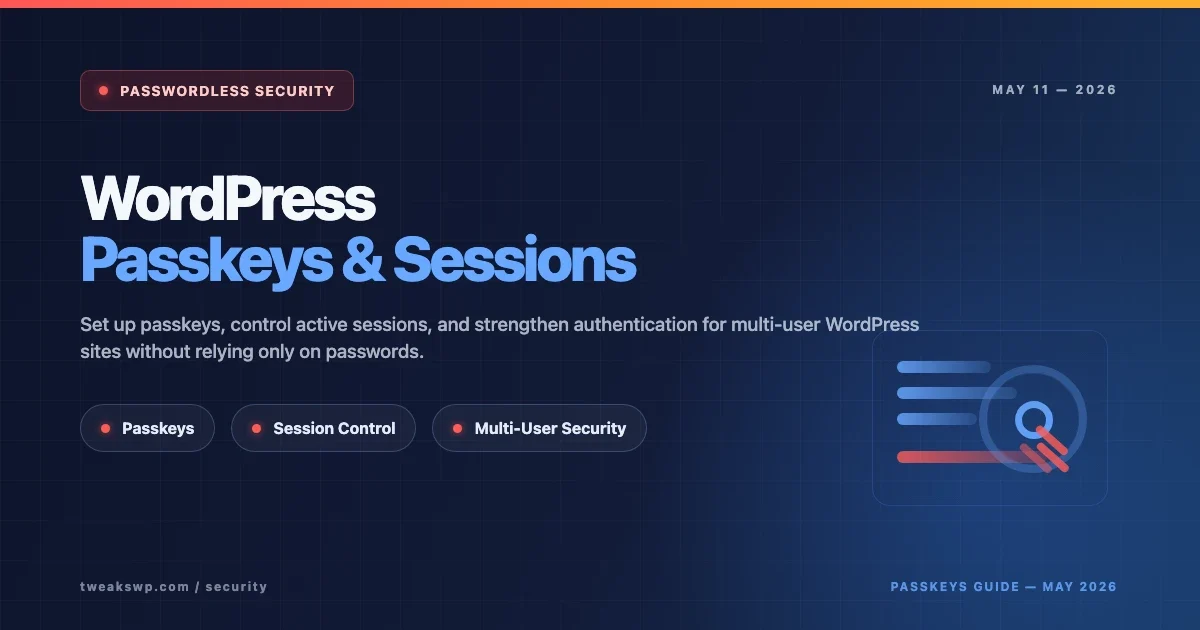
Passwords are still the default on most WordPress sites, but they are also one of the weakest links in account security. Weak password reuse, phishing, credential stuffing, shared admin accounts, and unmanaged long-lived sessions create real risk, especially on multi-user WordPress sites where editors, authors, administrators, shop managers, and support teams all log in regularly.
That is why more site owners are looking beyond passwords and toward passkeys, stronger authentication flows, and better session management. The goal is not only to make login harder to attack. It is also to make account access easier to control after users sign in.
This guide explains how to set up passkeys and session management for multi-user WordPress sites, what to watch for, and how to roll the changes out safely.
Table of Contents
- Why Passwords Are Not Enough for Multi-User WordPress
- What Passkeys Change
- Why Session Management Matters Too
- Before You Deploy Passkeys on WordPress
- Step 1: Choose the Right Authentication Model
- Step 2: Set Different Rules for Different User Roles
- Step 3: Roll Out Passkeys Safely
- Step 4: Tighten Session Management
- Step 5: Plan Recovery and Fallback Access
- WordPress Best Practices for Passkeys and Sessions
- FAQs
Why Passwords Are Not Enough for Multi-User WordPress
Passwords fail in predictable ways:
- Users reuse them across services
- They get captured through phishing
- They are guessed, stuffed, or leaked
- Shared credentials reduce accountability
- Old sessions stay active long after they should be revoked
On a single-user brochure site, that may already be a problem. On a multi-user WordPress installation, it becomes much worse because multiple accounts often have elevated privileges, access from different devices, and inconsistent security habits.
If one editor account is compromised, the attacker may not need full admin access immediately. They can still inject malicious links, modify content, stage phishing pages, or abuse plugins that expose editorial permissions more broadly than expected.
What Passkeys Change
Passkeys are a passwordless authentication method built on public-key cryptography. Instead of asking the user to type a reusable secret, the device uses a cryptographic credential tied to that site and verifies access through a local factor such as biometrics, PIN, or device unlock.
That changes the attack surface in several useful ways:
- There is no reusable password to phish in the same way
- The credential is origin-bound, which makes fake login pages less effective
- Users do not need to memorize or share secrets
- The login experience can become stronger and simpler at the same time
For WordPress, passkeys are most valuable when you want to reduce credential theft risk for administrators, editors, shop managers, and any other role with meaningful control over site content or customer data.
Why Session Management Matters Too
Passkeys solve only part of the problem: authentication at login. Session management handles what happens after login.
Even if your authentication method is strong, weak session controls can still leave the site exposed if:
- Sessions never expire appropriately
- Users remain logged in on old devices
- Admins cannot revoke suspicious sessions quickly
- Role changes do not invalidate existing sessions
- Multiple concurrent sessions remain active without review
This is especially important on editorial, membership, and WooCommerce sites where many people log in from laptops, mobiles, shared office devices, or temporary contractor machines.
Before You Deploy Passkeys on WordPress
Before rolling out passkeys, confirm a few basics:
- Your site uses HTTPS everywhere
- Admins are not sharing accounts
- You know which roles should have stronger requirements
- You have at least one tested fallback login path
- You understand how your current login plugins, SSO tools, and 2FA flows behave
If the site still has weak baseline controls, fix those first. Passkeys help, but they are not a shortcut around weak account governance.
Step 1: Choose the Right Authentication Model
There are three common ways to introduce passkeys on WordPress:
1. Passkeys as an optional additional method
This is the easiest adoption path. Users can keep their existing login flow while adding passkeys on supported devices.
Best for:
- Teams with mixed device support
- Sites early in adoption
- Gradual rollout to editors and admins
2. Passkeys plus password fallback
This is often the most realistic model. Passkeys become the preferred authentication path, but users can still recover through a controlled backup flow if needed.
Best for:
- Multi-user production sites
- Teams that need resilience as well as stronger security
- Organizations with support or onboarding overhead
3. Passkeys required for privileged roles
This is the strongest approach but usually requires more planning. Administrators and other sensitive roles must register and use passkeys, while lower-risk roles may have more flexibility.
Best for:
- Agencies managing client sites
- Membership or commerce sites with sensitive data
- Editorial teams with multiple privileged accounts
Step 2: Set Different Rules for Different User Roles
Multi-user WordPress sites should not treat every role the same. Good policy design looks like this:
- Administrators: require strongest authentication, shorter session lifetime, session revocation on role change
- Editors and Shop Managers: strong authentication strongly recommended or required, controlled concurrent sessions
- Authors and Contributors: allow passkeys but tune session duration by workflow
- Subscribers or Customers: avoid unnecessary friction unless the site handles sensitive account actions
This matters because security controls that are sensible for an admin may be excessive for a casual subscriber account. Role-aware policy keeps security strong without creating operational drag everywhere.
Step 3: Roll Out Passkeys Safely
Do not force all users into a brand-new login method overnight. Roll it out in phases:
Phase 1: Admin pilot
- Test with a few administrator accounts
- Validate desktop and mobile behavior
- Confirm fallback access works if a device is lost
Phase 2: Privileged editorial roles
- Expand to editors, shop managers, and other high-impact users
- Document enrollment clearly
- Train users on backup device registration where appropriate
Phase 3: Wider user enablement
- Offer passkeys to broader user groups
- Keep enforcement selective if usability matters more than strict lockstep rollout
A staged rollout reduces support issues and reveals plugin conflicts before they affect everyone.
Step 4: Tighten Session Management
Once authentication is improved, tighten active session controls.
Set sensible session lifetimes
High-privilege roles should not keep indefinite or overly long sessions. Shorter lifetimes reduce exposure if a device is left unattended or compromised.
Limit concurrent sessions where appropriate
Some roles should not stay logged in from unlimited devices. That is especially true for administrators and support accounts.
Enable session visibility and revocation
Users and administrators should be able to review and terminate active sessions quickly. If a laptop is lost or a login looks suspicious, revocation must be immediate and easy.
Invalidate sessions on role or password changes
If an account is downgraded, removed from a team, or recovered after suspected compromise, older sessions should not remain valid.
Strong session management turns authentication from a one-time event into an ongoing access-control system.
Step 5: Plan Recovery and Fallback Access
The hardest part of passwordless security is not the happy path. It is recovery.
Ask these questions before enforcement:
- What happens if an administrator loses their device?
- Who can help recover access, and how is that verified?
- Can a user register multiple passkey-capable devices?
- Do you have a secure fallback that does not undermine the whole system?
Bad recovery design often reintroduces the same security weaknesses passkeys were supposed to fix.
WordPress Best Practices for Passkeys and Sessions
- Keep HTTPS enforced on the full site and login flow
- Use separate named accounts for every staff user
- Require stronger authentication for privileged roles
- Review active sessions regularly on admin-heavy sites
- Remove stale accounts and revoke sessions during offboarding
- Combine passkeys with role-based session policies, not as a standalone control
- Test login and recovery flows on staging before enforcement
For related hardening, also review TweaksWP guides on WordPress login security, REST API user enumeration and XML-RPC exposure, and security headers.
FAQs
Are passkeys better than passwords for WordPress?
Yes, in many cases. Passkeys reduce phishing and password reuse risk significantly because they do not rely on users typing and protecting a reusable shared secret.
Do passkeys replace session management?
No. Passkeys strengthen login security, but session management still controls how long access lasts, where users stay logged in, and how suspicious sessions are revoked.
Should all WordPress users be required to use passkeys?
Not always. Multi-user sites usually benefit from stronger requirements for administrators and other privileged roles first, with more flexible rollout for lower-risk accounts.
What is the biggest deployment mistake?
Forcing authentication changes without planning fallback and recovery. The strongest login method still needs a secure, workable account recovery process.
Final Thoughts
Moving beyond passwords on a multi-user WordPress site is not just about adopting passkeys. It is about combining better authentication with better session control. That means role-aware policies, shorter trust windows for privileged accounts, rapid revocation, and a recovery model that does not create new weaknesses.
Done well, passkeys and session management make WordPress access both safer and easier to govern at scale.
WordPress Login Security: Rate Limiting, Custom URL, and Brute Force Protection
How to Disable XML-RPC and Block REST API User Enumeration in WordPress
WordPress Security Headers: How to Add CSP, HSTS, and X-Frame-Options
Plugins we build and run
We maintain these ourselves, which is why we can support them on your site.
- BuddyNextThe self-hosted community engine for WordPress
- BuddyXFree community theme, Pro when you outgrow it
- ReignPremium community theme. Add pieces, build anything
- JetonomyCommunity forum and Q&A for WordPress
- EventonomyEvents and RSVPs for WordPress communities
- LearnomyCourses and learning communities on WordPress
- ListoraDirectories and listings your members can browse
- SnipShareCode sharing built for developer communities
- WB Ad ManagerAd placements that turn traffic into revenue
- WP Career BoardA job board your community actually uses
- WP Sell ServicesSell services with offers, orders, and payouts
- MediaVersePhotos, video, and media albums for members
- WB GamificationPoints, badges, and rewards that keep members active
- Product RoadmapPublic roadmaps with voting your users trust