See What a PHP Upgrade Will Break Before Your Host Does It for You
Test a PHP upgrade on staging: debug log, money paths, forced cron and imports, reading the log, and a PHPCompatibilityWP scan.

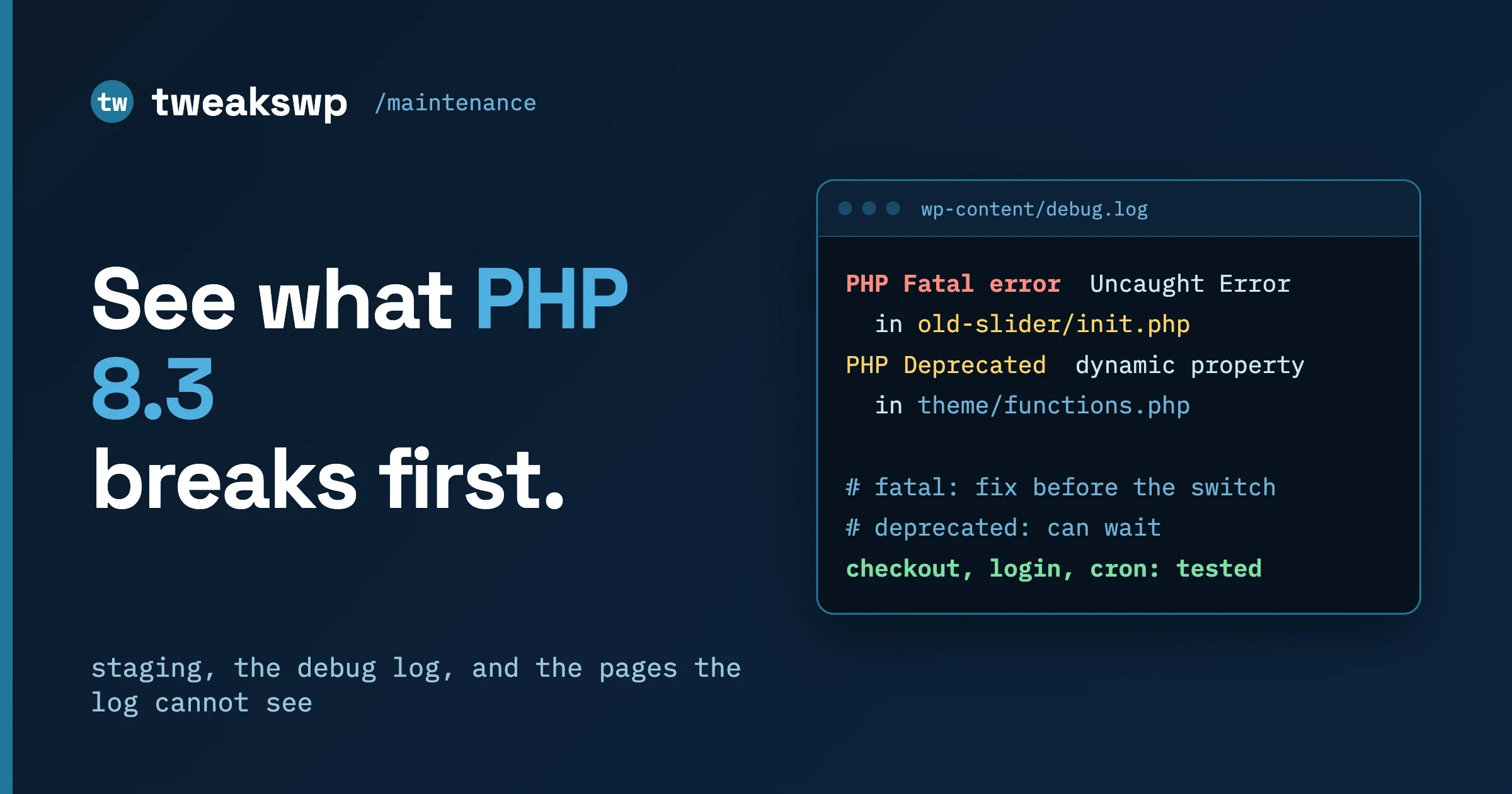
The reliable way to see what a PHP upgrade will break is to run it on a staging copy of the site, turn on the WordPress debug log without showing errors to visitors, click through the pages that earn money, run the scheduled tasks and imports by hand, and then read the log for a few days. Fix or replace whatever the log names. A static scanner such as PHPCompatibilityWP adds coverage and is worth running, but it only reads code and proves nothing on its own.
This is the hands-on companion to our upgrade calendar. The calendar covers dates and the order of work. This post covers one job inside that plan: finding out, before your host flips the switch, which plugin or theme file will start throwing errors.
In this guide
- Why the date matters and why your host may change PHP for you
- Which PHP the site really runs (web and command line can differ)
- Step by step on staging: copy, switch, debug log, clear caches
- The money paths to click, as a checklist
- What the log cannot see, and how to force it
- How to read the log: fatal, deprecated, warning
- A static scan with PHPCompatibilityWP
- The common fixes, and when to stay on the old version a little longer
- A one-page checklist and questions people ask
Why does the date matter, and why would a host switch PHP for you?
PHP versions stop receiving fixes on a published schedule. On the php.net supported versions page (read 8 October 2026), PHP 8.2 is listed with security support until 31 December 2026, PHP 8.3 until 31 December 2027, PHP 8.4 until 31 December 2028 and PHP 8.5 until 31 December 2029. PHP 8.1 no longer appears in the supported table at all. After that date, new flaws in that branch are not fixed.
That is the reason hosts retire old versions. Depending on the host, you may be asked to pick a newer version in the control panel by a given date, or the host may move the account for you. We cannot tell you what your host will do, so ask them in writing which PHP version your account is on, whether they plan to move it, and when. The calendar post has the week-by-week plan: Your WordPress site’s end-of-year upgrade calendar: 7.2, PHP 8.2 and MySQL 8.0 in one plan. We do not repeat it here.
Core compatibility is a separate question from yours. WordPress’s PHP compatibility page (updated 19 August 2026) says core is tested on the versions it lists, and notes WordPress is rarely used without a theme or plugins. It says nothing about the plugins you installed.
Which PHP version does the site really run?
Do not assume the answer is the same everywhere. A site can serve web pages on one PHP version while the command line (the terminal tool WP-CLI uses) runs another. Scheduled tasks triggered by a real server cron job often use the command line version, so a mismatch hides problems from you. Check both.
In the dashboard: Site Health
Go to Tools, then Site Health. The Status tab can report that your site is running an outdated version of PHP, which the WordPress documentation lists among the critical issues. The Info tab, under Server, shows the PHP version the web server is using. This is the web side.
From the terminal: WP-CLI
The WP-CLI documentation describes wp cli info as printing “various details about the WP-CLI environment”, including the PHP binary, its version and the php.ini file in use. That is the command line side.
wp cli info
wp eval 'echo PHP_VERSION . " " . php_sapi_name() . "\n";'
php -v
On a disposable test instance, wp cli info printed the PHP binary path, PHP version 8.2.31 and the php.ini path, and the wp eval line printed 8.2.31 cli. Note what wp eval shows: it runs through the command line, so it reports the command line PHP, not the web server’s. If php_sapi_name() says cli, you are looking at the command line side.
A temporary check for the web side
If you cannot reach Site Health, upload a one-line file to staging only, load it in a browser, read the version, and delete it immediately:
# staging only. Delete this file straight after reading the output.
echo '<?php echo PHP_VERSION . " " . php_sapi_name();' > wp-content/php-check.php
# open https://staging.example.com/wp-content/php-check.php, then:
rm wp-content/php-check.php
Never leave such a file on a live site; a full phpinfo() page prints paths and settings you do not want public. The web result should say fpm-fcgi, apache2handler or similar. If web and command line versions differ, tell your host, and make sure you switch the one the site actually serves pages with, and test cron jobs against the other.
Which plugins and themes are installed
List what you are testing. wp plugin list accepts --status, --fields and --format, with optional fields such as requires_php and tested_up_to:
wp plugin list --status=active --fields=name,version,requires_php,update --format=table
wp theme list --fields=name,status,version,update --format=table
Update anything with an update waiting first. It is the cheapest fix. requires_php is the author’s declared floor, not a test result for newer PHP.
How do you set up the test on staging?
The goal is a copy of the site that behaves like production, running the newer PHP, where nothing you do can reach a customer.
- Copy the site. Use your host’s staging feature, or copy the files and database to a separate environment. Make sure it cannot email customers, charge real cards or push orders to live services: payment gateways in test mode, mail trapped.
- Switch PHP in the host panel. Most hosts offer a PHP version selector per site or per domain. Select the version you want to test (the next one up from today’s, for example 8.3 or 8.4). Re-run the version checks to confirm web and command line both report it. If the selector only changes the web side, ask the host about the command line.
- Turn on the debug log without showing errors to visitors. The WordPress debugging documentation recommends this block in
wp-config.php, above the line that says to stop editing:
define( 'WP_DEBUG', true );
define( 'WP_DEBUG_LOG', true );
define( 'WP_DEBUG_DISPLAY', false );
@ini_set( 'display_errors', 0 );
The documentation says WP_DEBUG_LOG “causes all errors to also be saved to a debug.log log file”, by default wp-content/debug.log, and that WP_DEBUG_DISPLAY controls whether messages are shown inside the HTML of pages, with a default of true. Setting it to false means errors go to the file instead of onto the page. The same documentation warns that these tools are meant for local testing and staging, not live sites. WordPress’s own Site Health screen flags a site that displays errors to visitors, and one that logs errors to a potentially public file, so keep this on staging, and block direct web access to debug.log there too. For the full list of debug constants, read our guide WordPress WP_DEBUG: Complete Guide to Every Debug Constant in wp-config.php.
- Start with an empty log. Move or delete the old
debug.logon staging so every line you read comes from this test. - Clear every cache. Page cache, object cache (Redis or Memcached), opcode cache, CDN and the browser. A cached page never runs PHP, so a cached page proves nothing. Restart PHP-FPM or ask the host to, because the opcode cache can hold compiled code from the old version’s run.
Then watch the log while you test. A live view helps:
tail -f wp-content/debug.logWhich pages should you click through?
Click what makes or loses money first, then what staff need. Do these logged out and logged in, on desktop and on a phone-sized window. After each step glance at the log.
- Home page. Slider, menus, widgets, footer, cookie banner.
- A product or a post. Open one of each type, including one with a gallery, embed or custom fields.
- Search. Run a search that returns results and one that returns nothing.
- Login. Log in, log out, and use the lost password form.
- Account area. Orders, downloads, profile edit, membership pages.
- Cart and checkout with a test payment. Add an item, apply a coupon, change shipping, pay with the gateway’s test card, and open the confirmation page. This is the single most valuable test on the list.
- Contact and other forms. Submit each form type once, including one with a file upload.
- Admin dashboard. Open the main menu items of each active plugin. Settings screens are code too.
- Editor. Create a post, add the blocks your team really uses, save, preview, publish and update.
- Media upload. Upload a JPEG, a PNG and a PDF, and check that thumbnails were generated.
Write the steps down so the same pass can be repeated after fixes.
What can the log not see by itself?
PHP only logs a problem when the problem code runs. Clicking pages runs front end and admin code. A lot of important code never runs while you browse. Force each of these on purpose.
Scheduled tasks (cron jobs)
WordPress runs scheduled tasks when a visit triggers them, or from a server cron job. On a quiet staging site they may simply not run during your test. The WP-CLI documentation describes wp cron event run --due-now as running “all hooks due right now”, and it respects the cron lock so runs do not overlap.
wp cron event list --fields=hook,next_run_relative
wp cron event run --due-now
On a disposable test instance, the second command printed a line for each event that was due, such as Executed the cron event 'wp_version_check' in 34.68s, ending in Success: Executed a total of 9 cron events. Name a hook to run one plugin’s task: wp cron event run your_plugin_daily_hook. Run these on staging only: they can send emails and call outside services.
Imports and exports
Product imports, feed syncs and CSV user imports parse text and arrays, where newer PHP is stricter. Run each with a five-row sample and one deliberately messy row, then read the log.
Payment and webhook callbacks
A webhook is a message the payment provider sends your site after a payment, refund or renewal. Browsing never triggers it. Most providers’ test tools can re-send a test event to your staging URL. Send one for a paid order, a refund and a failed payment, confirm the order status changed, and check the log. Register a test mode endpoint for staging, never the live one.
Emails
Trigger each email type that matters (new order, password reset, form notification, welcome) to a mail trap. A template can fail while the page you clicked looks perfect.
Admin only screens and rarely used shortcodes
Search your content for shortcodes (square-bracket tags) used on only a few old pages and open those pages. Open every screen in each active plugin’s admin menu, including Tools and Status pages, and view the site as a member, a customer and an editor, not only as an administrator.
Leave staging on the new PHP for several days while someone edits content and places a test order. Weekly cron jobs will not show in a one-day test.
How do you read the log?
The log is a text file with one entry per line, usually a timestamp, a level, a message, a file path and a line number. Our existing guide explains the levels in detail: How to Read WordPress Error Logs: PHP Fatal, Warning, Notice, Deprecated. Here is the short version for an upgrade test.
Level | What it means | For the upgrade |
|---|---|---|
Fatal error | PHP stopped running the request. The visitor sees a blank page or the “critical error” message. | Blocks the upgrade. Fix or replace before switching production. |
Warning | Something is wrong but the page kept running. Often a missing value or a wrong type. | Read it. If it is on a money path or breaks output, treat it as blocking. Otherwise schedule it. |
Deprecated | The code uses a feature PHP plans to remove. It still works today. | Usually can wait, but it is your early warning for the next version. Record it and tell the vendor. |
Notice | A minor problem, such as using something that is not set. | Low priority unless there are thousands. |
Example lines (illustrations, not from a real site)
These are made up to show the shape. The plugin and theme names are invented.
[08-Oct-2026 10:14:02 UTC] PHP Fatal error:  Uncaught TypeError: count(): Argument #1 ($value) must be of type Countable|array, null given in /var/www/html/wp-content/plugins/acme-shop-extras/includes/cart.php:88

[08-Oct-2026 10:14:40 UTC] PHP Deprecated:  Acme_Widget::render(): Implicitly marking parameter $args as nullable is deprecated, the explicit nullable type must be used instead in /var/www/html/wp-content/plugins/acme-widgets/includes/class-widget.php on line 42

[08-Oct-2026 10:15:11 UTC] PHP Warning:  Undefined array key "price" in /var/www/html/wp-content/themes/oldtheme/functions.php on line 118

[08-Oct-2026 10:16:30 UTC] PHP Deprecated:  Non-canonical cast (integer) is deprecated, use the (int) cast instead in /var/www/html/wp-content/themes/oldtheme/inc/helpers.php on line 31
To find who owns a line, read the path, not the message. The folder after plugins/ or themes/ is the culprit: acme-shop-extras, acme-widgets or oldtheme in the lines above. A path under wp-includes/ or wp-admin/ is WordPress core, but the stack trace that follows usually reveals which plugin called it. For fatal errors, read the whole “Stack trace” block and look for the first line with a plugin or theme path.
Reading them: line 1 is a fatal error in a cart file, on a money path, so it blocks. Update the plugin, then report it to the vendor with the line and PHP version if it persists. Line 2 is the PHP 8.4 change for typed parameters with a null default; the guide says “A parameter’s type is implicitly widened to accept null if the default value for it is null”, and it is now deprecated. It still runs, so it can wait, but tell the vendor. Line 3 may be a real bug or a harmless old one: check whether the price is missing on the page. Line 4 is the PHP 8.5 cast change (“use (bool), (int), (float), and (string) respectively”), a one-word edit a child theme can carry.
Which changes tend to bite old plugins and themes
The official PHP migration guides list every backward incompatible change and deprecation. We read the guides for 8.3, 8.4 and 8.5 on 8 October 2026. These are the ones most likely to show up in an old plugin or theme, with the guide’s own words where we quote:
Version | Change (from the migration guide) | What it looks like in a log |
|---|---|---|
8.3 | “Calling get_class() and get_parent_class() without arguments is now deprecated.” | A Deprecated line naming the function. |
8.3 | range() changes: “A TypeError is now thrown when passing objects, resources, or arrays as the boundary inputs”, and a ValueError for a negative step on an increasing range. | A fatal Uncaught TypeError or ValueError from a loop that builds a list of numbers. |
8.4 | Implicitly nullable parameter types are deprecated (see line 2 above). | Very common Deprecated lines from older libraries bundled inside plugins. |
8.5 | Non-canonical casts, the backtick operator as a shell_exec() alias, and “Using null as an array offset or when calling array_key_exists() is now deprecated.” | Deprecated lines. Null offsets can be a sign of a value that is missing. |
The 8.4 and 8.5 guides also list MySQLi and PDO changes; read them if a plugin talks to the database directly instead of through WordPress.
What does a static scan add, and what does it miss?
A static scan reads the code without running it and flags functions, syntax and features that your target PHP version no longer supports. PHPCompatibility is a set of rules for PHP_CodeSniffer (the tool commonly called phpcs) that does this. Its README describes it as “a set of sniffs for PHP_CodeSniffer that checks for PHP cross-version compatibility”. PHPCompatibilityWP is a ruleset built on top of it for WordPress projects. Its README says it excludes “back-fills and poly-fills which are provided by WordPress”, so you do not get warnings about things WordPress already covers.
What it catches: code that will not even parse on the new version, calls to removed functions, and many deprecated features, across all files including ones nobody visits. It reaches code your clicking never does.
What it misses: the PHPCompatibility README itself says coverage “is not yet 100%”. Because it never runs the code, it cannot see a value that is null at runtime, a type problem that depends on live data, or behaviour changes that only show with real input. It can flag code that never runs and miss code that does. Treat it as a map of suspicious files, not a pass or fail.
How to run it
The READMEs show installation with Composer and a command with a testVersion setting. Run these from a working copy of the plugin or theme folder, not on the live server:
composer config allow-plugins.dealerdirect/phpcodesniffer-composer-installer true
composer require --dev phpcompatibility/phpcompatibility-wp:"^3.0@dev"
vendor/bin/phpcs -i

vendor/bin/phpcs -p wp-content/plugins/my-plugin --standard=PHPCompatibilityWP --extensions=php --runtime-set testVersion 8.4-
The testVersion value can be a single version (8.4), a range (8.1-8.4) or open ended (8.4-, meaning 8.4 and above). Pick your target as the upper end if you want errors only for that version. The PHPCompatibilityWP README lists the WordPress minimum PHP versions to help you choose the lower end. Add --report=summary to see a count per file first when the folder is large.
These commands are from the project’s READMEs. We did not run PHPCompatibility, because it is not installed in our test environment (the standards present there were the WordPress ones). Treat the exact flags as untested by us, and run phpcs -i first to confirm PHPCompatibilityWP is listed.
A word about plugin-based checkers
There are also WordPress plugins that scan installed plugins and themes from inside the dashboard. If you try one, treat it like any other plugin you add to a site: check how recently it was updated, how many sites use it and whether its author answers support questions, and run it on the staging copy, not on production. Like PHPCompatibilityWP, it reads code without running it, so it adds coverage but does not replace the log.
What are the common fixes?
Work down this list in order; the first is the cheapest.
- Update the plugin or theme. Many findings vanish after an update because the author has already shipped the fix. Read the changelog for words like “PHP 8.3” or “PHP 8.4”. Update on staging, repeat the click-through and check the log is quiet.
- Ask the vendor. If the newest version still logs the error, send a support request with the exact log line, the PHP version, the plugin version and the steps that trigger it. A log line with file and line number is a report vendors can act on.
- Replace an abandoned plugin. If the plugin has had no update for a long time, the support forum is unanswered, and it throws fatal errors on the new version, plan a replacement. Test the replacement on staging and migrate data carefully.
- Patch a small theme function in a child theme. Where the problem is a few lines in a theme (a cast, a missing array key, an old function call), copy that function into a child theme and fix it there, so a theme update does not overwrite your fix. Do not edit plugin files directly: the next update erases the change. For a plugin, use a filter or hook if the vendor provides one.
- Remove it if the feature is no longer used.
Whichever fix you choose, repeat the same click-through and keep the log empty of new fatal errors before you call it done. Back up production before the switch and know your rollback.
When is it reasonable to stay on the old version a little longer?
Sometimes the right call is to wait, as long as you do it on purpose. Valid reasons: a business-critical plugin throws fatal errors on the new version and the vendor has a fix promised in writing, or you are in the middle of a busy sales period and need a quiet window. The limit is the support date. For PHP 8.2 that is 31 December 2026 according to php.net; staying past it means running on a version that no longer gets security fixes.
To agree this with your host, send a short message that states: the site, the current version, the target version, the date you will be ready, the reason, and a request to confirm in writing that they will not move the account before that date. Ask whether they can move you to a middle version (8.3 instead of 8.5, say) if that is what the test shows works. Keep their answer with the site’s records. If they will not agree, the plan becomes finding a fix or a replacement before their date.
One-page checklist
- Ask the host which PHP the account runs, their plan and dates.
- Check web PHP and command line PHP. Update everything with an update waiting.
- Copy to staging with payments in test mode and mail trapped.
- Switch PHP on staging. Re-check both versions.
- Set
WP_DEBUGandWP_DEBUG_LOGtrue,WP_DEBUG_DISPLAYfalse. Emptydebug.log. Clear all caches. - Click the money paths, logged out and logged in, desktop and phone.
- Force the hidden code: cron, import, webhook, emails, admin screens, rare shortcodes.
- Read the log daily for several days. Sort into fatal (blocks), warning (judge), deprecated (can wait).
- Run PHPCompatibilityWP on custom code as a second opinion.
- Fix, repeat the pass until no new fatals or money path warnings.
- Back up, switch production, watch the log for a week, keep the rollback ready.
- Turn debug off on staging and delete the log.
Questions people ask
Can we just let the host upgrade PHP and fix whatever breaks?
You can, but the breakage then happens on live pages in front of customers, usually on the least tested paths such as checkout callbacks and scheduled tasks. A staging test costs a few hours and moves the same discovery to a place where nobody is hurt.
Is a clean PHPCompatibility scan enough?
No. It reads code, it does not run it, and its own documentation says coverage is not yet complete. A clean scan plus a clean debug log after the full click-through and forced tasks is a much stronger signal.
Should WP_DEBUG stay on in production during the watch period?
The WordPress documentation says debug tools are meant for local testing and staging. If you must log on production, keep errors hidden from visitors (WP_DEBUG_DISPLAY false), protect the log file from public access, and switch it off afterward. Site Health will flag a public log file.
The log is full of deprecation notices but the site works. Should the upgrade wait?
Not necessarily. Deprecations warn about the future. Block on fatal errors and on warnings that change what a customer sees, and record deprecations for the vendors.
My plugin vendor says it supports the new PHP. Does the site still need its own test?
Yes. Your site combines their code with your theme, other plugins and data, and only your test covers that mix.
How long should staging run before production switches?
Until staging has been free of fatal errors and money path warnings across the days your scheduled tasks need to run, weekly ones included. Often a few days to a week.
Need a hand with this?
If you would rather have someone run the staging pass, read the log and handle the plugin fixes, that is part of what we do for sites on our maintenance plans. See WordPress maintenance services for what is included. This guide is general technical information, not a guarantee for any particular site; test your own setup before you change production.
Plugins we build and run
We maintain these ourselves, which is why we can support them on your site.
- BuddyNextThe self-hosted community engine for WordPress
- BuddyXFree community theme, Pro when you outgrow it
- ReignPremium community theme. Add pieces, build anything
- JetonomyCommunity forum and Q&A for WordPress
- EventonomyEvents and RSVPs for WordPress communities
- LearnomyCourses and learning communities on WordPress
- ListoraDirectories and listings your members can browse
- SnipShareCode sharing built for developer communities
- WB Ad ManagerAd placements that turn traffic into revenue
- WP Career BoardA job board your community actually uses
- WP Sell ServicesSell services with offers, orders, and payouts
- MediaVersePhotos, video, and media albums for members
- WB GamificationPoints, badges, and rewards that keep members active
- Product RoadmapPublic roadmaps with voting your users trust