Hardening a Site That Accepts Member Uploads: Server Risks Plugin Updates Do Not Cover
Plugin updates do not patch the image libraries your server uses. How to check your stack and harden member uploads, with libheif as the example.

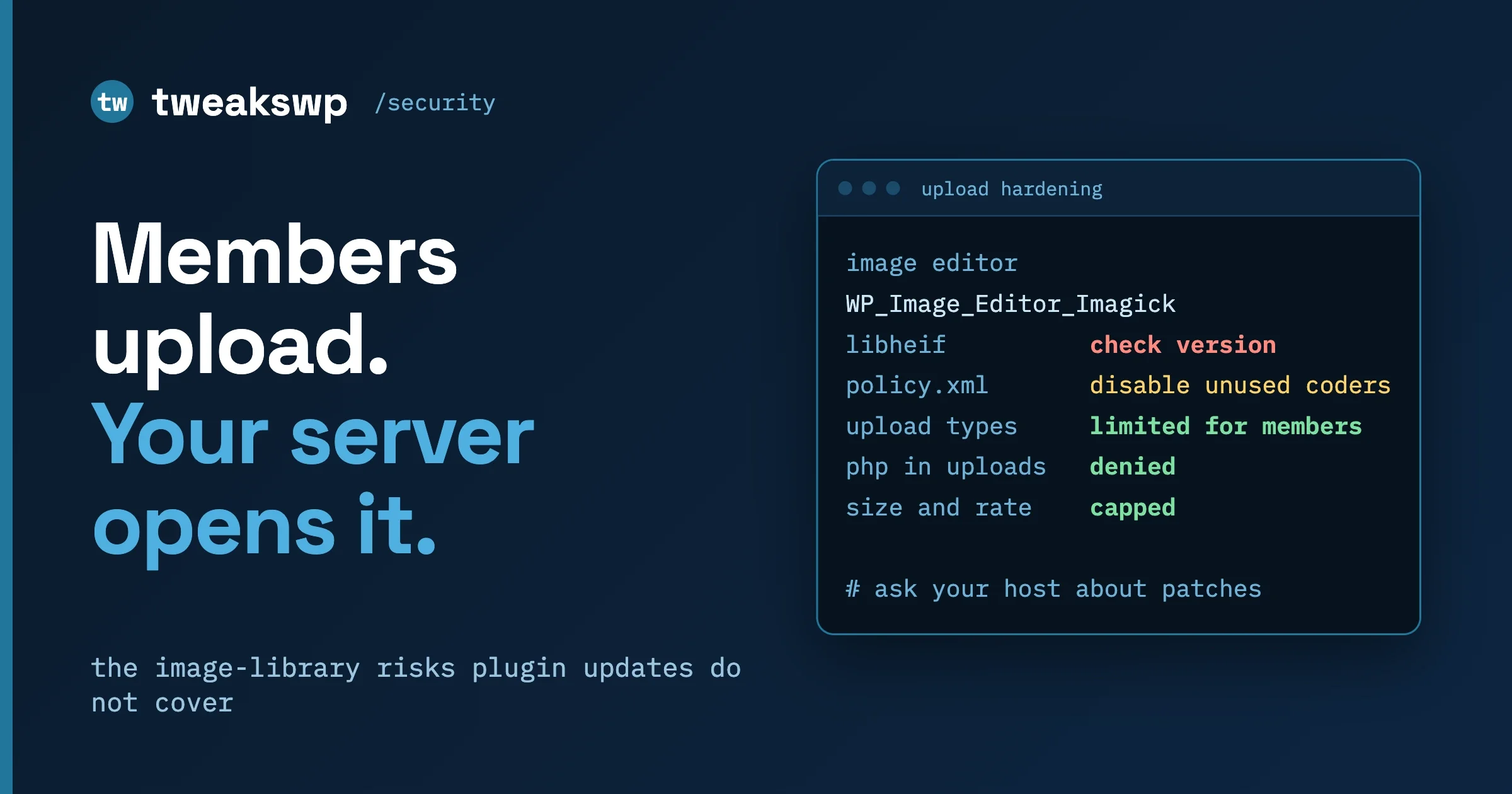
Plugin updates do not cover the libraries your server uses to open images, and sites that accept member uploads carry most of that risk. The practical answer is five habits: find out what your server actually runs, keep it patched through the host, stop scripts running from the uploads folder, limit what members can upload, and process untrusted files with as little privilege as you can. This guide gives the commands and configuration for each.
We use one recent flaw in a library called libheif as the worked example. The controls outlast it, because the next image-library issue will look different. For a plain-language account of the flaw itself, see A Critical Flaw in the Library That Opens iPhone Photos on Your Server on wppioneer.com. We do not repeat it here.
In this guide
- Why a site with member uploads is different from a brochure site
- How to find which image library your server really uses
- The libheif flaw in three sentences, and what to check today
- Seven controls: patching, an ImageMagick policy, allowed file types, re-encoding, no scripts in uploads, size and rate caps, separate storage
- Processing uploads off the web server
- A one-page checklist
- Questions people ask
Why are member-upload sites different?
On a brochure site, only a few trusted people upload files. On a community, directory, marketplace or membership site, strangers send files to your server all day: profile photos, listing galleries, product images, forum attachments. Software on your server then opens each file to resize, check or convert it.
That software is not WordPress. WordPress hands the file to an image editor, and the editor hands it to a library written in C or C++ that lives in the operating system or a PHP extension. Plugin updates never touch those libraries. Only the host, or whoever manages the server, updates them.
Member-upload sites feel this most for three reasons: volume and variety (every format you accept is another parser running on input you did not create), a low barrier (registration is often open, so the uploader holds an ordinary member account), and extra upload paths (avatars, cover photos, listing media and front-end forms may each use different checks). None of this makes such a site unsafe. It means the server underneath deserves the attention you give the plugins on top. For hosting sizing, see Community Site Hosting Guide: What BuddyNext Really Needs.
How do you find which image library your server uses?
Do this first, because every later decision depends on it. There are four questions: which WordPress image editor is active, whether the Imagick extension is loaded, which ImageMagick it uses, and which format libraries (such as libheif) sit underneath.
Step 1: Which image editor does WordPress choose?
WordPress has two image editor classes. WP_Image_Editor_Imagick uses the Imagick PHP extension (which wraps ImageMagick). WP_Image_Editor_GD uses PHP’s GD library. The wp_image_editors filter holds the list, and its documented default is Imagick first, then GD. WordPress walks that list and uses the first class whose test passes for the job at hand. The public helper wp_image_editor_supports() tells you whether any editor can handle a given file type, and it wraps the internal chooser _wp_image_editor_choose().
# Which editor would WordPress use for a JPEG?
wp eval 'echo _wp_image_editor_choose( array( "mime_type" => "image/jpeg" ) );'

# Can any editor on this server handle HEIC?
wp eval 'var_dump( wp_image_editor_supports( array( "mime_type" => "image/heic" ) ) );'

# The list WordPress walks, in order
wp eval 'echo implode( ", ", apply_filters( "wp_image_editors", array( "WP_Image_Editor_Imagick", "WP_Image_Editor_GD" ) ) );'
Status: TESTED on a disposable WordPress 7.1.3 instance (PHP 8.2), which printed WP_Image_Editor_GD, bool(false) for HEIC, and the two-class list. Your server may differ.
The leading underscore on _wp_image_editor_choose() marks an internal function. Use it for a one-off diagnostic, and use wp_image_editor_supports() in code.
Step 2: Is Imagick loaded, and which ImageMagick is behind it?
wp eval 'var_dump( extension_loaded( "imagick" ) ); echo Imagick::getVersion()["versionString"], "\n";'

# The same detail from PHP itself
php --ri imagick
Status: TESTED. Our test instance had the extension loaded (ImageMagick 7.1.2-24), yet WordPress chose GD for JPEG and Imagick::queryFormats() returned no formats. A loaded extension is not a working editor. If you expect Imagick and see GD, find out why.
The PHP command line and your web server can use different PHP builds and php.ini files, so check both. Tools, Site Health, Info, Media Handling shows the web view: the active editor and the ImageMagick supported file formats, which WordPress core names as the place to see whether the server supports HEIC.
Step 3: Which formats can ImageMagick open?
# Formats Imagick can read, filtered to the HEIF family
wp eval 'echo implode( " ", Imagick::queryFormats( "HEI*" ) ), "\n";'

# Command-line ImageMagick, if it is installed (version 7 and version 6 names)
magick -version
convert -version
magick identify -list format | grep -i -E 'heic|heif|avif'
identify -list format | grep -i -E 'heic|heif|avif'
Status: the first command is TESTED (it printed nothing on our instance, meaning no HEIF-family coders). The magick, convert and identify commands are UNTESTED, because our test instance has no ImageMagick command-line tools installed (the shell reported that the executables were not found). The PHP extension and the command-line tools can be separate installs, and the one PHP uses is what Imagick::getVersion() reports.
Step 4: Is libheif present, and at what version?
libheif is a separate library that image tools can use to read HEIC and HEIF files, so you ask the operating system’s package manager.
# Debian and Ubuntu
apt list --installed 2>/dev/null | grep -i heif

# RHEL, AlmaLinux, Rocky, Fedora
rpm -qa | grep -i heif

# Alpine
apk list --installed | grep -i heif

# Any Linux: is a libheif file loaded by the Imagick module?
ldconfig -p | grep -i heif
Status: the Alpine command is TESTED (no matching package on our instance, consistent with the empty HEIC format list above). The Debian, RHEL and ldconfig lines are UNTESTED, so adjust them to your distribution. No output means no package by that name, which is a good result for this particular library. If you see a package, note its version number. On a managed host without shell access, skip this step and ask the host instead (see the first control below for the wording).
Write down four values: the active editor, the ImageMagick version, whether HEIC is in the format list, and the libheif version. That is your image-stack inventory, and what you hand a host when you ask a question.
What was the libheif flaw, and what should you check today?
The upstream advisory is GHSA-x8r2-mggj-j6wr in the libheif repository. It describes a heap buffer overflow in libheif’s decoder for the uncompressed image type (the “unci” decoder), rated critical with a CVSS score of 9.8. It lists libheif versions 1.18.0 through 1.23.2 as affected and 1.23.3 as the patched version, and notes that the vulnerable path needs libheif to be built with the uncompressed codec switched on.
The reporter, a Wordfence researcher using the company’s testing framework, demonstrated file reading and code execution through one exact WordPress server-side image-processing setup: WordPress on Debian with libheif 1.23.2, where a crafted file. The advisory states that those exploitation results are build and deployment specific, that they do not imply universal remote code execution across libheif users, and that successful exploitation is not universal.
The calm reading: the flaw is real and fixed upstream, whether it affects your site depends on how your server is built, and the response is to check. Today, check whether libheif is installed (Step 4), whether its version is in the affected range, and whether your host’s package carries the fix. Distributions often backport a fix without changing the upstream version number, so ask the host or the distribution’s security tracker rather than judging by the number alone.
The rest of this guide is about the controls that make the next flaw like this one less likely to matter.
Control 1: How do you keep image libraries patched?
Image libraries are updated through the operating system’s packages or the host’s images, not the WordPress dashboard. Whoever manages the server owns this control.
On a self-managed server, apply your distribution’s security updates on a schedule and restart PHP-FPM afterwards, because a running PHP process keeps the old library loaded. Then rerun Step 4 and compare. On a managed host, send a short, specific message:
Subject: Image library patch status for example.com

Hello,

Our site accepts image uploads from members. Please tell us:

1. Which ImageMagick and libheif versions (if any) serve PHP for this account.
2. Whether and how quickly you apply security updates to these libraries.
3. Whether PHP-FPM is restarted after those updates.
4. Whether HEIC/HEIF decoding can be disabled for this account.

Thank you.
The related post Your Host’s Firewall Is Not the Patch: How to Test What Your Hosting Really Protects covers the difference between a firewall rule and a real fix, and how to test the claim. WordPress 7.0.4 Is a Security Release. Check Imagick. covers an earlier image-stack case. We do not repeat either here.
Control 2: What should an ImageMagick policy disable?
ImageMagick reads a file named policy.xml that decides which formats it may read or write and how many resources a job may use. The ImageMagick documentation describes its default security model as “everything allowed unless denied”, with the last matching policy winning, and says the more untrusted input you expect to handle, the more restrictive your policy should be. A public upload form is exactly that case.
First, see which policy is active and where the file lives:
magick identify -list policy
# or on ImageMagick 6:
identify -list policy
Status: UNTESTED here (no ImageMagick tools in our test instance). The output includes the path of the policy file in use. Edit that file, or ask your host to.
The ImageMagick security page publishes an example hardened policy for web applications, and it also describes a built-in “websafe” policy that limits reading and writing to GIF, JPEG and PNG. The directives below are taken from that documentation. Adapt the values to your site, and keep any format your members really use.
<policymap>
  <!-- Resource limits: stop one upload from using the whole server -->
  <policy domain="resource" name="time" value="60"/>
  <policy domain="resource" name="memory" value="256MiB"/>
  <policy domain="resource" name="map" value="512MiB"/>
  <policy domain="resource" name="area" value="32MP"/>
  <policy domain="resource" name="disk" value="1GiB"/>
  <policy domain="resource" name="list-length" value="16"/>
  <policy domain="resource" name="width" value="4KP"/>
  <policy domain="resource" name="height" value="4KP"/>

  <!-- No external delegates, no image filters -->
  <policy domain="delegate" rights="none" pattern="*"/>
  <policy domain="filter" rights="none" pattern="*"/>

  <!-- Deny every module, then allow only web-safe formats -->
  <policy domain="module" rights="none" pattern="*"/>
  <policy domain="module" rights="read | write" pattern="{GIF,JPEG,PNG,WEBP}"/>
</policymap>
Status: UNTESTED. This is a trimmed excerpt of the documented example; the full one also restricts paths, symlinks and SVG entities, and is worth reading. Three notes.
- Order matters. The last matching rule wins, so put the broad deny first and the specific allow after it, exactly as above.
- Case matters on older versions. The documentation says patterns before ImageMagick 7.1.1-16 are case sensitive, so write format names in upper case (for example
JPEG, notjpeg). - Limits can reject real files. A width and height limit of 4KP (about 4,096 pixels) will refuse large camera images. If your members upload full-size photos, raise the limits, and resize before processing where you can. Test with real uploads from real phones before you roll it out.
That allow list already excludes HEIC. To remove just one format and leave the rest, the documentation’s coder example uses domain="coder" and rights="none" with a pattern naming the format:
<policy domain="coder" rights="none" pattern="{HEIC,HEIF}"/>Status: UNTESTED; the syntax follows the coder example in the ImageMagick docs.
There is a trade-off. WordPress 6.7 converts HEIC uploads to JPEG on the server only if the server’s Imagick supports HEIC; otherwise it warns the member to convert the image. So disabling HEIC means iPhone users may see that warning on the server path. WordPress 7.1 adds client-side media processing, which can decode HEIC in the browser in supported browsers. The core post says that is a performance feature and not a trust boundary: the server still validates every file and falls back to server-side processing. Do not treat the browser as your defence.
After any policy change, run the verification command again and upload a test image of each allowed type. A policy that breaks every upload gets reverted in a hurry, and then you have no policy.
Control 3: How do you restrict allowed upload types?
Every file type you accept is another parser or another thing visitors could be served. The documented upload_mimes filter receives the allowed list and the user. Return a shorter list for member roles and keep the full list for administrators.
// Example only: add to a small plugin or an mu-plugin, not to a theme.
add_filter(
    'upload_mimes',
    function ( $mimes, $user ) {
        // Administrators keep the full WordPress list.
        if ( $user && user_can( $user, 'manage_options' ) ) {
            return $mimes;
        }

        // Everyone else: web images and PDF only.
        return array(
            'jpg|jpeg|jpe' => 'image/jpeg',
            'png'          => 'image/png',
            'gif'          => 'image/gif',
            'webp'         => 'image/webp',
            'pdf'          => 'application/pdf',
        );
    },
    10,
    2
);
Status: TESTED for the filter logic with wp eval: an administrator got 96 allowed types, a user without capabilities got 5, and HEIC was not among them. Not tested against a live community plugin’s upload form, so try it on staging first.
Three limits. A plugin can register its own upload handler that bypasses this list, so test each upload surface. An extension and a MIME type are claims made by the sender, so treat the list as a way to shrink your exposure, not as proof a file is what it says. And a shorter list does not replace the other controls.
Many sites also see members confused by rejected files. If uploads start failing after you narrow the list, WordPress HTTP Error on Media Upload: The Seven Real Causes helps you tell a policy rejection apart from a server limit.
Control 4: Should you re-encode uploads so the original is not served?
Re-encoding means the server reads the upload once, saves a new clean copy (for example a resized JPEG or WebP) and serves that. It strips metadata and unusual structures from what visitors receive. It does not make the first read safe, because the first read is the dangerous moment. It limits what stays on the site and what other visitors download.
WordPress already does part of this. The documented big_image_size_threshold filter scales an original above the threshold (default 2560 pixels) down, and returning false from it turns that off, so make sure nothing on your site does so by accident. WordPress 6.7 also converts HEIC uploads to JPEG by default, keeping the original HEIC available through a link on the attachment page, per the core announcement. The documented image_editor_output_format filter controls the mapping.
// Example only: save member JPEG and PNG output as WebP.
add_filter(
    'image_editor_output_format',
    function ( $formats ) {
        $formats['image/jpeg'] = 'image/webp';
        $formats['image/png']  = 'image/webp';
        return $formats;
    }
);
Status: UNTESTED. The filter and its array shape come from the WordPress developer reference. To rebuild thumbnails for existing media, WP-CLI offers wp media regenerate (UNTESTED, because it writes files), which accepts attachment IDs, --only-missing and --yes. Run it on staging first. Its documented options do not remove originals.
Control 5: How do you stop PHP and scripts running from the uploads folder?
This control is the one that turns many upload problems into dull ones. If an attacker, or a bug, ever gets a script file into the uploads folder, the web server should refuse to run it. Uploads should be data, never code.
First find the folder:
wp eval 'echo wp_upload_dir()["basedir"], "\n";'
wp option get upload_path
Status: TESTED. The first printed /var/www/html/wp-content/uploads. The second printed an empty value, which means the option is not set and WordPress uses its default location. Read the first command for the real answer.
Nginx
The Nginx documentation explains that a regular expression location is written with ~ (case sensitive) or ~* (case insensitive), and that regular expressions are checked in the order of their appearance in the configuration file. The access module’s deny directive refuses requests. Combined, they give a rule that refuses script files in uploads:
location ~* ^/wp-content/uploads/.*\.(php|phtml|phar|php[0-9])$ {
    deny all;
}
Status: UNTESTED (no Nginx in our test instance). Place this block before your general PHP handler, test the configuration with nginx -t, reload, then request a harmless test.php in the uploads folder on staging and confirm a 403.
Apache
The Apache documentation says <FilesMatch> applies directives to filenames matching a regular expression, and Require all denied refuses all requests. Use it in the server or virtual host configuration (best), or in an .htaccess file in the uploads folder if AllowOverride permits.
<FilesMatch "\.(php|phtml|phar|php[0-9])$">
    Require all denied
</FilesMatch>
Status: UNTESTED (no Apache in our test instance). Test as for Nginx: a harmless test.php in uploads should return a 403.
On managed hosting where you cannot edit the server configuration, ask the host to apply the equivalent for your uploads path.
Control 6: How do you cap upload size and upload rate?
Large files and floods of files are a resource problem and sometimes an attack route. Set limits at three layers.
- PHP. The PHP manual documents
upload_max_filesize,post_max_sizeandmax_file_uploads. Read yours withphp -r 'echo ini_get("upload_max_filesize")," ",ini_get("post_max_size")," ",ini_get("max_file_uploads");'(TESTED). Our test instance printed1G 1G 20, which is far too generous for a public form. Set values near what members really send. - Web server. Nginx has
client_max_body_sizeand Apache hasLimitRequestBody. The Apache documentation lists a default of 1073741824 bytes (about 1 GB), and notes that versions up to 2.4.53 defaulted to 0, meaning unlimited. Set an explicit value. - Rate. The Nginx request-limiting module documents
limit_req_zoneandlimit_req.
# Nginx: one request per second per address on the upload route, small burst allowed
limit_req_zone $binary_remote_addr zone=uploads:10m rate=1r/s;

server {
    client_max_body_size 8m;

    location = /wp-admin/async-upload.php {
        limit_req zone=uploads burst=5;
        # ... your usual PHP handling here
    }
}
Status: the Nginx and Apache lines are UNTESTED; the directive forms come from their documentation. Community plugins often use their own AJAX or REST routes, so watch the network requests during a real upload and rate-limit those paths too. Also set the plugin’s own maximum file size and files-per-post options.
Control 7: Can you separate member uploads from admin media?
Where your plugins allow it, keep member uploads apart from the media your team manages. You can then apply stricter server rules, stricter cleanup or quarantine, and a separate review step to the member folder, and an incident in one area stays out of the other.
- Capability. Give members the least upload capability they need. Prefer plugins that handle front-end uploads without granting the
upload_filescapability. - Moderation. For listings and marketplaces, a pending state before a file becomes public gives you a window to review or scan.
Whether a folder split is possible depends on the plugin. If it offers none, do not patch it. Use the server-level controls above, and consider the next section.
Should you process uploads off the web server?
This is the stronger option, and it is the one that survives the next image-library flaw best. The idea is simple: the machine that opens untrusted files should not be the machine that holds your database credentials, your plugin code and your customers’ data.
There are three common shapes.
- A separate worker. Uploads land in private storage, and a job on a different server or container, running as a restricted user with no access to your WordPress files, re-encodes the file and writes the clean result back. If the library is exploited, the damage stays on a machine that holds nothing valuable.
- An image service. A hosted or self-hosted service accepts the original and returns processed versions, and your site stores only those. Judge a service on how it patches, where it runs and what it logs, not only on speed.
- Browser-side processing. WordPress 7.1 processes images in the browser using a WebAssembly build of libvips where supported, and falls back to the server otherwise. As the core post states, this is a performance feature and not a trust boundary: the server still validates every file. It helps, but it does not replace a hardened server.
Whichever you choose, run the processing with least privilege (a dedicated user, no write access to code), apply the Control 2 policy there too, and give the worker its own memory and time limits so a hostile file can only exhaust the worker. This is a larger change than the other controls, so do the seven controls first and plan this for when uploads become central to the business.
What does the one-page checklist look like?
Paste this into your runbook and run it once a quarter and after any image-library advisory.
- Know: active image editor, Imagick and ImageMagick versions, HEIC/HEIF/AVIF in the format list, libheif present or absent with version, PHP CLI compared with web PHP.
- Patch: host confirms security updates for image libraries and a PHP-FPM restart; version checked against the advisory, backports confirmed.
- Reduce: ImageMagick policy denies unused formats and sets limits;
upload_mimesnarrowed for member roles and tested on every upload surface; large originals scaled. - Contain: script files refused in uploads and checked with a harmless test file; PHP, server and plugin size limits set; rate limit on upload routes; member uploads separated where possible, with least capability.
- Prepare: restore tested, a named contact at the host, a plan for off-server processing.
Questions people ask
Does a WordPress core or plugin update fix a bug in an image library?
No. The library comes from your operating system, PHP image extension or host image, so its fix arrives as a system package update. A core release may add checks around it, but not the fix itself.
If a server has no libheif, is it exposed to this specific flaw?
The advisory is about libheif, so a server with no libheif is not exposed to that particular flaw by that route. It does not tell you about other libraries, and a server that does not have it now can gain it later through a host image update or a new plugin. Keep the inventory current.
Is a firewall plugin in front of uploads enough?
It helps against known patterns, but it cannot see inside every crafted image, and rules may arrive after a flaw is public. Treat it as an extra layer. These controls work whether or not a rule exists yet.
Should members be stopped from uploading HEIC photos?
Not necessarily. Without server HEIC support WordPress warns members to convert, and in WordPress 7.1 many browsers convert before upload. If you do accept HEIC, patch the library, limit resources with a policy and isolate the processing as far as you can.
Will an ImageMagick policy break my site?
It can if it is stricter than your real uploads, such as size limits that refuse large photos. Start from the documented example, test real phone photos on staging, and keep a copy of the original policy.xml for rollback.
Is this security or legal advice?
Neither. It is general technical guidance. Involve your host, your security provider and, where data protection law applies to member data, your legal adviser.
If you would rather have someone inspect your image stack, configure the policy and server rules, and test your upload paths on staging, our team does this as part of WordPress security audit and hardening. Send us your inventory from Step 4 and we will tell you what we would change first.
Plugins we build and run
We maintain these ourselves, which is why we can support them on your site.
- BuddyNextThe self-hosted community engine for WordPress
- BuddyXFree community theme, Pro when you outgrow it
- ReignPremium community theme. Add pieces, build anything
- JetonomyCommunity forum and Q&A for WordPress
- EventonomyEvents and RSVPs for WordPress communities
- LearnomyCourses and learning communities on WordPress
- ListoraDirectories and listings your members can browse
- SnipShareCode sharing built for developer communities
- WB Ad ManagerAd placements that turn traffic into revenue
- WP Career BoardA job board your community actually uses
- WP Sell ServicesSell services with offers, orders, and payouts
- MediaVersePhotos, video, and media albums for members
- WB GamificationPoints, badges, and rewards that keep members active
- Product RoadmapPublic roadmaps with voting your users trust