WordPress HTTP Error on Media Upload: The Seven Real Causes
WordPress answers a failed upload with two words and no detail. Here are the seven causes that account for almost every case, the fingerprint each one leaves, and the three logs that hold the real error.

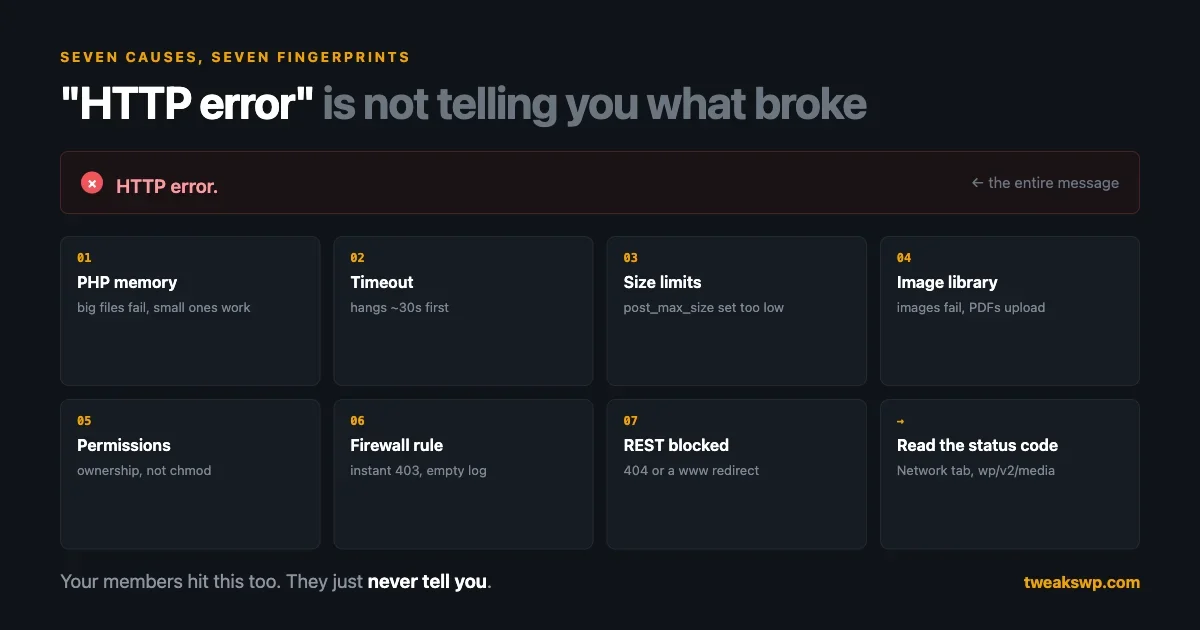
You drag an image into the media library and WordPress answers with two words: HTTP error.
No code, no line number, no hint about which of a dozen things went wrong. The same two words appear whether the server ran out of memory, the image library refused the file, a firewall rule ate the request, or the file itself is fine and your permissions are not.
This guide covers the seven causes that account for almost every case, in the order worth checking, and the three places the real error is actually written down.
What “HTTP error” actually means
It is not a WordPress error code. It is the uploader’s fallback message for “I sent a request and did not get a usable answer back”.
The block editor uploads through the REST API, posting the file to /wp-json/wp/v2/media. Something has to answer that request with JSON describing the new attachment. When the response is a 500, a timeout, an HTML error page, or nothing at all, the JavaScript has no error to show you, so it shows the generic one.
That matters for diagnosis, because it tells you the failure is at the server, not in the browser. The browser is the only part reporting honestly: it genuinely does not know what happened.
One thing worth saying plainly before the list: do not start by installing a plugin that promises to fix upload errors. Every cause below is either a server setting, a file, or a rule, and none of them are fixed by adding more PHP to the request that is already failing. A plugin can at best change which limit you hit first.
Isolate before you fix anything
Four questions, two minutes, and you will have eliminated most of the list below.
Does it fail for every file, or one file? Upload a 20 KB PNG. If that works and a 4 MB photo does not, you are looking at memory, execution time or a size limit. If the tiny PNG also fails, the pipeline is broken for everything and size is irrelevant.
Does it fail for every user, or one? Try as another administrator. If only one account fails, it is not the server, it is that user’s role, or a security plugin rule scoped to them.
Does it fail in both editors? Try the Media Library’s own upload screen as well as the block editor. The classic uploader and the REST route do not fail identically, and a file that uploads in one but not the other points straight at the REST API rather than at PHP limits.
Does it fail with plugins off? The standard bisect. Worth doing early, because an image-optimisation plugin hooking the upload is a common cause and costs you an hour if you check it last.
Cause 1: PHP memory, exhausted while resizing
This is the most common single cause, and the reason it surprises people is that the memory is not consumed by the upload. It is consumed afterwards.
When a file lands, WordPress generates every registered image size, and it does that by decompressing the image into memory as raw pixel data. A 4,000 by 3,000 JPEG is maybe 3 MB on disk and roughly 48 MB uncompressed, because a pixel needs about four bytes and there are twelve million of them. Generate several sizes and the peak is higher again.
Since WordPress started scaling large uploads down to a threshold, the original is processed too, so a photo straight off a phone can push past a 128 MB limit on a site that has never had a memory problem before.
The tell is that small images work and large ones fail, consistently, at roughly the same size. Raise the limit in wp-config.php:
define( 'WP_MEMORY_LIMIT', '256M' );
define( 'WP_MAX_MEMORY_LIMIT', '512M' );
Two caveats that catch people. WP_MEMORY_LIMIT cannot exceed the server’s own memory_limit; if PHP is capped at 128 MB, asking WordPress for 256 MB does nothing. And admin-side operations use WP_MAX_MEMORY_LIMIT, not WP_MEMORY_LIMIT, which is why raising only the first sometimes changes nothing at all. The distinction is covered properly in our guide to WP_MEMORY_LIMIT versus PHP memory_limit.
Cause 2: the request runs out of time
Memory’s quieter twin. Image processing on a busy shared host is slow, and there are at least three separate clocks that can stop it.
max_execution_time in PHP is the obvious one, commonly 30 seconds. But under PHP-FPM, request_terminate_timeout can kill the worker first, and above that a web server proxy timeout can close the connection before either fires. Whichever expires first wins, and the browser sees the same two words.
The distinguishing sign is that the failure takes a while. A memory failure usually returns fast; a timeout hangs, sometimes for exactly 30 or exactly 60 seconds. If you are counting seconds before the error appears, you are looking at a clock, not at memory.
Raising max_execution_time alone frequently changes nothing for this reason. Our PHP-FPM tuning guide covers how the worker and proxy timeouts relate, which is the part most tutorials skip.
Why it fails under load but not when you test it
A detail that turns an intermittent bug into an explainable one.
memory_limit is per PHP process, not per server. Five members uploading photos at the same moment means five processes each holding an uncompressed image, so a 256 MB limit can mean well over a gigabyte in flight. The server starts killing workers, and which request dies is effectively arbitrary.
That produces the worst version of this report: it works when you test it, fails for a few people at busy times, and leaves nothing conclusive in the log. If uploads fail intermittently rather than consistently, stop looking for a broken setting. Look at how many workers your pool allows and multiply by the memory each can claim.
The size limits, and the one that is set backwards
Four PHP directives govern how much you can send, and they interact in a way that produces silent failures when one is wrong.
upload_max_filesize = 64M   ; largest single file
post_max_size       = 128M  ; largest whole POST body
max_file_uploads    = 20    ; files per request
memory_limit        = 256M  ; ceiling for everything above
The rule is that each must be larger than the one above it. post_max_size has to exceed upload_max_filesize, because the file travels inside the POST body along with the form fields, and memory_limit has to exceed post_max_size or PHP cannot hold what it just received.
Set post_max_size below upload_max_filesize and something strange happens: PHP discards the request body before your code runs. $_FILES is empty, $_POST is empty, and no error is raised, because from PHP’s point of view nothing was sent. WordPress reports a generic failure and the log stays silent. It is the most confusing version of this bug, and it is a one-line configuration mistake.
Read what is actually in effect rather than what a panel claims:
wp eval 'foreach (["upload_max_filesize","post_max_size","memory_limit","max_execution_time","max_file_uploads"] as $k)
  echo str_pad($k, 22), ini_get($k), PHP_EOL;'
Run that on the live site. A hosting control panel shows the value it was told to set; ini_get shows the value PHP is running with, and on stacks where a .user.ini, a pool config and an .htaccess all have opinions, those two numbers disagree more often than you would expect.
One more trap: .user.ini changes are cached, by default for 300 seconds. Edit the file, retest immediately, see no change, and conclude the file is ignored. Wait five minutes and it takes effect.
Cause 3: the image library, or its policy file
WordPress prefers ImageMagick and falls back to GD. Both can fail in ways that produce this error and nothing else.
Confirm which one is actually in use through Tools, Site Health, Info, Media Handling. If neither is listed, nothing can process images and every upload of an image will fail while a PDF or a ZIP uploads fine. That single asymmetry is a very strong signal.
The less obvious case is ImageMagick installed but restricted. ImageMagick ships a policy.xml that can forbid specific coders or cap resources, and hosts tighten it after security advisories. A policy denying a format, or capping memory below what your images need, makes ImageMagick refuse work it is otherwise capable of. The upload fails, the PHP error log may say nothing, and the plugin list is irrelevant.
The quick test is to force GD and retry:
add_filter( 'wp_image_editors', function () {
    return [ 'WP_Image_Editor_GD' ];
} );
If uploads start working, the problem is ImageMagick or its policy, and that is a conversation with your host rather than a change to your site.
Cause 4: the uploads directory is not writable
Less common than the internet suggests, but genuinely the cause after a migration, a restore, or a badly configured deployment.
The directory needs to be writable by the user PHP runs as, which is not necessarily the user who owns the files. A folder that looks correct at 755 is still unwritable if it is owned by a different account than the PHP process. Ownership is the part people skip, and it is usually the part that is wrong.
Check what WordPress itself thinks rather than guessing:
wp eval '$u = wp_upload_dir();
echo $u["basedir"], " writable: ", is_writable( $u["basedir"] ) ? "yes" : "no", PHP_EOL;
echo "error: ", $u["error"] ?: "none", PHP_EOL;'
That reports what the running site sees, including a month-folder that does not exist yet. Our file permissions guide covers the correct values per directory, and the ownership question that matters more than the numbers.
Cause 5: a firewall rule between you and PHP
This one is invisible from inside WordPress, which is why it wastes so much time.
A server-level web application firewall inspects the upload POST before PHP ever sees it, and can reject it on a rule about file content, request size, or a pattern that happens to match. The request never reaches WordPress, so your debug log is empty, disabling plugins changes nothing, and switching themes changes nothing.
Two signals point here. The failure is instant, with no processing delay. And the response is a 403 rather than a 500, which you can see in the browser’s Network tab against the wp/v2/media request.
Certain file types trigger this more than others, particularly SVG and anything containing text that resembles code. If SVGs fail while JPEGs upload perfectly, stop looking at PHP.
Cause 6: the REST API is blocked or redirected
Because the block editor uploads over REST, anything that breaks REST breaks uploads, and often breaks nothing else you would notice.
Test the route directly:
curl -s -o /dev/null -w "%{http_code}\n" https://example.com/wp-json/wp/v2/typesA 200 means REST is reachable. A 401 is normal for some routes. A 404 means permalinks or a security plugin have disabled it, and a 301 into a different host or scheme means a redirect is mangling the request.
That last case is worth dwelling on. A site reachable at both www and the bare domain, where one redirects to the other, can have an uploader posting to the redirecting address. Some clients drop the request body across a redirect, so the file arrives empty or not at all. The page looks fine, the upload does not work, and nothing in WordPress explains why.
Cause 7: the file itself
Last, because it is the least likely, but it does happen and it is quick to rule out.
Filenames with unusual characters, a CMYK JPEG where the pipeline expects RGB, a progressive JPEG an older library mishandles, a PNG with an enormous pixel dimension but a small file size, or an actual size above upload_max_filesize or post_max_size. Note that post_max_size must exceed upload_max_filesize, since the file arrives inside the POST body; getting that backwards produces a silent failure with no obvious cause.
Test by re-saving the file as a plain RGB JPEG with a simple ASCII name. If the re-saved version uploads, the original was the problem and the server is fine.
SVG, HEIC and the formats that fail for a different reason
Three file types fail this way so regularly that they deserve naming, because in each case the cause is not a misconfiguration.
SVG is rejected on purpose. WordPress does not allow SVG uploads by default, and that is a security decision rather than an oversight: an SVG is XML that can carry script, so an upload path accepting them from untrusted users is an XSS vector. A plugin that “enables SVG support” is accepting that risk on your behalf. On a site where only you upload, that may be fine. On a site where members upload, sanitisation is not optional, and the plugin you choose should be doing it rather than merely allowing the MIME type.
HEIC usually cannot be processed. Photos from recent iPhones are HEIC unless the phone is set to convert, and most server image libraries have no HEIC support compiled in. The file uploads and then fails during resizing, or uploads with no thumbnails generated. This is increasingly the answer when a member says “it works on my laptop but not my phone” and everything else checks out.
An allowed MIME type is not the same as a processable one. WordPress checks the file’s type against a permitted list before it accepts it, and that check passing tells you nothing about whether ImageMagick or GD can then do anything with the contents. The two run at different stages, and an upload can clear the first and die at the second.
Check what the site actually accepts:
wp eval 'print_r( array_keys( get_allowed_mime_types() ) );'Worth running as a member role too, because the permitted list narrows for users without unfiltered_upload, and that is a difference between your account and theirs that no amount of testing as an administrator will reveal.
Where the real error is written down
Everything above is faster if you read the actual error first. Three places have it.
The browser Network tab. Open it, retry the upload, and find the request to wp/v2/media. The status code alone narrows the field immediately: 500 means PHP died, 403 means something blocked it, 413 means the request was too large, and a request that never completes means a timeout.
The WordPress debug log. A fatal during image processing lands here with a file and a line. Turn it on properly rather than by guesswork, which our debug log guide covers, along with why WP_DEBUG_DISPLAY should stay off while you do it.
The PHP error log. When PHP is killed rather than throwing, WordPress never gets to log anything. The memory-exhaustion message and the FPM worker-termination notice only exist here. This is the log that explains the cases where every other log is empty.
A useful rule: if the WordPress debug log is empty but the upload still fails, the problem is below WordPress. Stop looking at plugins.
After you fix it: the files already half-uploaded
A failed upload does not always fail cleanly. When PHP dies during image processing, the original file can already be on disk with no attachment record pointing at it, and no thumbnails generated. It is invisible in the Media Library and counts against your disk quota forever.
Once uploads are working again, it is worth seeing whether the failures left anything behind:
wp media regenerate --only-missing --yesThat rebuilds sizes for attachments whose thumbnails never got made, which is exactly the state a memory or timeout failure leaves behind. Run it on staging first on a large library, because it is slow and it is doing the same image processing that was failing a moment ago.
Orphaned files with no attachment row are harder, since nothing in WordPress lists them. Compare the uploads directory against the database and read the result before deleting anything, because a file with no attachment row is sometimes deliberate.
The case nobody tests: uploads by members
Everything above assumes you are the one uploading. On a site where members upload, this failure mode changes character entirely.
A member hitting “HTTP error” does not open a support ticket. They try once, assume the site is broken, and leave. You never learn it happened, because nothing in your dashboard records a failed upload, and your own uploads as an administrator work perfectly.
The conditions differ too. Members upload straight from phones, so the files are larger and the dimensions are bigger than anything you test with. They upload concurrently, so several image-processing requests can hold memory at once, which is a different ceiling from one upload at a time. And they have lower-privileged roles, so a security rule scoped by capability affects them and not you.
If you run a community with BuddyNext, where members post photos to the feed and to spaces, or an academy with Learnomy, where students submit assignments as files, the upload path is a member-facing feature rather than an admin convenience. We build both, so treat that as a disclosure, but the testing point stands whatever you run it on.
Test it the way they experience it: log in as a real member role, on a phone, on mobile data, with a photo straight from the camera. That is the only version of this test that tells you anything.
The order worth checking
Cheapest and most likely first.
- Upload a tiny PNG. Works? Size-related, go to memory and time. Fails? The pipeline is broken, go to Site Health and the Network tab.
- Read the status code in the Network tab. It eliminates more of this list than any other single step.
- Check Site Health, Media Handling for which image library is present.
- Read the PHP error log, not just the WordPress one.
- Raise memory in
wp-config.php, both constants, and confirm the server allows it. - Force GD temporarily to rule ImageMagick in or out.
- Disable plugins and retry, image-optimisation plugins first.
- Test as a member, on a phone, before calling it fixed.
Most of the guidance you will find online starts at step five, which is why so many people raise their memory limit, see no change, and conclude the advice was wrong. It was not wrong, it was answering a different question than the one their site was asking. The relevant constants and where they belong are listed in our wp-config.php reference.
“HTTP error” is a bad message for a real signal: something between the browser and your uploads folder refused to finish the job. There are only about seven candidates, they each leave a different fingerprint, and once you know which fingerprint to look for the whole thing takes ten minutes rather than an afternoon.
Plugins we build and run
We maintain these ourselves, which is why we can support them on your site.
- BuddyNextThe self-hosted community engine for WordPress
- BuddyXFree community theme, Pro when you outgrow it
- ReignPremium community theme. Add pieces, build anything
- JetonomyCommunity forum and Q&A for WordPress
- EventonomyEvents and RSVPs for WordPress communities
- LearnomyCourses and learning communities on WordPress
- ListoraDirectories and listings your members can browse
- SnipShareCode sharing built for developer communities
- WB Ad ManagerAd placements that turn traffic into revenue
- WP Career BoardA job board your community actually uses
- WP Sell ServicesSell services with offers, orders, and payouts
- MediaVersePhotos, video, and media albums for members
- WB GamificationPoints, badges, and rewards that keep members active
- Product RoadmapPublic roadmaps with voting your users trust