Your Host's Firewall Is Not the Patch: How to Test What Your Hosting Really Protects
A firewall filters requests that look like a known attack; an update removes the bug. Real WordPress releases where the bug needed a login, which layer filters what, how to test your own protection on staging, and a one-page response plan.

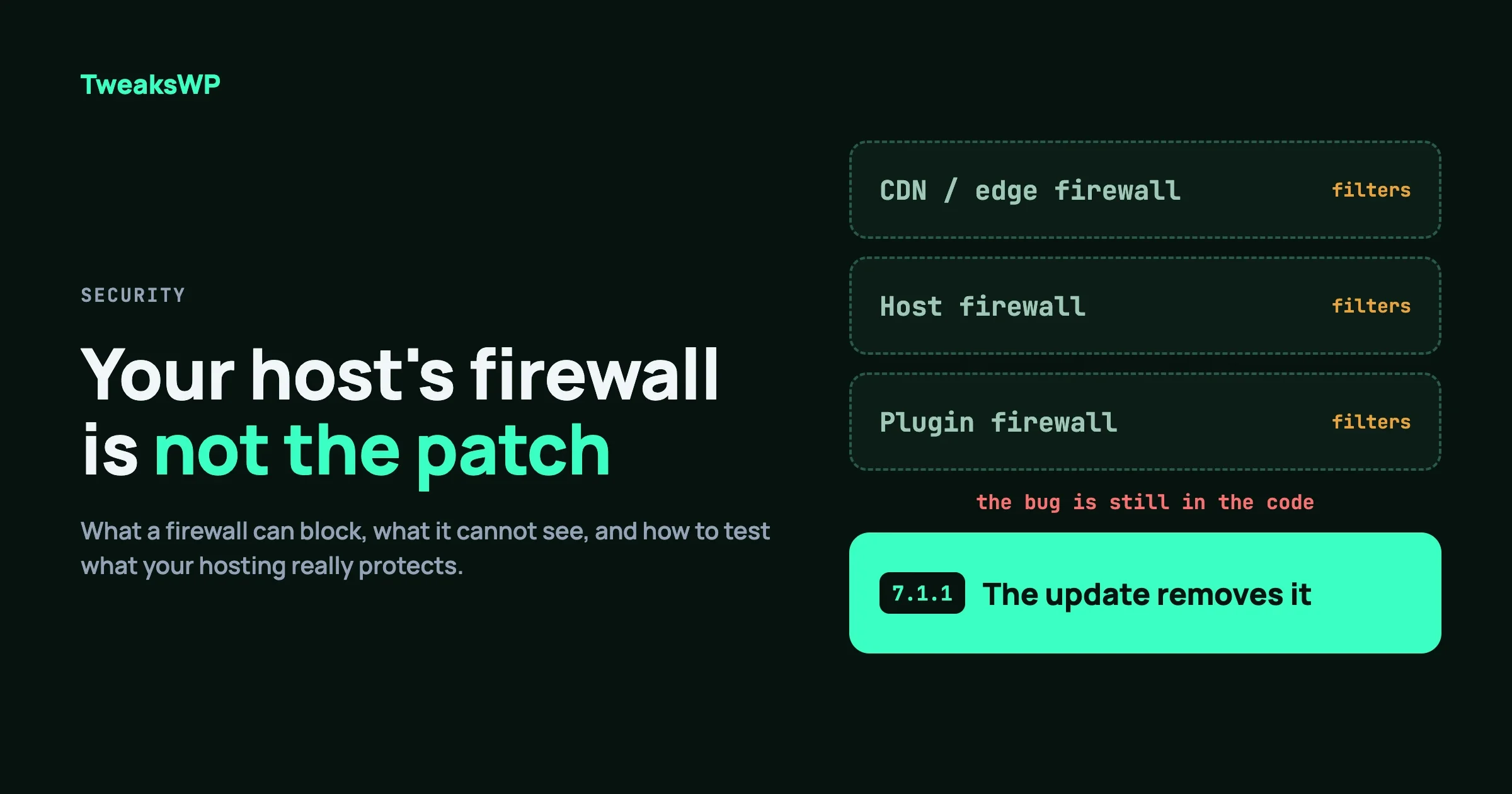
Your host runs a firewall. Your security plugin blocks attacks. So do you still have to update the day a security release ships? Yes. A firewall filters requests that look like a known attack. An update removes the bug. When the bug can be reached by a request that looks like normal work, such as a logged-in user saving a post, a filter has much less to hold on to.
Quick answer: treat a firewall as time bought, not a patch applied. Update the same day for unauthenticated remote code execution or SQL injection in core or in a plugin you run. Use a firewall rule to cover the gap only while you test the update on staging. Then prove what your stack actually blocks, on your own staging site, instead of trusting the marketing page.
In this guide
- What a WAF and virtual patching really do
- Real releases where the bug needed a login, checked against the official advisory
- Which layer filters what, and how fast each gets new rules
- How to test your own protection safely on staging
- The owner rules: when to patch the same day, and what to do when no fix exists
- A one-page response plan, and notes for developers
What does a WAF or virtual patch actually do?
A web application firewall (WAF) inspects each incoming request and blocks the ones that match a rule. A virtual patch is a rule written for one specific vulnerability. Patchstack describes it as sending a rule that mitigates a specific vulnerability without changing the vulnerable code itself, and positions it as a stop-gap until the software can be patched properly.
That definition carries two limits. The rule describes a request pattern, so it only helps if the attack looks like the pattern the rule author expected. And the vulnerable code stays on your server, waiting for any request that reaches it by another route.
What a rule can catch
A rule is strong against a pattern that is both specific and rare in normal traffic. An unauthenticated request that sends a malformed parameter to a known vulnerable file is a good example. The request has no business looking like that, so blocking it costs nothing.
What a rule struggles with
A rule struggles when the attacking request looks like normal use. A logged-in contributor saving a post, an editor changing a template, or a member posting a comment are all valid requests from a valid session. If the bug is that the server forgot to check whether that user was allowed to do it, there is nothing malformed to match. The fix has to be in the code that forgot the check.
Tip: Ask of any rule, “What does the attacker’s request look like, and could a real user send the same thing?” If the answer is yes, a firewall cannot be your only defence.
Which real WordPress releases fixed bugs that needed a login?
WordPress 7.1.1, released on 17 September 2026, shows the pattern clearly. The official release post lists 11 security fixes, and several of the titles name a login or a role as a precondition. These are quoted from the advisory titles on wordpress.org, and we add no exploit detail beyond them.
Advisory title (WordPress 7.1.1) | Needs a login? |
|---|---|
Contributor+ Arbitrary Post Overwrite | Yes, Contributor or higher |
Authenticated Path Traversal in WP REST Templates Controller | Yes, authenticated |
Missing Authorization leads to Draft/Pending Post Slug Disclosure by Contributor+ | Yes, Contributor or higher |
Comments, including notes, can be reparented by any authenticated user | Yes, any authenticated user |
Site Administrator can network-activate an installed Network-only plugin | Yes, Site Administrator |
The same release also fixed items that need no login, such as a stored cross-site scripting issue in wpautop() that the advisory says an unauthenticated visitor could use. The release post says that because it is a security release, you should update your sites immediately.
Five of the eleven are bugs where the server did not check who was asking. From a firewall’s point of view, each of those arrives as an ordinary authenticated request. We make no claim that any particular firewall product does or does not cover them. That is a question for the firewall’s vendor. The point is structural: an authorization bug is fixed in the code that checks authorization.
WordPress 7.1.2: no login needed, but still an update
WordPress 7.1.2, released on 22 September 2026, fixed a critical issue that the official post describes as one where an unauthenticated attacker can, under certain conditions, make page template resolution include a chosen readable local PHP file outside the active theme directories. The release notes say this could lead to remote code execution under specific server and theme conditions, and that Robert Ressl disclosed it responsibly.
This one does not need a login, so a firewall rule may help. But the advisory says the impact depends on server and theme conditions, which means you cannot judge from outside whether your site is exposed. That is a reason to update, not a reason to wait for a rule. Our sister site walks through the exposure and the proof of patching in WordPress 7.1.2 Path Traversal: Who Is Exposed, What to Do.
WordPress 7.0.2: when the project forced the update
WordPress 7.0.2, released on 17 July 2026, addressed one critical and one high severity issue. The release post describes a facilitated SQL injection issue and a REST API batch-route confusion and SQL injection issue that led to remote code execution. It states that the WordPress team enabled forced automatic updates because of the severity. When the project itself pushes the update to every site, treating a firewall as a substitute is the wrong call.
Plugins work the same way
The same logic applies to plugins. Our sister site’s write-up of The Events Calendar vulnerability and its two RCE chains is a case where the advice was to patch, not to filter. We link it rather than repeat it.
Which layer filters what, and how fast does it get new rules?
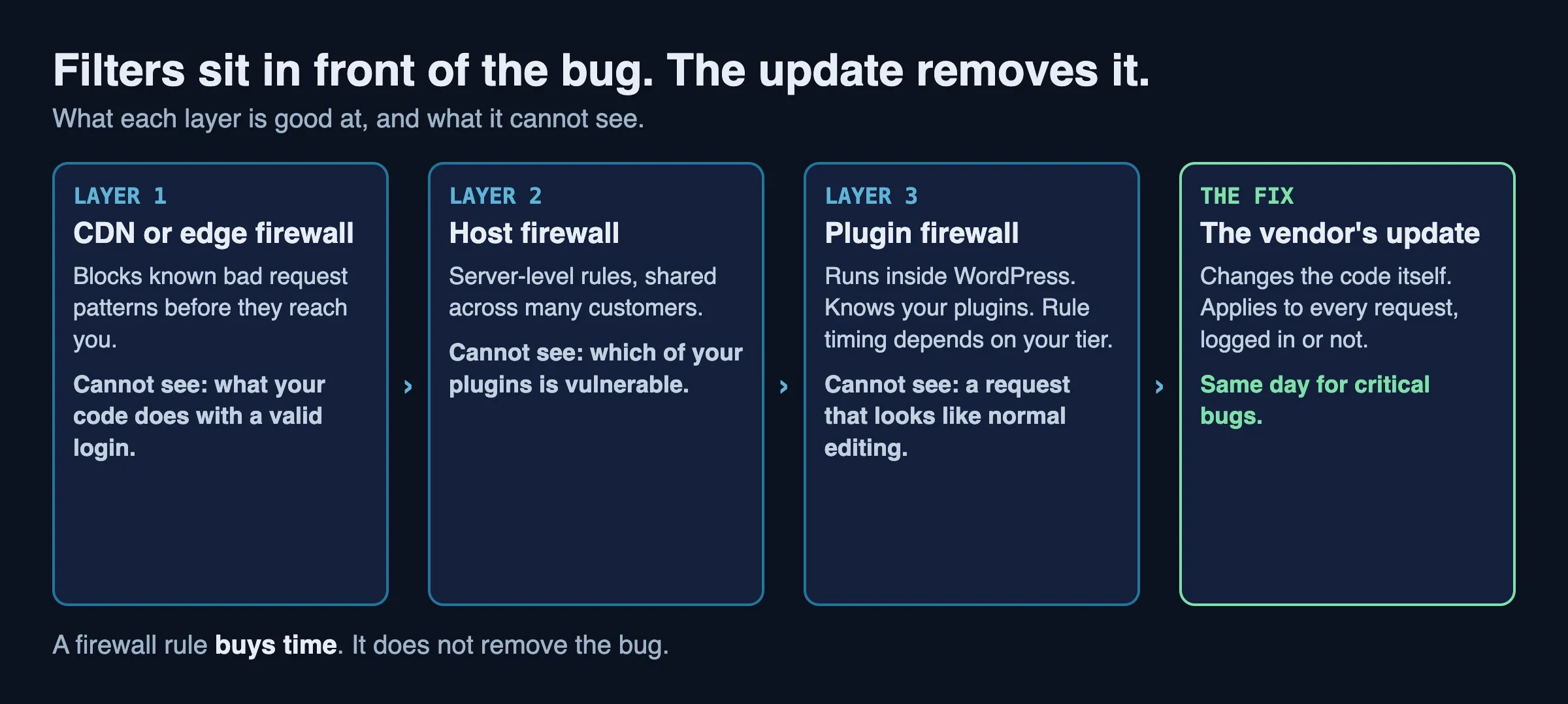
Most sites have two or three filtering layers, and each one gets rules on its own schedule. You need to know which layers you have, who writes the rules, and how long a new rule takes to reach you.
Layer | Who writes the rules | What it can see |
|---|---|---|
CDN or edge firewall | The CDN vendor | Requests before they reach your server |
Host firewall | Your host | Requests at your server, across many customers |
Plugin firewall | The plugin vendor | Requests inside WordPress, with knowledge of your plugins |
Edge firewalls
Cloudflare’s documentation says its managed rulesets are regularly updated and tracked in a changelog. It also says availability depends on plan: the Free plan gets the Free Managed Ruleset, while Pro and Business plans unlock the Cloudflare Managed Ruleset and the OWASP Core Ruleset. The same page notes limits on how much of a request body is inspected, which can affect detection of large payloads. Check which ruleset is on for your plan before assuming you have the one you read about.
Host firewalls
Hosts differ. Some run a shared rule set on every server, some offer opt-in firewalls, and some pass traffic through a CDN. We keep hosts generic here on purpose. What matters for you is three questions to ask support: which rule sets run on my account, how often are they updated, and where can I see what they blocked.
Plugin firewalls and the free-tier delay
A firewall plugin runs inside WordPress and can know which plugins and versions you run. Wordfence states on its free versus premium page that free users get new firewall rules and malware signatures 30 days after Premium customers. That is a published product decision, not a fault. It does mean that on a free tier, a rule written for this week’s bug may reach you a month later. We explained what that means in plain English in Your Security Plugin Is Protecting You a Month Late.
What no layer can see
Three kinds of bug are hard for any request filter to catch:
- Authorization bugs reached through a valid login, as in the table above.
- Admin-only actions, where the person doing them is who they claim to be.
- Server-side flaws that depend on how your theme, plugins and server are configured, as in the WordPress 7.1.2 advisory.
For a related point about a different layer, see Your Object Cache Is Not a Security Control: a thing that happened to interfere with an exploit is not the same as a thing that was designed to stop it.
How do I test what my hosting really protects?
Test on a staging copy that you own, and only there. The goal is to learn which layers respond, what they log and how quickly, not to attack anything. Never run these tests against production or against a site you do not own.
Step 1: map your layers
- Look up your DNS. If your domain points at a CDN or proxy, that is layer 1.
- Ask your host in writing what firewall runs on your account and where its logs are.
- List your security plugins and note their tier (free or paid).
wp plugin list --fields=name,status,version,update --format=table
dig +short example.com NS
curl -sI https://example.com/ | grep -iE '^(server|via|cf-ray|x-powered-by)'
The response headers often name the layer in front of you. If you see a CDN’s ray ID or a proxy’s identifier, that layer is filtering, or at least sitting in the path.
Step 2: send a harmless, well-known test request
A generic test that most firewalls recognise is a request with an obviously malicious query string. Run it against your staging site only:
curl -s -o /dev/null -w '%{http_code}\n' "https://staging.example.com/?s=%3Cscript%3Ealert(1)%3C/script%3E"A 200 means the request passed through to WordPress. A 403 or a challenge page means something blocked it. Then open the layer’s own log and confirm which layer did it. A block with no log entry tells you nothing about which layer to trust.
Step 3: check the logs
Each layer has its own place to look:
- The CDN’s security events or firewall events screen.
- The host’s firewall or access logs, if they expose them.
- The plugin’s live traffic or firewall log.
- Your server access log, for what actually reached PHP.
grep -c 's=%3Cscript' /var/log/nginx/access.logIf the request shows up in your server log, no earlier layer stopped it.
Step 4: confirm patch status from the version, not from the rule list
When a vendor publishes a rule for a specific bug, the safe check is to read the advisory and the rule’s description, not to run exploit code. Confirm on staging that the patched version of the plugin is installed and that the vulnerable version is gone. A firewall’s rule list does not prove you are patched. The version number does.
Step 5: confirm updates would actually apply
wp core check-update
wp plugin list --update=available --fields=name,version,update_version
wp plugin auto-updates status --all
Run these on the staging copy. They show which updates are pending and which plugins auto-update. A site with security releases pending and no auto-updates is relying on you.
Warning: Do not copy exploit code from a proof-of-concept into your test requests. Use your staging site’s version number and the vendor’s advisory to confirm patch status, and leave attack testing to the people who do it professionally with permission.
When should I update the same day?
Update the same day for unauthenticated remote code execution or SQL injection in WordPress core or a plugin you run, and for anything the vendor or WordPress.org describes as critical or actively exploited. For lower severities, update within your normal window, and use staging to catch breakage first.
The owner rules
- Critical and unauthenticated: same day. This covers remote code execution, SQL injection and arbitrary file inclusion in core or a plugin you run.
- Critical but needs a login: same day if you have untrusted users. A site with open registration, contributors or members has more people who can reach those bugs than a single-author blog.
- High severity: within a few days, after a staging test.
- Medium and low: in your regular update window.
- Auto-updates on for minor and security releases. WordPress core already does this by default for minor releases; check plugin auto-updates separately.
When a WAF rule buys you time
A rule is a reasonable stop-gap in three cases. The update is not out yet and you have confirmed with the vendor that a rule exists. The update is out but breaks something and you need a day to fix it. Or you must keep a vulnerable plugin running for a short period while you plan its replacement. In every case, set a date to remove the stop-gap and write it down.
What to do when a plugin has no fix yet
- Deactivate and delete it, if you can live without it for now.
- Restrict access to the affected feature, for example by limiting the page or endpoint by role or IP.
- Add a rule from your firewall vendor, if one exists, and verify it in the logs.
- Monitor for new users, changed files and odd requests until a fix ships.
- Plan the replacement. Patchstack notes that virtual patching can be the only option when a plugin is abandoned, but it is an option for a limited time.
What is a one-page response plan?
Write this down once, before the next security release lands, and keep it where the person on call can find it.
Step | Action | Who |
|---|---|---|
1. Read | Open the official advisory. Note severity, whether a login is needed, and the fixed version. | On-call |
2. Check | Run | On-call |
3. Decide | Apply the owner rules above to pick same day, within days or regular window. | Owner |
4. Back up | Take a fresh backup you know you can restore. | On-call |
5. Stage | Update staging, test the key pages, forms and checkout. | On-call |
6. Update | Update production. Purge caches. | On-call |
7. Verify | Confirm the new version number and that the site works. | On-call |
8. Review | Check logs for the days before the update for anything odd. | Owner |
Step 5 is where managed deployments can bite. Our write-up of the Composer package for WordPress 7.1.1 and 7.0.5, Fatal Error After Updating to WordPress 7.1.1 with Composer, shows why a staging run before production is not optional, even for a security release.
For developers: logging, alerting and a staging pipeline
If you run several sites, the same checks should run on a schedule rather than when someone remembers.
Log WAF events somewhere you will read them
Send the CDN’s firewall events and your server’s access log to one place, and alert on a spike in blocks from a single source or on a sudden drop to zero. A firewall that has gone quiet is as interesting as one that is loud.
Alert on the version, not only on the attack
wp core version
wp plugin list --update=available --format=json | jq -r '.[].name'
Compare the output against the vendor’s advisory feed and page someone when a critical advisory matches a plugin you run. This works with any firewall and does not depend on a rule existing.
Build a staging update pipeline
- Clone production to staging on a schedule.
- Run updates there first, then a smoke test of login, checkout, forms and key pages.
- On a pass, promote the update, or let production auto-update after a short delay.
The aim is to make the same-day patch cheap enough that nobody is tempted to lean on the firewall instead. For other signs that your logs may be lying to you, such as scanners that pose as legitimate crawlers, see Someone Is Scanning Your Site Pretending to Be ClaudeBot.
Verified against: the official WordPress.org release announcements for 7.0.2, 7.1.1 and 7.1.2, Cloudflare’s WAF managed rules documentation, the Wordfence free versus premium page and Patchstack’s virtual patching article, all read in October 2026. We ran no exploit code and cite no attack steps beyond the public advisories.
When you don’t need to worry about this
If WordPress core, your plugins and your theme all update automatically within a day of release, and your host or the vendor confirms the update lands on production, the gap between release and patch is already small. A single-author site with no open registration and a short plugin list also has fewer routes for the logged-in bugs described above. Neither case means you can skip updates. It only means the manual response plan above is less likely to be needed.
FAQ
Does my host’s firewall make updates less urgent?
Not for critical bugs. A firewall may block some attack patterns, and it may not cover the route that matters for your site. Update the same day for unauthenticated remote code execution or SQL injection, and use the firewall as cover while you test.
What is virtual patching?
It is a firewall rule written for one specific vulnerability that blocks the attacking request without changing the vulnerable code. Vendors such as Patchstack describe it as a way to buy time until the software can be updated, or to protect a site that runs an abandoned plugin.
Why would a bug that needs a login still matter?
Because many sites have logged-in users who are not fully trusted: contributors, members, customers and former staff. WordPress 7.1.1 fixed several bugs reachable by a Contributor or any authenticated user. If strangers can register, those bugs are reachable by strangers.
How do I know if my firewall blocked something?
Open that layer’s own log and look for the request. A 403 response with no log entry is not enough, because you cannot tell which layer blocked it. If the request appears in your server access log, none of the earlier layers stopped it.
Is a free security plugin enough?
It is a useful layer, but Wordfence states that free users receive new firewall rules 30 days after Premium users. Do not count on a free-tier rule to protect you in the first month after a new bug is published. Updates matter more than the tier.
Can I test my firewall with an exploit?
No. Do not run exploit code, and never test against production or sites you do not own. Use your own staging site, a harmless test request and the layer’s logs, as described above.
What to do next
This week, write the one-page plan above, check that auto-updates are on where they should be, and run the harmless test request against your staging site once. If you would rather not maintain this yourself, our team at Wbcom Designs can set up the staging pipeline and the update alerts for you.
Related reading
Plugins we build and run
We maintain these ourselves, which is why we can support them on your site.
- BuddyNextThe self-hosted community engine for WordPress
- BuddyXFree community theme, Pro when you outgrow it
- ReignPremium community theme. Add pieces, build anything
- JetonomyCommunity forum and Q&A for WordPress
- EventonomyEvents and RSVPs for WordPress communities
- LearnomyCourses and learning communities on WordPress
- ListoraDirectories and listings your members can browse
- SnipShareCode sharing built for developer communities
- WB Ad ManagerAd placements that turn traffic into revenue
- WP Career BoardA job board your community actually uses
- WP Sell ServicesSell services with offers, orders, and payouts
- MediaVersePhotos, video, and media albums for members
- WB GamificationPoints, badges, and rewards that keep members active
- Product RoadmapPublic roadmaps with voting your users trust