WordPress Caching, Explained Layer by Layer: Every Popular Plugin, Every Host Cache, and Which to Use
The six cache layers from browser to database, what common managed hosts build in, what ten caching plugins include, and the right setup for each host type, with a three-header check to see which layer is answering.

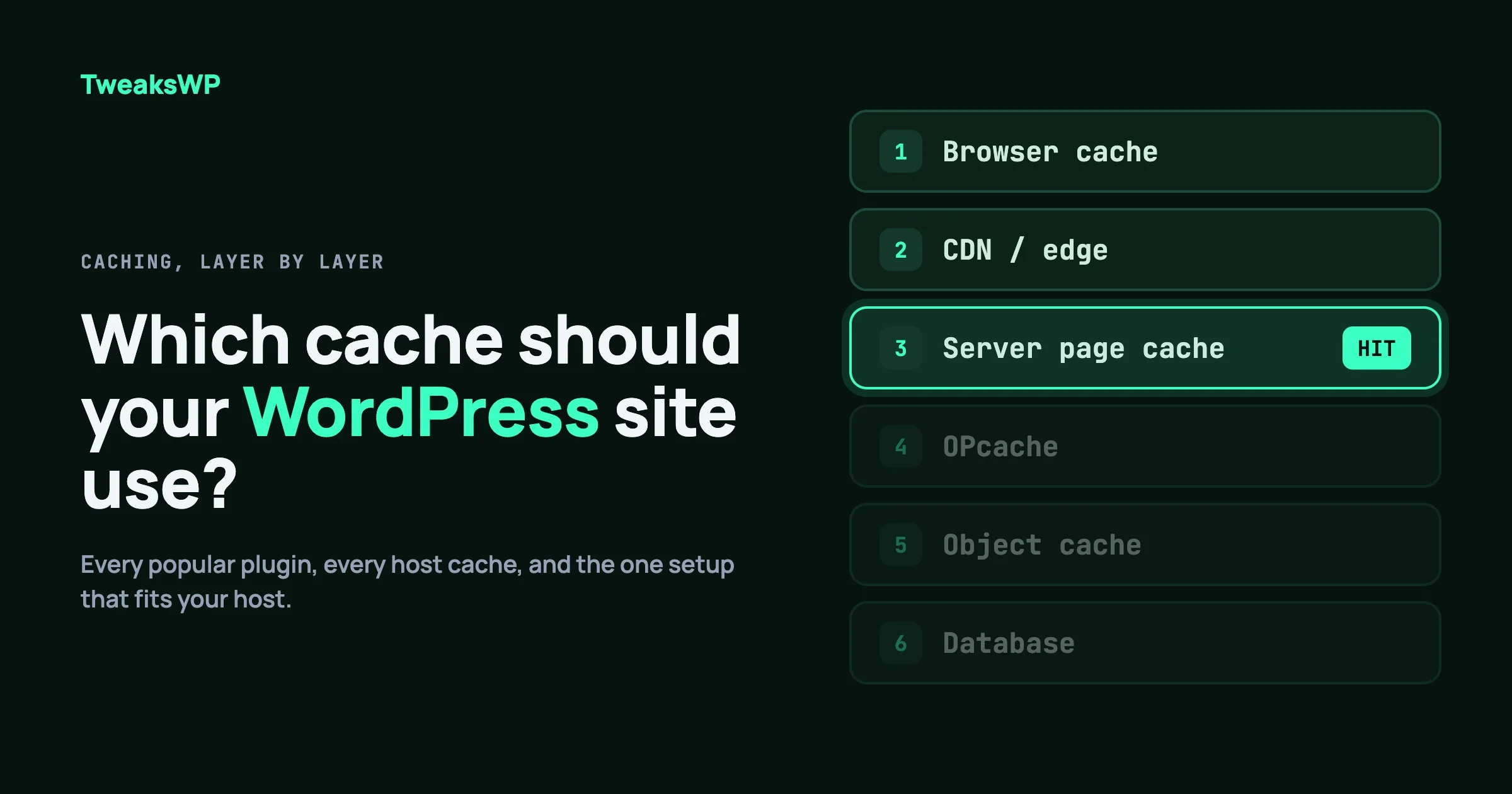
You installed a caching plugin and the site is still slow. That is usually not a plugin problem. It is a layer problem: WordPress has six places a request can be answered early, your host may already run one or two of them, and a plugin that duplicates the host’s cache adds work instead of removing it.
Quick answer: run one page cache, not two. If your host already runs a page cache (LiteSpeed, Nginx, Varnish or an edge cache), use the host’s cache and add only an optimisation plugin if you need CSS and JavaScript tuning. On a plain shared host or VPS, use one page-cache plugin and add Redis for the object cache when the host offers it. Check which layer is answering with three response headers, covered below.
Plugin features, prices and the free versus paid split below were checked against each plugin’s WordPress.org page or official site in October 2026. Host claims come from each host’s own documentation, and we name a host only where its documentation says so.
In this guide
- The six cache layers, from browser to database
- What common managed hosts build in
- Every popular caching plugin, with what is free and what is paid
- How to tell which layer is answering (three headers)
- Logged-in sites, WooCommerce and communities
- The recommended setup for each host type
- For developers: reading headers, object-cache drop-ins, purge hooks
What are the different types of WordPress cache?
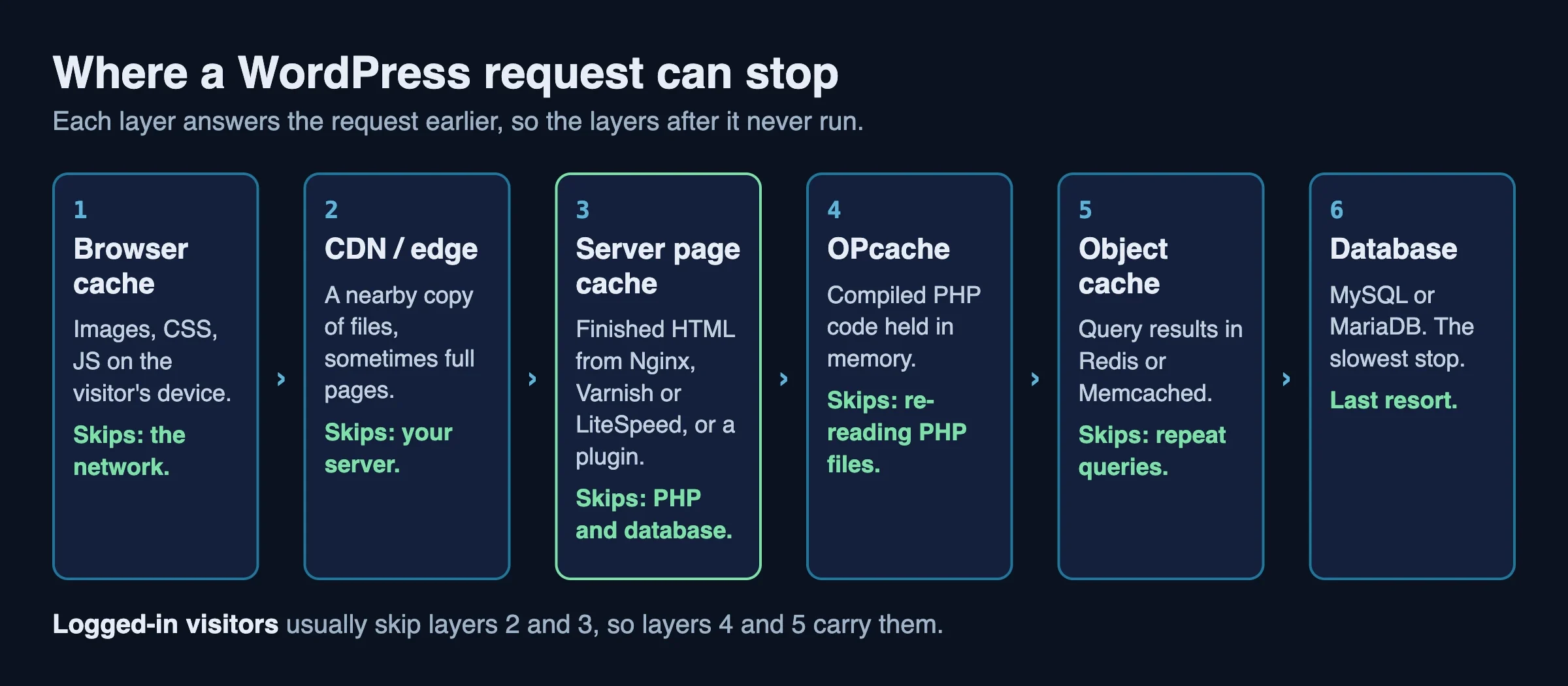
WordPress has six places where a request can be answered before it reaches the slowest part of the stack. Each layer skips the work of the layers behind it, and each one can only help with the kind of request it is allowed to store.
Browser cache
The visitor’s own browser keeps images, stylesheets and scripts and reuses them on the next page. It is controlled by Cache-Control and Expires headers on static files. It speeds up repeat visits and cannot help a first visit.
CDN and edge cache
A content delivery network keeps copies of your files on servers close to the visitor. Cloudflare’s own documentation states that its CDN does not cache HTML or JSON by default; it caches by file extension (images, scripts, stylesheets, fonts and similar). Caching full pages at the edge is something you switch on, through cache rules or Cloudflare’s Automatic Platform Optimization (APO), which requires the Cloudflare for WordPress plugin.
Server page cache
This is the layer most people mean by “caching”. The server stores the finished HTML of a page and serves that copy to the next visitor, skipping PHP and the database. It can live in the web server (Nginx FastCGI cache, LiteSpeed’s LSCache), in a reverse proxy (Varnish), or in a plugin that writes static files to disk. It works for pages that look the same for everyone, and it must step aside for logged-in visitors, carts and checkouts.
OPcache
PHP compiles your code on every request unless OPcache keeps the compiled version in memory. It is a PHP setting, not a WordPress feature, and it is normally on by default on modern hosts. It speeds up every uncached request, including logged-in ones. We cover the settings in our PHP OPcache settings guide.
Object cache
The object cache keeps the results of database queries in memory (Redis or Memcached) so the next request does not repeat them. By default WordPress only remembers objects for the length of one request. A persistent object cache stores them between requests through the object-cache.php drop-in in wp-content. It matters most for logged-in traffic, admin screens and sites with many queries per page. See why a missing object cache breaks rate limits and four object cache bugs that only appear in production.
Database
MySQL or MariaDB has its own buffer pool, which is tuned in server config rather than in a plugin. It is the last stop, and everything above exists to avoid reaching it. Our MySQL tuning guide covers it.
Tip: Layers 4 to 6 carry logged-in visitors, because layers 2 and 3 usually skip them. If your site is a store or a community, the object cache and OPcache matter more than the page cache.
What caching do managed hosts build in?
Most managed WordPress hosts run a page cache at the server, so a caching plugin on top is either unnecessary or a second cache. The hosts below are the ones whose own documentation we could confirm. If your host is not listed, ask support which layers are active and read the response headers (covered further down).
Host | What its docs confirm | Plugin advice |
|---|---|---|
Kinsta | Server (full-page) caching, edge caching, Redis object cache, CDN caching | Plugin or theme caches are managed separately from Kinsta’s |
WP Engine | Varnish page cache (10-minute expiry), optional object cache, Cloudflare-powered network, edge full-page cache | Docs tell you to purge plugin caches when changes do not show |
SiteGround | NGINX Direct Delivery, Dynamic Caching (NGINX full-page), Memcached | Dynamic Caching and Memcached rely on SiteGround’s own servers |
Cloudways | Varnish on servers that come with it; Breeze plugin supports it | Breeze is the matching plugin |
Hostinger | LiteSpeed web servers, LiteSpeed Cache plugin installed by its auto installer, optional object cache | Use LiteSpeed Cache |
Two things follow from the table. First, “managed host” does not mean “no plugin needed” in every case: the SiteGround documentation describes a plugin-level file cache for sites that are not on its servers, and the host cache is what does the work on its own servers. Second, a host cache is invisible in WordPress. It will not show up in your plugin list, so people forget it exists and install a second page cache on top.
Which caching plugins are popular, and what does each one include?
Caching plugins fall into three groups: page-cache plugins, all-in-one plugins that also optimise CSS and JavaScript, and optimisation-only plugins that leave page caching to someone else. The table summarises them; the cards after it give the detail. Install counts are the rounded figures WordPress.org shows.
Plugin | Free or paid | Page cache | CSS and JS tuning |
|---|---|---|---|
WP Rocket | Paid only | Yes | Yes, including delay JS |
LiteSpeed Cache | Free | Yes, on LiteSpeed servers | Yes, any server |
W3 Total Cache | Free and Pro | Yes | Minify free; delay scripts in Pro |
WP Super Cache | Free | Yes | No |
WP Fastest Cache | Free and Premium | Yes | Most in Premium |
FlyingPress | Paid only (14-day trial) | Yes | Yes |
Breeze | Free | Yes, Varnish-aware | Yes |
Cache Enabler | Free | Yes | HTML minify only |
Hummingbird | Free and Pro | Yes | Free basics; delay JS and critical CSS in Pro |
Autoptimize | Free and Pro | No in free | Yes |
WP Rocket
WP Rocket is a paid plugin with no free version. Its site lists page caching, preload, minify and combine, delay JavaScript, remove unused CSS, critical CSS, database cleanup, lazy loading and a built-in CDN. Plans are $59.95 a year for one site, $119.95 for three and $299.95 for 50, with a 14-day money-back guarantee. Check its site for what it covers on object caching before you rely on it.
LiteSpeed Cache
LiteSpeed Cache is free, has more than 7 million active installs and is the only plugin here that talks to the server’s own cache. Its page caching, smart purging, private cache for logged-in users and REST API caching need OpenLiteSpeed, a commercial LiteSpeed server, LiteSpeed-powered hosting or QUIC.cloud. Its optimisation features (minify, combine, lazy load, database cleaner, object cache connection) work on any server. QUIC.cloud services such as image optimisation and critical CSS have free usage levels and charge past them; your QUIC.cloud dashboard shows the current split.
W3 Total Cache
W3 Total Cache is the most configurable of the group, with around 900,000 active installs. The free version covers page, object, database and browser caching, minification and CDN integration. W3 Total Cache Pro adds full-site CDN delivery, fragment caching, REST API caching, delay scripts, render-blocking CSS removal and caching statistics. It offers a lot of switches, which is the main way to misconfigure it.
WP Super Cache
WP Super Cache is free, with about a million installs. It writes static HTML files and serves them in three ways: Apache mod_rewrite (fastest, needs a .htaccess change), PHP-served static files (the recommended mode) and WP-Cache mode for known users. It does page caching and little else, which makes it a clean choice when you want one job done and no JavaScript tuning.
WP Fastest Cache
WP Fastest Cache has about a million installs. The free version handles page caching with mod_rewrite, preload, cache timeouts, Cloudflare and CDN support and WP-CLI clearing. Its description lists these as Premium only: mobile cache, widget cache, extra minify and combine options, defer JavaScript, image optimisation, WebP conversion, database cleanup, lazy load and delay JS.
FlyingPress
FlyingPress is paid only, with a 14-day free trial. Its site lists page caching, critical CSS, image optimisation (from version 5.3) and Redis object caching (from version 5.6). Plans are $59 a year for one site, $109 for three, $229 for 25 and $279 for unlimited sites, and staging sites do not count toward the limit.
Breeze
Breeze is free and built by the Cloudways team, with about 300,000 installs. It adds file-level caching, minification, database cleanup, lazy loading and CDN options, and it supports Varnish: Cloudways states it is tested with servers that come with Varnish installed. If Varnish is missing, Breeze falls back to its own internal cache.
Cache Enabler
Cache Enabler is a small free page-cache plugin maintained by KeyCDN, with about 100,000 installs. It writes static HTML files and supports WebP, Brotli and gzip pre-compression, HTML minification and WP-CLI clearing. Its own description says it works with Autoptimize, so the two can share the work.
Hummingbird
Hummingbird, from WPMU DEV, has about 70,000 installs. The free version covers caching, compression, minify, deferred CSS and JavaScript and lazy-load integration. Hummingbird Pro adds delay JavaScript execution, critical CSS generation, Brotli compression and a global asset CDN. Its tested-up-to tag on WordPress.org lags behind the other plugins listed here, so check compatibility before installing on the newest WordPress.
Autoptimize
Autoptimize has about 800,000 installs and does not cache pages in its free version. It aggregates and minifies scripts and styles, can inline critical CSS, defers scripts, lazy-loads images and optimises Google Fonts. Its own description recommends pairing it with a page-caching plugin, and Autoptimize Pro adds page caching, image optimisation and a CDN. It is the usual partner when the host handles page caching.
Redis Object Cache
If you want a persistent object cache and your host provides Redis, the free Redis Object Cache plugin installs the drop-in and shows connection status. It is not a page cache and does not replace one. A page-cache plugin and an object-cache plugin do different jobs and can run together.
Why is my site still slow after installing a caching plugin?
The usual causes are a second page cache fighting the first, headers that tell caches to skip the page, or cookies that make every request unique. Each one is visible in the response headers, so measure before you change a setting.
Two page caches on one site
A host cache plus a plugin cache means pages are stored twice, purged at different times, and sometimes served stale from one while the other shows fresh content. The symptom is “I changed the page and I still see the old one”. The fix is to keep one. If your host runs a page cache, turn off page caching in the plugin and keep only its optimisation features.
No-cache headers
Some themes, plugins and security tools send Cache-Control: no-store or no-cache on every page. No cache layer will store those pages, however well configured. Find who sets the header before blaming the cache.
Cookies that make pages unique
A cache stores one copy per cache key. A cookie that the cache includes in that key (a session, a cart, a tracking cookie) makes each visitor’s request a separate entry, and the hit rate collapses. We wrote the full method in The Cookies Quietly Bypassing Your WordPress Page Cache, so we will not repeat it here.
Purges at the wrong time
Caches that purge on a schedule rather than on events serve stale pages. Caches that purge everything on every save throw away their own hit rate. Purge the affected URLs on publish and update, and purge everything after plugin, theme and core updates.
How do I check which cache is answering?
Read three things in the response headers of a logged-out request: cache-control, the host or plugin hit/miss header, and set-cookie plus age. Together they tell you whether a page was stored, who stored it and why it was skipped.
The three-header check
curl -sI https://example.com/ | grep -iE '^(cache-control|age|set-cookie|x-cache|x-litespeed-cache|cf-cache-status|x-varnish|x-qc-cache)'Run it twice. The first request may be a miss; the second should be a hit if the page is cacheable.
Header | What it tells you |
|---|---|
| Whether the page may be stored. |
|
|
| Cloudflare’s result: HIT, MISS, EXPIRED, DYNAMIC (not eligible), BYPASS (origin said no, for example |
| Seconds the stored copy has been held. A number above zero means a cache served it. |
| A cookie on an otherwise public page often explains a BYPASS or a miss. |
Not every host exposes a hit/miss header, and the header names differ. If none appears, test by timing: a cached page returns in tens of milliseconds, an uncached one usually takes several hundred or more.
Test logged-in and logged-out separately
In the browser, open the Network tab, load the page logged out in a private window, and read the document request’s response headers. Then repeat while logged in. Logged-in responses should not be served from a shared page cache.
Warning: If you copy a logged-in cookie into a curl command to test, delete it afterwards and never paste it into a ticket or chat. It is a working login.
Confirm what is installed
wp plugin list --status=active --field=name | grep -iE 'cache|rocket|litespeed|w3-total|autoptimize|breeze|fastest|flying'
ls wp-content/advanced-cache.php wp-content/object-cache.php
wp cache type
An advanced-cache.php file means a page-cache plugin has installed its drop-in. An object-cache.php file means a persistent object cache is wired in. wp cache type reports which object cache WordPress is using.
What should you cache on WooCommerce and logged-in sites?
Cache public pages and exclude anything personal. On a store, never serve a cached cart, checkout or account page to anyone but the person it was built for, and keep the cookies that mark a cart out of the page cache key.
WooCommerce exclusions
Every serious page-cache plugin ships WooCommerce defaults that exclude the cart, checkout and my-account pages. Check that the exclusions exist after any change of plugin, and check them again when you rename those pages. Cached product and shop pages are fine; the cart fragment that shows the item count must stay dynamic.
Community sites and logged-in caching
Most caching plugins offer an option to cache logged-in users as well. For a community, that is the riskiest setting you can turn on: a member’s feed, inbox and notifications are built for them alone. BuddyNext tested exactly this, setting each cache to cache logged-in visitors and checking what members and guests received, with a Redis persistent object cache running throughout.
Plugin | Setting tested | Result |
|---|---|---|
WP Super Cache | Cache known users | Members fresh, guests cached |
W3 Total Cache | Page cache on, logged-in exclusion off | Members fresh, guests cached |
WP Rocket | User Cache add-on on | Members fresh, guests cached |
LiteSpeed Cache (OpenLiteSpeed) | Cache Logged-in Users on | Members fresh, guests cached |
The result held because BuddyNext marks its member pages as uncacheable itself (the standard DONOTCACHEPAGE signal plus Cache-Control: no-store), not because those plugins are safe for logged-in pages by default. A plugin that does not honour that signal can still serve the wrong page. BuddyNext also purges the affected guest pages when a community post is created or changed, through WP Rocket, LiteSpeed Cache, W3 Total Cache and WP Super Cache directly. Autoptimize, LiteSpeed’s JavaScript and CSS optimisation and WP Rocket’s file optimisation including delayed JavaScript were tested too, with no script errors. Cloudflare APO and hand-written Varnish rules were not tested. The full results are in the BuddyNext page cache and optimisation documentation, and our sister site covers the hosting side in Community Site Hosting Guide: What BuddyNext Really Needs.
Which caching setup is right for your host?
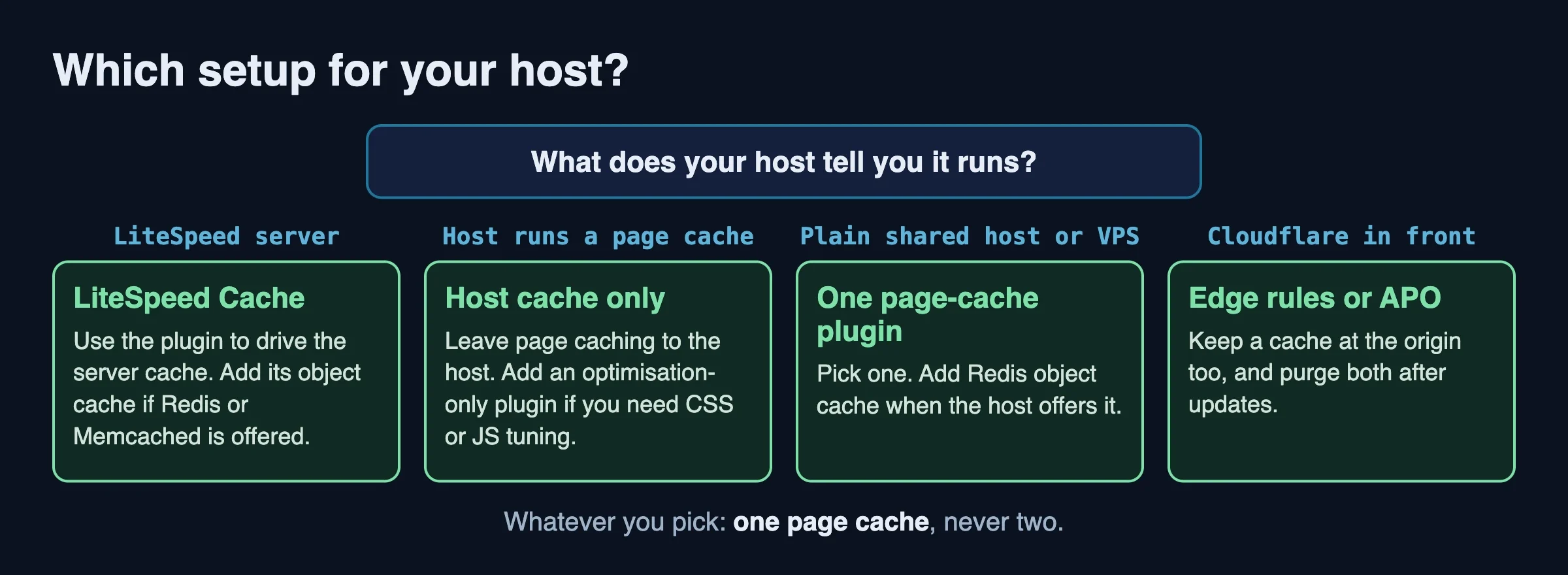
Match the setup to the cache your host already runs. The goal is one page cache, one object cache where available, and optimisation tuning only where it is not already handled.
Your host | Page cache | Plugin | Object cache |
|---|---|---|---|
LiteSpeed server (for example Hostinger) | LiteSpeed server cache | LiteSpeed Cache | LiteSpeed’s object cache connection, if offered |
Own page cache (Nginx, Varnish, edge) | The host’s | None, or Autoptimize or similar for CSS and JS only | Host’s Redis if offered |
Cloudways with Varnish | Varnish | Breeze, set to work with Varnish | Redis if enabled |
Plain shared host or VPS | One page-cache plugin | WP Rocket, WP Super Cache or Cache Enabler | Redis Object Cache if Redis exists |
Cloudflare in front | Edge rules or APO, plus an origin cache | As for your origin | As for your origin |
If you run a small blog on a plain host, WP Super Cache or Cache Enabler is enough. If you want one plugin to do the page cache, the CSS and JavaScript tuning and the preload, WP Rocket or FlyingPress is the paid route. If you want the most control for free and are willing to learn the settings, W3 Total Cache is the option. On a LiteSpeed host there is rarely a reason to look further than LiteSpeed Cache. For a head-to-head on the paid and free contenders, our sister site compares WP Rocket vs LiteSpeed Cache and WP Rocket vs W3 Total Cache.
Purge strategy after updates
- Update plugins, themes or core on staging first.
- Purge the plugin cache, then the host cache, then the CDN, in that order, so the layer closest to the visitor refreshes from a clean source.
- Load the home page logged out and check the three headers.
- Load a logged-in page and confirm it is not served from a shared cache.
For a community or store, add this to every update: purge all caches after each update, because a cached page or combined script file from the old version can outlive it.
For developers: what to read and what to hook
Developers can treat the cache stack as a set of drop-ins and headers. The page cache plugin owns advanced-cache.php and the WP_CACHE constant. The object cache owns object-cache.php. Only one of each can exist, which is why two plugins that both want the drop-in will fight.
Reading Vary and Cache-Control
A Vary: Cookie or Vary: User-Agent header multiplies cache entries. Check what you are varying on. A page that sends Cache-Control: private is telling shared caches to keep out, which is correct for logged-in pages and a bug for public ones.
Marking a response uncacheable
Plugins that honour the standard signal skip caching when this constant is set early in the request:
add_action( 'template_redirect', function () {
	if ( is_user_logged_in() || is_checkout() ) {
		if ( ! defined( 'DONOTCACHEPAGE' ) ) {
			define( 'DONOTCACHEPAGE', true );
		}
		nocache_headers();
	}
} );
Use it only for pages that really are personal. Setting it site-wide turns the page cache off.
Purging from code
There is no single purge function across cache plugins. LiteSpeed Cache documents a purge action, WP Rocket exposes rocket_clean_domain(), and BuddyNext exposes the buddynext_purge_page_cache action for caches it does not call directly. Check the plugin’s developer documentation for the version you run, and wrap calls in function_exists() so a missing plugin does not cause a fatal error.
Tested against: plugin pages on WordPress.org (tested up to WordPress 7.1.2 for most of the plugins listed) and each vendor’s own documentation, October 2026. We have not benchmarked these plugins against each other here, so the guide ranks them by what they include and where they fit, not by speed.
When you don’t need a caching plugin
You may not need one if your host already runs a page cache and your pages are mostly static, if your site is behind a full-page edge cache, or if your slowness comes from somewhere else. A slow admin, a slow checkout and a slow first byte on uncached pages are not page-cache problems. Our guide to six performance problems PageSpeed never shows and the walkthrough of where a request’s memory goes cover those.
FAQ
Can I use two caching plugins at once?
Not two page caches. You can pair one page-cache plugin with an optimisation-only plugin such as Autoptimize, and with a separate object-cache plugin such as Redis Object Cache. Two plugins that both create page caches or both want the same drop-in file will conflict.
Do I need a caching plugin on managed WordPress hosting?
Often not. Kinsta, WP Engine and SiteGround document server-level page caching of their own. Keep their cache as the page cache, and add a plugin only for tasks the host does not do, such as JavaScript delay or critical CSS.
Is LiteSpeed Cache useful if my host does not run LiteSpeed?
Partly. The plugin’s page caching needs a LiteSpeed server or QUIC.cloud. Its optimisation features, such as minify, combine, lazy load and database cleaning, work on any server, but other plugins cover that ground too.
Which is the best free caching plugin?
It depends on your host. On a LiteSpeed host, LiteSpeed Cache. On a plain host, WP Super Cache or Cache Enabler for simple page caching, and W3 Total Cache if you want every option. Pair any of them with Autoptimize if you need CSS and JavaScript tuning.
Why does my site show old content after an update?
One of the layers is still serving a stored copy. Purge the plugin cache, the host cache and the CDN in that order, then check the headers to see which layer answered.
Should logged-in users be cached?
Only if the cache keeps each user’s copy separate and your site’s pages are safe to store. For stores and communities the safer rule is to leave logged-in caching off and use an object cache for speed instead.
What to do next
Run the three-header check on your home page today and write down which layer answers. Then compare it with the table above and remove the extra layer if there is one. If you manage a store or community on a stack you do not fully control, our team can audit the cache layers for you through Wbcom Designs.
Related reading
Plugins we build and run
We maintain these ourselves, which is why we can support them on your site.
- BuddyNextThe self-hosted community engine for WordPress
- BuddyXFree community theme, Pro when you outgrow it
- ReignPremium community theme. Add pieces, build anything
- JetonomyCommunity forum and Q&A for WordPress
- EventonomyEvents and RSVPs for WordPress communities
- LearnomyCourses and learning communities on WordPress
- ListoraDirectories and listings your members can browse
- SnipShareCode sharing built for developer communities
- WB Ad ManagerAd placements that turn traffic into revenue
- WP Career BoardA job board your community actually uses
- WP Sell ServicesSell services with offers, orders, and payouts
- MediaVersePhotos, video, and media albums for members
- WB GamificationPoints, badges, and rewards that keep members active
- Product RoadmapPublic roadmaps with voting your users trust