PHP OPcache Settings for WordPress: Configuration Guide with Benchmarks
OPcache configuration guide for WordPress covering memory_consumption, max_accelerated_files, revalidate_freq, JIT settings, and how to verify hit rate on production.

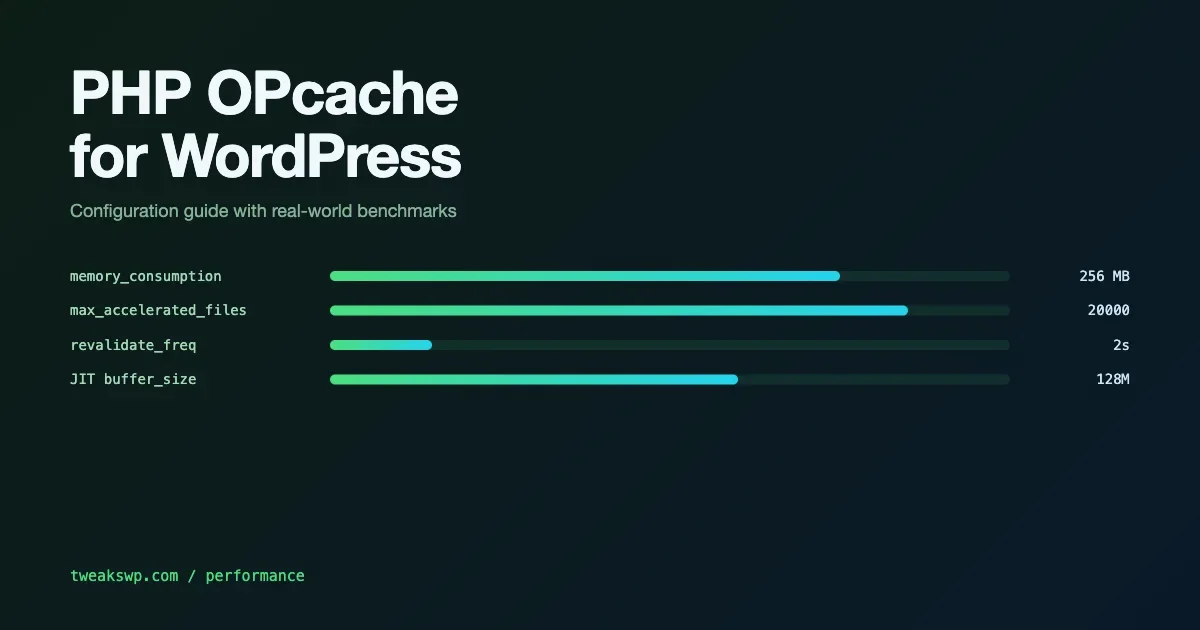
PHP OPcache is the single highest-impact performance configuration change you can make on a WordPress server. Done correctly, it eliminates PHP compilation overhead on every request. Done with default settings, you leave most of the benefit on the table. This guide covers the settings that matter for WordPress workloads, how to verify hit rate, and how to diagnose cache invalidation problems.
What OPcache Does and Why Defaults Are Wrong for WordPress
PHP compiles every script to bytecode before executing it. OPcache caches that compiled bytecode in shared memory. On the next request, PHP loads the cached bytecode directly - no tokenizing, no parsing, no compilation. For a typical WordPress page load, which executes hundreds of files, this is significant.
The problem with defaults is that PHP ships OPcache configured for conservative resource use, not for a production WordPress install. The two settings that cause the most problems are opcache.memory_consumption (too low) and opcache.max_accelerated_files (too low for WordPress core + plugins + themes).
opcache.memory_consumption: Start at 256MB
The default is 128MB. A WordPress install with 20-30 plugins will hit this ceiling, causing OPcache to evict cached files under load. When the cache is full, PHP falls back to compiling on every request for the evicted files, negating the performance benefit.
; php.ini or /etc/php/8.x/fpm/conf.d/10-opcache.ini
opcache.memory_consumption=256
Start at 256MB for a standard install. Check actual usage with opcache_get_status() – if memory_usage.used_memory is near the limit, increase it. For multisites with many plugins, 512MB is not unusual.
opcache.max_accelerated_files: Count Your PHP Files
This setting controls how many PHP files OPcache tracks. The default is 10,000. A WordPress install with a typical plugin set (WooCommerce, Elementor, ACF, a contact form plugin, a caching plugin) exceeds this easily. When OPcache runs out of file slots, it starts evicting files even if memory is available.
# Count actual PHP files in your install
find /var/www/html -name "*.php" | wc -l

# Then pick the next prime from this list:
# 3907 / 7963 / 16229 / 32531 / 65521
Count your actual PHP files and set max_accelerated_files to the next available value from this list: 3,907 / 7,963 / 16,229 / 32,531 / 65,521. These are prime numbers, which PHP uses internally for the hash table. Using a non-prime value means PHP rounds up to the next prime anyway - specify the prime directly.
opcache.revalidate_freq: How Often to Check for Changes
OPcache checks whether cached files have changed on disk according to the revalidate_freq interval (in seconds). The default is 2 seconds. On a production server where PHP files change only during deployments, this is wasteful - every 2 seconds, PHP checks the mtime of potentially thousands of files on disk.
; Check once per request only
opcache.validate_timestamps=1
opcache.revalidate_freq=0

; Or for maximum speed - disable timestamp checks entirely
; and reset manually on every deployment
opcache.validate_timestamps=0
Set revalidate_freq=0 combined with validate_timestamps=1 to check only once per request. Or set validate_timestamps=0 and reset the cache manually on each deployment with opcache_reset() or by sending SIGHUP to PHP-FPM. The second approach is more aggressive and slightly faster, but requires discipline in your deployment pipeline.
Checking Hit Rate and Cache Status
The best way to verify OPcache is working correctly is to check its status. A hit rate below 90% indicates either the cache is too small or files are being evicted:
<?php
$status = opcache_get_status();
$hits = $status['opcache_statistics']['hits'];
$misses = $status['opcache_statistics']['misses'];
$hit_rate = $hits / ( $hits + $misses ) * 100;

echo "Hit rate: " . round( $hit_rate, 2 ) . "%\n";
echo "OOM restarts: " . $status['opcache_statistics']['oom_restarts'] . "\n";
echo "Hash restarts: " . $status['opcache_statistics']['hash_restarts'] . "\n";
echo "Used memory: " . $status['memory_usage']['used_memory'] . "\n";
Key metrics to watch: hits vs misses ratio, oom_restarts (out-of-memory restarts - means your memory_consumption is too low), and hash_restarts (means max_accelerated_files is too low). If either restart counter is non-zero, increase the corresponding setting.
opcache.interned_strings_buffer: The Often-Forgotten Setting
PHP interns common strings (function names, variable names, class names) in a separate shared memory buffer. The default is 8MB. WordPress and its plugins use a large number of unique string identifiers - hook names, option names, class names. Exhausting this buffer forces PHP to fall back to heap allocation for strings, which is slower and misses OPcache’s string deduplication benefit:
opcache.interned_strings_buffer=32Set it to 32MB on production WordPress servers. The memory cost is low and the benefit is measurable on sites with many plugins, each registering dozens of hooks and options.
PHP 8 JIT: When to Enable It for WordPress
PHP 8 added JIT compilation on top of OPcache. For WordPress, the JIT benefit is limited because WordPress workloads are I/O-bound (database queries, file reads), not CPU-bound (mathematical computation). JIT accelerates CPU-intensive code that executes the same paths repeatedly - not the varied, database-dependent code paths of a typical WordPress request.
; Default - JIT disabled, recommended for most WordPress sites
opcache.jit=off

; Only if you have profiled CPU-bound code (image processing, encryption)
opcache.jit=tracing
opcache.jit_buffer_size=100M
Use jit=tracing with a buffer size of 64-128MB if you have CPU-intensive operations in your codebase (image processing, encryption, heavy computation). For standard WordPress with WooCommerce and typical plugins, leave JIT at jit=off unless you have profiling data showing CPU as a bottleneck. Enabling JIT on I/O-bound workloads adds memory overhead without measurable throughput gain.
Complete Production Configuration
A complete OPcache configuration for a production WordPress server with 30+ plugins:
[opcache]
opcache.enable=1
opcache.enable_cli=0
opcache.memory_consumption=256
opcache.interned_strings_buffer=32
opcache.max_accelerated_files=16229
opcache.validate_timestamps=1
opcache.revalidate_freq=0
opcache.save_comments=1
opcache.jit=off
opcache.max_wasted_percentage=5
After applying these settings, restart PHP-FPM and verify the hit rate after 10-15 minutes of traffic. Target a hit rate above 95%. If you see oom_restarts or hash_restarts, increase the corresponding memory_consumption or max_accelerated_files value. For PHP-FPM worker tuning that determines how many processes share the OPcache memory, the WordPress memory limit guide covers the relationship between WP_MEMORY_LIMIT, PHP memory_limit, and shared memory resources.
OPcache and WordPress Updates
When WordPress core or a plugin updates, OPcache may serve stale bytecode for the updated files until the next revalidation check. With validate_timestamps=0, this is indefinite. With revalidate_freq=60, it lasts up to 60 seconds.
Add an OPcache reset to your update process. In wp-config.php, you can hook into WordPress’s upgrader process to trigger a reset:
<?php
add_action( 'upgrader_process_complete', function() {
    if ( function_exists( 'opcache_reset' ) ) {
        // Signals all PHP-FPM workers to reload OPcache, not just this one
        exec( 'sudo systemctl reload php8.2-fpm' );
    }
}, 10, 0 );
This hook fires after every plugin and core update, sending a SIGHUP to PHP-FPM which gracefully reloads the OPcache. The alternative - calling opcache_reset() directly - only clears the cache for the current FPM worker process, not for all workers in the pool. SIGHUP is the correct approach when PHP-FPM runs multiple workers.
Diagnosing OPcache Problems: Common Failure Patterns
Several OPcache failure modes produce symptoms that look like PHP or WordPress bugs but are actually cache-related:
Stale Code After Updates
The symptom: you deploy a code change and the old behavior persists. The fix: reset OPcache after every deployment. With validate_timestamps=1 and a low revalidate_freq, the cache self-heals within a few seconds. With validate_timestamps=0, you must reset manually.
# Option 1: reload PHP-FPM (clears OPcache for all workers)
sudo systemctl reload php8.2-fpm

# Option 2: WP-CLI, if a helper plugin exposes it
wp eval 'opcache_reset();'

# Option 3: hit a dedicated reset endpoint over HTTP (same worker only)
curl https://example.com/opcache-reset.php?key=SECRET
Memory Fragmentation Under Load
OPcache’s shared memory allocator can fragment over time, particularly on busy servers that load many different plugin combinations. The memory_usage.wasted_memory metric in opcache_get_status() reflects this. When wasted memory exceeds opcache.max_wasted_percentage (default 5%), OPcache triggers a full restart. You can monitor this and proactively restart before fragmentation reaches the threshold:
<?php
$status  = opcache_get_status();
$wasted  = $status['memory_usage']['wasted_memory'];
$total   = $status['memory_usage']['used_memory'] + $status['memory_usage']['free_memory'] + $wasted;
$percent = ( $wasted / $total ) * 100;

if ( $percent > 4 ) {
    error_log( sprintf( 'OPcache wasted memory at %.1f%% - approaching restart threshold', $percent ) );
}
Per-User File Caches Causing Inconsistency
On shared hosting, OPcache may be configured with opcache.cache_id or opcache.file_cache_only=1, which uses a file-based cache per user rather than shared memory. This produces lower hit rates and slower performance. If you cannot control the OPcache mode on shared hosting, measure whether OPcache is actually helping by comparing response times with it enabled and disabled.
OPcache on Shared Hosting vs. Dedicated Servers
On dedicated servers or VPS instances, you control the OPcache configuration directly via php.ini or a dedicated opcache.ini file in the PHP configuration directory. On shared hosting, the host typically configures OPcache for the entire server, and you may only be able to override specific settings via .user.ini in your document root.
Settings that can typically be overridden in .user.ini: opcache.revalidate_freq, opcache.enable_file_override. Settings that typically require server-level access: opcache.memory_consumption, opcache.max_accelerated_files, opcache.interned_strings_buffer.
If you are on managed WordPress hosting (Kinsta, WP Engine, Cloudways), OPcache is configured for you and typically at reasonable values for WordPress. The configurations in this guide are relevant when you control your own PHP-FPM stack. For the full PHP-FPM worker pool configuration that determines how many processes share OPcache’s memory allocation, the companion guide on WordPress memory limits covers the relationship between php_value memory_limit, WP_MEMORY_LIMIT, and WP_MAX_MEMORY_LIMIT.
Preloading PHP Files in OPcache (PHP 7.4+)
PHP 7.4 introduced opcache.preload, which lets you load specified files into OPcache at PHP-FPM startup time rather than on first request. This eliminates the warm-up period where the first few requests after a restart have higher latency due to cache misses:
; php.ini
opcache.preload=/var/www/html/preload.php
opcache.preload_user=www-data
For WordPress, a preload script that includes WordPress core files (wp-includes/functions.php, wp-includes/class-wp.php, wp-includes/plugin.php) gives the most benefit. Preloaded files cannot be updated without restarting PHP-FPM, so limit preloading to stable core files, not plugin files that may change during updates.
Measuring the Impact: Before and After Metrics
To quantify the OPcache improvement, measure PHP execution time before and after configuration changes. The cleanest measurement is PHP’s own execution time, which excludes database query time and network latency:
<?php
$start = microtime( true );
// ... normal WordPress bootstrap and page render happens here ...
$elapsed_ms = ( microtime( true ) - $start ) * 1000;
error_log( sprintf( 'PHP execution time: %.2fms', $elapsed_ms ) );
On a typical WordPress install, properly configured OPcache reduces PHP compilation overhead by 30-60% on the first request after a cache miss, and eliminates it entirely on subsequent requests. The TTFB improvement depends on how much of your response time was compilation overhead. For a site that was already database-bound, the improvement is smaller. For a site with many plugins and light database use, OPcache is the single highest-impact configuration change available.
For the full server-side performance picture beyond OPcache - MySQL buffer pool tuning, Nginx FastCGI cache, and PHP-FPM worker pool sizing - each of those is covered in the Server Configuration series on this site.
opcache.enable_cli: Enable for WP-CLI
By default, OPcache is disabled for CLI PHP. If you run WP-CLI commands for bulk operations (content imports, database migrations, batch processing), enabling OPcache for CLI reduces the compilation overhead on large imports:
; In a CLI-specific php.ini (e.g. /etc/php/8.2/cli/conf.d/10-opcache.ini)
opcache.enable_cli=1
opcache.memory_consumption=128
This is a low-risk configuration. CLI PHP gets its own OPcache instance separate from the web server pool. The benefit is most visible on long-running WP-CLI commands that execute many PHP files repeatedly - import scripts, cache warmers, and similar operations. For short WP-CLI commands like wp option get or wp post list, the overhead of loading OPcache outweighs the benefit.
Verify Before Deploying
After applying OPcache configuration changes, check opcache_get_status() under real traffic before declaring the configuration complete. The memory and file slot settings interact with your specific plugin set in ways that are hard to predict without actual usage data. Adjust based on what the status report shows, not on what the settings theoretically should do.
Plugins we build and run
We maintain these ourselves, which is why we can support them on your site.
- BuddyNextThe self-hosted community engine for WordPress
- BuddyXFree community theme, Pro when you outgrow it
- ReignPremium community theme. Add pieces, build anything
- JetonomyCommunity forum and Q&A for WordPress
- EventonomyEvents and RSVPs for WordPress communities
- LearnomyCourses and learning communities on WordPress
- ListoraDirectories and listings your members can browse
- SnipShareCode sharing built for developer communities
- WB Ad ManagerAd placements that turn traffic into revenue
- WP Career BoardA job board your community actually uses
- WP Sell ServicesSell services with offers, orders, and payouts
- MediaVersePhotos, video, and media albums for members
- WB GamificationPoints, badges, and rewards that keep members active
- Product RoadmapPublic roadmaps with voting your users trust