Outdated SQL Server in Site Health After WordPress 7.1
WordPress 7.1 raised its MariaDB recommendation from 10.6 to 10.11, so Site Health now flags servers that reached end of life in July. MySQL 8.0 is end of life too, but still passes. How to check what you run and upgrade safely.

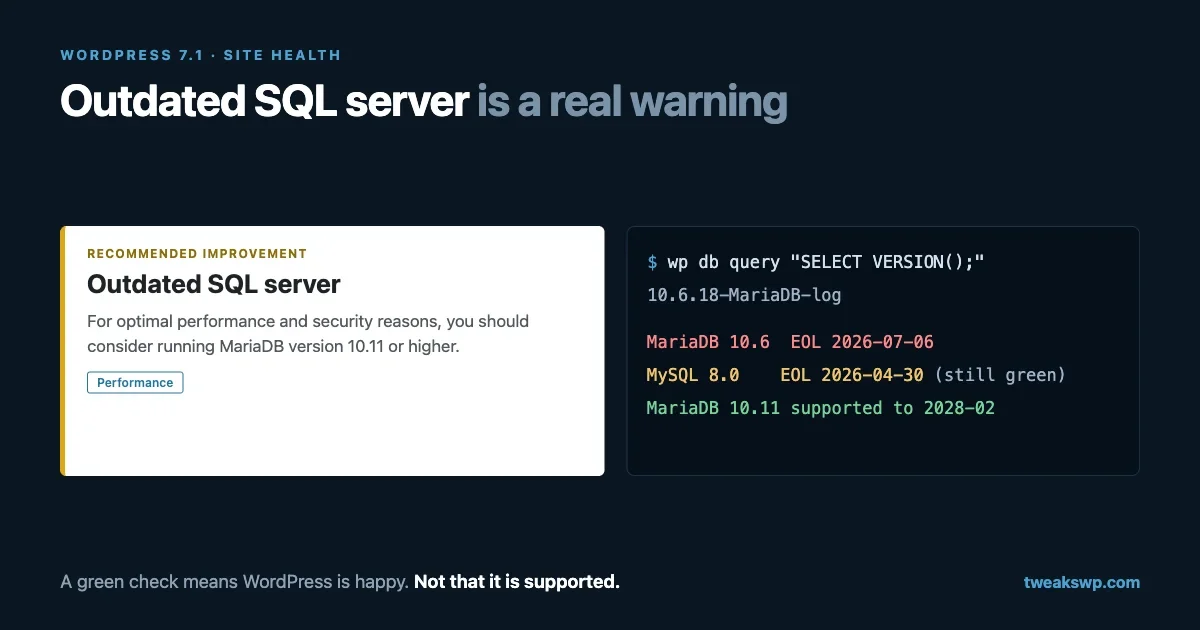
You updated to WordPress 7.1, opened Tools > Site Health, and found a new item that was not there last week:
Outdated SQL server. For optimal performance and security reasons, you should consider running MariaDB version 10.11 or higher. Contact your web hosting company to correct this.
Your database did not change. WordPress did. And the warning is right, for a reason Site Health does not mention: the database version it is complaining about stopped receiving security fixes in July.
There is also a second half to this that is worse, because it produces no warning at all. If your site runs on MySQL rather than MariaDB, Site Health may be showing you a green “SQL server is up to date” for a version that went end-of-life in April.
This post covers both: what changed in 7.1, why the MySQL check stays green when it should not, how to confirm exactly what your server runs, and how to get off an unsupported database without breaking the site.
What changed in WordPress 7.1
Site Health decides whether your database is current by comparing it against two constants in wp-admin/includes/class-wp-site-health.php. In the 7.0 branch they read:
private $mysql_recommended_version   = '8.0';
private $mariadb_recommended_version = '10.6';
In the 7.1 branch, one of them moved:
private $mysql_recommended_version   = '8.0';
private $mariadb_recommended_version = '10.11';
That single line is the whole change. A site on MariaDB 10.6 passed the check on 7.0 and fails it on 7.1, with no change on the server. That is why so many people are meeting this warning for the first time right after updating.
The public requirements page was updated to match. wordpress.org/about/requirements now recommends “MariaDB version 10.11 or greater OR MySQL version 8.0 or greater.”
How serious the warning is
Site Health has three levels, and this is the middle one. The test is get_test_sql_server(), and when the version is below the recommendation it sets:
$result['status'] = 'recommended';
$result['label']  = __( 'Outdated SQL server' );
It only escalates to critical, with the label “Severely outdated SQL server” and a Security badge, when the server is below the hard minimum, which is still 5.5. So 10.6 is flagged as something to act on, not as an emergency.
That framing undersells it slightly, and the next section is why.
Why the recommendation moved now
MariaDB publishes long-term support releases with fixed end-of-life dates. The ones that matter for WordPress hosting, from endoflife.date:
MariaDB 10.6    released 2021-07-06    end of life 2026-07-06
MariaDB 10.11   released 2023-02-16    end of life 2028-02-16
MariaDB 11.4    released 2024-05-29    end of life 2029-05-29
MariaDB 11.8    released 2025-06-04    end of life 2028-06-04
10.6 reached end of life on 6 July 2026. After that date there are no further security releases for that branch. A vulnerability found in the 10.6 code line from now on stays unfixed on every server still running it.
So WordPress raising its recommendation to 10.11 is not arbitrary tightening. It is core catching up with a version that has already stopped being maintained.
One detail in that table surprises people: 11.8 reaches end of life before 11.4. A newer version number does not always mean a longer support window, so check the date rather than picking the highest number.
The MySQL check that stays green
Now the part Site Health will not tell you.
MySQL has the same kind of release lifecycle, and its dates are just as fixed:
MySQL 5.7    end of life 2023-10-31
MySQL 8.0    end of life 2026-04-30
MySQL 8.4    long-term support, end of life 2032-04-30
MySQL 8.0 went end-of-life on 30 April 2026. But the MySQL threshold in Site Health is still '8.0', in both the 7.0 and 7.1 branches.
The comparison is a plain version_compare():
$this->is_recommended_mysql_version = version_compare(
    $this->mysql_recommended_version,   // '8.0'
    $this->mysql_server_version,        // e.g. '8.0.39'
    '<='
);
'8.0' is less than or equal to any 8.0.x release, so every MySQL 8.0 server passes. Site Health reports “SQL server is up to date” with a green check, on a database that has not had security support for months.
This is not really a bug. The constant is a recommendation for running WordPress well, not a tracker of vendor support dates, and WordPress still works correctly on 8.0. But if you have been reading that green check as “my database is fine”, it is telling you something narrower than you think.
The practical rule: Site Health tells you whether WordPress is happy with your database. It does not tell you whether your database is still supported. Check the second question yourself.
Find out exactly what you are running
Do not trust what the hosting dashboard says, and do not trust the version of the client on your machine. You want the version the server reports to WordPress.
From WP-CLI
The most direct answer is the same query Site Health runs:
wp db query "SELECT VERSION();"A MariaDB server returns something like 10.6.18-MariaDB-log. A MySQL server returns something like 8.0.39, with no product name.
To see how WordPress itself classifies it, ask $wpdb, which is the call core uses to decide between the MySQL and MariaDB thresholds:
wp eval 'global $wpdb; echo $wpdb->db_server_info(), PHP_EOL;'Core checks whether that string contains “mariadb”. If it does, the MariaDB threshold applies; otherwise the MySQL one does.
From the dashboard
Under Tools > Site Health > Info > Database, look at “Server version” and “Client version”. They are different things. The client version is the library PHP uses to talk to the database, and it can be years newer or older than the server. Only the server version matters for end-of-life.
Across a fleet
If you manage several sites with WP-CLI aliases, check them all at once rather than logging into each:
for site in @client-a @client-b @client-c; do
  printf "%-12s " "$site"
  wp $site db query "SELECT VERSION();" --skip-column-names
done
Sort the output and you have your upgrade list. Sites on shared hosting usually share one database server per host, so a list like this often collapses into a handful of hosting tickets rather than dozens of upgrades.
What running an end-of-life database actually costs
It is easy to hear “end of life” and conclude either that nothing matters or that the site is about to be breached. Neither is accurate.
Your site will not stop working on 7 July. MariaDB 10.6 runs exactly as it did on 5 July. What changes is what happens next time a flaw is found in that code line: newer branches get a fix, and 10.6 does not.
For most WordPress sites the database is not reachable from the internet, which lowers the direct risk. But the database is not only attacked from outside. A SQL injection flaw in any plugin passes attacker-controlled queries straight to the server, and at that point the server’s own bugs become part of your attack surface.
There is also a slower, more certain cost. Distribution repositories, container images and control panels gradually drop old versions. The longer a server stays on an unsupported release, the more likely the eventual upgrade happens under pressure, because some other dependency forced it, rather than on a quiet afternoon you chose.
That is the real argument for doing it now: you get to pick when.
If you are on managed or shared hosting
You almost certainly cannot upgrade the database yourself, and you should not try. Open a ticket. Make it easy to answer:
Subject: Database server end-of-life on example.com

Our site reports MariaDB 10.6.18, which reached end of life on
2026-07-06, and WordPress 7.1 Site Health now flags it as an
outdated SQL server (recommended: MariaDB 10.11 or later).

1. Is an upgrade to 10.11 or a later LTS scheduled for this server?
2. If not, can this site be moved to a server that runs one?
3. Will the upgrade require any change or downtime on our side?
Specific version numbers and dates get a specific answer. “Is my database up to date?” gets “yes”.
If you run your own server with cPanel/WHM or Plesk, both have a database upgrade interface in the server administration panel, and they manage the package switch for you. Still take the backup described below first, and still test on a staging copy.
Upgrading MariaDB 10.6 to 10.11 yourself
This follows MariaDB’s own documented procedure for this path. On most servers the upgrade is uneventful, but “most” is carrying weight in that sentence, so do it on a staging server before production.
1. Back up twice, in two formats
MariaDB recommends mariadb-backup for a physical backup of the whole server. For a WordPress site, also take a logical export you can import anywhere:
wp db export ~/backups/example-$(date +%F).sql --add-drop-table
wp db export - | gzip > ~/backups/example-$(date +%F).sql.gz
The logical export is the one you will actually want if something goes wrong, because it restores into any MariaDB or MySQL version without caring about file formats.
2. Check for the one incompatibility that can lock you out of tables
MariaDB lists a small number of incompatible changes between 10.6 and 10.11. For a typical WordPress database the one worth checking is compression: if any InnoDB table was created with a non-zlib compression algorithm, it is unreadable after the upgrade until the matching compression library is installed.
Almost no WordPress site uses table compression, but checking takes one query:
wp db query "SELECT TABLE_NAME, ROW_FORMAT, CREATE_OPTIONS
  FROM information_schema.TABLES
  WHERE TABLE_SCHEMA = DATABASE()
  AND (ROW_FORMAT = 'Compressed' OR CREATE_OPTIONS LIKE '%compress%');"
An empty result means this does not affect you. Anything listed deserves a look at MariaDB’s compression plugin notes before you proceed.
3. Point the package manager at 10.11
Update the MariaDB repository configuration so the package manager installs 10.11 rather than 10.6. MariaDB documents this separately for APT, YUM and ZYpp, and the exact change depends on how the repository was added originally.
4. Stop, remove, install
sudo systemctl stop mariadb

# Debian and Ubuntu
sudo apt-get remove mariadb-server
sudo apt-get install mariadb-server

# RHEL, Rocky, Alma, Fedora
sudo yum remove MariaDB-server
sudo yum install MariaDB-server
Removing the server package does not remove your data directory. The databases stay on disk and the new version reads them.
5. Clean the configuration before starting
This is the step people skip, and it is the one that stops the server from starting. MariaDB 10.11 removed some options that 10.6 accepted. If your my.cnf or any file under /etc/mysql/ still sets them, remove or rename them:
# removed in 10.11
innodb_log_write_ahead_size   # block size is now detected from the storage
innodb_version                # redundant
Find them quickly:
sudo grep -rnE "innodb_log_write_ahead_size|innodb_version" /etc/mysql/ /etc/my.cnf* 2>/dev/nullTwo more worth knowing. keep_files_on_create is deprecated and should be dropped even though it still starts. And innodb_buffer_pool_chunk_size changed its default from a fixed 134217728 to autosized, so if you had tuned innodb_buffer_pool_size carefully around the old chunk size, re-check the resulting pool after restart rather than assuming it matches.
If you tuned the buffer pool for WordPress originally, our guide to innodb_buffer_pool_size and related settings covers what those values should be based on.
6. Start, then run the upgrade tool
sudo systemctl start mariadb
sudo mariadb-upgrade
mariadb-upgrade brings the system tables in the mysql database up to the new version’s format and marks your tables as checked against it. Skipping it is the most common reason a freshly upgraded server behaves oddly.
7. Confirm from WordPress, not from the server
The server reporting the right version proves the package changed. It does not prove the site works. Check from the application side:
wp db query "SELECT VERSION();"
wp db check
wp option get siteurl
wp post list --posts_per_page=3 --fields=ID,post_title
wp db check runs a table check across the site’s database. Then load the front end, log in, save a post, and rerun Site Health. The “Outdated SQL server” item should be gone.
8. Watch it for two days
A clean start and a working front page cover the obvious failures. The quieter ones show up under real traffic, so give the new server a couple of days of attention before you call it done.
Watch the database error log for warnings that did not appear before, especially anything about deprecated options or tables being checked. Compare how long your slowest pages take against what they took before the upgrade, using the same page and the same logged-in state. And if the site runs scheduled work such as cron events, imports or email queues, confirm those ran on schedule, because a job that fails at three in the morning will not be the thing you check first.
If a specific page got slower, capture the query rather than guessing. Query Monitor shows the slowest queries per request, and comparing that list before and after is far more useful than a general impression that the site feels different.
wp db query "SHOW GLOBAL STATUS LIKE 'Slow_queries';"Run that on day one and again on day two. A number climbing faster than your traffic is the signal to look closer.
If the database runs in Docker
A lot of VPS setups and nearly every local environment run the database as a container, and those are easy to forget because nobody logs into them. Look for a pinned image tag:
grep -rnE "image:\s*mariadb:10\.6|image:\s*mysql:8\.0" docker-compose*.yml compose*.yml 2>/dev/nullChanging mariadb:10.6 to mariadb:10.11 is the upgrade, but on its own it is not the whole of it. The official MariaDB image leaves an existing data directory untouched on startup, so the system tables are not brought up to the new version unless you ask for that:
services:
  db:
    image: mariadb:10.11
    environment:
      MARIADB_AUTO_UPGRADE: "1"
With MARIADB_AUTO_UPGRADE set, the container runs mariadb-upgrade when it is needed. The image documentation is candid that this may limit some downgrade options, and by default it writes a backup of the system tables as system_mysql_backup_*.sql.zst in the top of the data directory to help if you have to go back. Do not set MARIADB_DISABLE_UPGRADE_BACKUP unless you already have another way back.
Take the logical export before changing the tag, not after, and keep it outside the volume.
If the upgrade goes wrong
Plan the way back before you start, because a database that will not start is a bad time to work it out.
Do not expect to reinstall 10.6 over the upgraded data directory. Once mariadb-upgrade has changed the system tables, pointing the old version at the same files is not a reliable rollback, which is exactly why the Docker image keeps a backup of those tables.
The dependable way back is the logical export from step 1: bring up a clean server on the previous version, import the dump, and point WordPress at it.
wp db import ~/backups/example-2026-09-17.sql
wp cache flush
wp db query "SELECT VERSION();"
That is also why the export is taken with --add-drop-table: it imports cleanly over an existing schema rather than failing on the first table that already exists.
Most failed upgrades are not really failed upgrades, though. They are a server refusing to start because of an option removed in 10.11, and the error log names the option. Check it before you reach for the backup:
sudo journalctl -u mariadb -n 50 --no-pagerIf the last lines mention an unknown variable, remove it from my.cnf as in step 5 and start the server again.
If you are on MySQL 8.0
Your equivalent move is to MySQL 8.4, the current long-term support release, with support through April 2032.
Site Health will not push you there, for the reasons covered above, so this one is a decision you make deliberately. Treat it as a proper major upgrade rather than a patch: read Oracle’s upgrade notes for the 8.0 to 8.4 path before you begin, test on staging, and take the same logical export first.
If your host runs MySQL 8.0, the ticket above works with the versions changed. It is worth sending even though nothing in your dashboard is red, precisely because nothing will turn red.
Which version to move to
For most sites, MariaDB 10.11. It is what WordPress recommends, it is the documented next step from 10.6, and it is supported into February 2028. The smallest jump that clears the warning is the one least likely to surprise you.
If you are doing a server rebuild anyway and want the longest runway, MariaDB 11.4 is supported until May 2029. Treat that as a bigger change than 10.11 and follow MariaDB’s documented upgrade path for it rather than jumping straight across.
Do not pick by version number alone. As the table showed, 11.8 reaches end of life before 11.4 does.
Sites where the database does real work
On a brochure site the database version rarely shows up in performance. The page is built from a handful of queries and then served from cache.
Sites where members are logged in are different, because logged-in pages are usually not cached at all. A community site built on BuddyNext is reading follower lists, activity feeds and notification counts on every request. An academy on Learnomy writes lesson progress and quiz attempts constantly while students work. We build both, so read that as a disclosure, but it is also the context where we see database choices matter most: when every request hits the database, the server version stops being a line in Site Health and becomes part of how the site feels.
If your site is in that category, do the upgrade on a staging copy loaded with a realistic amount of data, not an empty install. A query that is instant against fifty rows can behave very differently against fifty thousand, and the upgrade is the moment to find that out on purpose. Our notes on finding slow queries are a good companion for that test.
The short version
- Run
wp db query "SELECT VERSION();"on every site you are responsible for. - MariaDB 10.6 or older: end of life since 6 July 2026, and WordPress 7.1 flags it. Plan the move to 10.11.
- MySQL 8.0: end of life since 30 April 2026, and Site Health still shows green. Plan the move to 8.4 anyway.
- On managed hosting: send the ticket with exact versions and dates.
- Self-managed: export first, check compression, clean
my.cnf, runmariadb-upgrade, then verify from WordPress.
The 7.1 warning is doing its job. The more useful thing to take from it is the gap it exposed: a green check in Site Health means WordPress is satisfied, which is not the same as the software underneath still being maintained. For the database, those two questions now have different answers on a lot of servers.
Plugins we build and run
We maintain these ourselves, which is why we can support them on your site.
- BuddyNextThe self-hosted community engine for WordPress
- BuddyXFree community theme, Pro when you outgrow it
- ReignPremium community theme. Add pieces, build anything
- JetonomyCommunity forum and Q&A for WordPress
- EventonomyEvents and RSVPs for WordPress communities
- LearnomyCourses and learning communities on WordPress
- ListoraDirectories and listings your members can browse
- SnipShareCode sharing built for developer communities
- WB Ad ManagerAd placements that turn traffic into revenue
- WP Career BoardA job board your community actually uses
- WP Sell ServicesSell services with offers, orders, and payouts
- MediaVersePhotos, video, and media albums for members
- WB GamificationPoints, badges, and rewards that keep members active
- Product RoadmapPublic roadmaps with voting your users trust