WordPress Slow Query Optimization: Find and Fix the Queries Killing Your Site
A slow WordPress site is usually a few expensive database queries, not a caching problem. How to find them with Query Monitor and the slow query log, diagnose them with EXPLAIN, and fix each culprit - unindexed meta, autoload bloat, unbounded queries, and more.

When a WordPress site is slow, the cause is usually not the theme or a lack of caching. It is a handful of database queries doing far more work than they should: scanning an entire table because a column is not indexed, sorting tens of thousands of rows in memory, or running once per item inside a loop. A single bad query on your busiest page can add seconds to every request, and no amount of page caching fixes the logged-in and dynamic requests that hit the database directly.
This guide is about the two halves of the problem: finding the slow queries, and fixing them. It covers the tools that surface the worst offenders, the culprits that show up again and again in real WordPress sites, and how to diagnose and repair each one with a repeatable method rather than guesswork.
Why queries are the usual suspect
WordPress is database-heavy by design. A single page load can fire dozens of queries: the posts, their meta, the options, the users, the terms. On a clean install that is fine, because the queries are small and indexed. Problems appear as a site grows: postmeta swells to hundreds of thousands of rows, plugins add their own tables and lookups, and a query that was instant on a fresh install becomes a full-table scan on a real one. The site did not get slower everywhere; a few specific queries crossed the line from cheap to expensive, and they drag every affected page down with them.
Step 1: Find the slow queries
You cannot fix what you cannot see. Three tools surface the offenders, depending on where you are looking.
Query Monitor (development)
The Query Monitor plugin is the fastest way to see what a page is doing. It shows every query on the request, sorted by time, grouped by the plugin or theme that fired it, and flags duplicates and slow ones in red. Install it on a staging copy, load the slow page, and the worst queries are right there with the code that caused them. For day-to-day diagnosis, this is where you start.
The MySQL slow query log (production)
Query Monitor shows one request at a time; the MySQL slow query log catches everything over a threshold across your whole site. Enable it and set a low threshold to capture queries taking longer than, say, one second:
-- in my.cnf, or at runtime:Let it run through real traffic, then read the log to see which queries are slow in production, how often they run, and how many rows they examine. This catches the offenders that only appear under real-world data and load.
SET GLOBAL slow_query_log = 'ON';
SET GLOBAL long_query_time = 1;
SET GLOBAL slow_query_log_file = '/var/log/mysql/slow.log';
SAVEQUERIES (targeted)
For a specific page in code, define SAVEQUERIES in wp-config.php and WordPress records every query with its time in $wpdb->queries. It is heavier, so use it only while debugging, but it lets you measure a flow precisely without a plugin.
The usual culprits
Across real WordPress sites, the same patterns account for most slow queries:
- Unindexed meta queries. A
meta_queryfiltering on ameta_keythat has no index forces a scan of the entirewp_postmetatable, which is usually the largest table on the site. - Autoloaded options bloat. Hundreds of kilobytes of autoloaded options load on every single request, whether the page needs them or not.
- Unbounded queries.
posts_per_page => -1or a query with noLIMITpulls every matching row, which is fine at 50 rows and fatal at 50,000. - Sorting large result sets. Ordering a big result in memory (the dreaded
Using filesort) is slow, especially combined withORDER BY rand(). - N+1 queries. A query per item inside a loop, instead of one batched query, multiplies a small cost by every row.
Step 2: Diagnose with EXPLAIN
Once you have a slow query, EXPLAIN tells you why. Prefix the query with it in a database client and read two columns above all:
EXPLAIN SELECT * FROM wp_postmetaThe
WHERE meta_key = 'featured' AND meta_value = '1';type column of ALL means a full table scan, the thing you almost always want to eliminate. The rows column estimates how many rows MySQL must examine; a large number there on a frequent query is your bottleneck. And Using filesort or Using temporary in the Extra column signals expensive sorting or grouping. Those three signals point directly at the fix.
Step 3: Fix the query
Most fixes fall into a few categories, matched to what EXPLAIN told you.
Add the missing index
A full table scan on a filtered column means the column needs an index. Adding an index on a frequently-queried meta_key, or on a custom table’s WHERE column, turns a scan of the whole table into a direct lookup. This is the single highest-impact fix for most WordPress slowness; our guide to adding custom database indexes to wp_postmeta walks through doing it safely.
Rework or avoid heavy meta queries
Filtering by meta_query at scale is inherently expensive because of how WordPress stores meta as key-value rows. Where a value is queried constantly, consider promoting it to a real column on a custom table, or a taxonomy, which can be indexed and joined far more cheaply than postmeta. Reserve meta_query for occasional filters, not the ones on your busiest page.
Trim autoloaded options
Audit what loads on every request and stop autoloading the large, rarely-used entries. Query the biggest autoloaded options, and set autoload to no for anything a page does not need on every load. Abandoned plugins are common offenders, leaving fat autoloaded rows behind.
Bound your queries
Replace posts_per_page => -1 with a real limit and paginate. If code truly needs every row, fetch in batches rather than all at once, so one query never has to build and sort a giant result set.
Cache what stays expensive
Some queries are expensive and unavoidable, like an aggregate across many rows. Cache the result instead of recomputing it every request, with a transient or, better, a persistent object cache. Our guides to setting up Redis object cache and keeping transients clean cover doing this without leaving stale data behind.
A worked example: fixing a slow archive
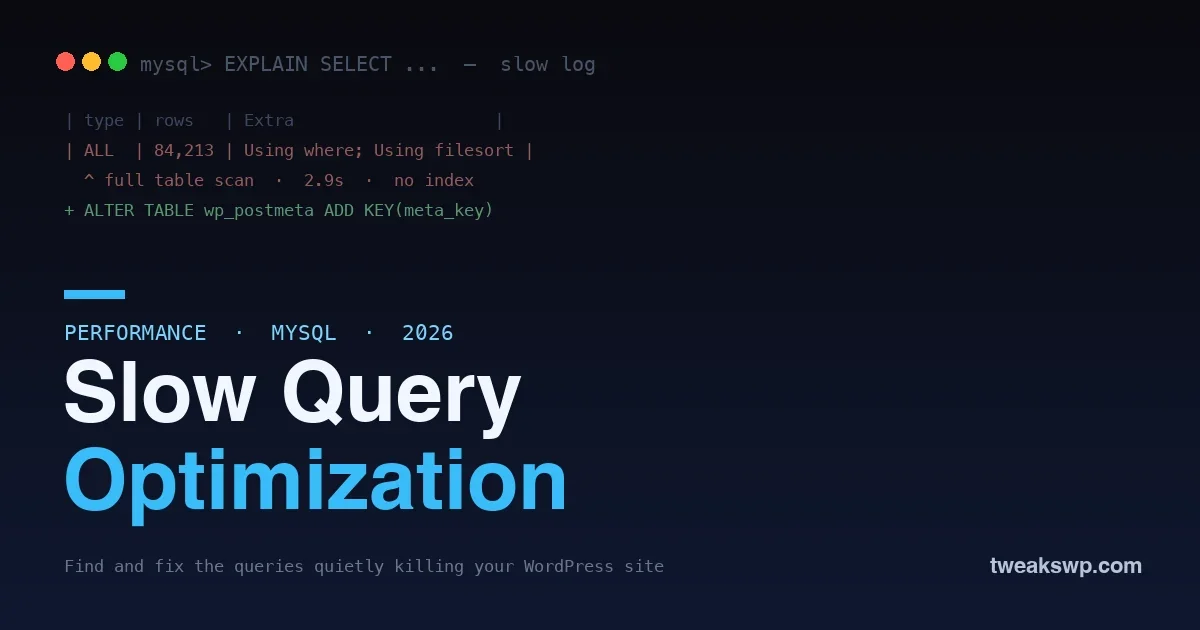
Here is the pattern end to end. A custom archive page filters posts by a meta_key of event_date and orders by it, and it has crawled to a two-second load as the site accumulated events. Query Monitor points at one query eating almost all of that time. Running EXPLAIN on it shows type: ALL, tens of thousands of rows examined, and Using filesort: a full scan of wp_postmeta plus an in-memory sort.
The diagnosis names the fix. The filter and the sort both hit meta_key = 'event_date', so an index covering that key lets MySQL find and order the rows directly instead of scanning and sorting the whole table:
ALTER TABLE wp_postmetaRe-run
ADD INDEX idx_event_date (meta_key(20), meta_value(20));EXPLAIN and type changes from ALL to a range or ref lookup, the rows examined drop from tens of thousands to a handful, and the page load falls back under a couple of hundred milliseconds. Same query, same data, one index, an order-of-magnitude difference.
Preventing regressions
Fixing a slow query once is not enough if the next plugin update reintroduces one. Keep Query Monitor installed on staging and check it after any significant change. Watch the slow query log periodically rather than only during a fire. And when you add a custom query to your own code, run EXPLAIN on it before shipping, so you catch the missing index in development rather than in production. A little discipline keeps the database fast as the site and its data grow.
When to fix a query versus cache around it
Not every slow query deserves the same treatment. Ask two questions: how often does it run, and can it be made cheap? A query on your busiest page that an index can fix should be fixed, because the index helps every request forever at almost no cost. A genuinely expensive aggregate that runs rarely, like a nightly report, is better cached or scheduled than optimized to death. And a query buried in a third-party plugin you cannot edit is a case for caching around it, or replacing the plugin, rather than rewriting code you do not own. Fix what you can fix cheaply, cache what stays expensive, and replace what you cannot change. Spending an afternoon shaving milliseconds off a query that runs once a day is effort better spent on the one that runs on every page.
Frequently asked questions
Will a caching plugin fix slow queries?
Only for anonymous, cacheable page views. Page caching serves a saved copy and skips the database entirely for those hits, which hides the problem for logged-out visitors. But logged-in users, dynamic requests, AJAX, and the admin still run the queries directly, so a slow query keeps hurting everywhere the cache does not reach. Fix the query, then cache on top.
How slow is a slow query?
On a well-tuned site most queries finish in single-digit milliseconds. Anything consistently over a few hundred milliseconds is worth investigating, and anything over a second on a frequent page is a real problem. Set your slow query log threshold to catch the clear offenders first, then tighten it as you clean up.
Is it safe to add indexes to core WordPress tables?
Adding an index is generally safe and reversible, but do it deliberately: test on a staging copy, add the index during low traffic since it locks the table briefly, and index only columns you actually query. An unused index costs write performance for no benefit, so target the ones EXPLAIN shows you need.
Why is wp_postmeta almost always the problem?
Because it is the biggest table and the least indexed for how sites use it. Every post can have many meta rows, and plugins query them constantly by meta_key and meta_value, neither of which is indexed for value lookups by default. That combination of size and unindexed filtering is why postmeta dominates slow query logs.
Can too many plugins cause slow queries?
Indirectly, yes. It is not the count but what they do: each plugin can add queries, autoloaded options, and its own tables, and a poorly-written one can introduce an unindexed or unbounded query that drags the whole site. Query Monitor attributes each query to its source, so you can see exactly which plugin is responsible rather than guessing.
Does the slow query log slow down production?
The overhead is minimal at a sensible threshold, because only queries exceeding the limit are written. Keep long_query_time at one second or so rather than zero, and the log captures the offenders without recording every fast query. Turn it off once you have what you need if you prefer.
What is a filesort and why is it bad?
Using filesort in EXPLAIN means MySQL cannot use an index to satisfy the ORDER BY, so it sorts the rows after fetching them. On a large result set that is slow. An index that matches your sort order lets MySQL return the rows already ordered, removing the filesort entirely.
Should I use a database optimization plugin?
Cleanup plugins that remove overhead, expired transients, and orphaned rows are useful housekeeping, and they help. But they do not add the indexes or fix the query logic that cause the worst slowness. Treat them as maintenance, not a substitute for finding and fixing the specific slow queries EXPLAIN points you to.
The bottom line
A slow WordPress site is usually a small number of expensive queries, not a vague need for more caching. Find them with Query Monitor and the slow query log, diagnose them with EXPLAIN, and fix them with the matching remedy: an index for a full-table scan, a rework for a heavy meta query, a limit for an unbounded one, and caching for the genuinely expensive ones that remain. Do that, keep an eye on the tools after changes, and the database stops being the thing that quietly slows everything down. The fastest query is the one that reads a handful of indexed rows instead of scanning a table, and most WordPress slowness is the distance between those two.
Plugins we build and run
We maintain these ourselves, which is why we can support them on your site.
- BuddyNextThe self-hosted community engine for WordPress
- BuddyXFree community theme, Pro when you outgrow it
- ReignPremium community theme. Add pieces, build anything
- JetonomyCommunity forum and Q&A for WordPress
- EventonomyEvents and RSVPs for WordPress communities
- LearnomyCourses and learning communities on WordPress
- ListoraDirectories and listings your members can browse
- SnipShareCode sharing built for developer communities
- WB Ad ManagerAd placements that turn traffic into revenue
- WP Career BoardA job board your community actually uses
- WP Sell ServicesSell services with offers, orders, and payouts
- MediaVersePhotos, video, and media albums for members
- WB GamificationPoints, badges, and rewards that keep members active
- Product RoadmapPublic roadmaps with voting your users trust