Correct File Permissions for WordPress: chmod Guide for Every File and Folder
Set correct chmod values for wp-config.php, directories, files, uploads, and .htaccess. Includes one-liner fix commands and wp-config.php constants.

Wrong file permissions are behind a large share of WordPress compromises. A world-writable wp-config.php is the single most common foothold attackers use to inject malicious code, steal database credentials, and maintain persistence. This guide covers the exact permission values WordPress expects for every path, the one-liners to apply them, and the wp-config.php constants that lock in safe defaults going forward.
This is Article 3 of 7 in the TweaksWP Security Hardening series.
Why File Permissions Matter for WordPress Security
Unix-like systems assign three permission classes to every file and directory: owner, group, and other (world). Each class gets a combination of read (4), write (2), and execute (1) rights. A chmod value like 755 means owner=rwx (7), group=rx (5), other=rx (5).
WordPress runs as a PHP process owned by your web server user (usually www-data on Debian/Ubuntu or apache on RHEL). If permissions are set too loosely, any other process or user on the same server can read, modify, or execute your files. On shared hosting this is especially dangerous because hundreds of accounts share the same server, and a compromised neighbour account can pivot to yours if your files are world-writable.
Conversely, permissions that are too strict will break WordPress itself. The update system, plugin installer, theme editor, and media uploads all need write access to specific locations. The goal is giving WordPress exactly what it needs and nothing more.
How to Check Current Permissions
Before changing anything, audit what you have. Run this from your WordPress root via SSH:
# Long listing with hidden files
ls -la /var/www/html/

# Check a specific file
ls -la /var/www/html/wp-config.php

# Recursive listing (pipe to less for large installs)
ls -laR /var/www/html/ | less
The output columns are: permissions, hard links, owner, group, size, date, name. A permission string like -rw-r--r-- maps to 644. A string like drwxr-xr-x maps to 755 (the d prefix means directory).
You can also use find to get a snapshot of any files or directories that deviate from expected values:
# Find all files not set to 644
find /var/www/html -type f ! -perm 644

# Find all directories not set to 755
find /var/www/html -type d ! -perm 755
Correct Permissions for Every WordPress Location
The table below summarises the recommended permission for each major path. Details and reasoning follow.
Path | Type | Recommended chmod | Why |
|---|---|---|---|
| File | 400 or 440 | Contains database credentials; nobody but owner (or group) should read it |
WordPress root and all subdirectories | Directory | 755 | Owner can write; web server and others can read and traverse |
All | File | 644 | Owner can write; web server and others can read but not execute directly |
| Directory | 755 | Web server needs write access for media uploads |
| File | 444 | Read-only for everyone; WordPress rewrites it safely, attackers cannot append rules |
wp-config.php: 400 or 440
wp-config.php holds your database host, name, username, password, authentication keys and salts, and table prefix. It is the most sensitive file in any WordPress installation.
- 400 (r----) means only the owner can read it. The web server process reads it via PHP, not as a direct file read, so PHP can still interpret it even when the file is not readable by the web server user as a filesystem object. This is the strictest viable setting.
- 440 (r-r---) extends read access to the group as well. Use this on VPS setups where the web server user and the deploy user are in the same group and both need to read the file.
Never set wp-config.php to 666 or 777. World-writable configuration files are trivially exploitable: any PHP script running on the same server can overwrite your database credentials.
# Set wp-config.php to owner-read-only
chmod 400 /var/www/html/wp-config.php

# Or owner+group read if needed
chmod 440 /var/www/html/wp-config.php
WordPress Directories: 755
All directories in a WordPress installation should be set to 755 (rwxr-xr-x). This grants the owner full control (read, write, execute/traverse) while the web server and other system users can read directory listings and traverse into subdirectories, but cannot create or delete files.
# Set all directories to 755
find /var/www/html -type d -exec chmod 755 {} \;
The execute bit on a directory means “can enter this directory” (traverse), not run code. Without it, the web server cannot serve files inside that directory regardless of the file permissions.
WordPress Files: 644
All regular WordPress files (PHP, CSS, JS, images inside the core or theme directories) should be set to 644 (rw-r-r-). The owner can read and write; everyone else can only read.
# Set all files to 644
find /var/www/html -type f -exec chmod 644 {} \;
This is safe for PHP files because Apache and Nginx interpret PHP via a module or FastCGI process, not by executing the file directly from the filesystem. The web server reads the PHP source and passes it to PHP-FPM; it does not need the execute bit on the file itself.
/wp-content/uploads/: 755 (Not 777)
The uploads directory is where WordPress stores all media files uploaded through the admin. WordPress (running as the web server user) needs write access here to save uploaded images, PDFs, and other files.
755 is correct. The web server user owns this directory and can write to it. Other users on the system can read files (so they display publicly) but cannot write new ones.
777 is wrong. World-writable means any process on the server, regardless of which user it runs as, can write files here. This is how attackers upload web shells: they find a vulnerable plugin, use it to write a PHP file to wp-content/uploads/, then execute it via the browser. With 755, even a successful file-write attempt via a vulnerable plugin fails because the attacker’s process does not run as the owner user.
# Set uploads directory to 755
chmod 755 /var/www/html/wp-content/uploads

# Recursively apply to all subdirectories inside uploads
find /var/www/html/wp-content/uploads -type d -exec chmod 755 {} \;

# Files inside uploads should be 644
find /var/www/html/wp-content/uploads -type f -exec chmod 644 {} \;
If WordPress throws a permissions error when you try to upload media after setting 755, the issue is likely that the directory owner does not match your web server user. Fix that first:
# Fix ownership (adjust www-data to your web server user)
chown -R www-data:www-data /var/www/html/wp-content/uploads
.htaccess: 444
.htaccess controls URL rewriting (the pretty permalink structure), directory index options, security headers, and server-level redirects. Setting it to 444 (r-r-r-) makes it read-only for everyone.
WordPress writes to .htaccess when you save permalink settings. If you have locked it to 444, WordPress will display a message with the correct contents and ask you to update the file manually. This is a reasonable trade-off for hardened servers. You can temporarily set it to 644, save permalinks, then set it back to 444.
# Lock .htaccess read-only
chmod 444 /var/www/html/.htaccess

# Temporarily allow WordPress to write it
chmod 644 /var/www/html/.htaccess
# ... save permalinks in WP Admin ...
chmod 444 /var/www/html/.htaccess
One-Liner Commands to Fix All Permissions at Once
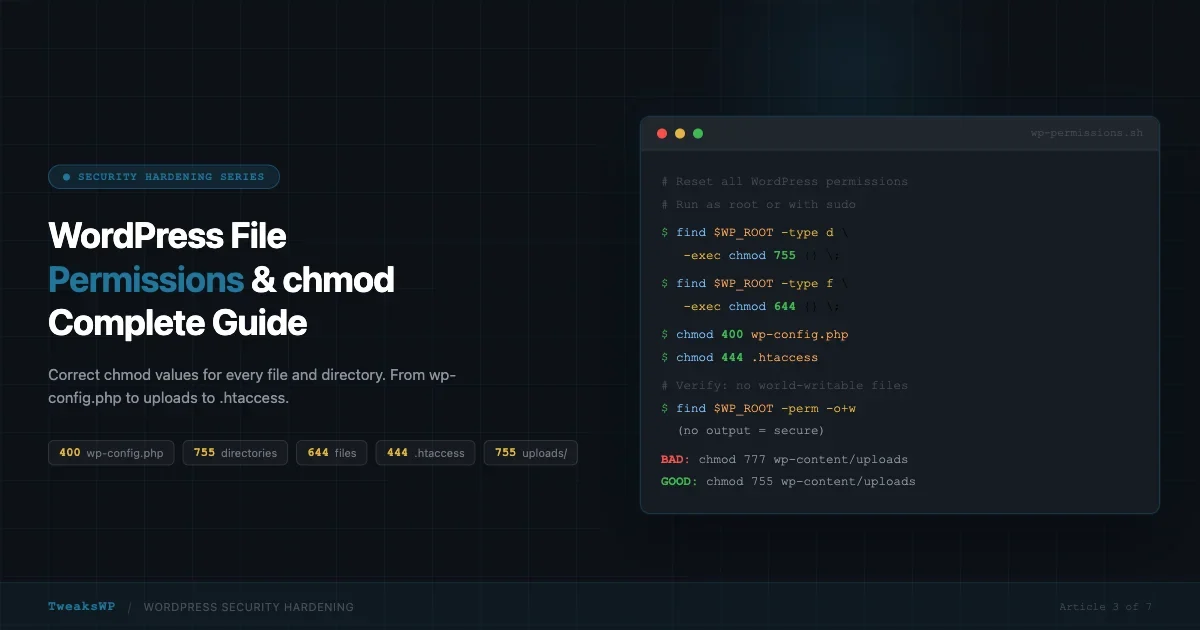
The fastest way to reset a WordPress installation to correct permissions is to run both find commands back to back. Set your WordPress root path first:
WP_ROOT="/var/www/html"

# 1. Reset all directories to 755
find "$WP_ROOT" -type d -exec chmod 755 {} \;

# 2. Reset all files to 644
find "$WP_ROOT" -type f -exec chmod 644 {} \;

# 3. Harden wp-config.php
chmod 400 "$WP_ROOT/wp-config.php"

# 4. Lock .htaccess
chmod 444 "$WP_ROOT/.htaccess"

# 5. Confirm uploads ownership
chown -R www-data:www-data "$WP_ROOT/wp-content/uploads"
Run these as root or via sudo. The commands are idempotent; running them multiple times does not cause harm.
You can also use WP-CLI to verify the installation after resetting permissions:
# Check core file integrity (reports any modified core files)
wp core verify-checksums --path="$WP_ROOT"

# Check plugin file integrity
wp plugin verify-checksums --all --path="$WP_ROOT"
FS_CHMOD_FILE and FS_CHMOD_DIR Constants in wp-config.php
WordPress uses two constants to determine what permissions to apply when it creates or updates files through the built-in filesystem API (used by plugin/theme installs, updates, and the built-in editor):
FS_CHMOD_FILEcontrols the permissions WordPress applies to files it creates or modifies. Default value:0644.FS_CHMOD_DIRcontrols the permissions WordPress applies to directories it creates. Default value:0755.
These defaults align with secure permission values. The only reason to change them is if your server environment requires a different group permission (for example, a group-writable setup where 0664 and 0775 are used).
Add these constants to wp-config.php to make them explicit and prevent plugins from overriding them at runtime. If you manage multiple environments, pairing this with a WordPress dev/staging/production wp-config.php setup keeps permissions consistent across all environments.
// wp-config.php
// Explicit filesystem permission constants
define( 'FS_CHMOD_FILE', 0644 );
define( 'FS_CHMOD_DIR',  0755 );
Note the leading zero in 0644. PHP interprets integer literals with a leading zero as octal. If you write 644 (no zero), PHP reads it as the decimal number 644, which is not a valid octal permission value and will produce unpredictable results.
Shared Hosting vs VPS: Key Differences
Shared Hosting
On shared hosting, your PHP scripts typically run as your own cPanel user (not the web server user) via suPHP or PHP-FPM with per-user pools. This changes the permission model:
- Because PHP runs as the file owner, the web server does not need group or other write access.
- Files at 644 and directories at 755 still apply.
wp-config.phpat 400 is correct: PHP (running as the owner) can read it; nobody else can.- The uploads directory works at 755 because the PHP process (your cPanel user) owns the directory.
The danger on shared hosting is that 777 is sometimes listed as a fix for upload errors in forum posts. It should never be used. If uploads fail at 755, the real problem is an ownership mismatch or a restrictive open_basedir setting that needs to be addressed through your host’s control panel.
VPS and Dedicated Servers
On a self-managed VPS running Apache or Nginx with PHP-FPM:
- PHP-FPM runs as a separate user (often
www-data). Your deploy or SSH user is different. - You need the web server user to be able to read and, in some cases, write files.
- A common pattern is to set file ownership to
deploy-user:www-data(owner is your deploy user, group is the web server user), with files at 644 and directories at 755. The web server can read everything via the group; only the deploy user can write. - The uploads directory can be owned by
www-data:www-dataso the PHP-FPM process can write uploads without needing 777.
# VPS pattern: deploy user owns files, web server can read
chown -R deployuser:www-data /var/www/html
find /var/www/html -type d -exec chmod 750 {} \;
find /var/www/html -type f -exec chmod 640 {} \;

# Uploads owned by web server so PHP-FPM can write
chown -R www-data:www-data /var/www/html/wp-content/uploads
chmod 755 /var/www/html/wp-content/uploads
The 640/750 pattern (read for group, nothing for world) is even more restrictive than 644/755. It works only when your web server user is in the group assigned to the files. Verify this with:
# Check which groups www-data belongs to
groups www-data

# Check which user PHP-FPM is running as
ps aux | grep php-fpm
Common Mistakes and How to Avoid Them
Mistake 1: Setting 777 Everywhere
The fastest way to make a PHP error go away is often chmod 777. It works, which is why developers reach for it. The problem is that 777 means any user on the system, any PHP script, any process running on the server, can read and write the file. On shared hosting this extends to every other hosting account on the machine.
If a file permission error persists after setting correct values, diagnose the ownership and user mismatch rather than reaching for 777.
# Find all world-writable files (should return nothing on a hardened install)
find /var/www/html -type f -perm -o+w

# Find all world-writable directories
find /var/www/html -type d -perm -o+w
Mistake 2: World-Readable or World-Writable wp-config.php
A wp-config.php at 666 or 777 exposes your database credentials to every other user on the server. Even 644 is questionable for this file because it allows world-read. The correct value is 400 or 440 as discussed above.
Some security scanners (Wordfence, Sucuri) will flag a 644 wp-config.php as a low-severity finding. They are correct to do so. Change it to 400.
Mistake 3: Forgetting to Fix Permissions After FTP Uploads
Many FTP clients default to uploading files with permission 755 or 777. After any FTP-based deployment or manual file upload, re-run the find+chmod commands to normalise permissions back to 644 for files and 755 for directories.
# Quick re-normalise after FTP upload
WP_ROOT="/var/www/html"
find "$WP_ROOT" -type f -exec chmod 644 {} \;
find "$WP_ROOT" -type d -exec chmod 755 {} \;
chmod 400 "$WP_ROOT/wp-config.php"
Mistake 4: Executable Bit on PHP Files
PHP files do not need the execute bit (x) set. If you see PHP files at 755, that is a misconfiguration. It does not enable code execution by itself (Apache/Nginx still interprets PHP via the module, not the filesystem execute bit), but it is a sign that permissions were set carelessly, and on some server configurations it can enable direct execution via the shell.
# Find PHP files with executable bit set (should be empty on a clean install)
find /var/www/html -name "*.php" -perm /111
Mistake 5: Applying Permissions to the Wrong Root
Always confirm your WordPress root before running recursive commands. Running chmod -R 644 / or the wrong path can break your entire server. Use a variable ($WP_ROOT) and double-check it before executing:
# Confirm the path before running
echo "$WP_ROOT"
ls "$WP_ROOT/wp-config.php"   # Should print the file path if correct
Putting It All Together: Full Permission Reset Script
The following script is a complete, production-ready permission reset for a standard WordPress VPS install with www-data as the web server user. Adjust WP_ROOT and WEB_USER for your environment before running.
#!/bin/bash
# WordPress Permission Reset Script
# Run as root or with sudo

WP_ROOT="/var/www/html"
WEB_USER="www-data"
WEB_GROUP="www-data"

# Verify path
if [ ! -f "$WP_ROOT/wp-config.php" ]; then
  echo "Error: wp-config.php not found at $WP_ROOT"
  exit 1
fi

echo "Resetting ownership..."
chown -R "$WEB_USER:$WEB_GROUP" "$WP_ROOT"

echo "Setting directory permissions to 755..."
find "$WP_ROOT" -type d -exec chmod 755 {} \;

echo "Setting file permissions to 644..."
find "$WP_ROOT" -type f -exec chmod 644 {} \;

echo "Hardening wp-config.php to 400..."
chmod 400 "$WP_ROOT/wp-config.php"

echo "Locking .htaccess to 444..."
[ -f "$WP_ROOT/.htaccess" ] && chmod 444 "$WP_ROOT/.htaccess"

echo "Verifying uploads directory..."
chmod 755 "$WP_ROOT/wp-content/uploads"

echo "Done. Summary:"
ls -la "$WP_ROOT/wp-config.php"
ls -la "$WP_ROOT/.htaccess"
ls -ld "$WP_ROOT/wp-content/uploads"
Save this as wp-fix-permissions.sh, make it executable (chmod +x wp-fix-permissions.sh), and run it after every deployment, major update, or security incident.
Verifying Permissions After the Reset
After running the reset, verify the key files and directories are correct:
# wp-config.php should show -r-------- (400) or -r--r----- (440)
ls -la /var/www/html/wp-config.php

# .htaccess should show -r--r--r-- (444)
ls -la /var/www/html/.htaccess

# uploads should show drwxr-xr-x (755)
ls -ld /var/www/html/wp-content/uploads

# Spot-check a plugin file (should be 644)
ls -la /var/www/html/wp-content/plugins/akismet/akismet.php

# No world-writable files (should return nothing)
find /var/www/html -type f -perm -o+w -not -path "*/uploads/*"
The last command excludes the uploads directory because uploaded files can legitimately be world-readable. You are checking for world-writable files, not world-readable ones.
Automating Permission Checks with WP-CLI
You can wire the permission reset into your deployment pipeline using WP-CLI and a simple cron job or CI/CD step:
# Run after every wp-cli update command
wp core update && bash /opt/scripts/wp-fix-permissions.sh
wp plugin update --all && bash /opt/scripts/wp-fix-permissions.sh

# Add to cron for nightly permission audit (check only, no changes)
0 3 * * * find /var/www/html -type f -perm -o+w >> /var/log/wp-permission-audit.log 2>&1
A nightly audit that logs world-writable files gives you early warning if a plugin install or manual edit has left permissions in an unsafe state without your knowledge.
Quick Reference
Command | What it does |
|---|---|
| Set all directories to 755 |
| Set all files to 644 |
| Lock config to owner-read-only |
| Lock .htaccess read-only |
| Find world-writable files |
| Find world-writable directories |
| Show permissions for files in current directory |
| Show permissions of a directory itself |
Permissions After a WordPress Core or Plugin Update
WordPress core updates, major plugin updates, and new plugin installs can all write new files to disk. In most cases, WordPress uses the values from FS_CHMOD_FILE and FS_CHMOD_DIR when creating those files, so if you have defined the constants correctly, new files get the right permissions automatically.
However, some plugins and themes include installer scripts that call chmod directly with hard-coded values. A small number of plugins have been observed setting 777 on their own directories. After any major update, run the find+chmod one-liners to verify nothing has been loosened:
# Quick check after any update
find /var/www/html -type f -perm -o+w  # world-writable files
find /var/www/html -type d -perm -o+w  # world-writable dirs
ls -la /var/www/html/wp-config.php     # confirm 400 or 440
If the output is empty (no world-writable files or directories) and wp-config.php shows the expected permission, your site is in good shape. If anything appears, re-run the full reset script and investigate which plugin wrote the permissive file.
Next Steps
Correct file permissions are the foundation of WordPress server security, but they work best alongside other hardening measures. The next article in this series covers disabling XML-RPC and protecting the WordPress login endpoint with rate limiting and fail2ban rules. For an overview of current plugin-level attack vectors, see the Wordfence Weekly roundup covering 450K+ sites at risk from popular plugins.
If you want to audit your full server setup beyond file permissions, the WordPress Hardening guide on WordPress.org and the CISA cybersecurity resources are authoritative references to bookmark.
Plugins we build and run
We maintain these ourselves, which is why we can support them on your site.
- BuddyNextThe self-hosted community engine for WordPress
- BuddyXFree community theme, Pro when you outgrow it
- ReignPremium community theme. Add pieces, build anything
- JetonomyCommunity forum and Q&A for WordPress
- EventonomyEvents and RSVPs for WordPress communities
- LearnomyCourses and learning communities on WordPress
- ListoraDirectories and listings your members can browse
- SnipShareCode sharing built for developer communities
- WB Ad ManagerAd placements that turn traffic into revenue
- WP Career BoardA job board your community actually uses
- WP Sell ServicesSell services with offers, orders, and payouts
- MediaVersePhotos, video, and media albums for members
- WB GamificationPoints, badges, and rewards that keep members active
- Product RoadmapPublic roadmaps with voting your users trust