PHP-FPM Tuning for WordPress: How to Calculate Workers, Memory, and Timeouts
PHP-FPM tuning guide for WordPress: how to calculate pm.max_children from actual memory usage, set spare server counts, configure request timeouts, and monitor pool health.

PHP-FPM’s process pool configuration directly controls how many concurrent WordPress requests your server can handle and how much memory each process consumes. Wrong settings cause two failure modes: too few workers produce queue backlogs under load; too many workers exhaust RAM and trigger swapping, which is slower than queuing. This guide shows how to calculate the correct values for your specific server and WordPress setup.
PHP-FPM Process Manager Modes
PHP-FPM supports three process management modes. For WordPress production servers, pm = dynamic is the right choice for most workloads. pm = static (fixed worker count) is appropriate when you have profiled your memory usage precisely and want predictable resource consumption. pm = ondemand (spin up workers on request) is for low-traffic sites where idle workers waste RAM:
Dynamic mode maintains a minimum pool of workers ready to handle requests, scales up to pm.max_children under load, and scales back down after traffic subsides. This is the correct mode for WordPress sites with variable traffic.
Calculating pm.max_children
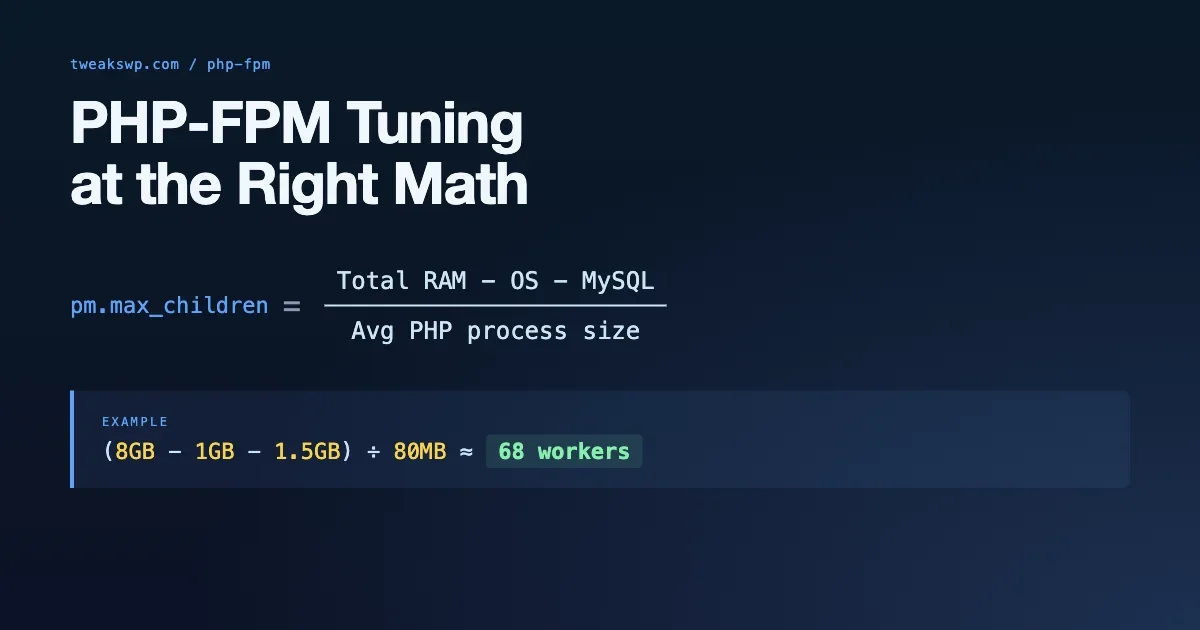
This is the critical calculation. Setting it too high exhausts RAM; too low creates request queues that cause timeouts. The formula:
Measure actual PHP-FPM process memory before calculating. The formula is:
- Available RAM = Total server RAM - Operating system overhead (512MB-1GB) - MySQL buffer pool - Redis/Memcached allocation - Any other services
- Memory per process = measure with the commands above (use the average from several minutes of traffic, not a single reading)
- pm.max_children = Available RAM / Memory per process
Example: 4GB server, 512MB OS overhead, 2GB MySQL buffer pool, 256MB Redis. Available = 1.25GB. PHP-FPM processes using 90MB average. max_children = 1280 / 90 = 14. Round down to 12 to leave headroom.
pm.start_servers, pm.min_spare_servers, pm.max_spare_servers
These three settings control the dynamic pool behavior between requests:
The relationships that must hold:
pm.start_serversmust be betweenpm.min_spare_serversandpm.max_spare_serverspm.max_spare_serversmust be less thanpm.max_children- A common starting point: min_spare = 25% of max_children, max_spare = 50% of max_children, start_servers = min_spare + ((max_spare - min_spare) / 2)
pm.max_requests: Managing Memory Leaks
PHP processes accumulate memory over their lifetime due to small allocations that are never freed (memory leaks in PHP itself or in plugins). pm.max_requests recycles workers after a set number of requests, preventing memory growth from becoming a problem:
500 requests per worker is a conservative value. Monitor process memory growth over time - if workers are growing significantly over their lifetime, lower the value. If they are stable, you can increase it to reduce churn. The cost of recycling a worker is starting a new one from scratch, which takes 50-100ms. High max_requests values reduce this churn.
request_terminate_timeout: Killing Runaway PHP
A runaway PHP script (infinite loop, slow external HTTP call, blocked database query) holds a PHP-FPM worker indefinitely. request_terminate_timeout kills the worker after a set time, freeing it for the next request:
Set it higher than your PHP max_execution_time ini setting. If PHP’s max_execution_time is 30 seconds, set request_terminate_timeout to 60 seconds. This gives PHP time to self-terminate first, and falls back to FPM terminating the process only if PHP itself gets stuck (which should not happen in normal operation).
For WooCommerce checkouts that make external payment gateway calls, allow enough time for the slowest legitimate gateway response. A timeout that is too short will kill legitimate checkout requests during slow gateway responses.
PHP Memory per Process: Why WordPress Uses More Than You Expect
A minimal WordPress install uses 20-30MB per PHP-FPM process. A WordPress install with WooCommerce, a page builder, and a security plugin uses 90-150MB per process. The difference is plugins loading large amounts of code into memory on every request, regardless of whether that code path executes.
The memory limit set in php.ini or via memory_limit is the ceiling per process. WordPress has its own WP_MEMORY_LIMIT constant that sets an application-level limit below the PHP limit. Setting WP_MEMORY_LIMIT above the PHP memory_limit causes PHP to throw a memory exhausted fatal error before WordPress’s limit is reached.
For detailed guidance on the relationship between WP_MEMORY_LIMIT, WP_MAX_MEMORY_LIMIT, and PHP’s memory_limit, the WordPress memory limit guide covers each constant and the priority order WordPress uses to resolve them.
Multiple Pools: Separating WordPress Admin from Front End
A single PHP-FPM pool means admin and front-end requests compete for the same workers. A slow admin bulk operation (importing 10,000 products) can consume all workers, blocking front-end requests. Separate pools give each workload its own worker allocation:
The Nginx configuration then routes wp-admin requests to the admin pool socket and everything else to the front-end pool socket. The admin pool can have higher memory limits and longer timeouts for imports and bulk operations, while the front-end pool is tuned for low-latency page delivery. This requires configuring separate listen sockets and corresponding fastcgi_pass directives in Nginx.
Monitoring and Tuning Over Time
PHP-FPM exposes a status page that shows current pool state. Enable it to get real-time insight into worker utilization:
The status page shows idle processes, active processes, max active processes (the peak since FPM started), and listen queue (requests waiting for a free worker). A non-zero listen queue means requests are backing up - increase max_children if you have available RAM, or reduce PHP memory usage per process.
slowlog: Identifying Slow PHP Execution
PHP-FPM’s slowlog records requests that exceed a threshold execution time, including a backtrace showing which functions were running when the timeout was reached. Enable it to identify slow database queries, external HTTP calls, or computationally expensive operations in your WordPress plugin stack:
The backtrace in slowlog entries shows the PHP call stack at the time the request was sampled. For a slow WordPress request, you typically see database functions (wpdb::query) at the bottom, with the plugin code that generated the query further up the stack. This points directly to the plugin responsible without requiring a full XDebug profiling session. For deeper profiling with call graphs and per-function timing, the WordPress Xdebug profiling guide covers the full workflow.
access.log: Per-Request FPM Logging
PHP-FPM has its own access log separate from Nginx’s access log. The FPM access log includes per-request execution time and memory peak, which the Nginx log does not capture. This makes it useful for identifying memory-heavy requests that are within normal response time but consuming excessive RAM:
The %M format variable in the FPM access log format outputs peak memory usage for the request. Scan the access log for requests using more than your expected per-process memory to identify outliers - these are usually specific admin actions or plugin operations that load large data sets into memory.
Socket vs. TCP: Which Connection Method to Use
PHP-FPM can accept connections via a Unix socket (a file on disk) or a TCP socket (an IP:port). When Nginx and PHP-FPM run on the same server, Unix sockets are faster because they bypass the TCP stack:
Use Unix sockets for single-server setups. Use TCP sockets when PHP-FPM runs on a different server from Nginx (a common pattern in cloud deployments). The socket file path must be readable and writable by both the FPM process user and the Nginx worker process user. Permission errors on the socket file are a common cause of 502 Bad Gateway errors after system updates or user permission changes.
rlimit_core and Emergency Recovery
When PHP-FPM workers crash (segfault, OOM kill), the default behavior is silent restart. Enabling core dumps preserves the crashed process memory for post-mortem analysis. This is a debugging-only setting - do not leave it enabled in production:
For production monitoring, focus on the FPM emergency restart settings that prevent the pool from going completely offline under crash conditions. emergency_restart_threshold and emergency_restart_interval automatically restart the FPM master process if too many workers fail in a short window - a safeguard against a runaway crash loop that would otherwise take down all PHP execution.
Handling WordPress Cron Jobs in PHP-FPM
WordPress’s built-in WP-Cron triggers on page loads, consuming a PHP-FPM worker for each cron execution. On high-traffic sites, this creates worker contention during cron runs. Moving to a real system cron decouples cron execution from web requests:
Add define('DISABLE_WP_CRON', true); to wp-config.php to stop WP-Cron from firing on page loads. Then run wp cron event run --due-now via system cron every minute. This runs cron in a separate PHP-CLI process, not in a PHP-FPM worker, leaving your FPM pool exclusively for web requests. The wp_cron_debug constant and the WP-Cron debugging guide on this site cover how to verify scheduled events are running correctly after making this change.
OPcache and PHP-FPM Memory Interaction
OPcache’s shared memory is allocated outside of PHP-FPM worker memory. When you calculate available RAM for PHP-FPM workers, subtract the OPcache memory allocation separately from the per-worker calculation:
- Total RAM: 8GB
- OS overhead: 512MB
- MySQL buffer pool: 4GB (512 + 4096 = 4608MB)
- OPcache memory_consumption: 256MB
- OPcache interned_strings_buffer: 32MB
- Remaining for PHP-FPM workers: 8192 - 4608 - 288 = 3296MB
- At 100MB per worker: max_children = 32
OPcache’s shared memory is not counted against the per-worker memory_limit. A worker consuming 90MB of PHP heap does not include OPcache memory in that 90MB. This means the total memory consumed by PHP on the server is workers x per_worker_memory + opcache_memory_consumption + opcache_interned_strings_buffer. Account for all of it in your capacity calculations to avoid exhausting RAM under load.
Measure Before Tuning
Every PHP-FPM tuning calculation starts with measuring actual memory per process under your specific WordPress plugin set. The values in this guide are starting points, not finals. Run the ps and top commands during representative traffic, capture the 90th percentile memory usage, and use that number for your max_children calculation. The listen queue metric from the FPM status page tells you whether your current max_children is sufficient.
Plugins we build and run
We maintain these ourselves, which is why we can support them on your site.
- BuddyNextThe self-hosted community engine for WordPress
- BuddyXFree community theme, Pro when you outgrow it
- ReignPremium community theme. Add pieces, build anything
- JetonomyCommunity forum and Q&A for WordPress
- EventonomyEvents and RSVPs for WordPress communities
- LearnomyCourses and learning communities on WordPress
- ListoraDirectories and listings your members can browse
- SnipShareCode sharing built for developer communities
- WB Ad ManagerAd placements that turn traffic into revenue
- WP Career BoardA job board your community actually uses
- WP Sell ServicesSell services with offers, orders, and payouts
- MediaVersePhotos, video, and media albums for members
- WB GamificationPoints, badges, and rewards that keep members active
- Product RoadmapPublic roadmaps with voting your users trust