When PHP Goes Down, Keep Serving Pages: Stale Cache, 503s and the Outage Google Never Sees
We broke a WordPress 7.1.3 site nine ways behind nginx FastCGI cache. What fastcgi_cache_use_stale, background updates and a proper 503 actually served, and the http_503 trap that breaks maintenance mode.

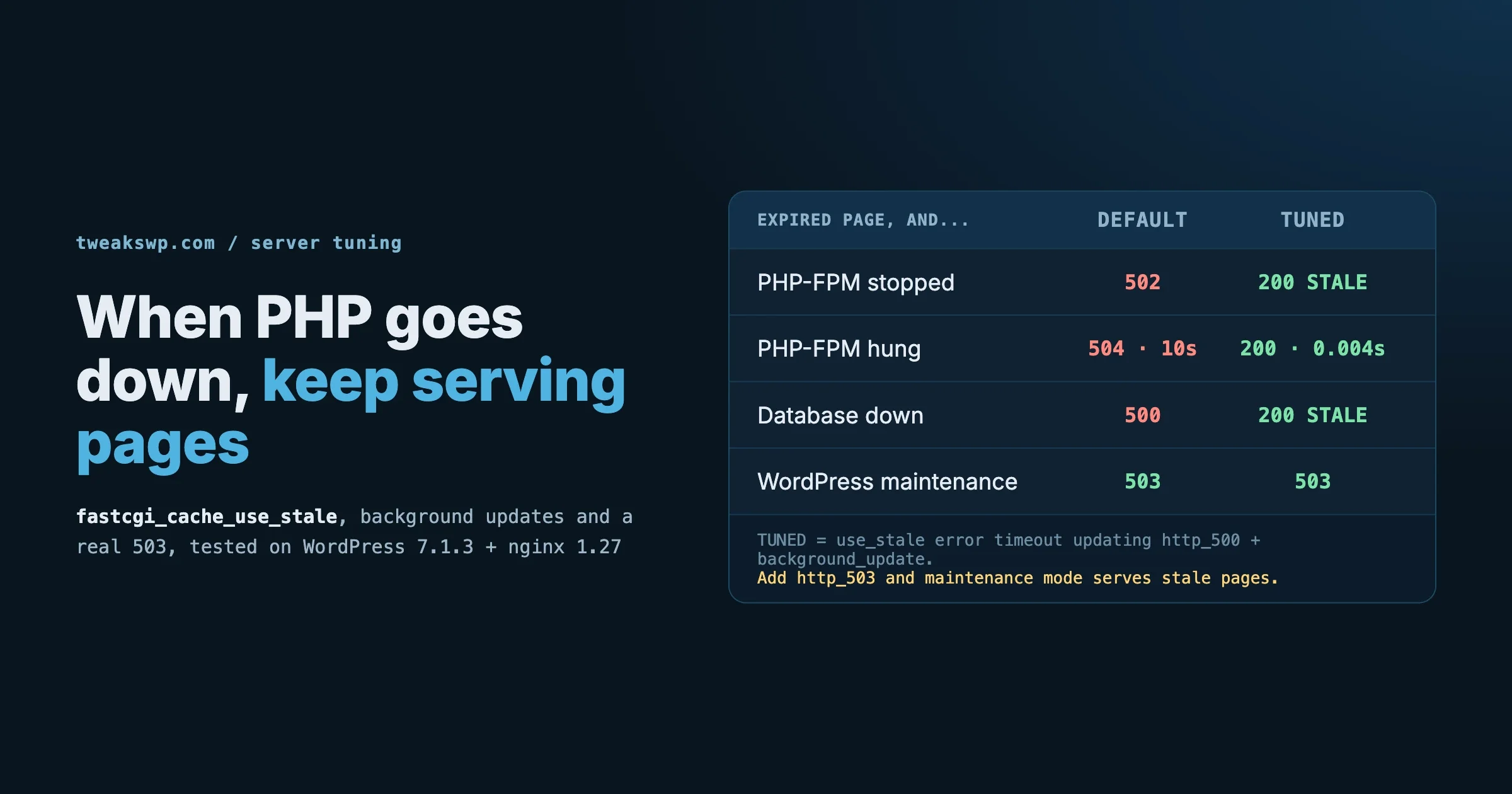
PHP-FPM crashes, the database runs out of connections, or a plugin update hangs every request. Your server is still up, nginx is still answering, and a full cache of perfectly good pages sits on disk. Whether visitors and Googlebot see those pages or a 502 depends on fastcgi_cache_use_stale and two related nginx lines that most WordPress setups never add.
We built a WordPress 7.1.3 site behind nginx’s FastCGI cache and broke it on purpose, nine different ways, under three cache configurations. This guide shows exactly what each setup served in each outage, the one directive keyword that quietly breaks maintenance mode, and the config we now use. It is not a cache setup guide: if you have not set up the FastCGI cache yet, start with our nginx FastCGI cache setup and purge guide and come back.
The short answer
Inside the PHP location block that already has fastcgi_cache, add:
fastcgi_cache_use_stale error timeout updating http_500;
fastcgi_cache_background_update on;
fastcgi_cache_lock on;
Then make the inactive= value on your fastcgi_cache_path line long enough to cover the longest outage you want to survive. In our tests, those lines turned every PHP, database and timeout failure on a cached page into a normal 200 response, and the hung-PHP case went from a 10-second wait to an instant answer.
Leave http_503 out of that list unless you have thought about it. With it, WordPress’s own maintenance mode stops working for every cached page. The results below show why.
How we tested
The test stack ran in Docker on one machine:
- WordPress 7.1.3 on the official
wordpress:php8.3-fpmimage (PHP 8.3.35) - nginx 1.27.5 with a FastCGI cache, and an
X-Cacheheader showing$upstream_cache_statuson every response - MariaDB 11
- Pages cached for 10 seconds (
fastcgi_cache_valid 200 301 10s) so we could test expired entries without waiting an hour - Logged-in users bypass the cache through the usual
wordpress_logged_incookie check
The base cache block looked like this:
fastcgi_cache_path /var/cache/nginx/wp levels=1:2 keys_zone=WP:10m inactive=60m max_size=100m;
fastcgi_cache_key "$scheme$request_method$host$request_uri";
map $http_cookie $skip_cache { default 0; ~wordpress_logged_in 1; ~comment_author 1; }

server {
  # ...
  add_header X-Cache $upstream_cache_status always;

  location ~ \.php$ {
    include fastcgi_params;
    fastcgi_param SCRIPT_FILENAME $document_root$fastcgi_script_name;
    fastcgi_pass wp:9000;
    fastcgi_connect_timeout 3s;
    fastcgi_read_timeout 10s;
    fastcgi_cache WP;
    fastcgi_cache_valid 200 301 10s;
    fastcgi_cache_bypass $skip_cache;
    fastcgi_no_cache $skip_cache;
    # stale directives go here
  }
}
Each outage was real, not simulated in the config:
- PHP-FPM stopped: we killed the PHP-FPM master process, so connections to port 9000 were refused, exactly as when the service crashes or is stopped.
- PHP-FPM hung: we froze the PHP container, so connections were accepted but nothing ever answered. This is what a deadlocked pool or a stuck plugin looks like.
- Database down: we stopped MariaDB, so WordPress returned its “Error establishing a database connection” page with status 500.
- Maintenance mode: we created the
.maintenancefile WordPress writes during updates, so WordPress returned a 503.
One trap we hit while testing, worth knowing if you try this yourself: after an nginx -s reload, our first run gave results that made no sense, including stale pages served by a config with no stale directive at all. A full restart of nginx between configs gave clean, repeatable results. If your own tests look impossible, restart rather than reload before trusting them.
What each setup served
Three configurations, nine scenarios. “Fresh” means the cached copy was still inside its 10-second lifetime; “expired” means it was older.
- A: no stale directives (the nginx default)
- B:
fastcgi_cache_use_stale error timeout updating http_500 http_503; - C:
fastcgi_cache_use_stale error timeout updating http_500;(nohttp_503)
Scenario | A: default | B: with http_503 | C: without http_503 |
|---|---|---|---|
Fresh cached page, PHP-FPM stopped | 200 HIT | 200 HIT | 200 HIT |
Expired cached page, PHP-FPM stopped | 502 | 200 STALE | 200 STALE |
Page never cached, PHP-FPM stopped | 502 | 502 | 502 |
Logged-in visitor, PHP-FPM stopped | 502 | 502 | 502 |
Expired page, PHP-FPM hung | 504 after 10 s | 200 STALE after 10 s | 200 STALE after 10 s |
Expired page, database down | 500 | 200 STALE | 200 STALE |
Expired page, WordPress maintenance mode | 503 + Retry-After: 600 | 200 STALE | 503 + Retry-After: 600 |
Uncached page, WordPress maintenance mode | 503 + Retry-After: 600 | 503 + Retry-After: 600 | 503 + Retry-After: 600 |
Read across the “expired” rows and the default setup is the problem. A cached page only survives an outage while it is still fresh. The moment its lifetime runs out, nginx goes back to PHP, PHP is not there, and the visitor gets the error. On a site that caches pages for an hour, an outage of an hour takes down every cached page by the end of it.
What each keyword in the directive does
fastcgi_cache_use_stale takes a list of conditions. When one of them happens and a stale copy exists, nginx serves the stale copy instead of the error. The keywords that matter for WordPress:
Keyword | Covers | Our test |
|---|---|---|
| Could not connect to PHP-FPM, or the connection broke | PHP-FPM stopped: 502 became 200 STALE |
| PHP-FPM accepted the connection but did not answer in time | PHP-FPM hung: 504 became 200 STALE |
| PHP answered with status 500 | Database down: 500 became 200 STALE |
| PHP answered with status 503 | Maintenance mode: 503 became 200 STALE (see the trap below) |
| Another request is already refreshing this page | Needed for background updates |
Two details catch people out. First, the FastCGI version of this directive has no http_502 or http_504 keywords; those exist for proxy_cache_use_stale. Copy http_502 from a proxy example and nginx 1.27 refuses the whole config with invalid value "http_502", so run nginx -t before every reload. For PHP-FPM, connection failures are covered by error and slow answers by timeout. Second, the full list of allowed values is in the nginx FastCGI module documentation; check it before adding a keyword you saw in a proxy example.
The http_503 trap
When WordPress updates a plugin, theme or core, it writes a .maintenance file and answers every request with a 503 status and a Retry-After: 600 header. We confirmed both on 7.1.3. That 503 is the honest answer during an update: “come back in ten minutes”.
Add http_503 to fastcgi_cache_use_stale and nginx treats that honest 503 as a failure to hide. Every cached page keeps serving its stale copy (row “Expired page, WordPress maintenance mode”, column B). Only pages that were never cached show the maintenance message.
Whether that is good depends on why the site is in maintenance:
- Routine plugin updates: serving yesterday’s page for a minute is harmless, and arguably better than a maintenance screen. Some owners include
http_503on purpose for this. - You took the site down deliberately, for example to stop orders during a migration, or to pull content that must not be shown:
http_503defeats you. Visitors keep reading and clicking cached pages, and some of those clicks land on uncached pages that do show maintenance, so the site looks half broken.
Our default is to leave http_503 out and decide deliberately, per site. Whatever you choose, write it down next to the config so the next person does not wonder why maintenance mode “does not work”.
Hung PHP is worse than dead PHP
Look at the timings in the hung row. A stopped PHP-FPM fails fast: nginx gets “connection refused” in a few milliseconds. A hung PHP-FPM accepts the connection and then says nothing, so nginx waits the full fastcgi_read_timeout (10 seconds in our test) before giving up. With timeout in the stale list, the visitor does get the page in the end, but only after staring at a blank tab for ten seconds. Many will have left by then, and each of those requests holds an nginx connection open the whole time.
We tried two fixes:
Setup | Expired page, PHP hung |
|---|---|
Stale list only, | 200 STALE after 10.0 s |
Stale list only, | 200 STALE after 3.0 s |
Stale list + | 200 STALE in 0.004 s, next request 200 UPDATING in 0.003 s |
Lowering the read timeout helps, but it is a blunt tool: a legitimately slow admin export or report also gets cut off. Background updates are the better answer. With fastcgi_cache_background_update on, nginx sends the stale page to the visitor straight away and refreshes the cache in a separate subrequest. If PHP is hung, that background request is the one that waits, not your visitor. The following requests get UPDATING, which is the stale copy again, served instantly while the refresh is still in progress.
Background updates only work when updating is in the fastcgi_cache_use_stale list. fastcgi_cache_lock on makes sure only one request at a time goes to PHP to rebuild a given page, so a hundred visitors arriving at once do not become a hundred PHP requests against a struggling server.
Background updates also help when nothing is broken. With PHP healthy, the first request after a page expires got the stale copy in 4 milliseconds while nginx rebuilt it, and the next request was a fresh HIT. No visitor waits for a cache rebuild.
inactive= is your real outage window
A stale copy can only be served if nginx still has it. The inactive= value on fastcgi_cache_path removes any cached page that has not been requested for that long, whether or not it has expired. We set inactive=20s, let a page sit unrequested for 25 seconds, stopped PHP-FPM, and got a 502 with X-Cache: MISS: the stale copy was gone.
So two settings decide how long you survive:
fastcgi_cache_valid: how long a page counts as fresh. Keep this to what your content can tolerate, often 10 minutes to an hour.inactive=: how long an unrequested page stays on disk to be served stale. Set this to the longest outage you want to cover. The nginx default is 10 minutes, which is far too short for this job.
Make max_size large enough to hold the pages you want covered, because nginx also removes the least recently used pages when the cache is full. A site with a few thousand posts typically needs a few hundred megabytes to a couple of gigabytes, depending on page size. Check the real size of your cache directory after a week of traffic.
The gaps the cache cannot cover
Two rows stayed red in every configuration, and no nginx setting fixes them:
- Pages that were never cached. A visitor landing on an old post nobody has opened since the cache was cleared gets the error. If you want the whole site covered, warm the cache: request every URL in your sitemap after a deploy or purge, so nothing is left cold.
- Logged-in users, and anyone with a cookie that bypasses the cache. Admins, members and customers see the outage at full strength. On a membership or shop site, that can be most of the people who matter. Our guide to cookies that bypass your page cache covers which cookies trigger the bypass and which ones you can safely ignore, which shrinks this group.
Stale cache keeps the public face of the site up. It does not make the site work: forms, checkout, search, comments and anything logged in still need PHP. Treat it as the thing that buys you time while you fix the real problem.
Planned maintenance: send a real 503 from nginx
When you take the site down on purpose, for a migration or a big database job, the correct answer to visitors and crawlers is a 503 with a Retry-After header. The HTTP standard defines 503 as a temporary condition, and Retry-After tells clients when to come back.
Doing it in nginx, rather than in WordPress, means it works even when PHP is the thing you are working on. A flag file switches it on and off without editing the config:
server {
  # ...
  set $maint 0;
  if (-f $document_root/maintenance.on) { set $maint 1; }
  if ($remote_addr = 203.0.113.10) { set $maint 0; }   # your own IP keeps working

  error_page 503 @maint;
  location @maint {
    add_header Retry-After 3600 always;
    add_header Cache-Control "no-store" always;
    rewrite ^ /maintenance.html break;
  }

  location / {
    if ($maint) { return 503; }
    try_files $uri $uri/ /index.php?$args;
  }

  location ~ \.php$ {
    if ($maint) { return 503; }
    # ... your FastCGI and cache settings
  }
}
# switch on
touch /var/www/html/maintenance.on
# switch off
rm /var/www/html/maintenance.onWe tested this block, and one word matters more than any other in it: always. Without it, nginx’s add_header only applies to successful and redirect responses, so our 503 went out with no Retry-After header at all and no error in any log. With always, the 503 carried Retry-After: 3600 and Cache-Control: no-store as intended. The maintenance page itself rendered the same either way, so you would never notice the missing header by looking at the page.
Cache-Control: no-store keeps a CDN or browser from caching the maintenance page and showing it after you are back.
What Google sees
Google’s documentation on HTTP and network errors describes what server errors do to crawling. 5xx responses make Googlebot slow down its crawling, and it speeds up again once the server returns 2xx responses. Pages that are already indexed are kept at first, but URLs that keep returning server errors are eventually dropped. The page gives no timeframe, and it does not mention Retry-After. Send the header anyway for every other client, but do not count on it to protect your rankings.
A stale page served with status 200 is, to Googlebot, a normal page. During a short outage with the setup above, the crawler sees nothing wrong at all, which is the whole point. That cuts both ways, which brings us to monitoring.
Know when you are serving stale
The same setup that hides an outage from visitors hides it from you. An uptime monitor that checks your homepage will see 200 responses and report everything fine while PHP has been down for an hour. Two cheap fixes:
- Log the cache status. Add
$upstream_cache_statusto your nginxlog_format. A burst ofSTALEorUPDATINGlines is your outage alarm. - Monitor something that cannot be cached. Point your uptime check at a URL that always goes to PHP, such as
/wp-login.phpor a small health-check endpoint, so a PHP failure shows up as a failure.
log_format cache '$remote_addr [$time_local] "$request" $status $upstream_cache_status $request_time';
access_log /var/log/nginx/access.log cache;
# How many stale answers in the last log lines?
tail -n 5000 /var/log/nginx/access.log | grep -c ' STALE 'The edge layer: what Cloudflare adds
If your site sits behind Cloudflare, its cache can add a second safety net in front of nginx, but only for responses Cloudflare is caching, and by default Cloudflare does not cache HTML pages unless a cache rule tells it to. We did not test Cloudflare in this setup, so here is what Cloudflare’s documentation says:
- stale-if-error: if your origin sends
Cache-Controlwithstale-if-error, Cloudflare can serve a stale cached copy when the origin returns 500, 502, 503 or 504. Other statuses such as 404 replace the cached copy. You cannot choose which status codes trigger it. - stale-while-revalidate: the first request after expiry gets the stale copy immediately while Cloudflare refreshes in the background, much like nginx’s background updates.
- Both are ignored when Always Online is turned on, and when the response has directives such as
no-storeorno-cache.
Always Online is a different feature. It only activates when Cloudflare cannot connect to your origin at all (the 520 to 527 errors), not when your server is reachable but returning errors. It first looks for an expired copy in Cloudflare’s cache and then falls back to copies from the Internet Archive, which are crawled every 5 to 30 days depending on your plan. For a crashed PHP-FPM behind a working nginx, Always Online does nothing, because nginx is still answering.
For most WordPress sites, the nginx layer described above is the one that does the work. Cloudflare’s stale settings matter once you cache HTML at the edge; our post on caching layer by layer explains how the edge, server and plugin caches stack.
The config we use
Put together, with starting values to adjust for your site. The inactive, max_size and valid numbers are starting points, not test results:
# http block
fastcgi_cache_path /var/cache/nginx/wp levels=1:2 keys_zone=WP:100m inactive=7d max_size=2g;
fastcgi_cache_key "$scheme$request_method$host$request_uri";

# PHP location block
fastcgi_cache WP;
fastcgi_cache_valid 200 301 10m;
fastcgi_cache_use_stale error timeout updating http_500;
fastcgi_cache_background_update on;
fastcgi_cache_lock on;
fastcgi_cache_bypass $skip_cache;
fastcgi_no_cache $skip_cache;
With these values, a page is refreshed at most every 10 minutes when PHP is healthy, and a page anyone has opened in the last seven days can be served for up to seven days if PHP stays down.
Test it on your own server
Do this on staging, never on a busy live site:
- Add
add_header X-Cache $upstream_cache_status always;to the server block and restart nginx. - Request a public page twice and confirm the second response says
X-Cache: HIT:curl -s -o /dev/null -D - https://staging.example.com/sample-page/ | grep -i x-cache
fastcgi_cache_valid).sudo systemctl stop php8.3-fpm (the service name varies by host).200 and X-Cache: STALE. A 502 means the stale directive is missing or the page fell out of the cache.Remember the reload trap from our tests: if the results look impossible, do a full systemctl restart nginx and run the test again.
Checklist
fastcgi_cache_use_stale error timeout updating http_500;in the PHP locationhttp_503left out, or included on purpose and written downfastcgi_cache_background_update on;andfastcgi_cache_lock on;inactive=set to the outage you want to survive, not the 10-minute defaultmax_sizelarge enough for the pages you want covered- Cache warmed after deploys and purges
- Maintenance 503 sent with
Retry-Afterandadd_header ... always $upstream_cache_statusin the access log, and an uptime check on an uncacheable URL- Tested on staging by actually stopping PHP-FPM
Frequently asked questions
Does nginx serve stale cache by default when PHP is down?
No. In our test with no stale directives, an expired cached page returned 502 when PHP-FPM was stopped, 504 when it hung and 500 when the database was down. Only pages still inside their cache lifetime survived.
Which fastcgi_cache_use_stale values should a WordPress site use?
We use error timeout updating http_500. That covers a stopped or crashed PHP-FPM, a hung one, and database errors, and allows background updates. Add http_503 only if you are happy for cached pages to keep showing during WordPress maintenance mode.
Why does WordPress maintenance mode stop working after I enabled stale cache?
Because http_503 is in your fastcgi_cache_use_stale list. WordPress answers with a 503 during updates, and nginx replaces it with the stale cached page. Remove http_503 to get the maintenance message back.
How long can nginx keep serving a stale page?
Until the cached file is removed. The inactive= setting removes pages nobody has requested for that long, and max_size removes the least recently used pages when the cache is full. In our test, a page idle for longer than inactive was gone and returned a 502.
Do logged-in users see the cached copy during an outage?
No. Requests that bypass the cache, such as logged-in users, go straight to PHP and get the error. Stale cache protects anonymous visitors and crawlers.
Does Retry-After stop Google from dropping my pages?
Google’s documentation on server errors does not mention Retry-After. It says 5xx responses slow crawling and that URLs returning server errors for a long time are eventually dropped. Keeping outages short, and serving cached pages with status 200 while you fix them, is what protects your pages.
Is Cloudflare Always Online enough on its own?
Not for a PHP failure. Always Online only activates when Cloudflare cannot reach your server at all. If nginx is up and PHP is down, nginx answers with an error and Always Online does not step in.
How we tested this
All nginx and WordPress results in this guide come from our own test stack on 17 October 2026: WordPress 7.1.3, PHP 8.3.35 (PHP-FPM), nginx 1.27.5 and MariaDB 11 in Docker. Each configuration was loaded with a full nginx restart, and each outage was produced for real by stopping PHP-FPM, freezing its container, stopping the database or creating WordPress’s .maintenance file. Cloudflare and Google behaviour is quoted from their own documentation, linked above, and was not tested by us.
Want this set up and tested on your server? Our WordPress speed optimization service configures and load-tests server caching, our WordPress care plans include monitoring that notices when PHP is down even while the cache hides it, and if the site is down right now, get WordPress help.
Plugins we build and run
We maintain these ourselves, which is why we can support them on your site.
- BuddyNextThe self-hosted community engine for WordPress
- BuddyXFree community theme, Pro when you outgrow it
- ReignPremium community theme. Add pieces, build anything
- JetonomyCommunity forum and Q&A for WordPress
- EventonomyEvents and RSVPs for WordPress communities
- LearnomyCourses and learning communities on WordPress
- ListoraDirectories and listings your members can browse
- SnipShareCode sharing built for developer communities
- WB Ad ManagerAd placements that turn traffic into revenue
- WP Career BoardA job board your community actually uses
- WP Sell ServicesSell services with offers, orders, and payouts
- MediaVersePhotos, video, and media albums for members
- WB GamificationPoints, badges, and rewards that keep members active
- Product RoadmapPublic roadmaps with voting your users trust