How to Create Coupons on WordPress Products
Create WooCommerce coupons step by step: discount types, restrictions, limits, checkout links, WP-CLI and REST API, plus EDD discount codes. Checked Nov 2026.
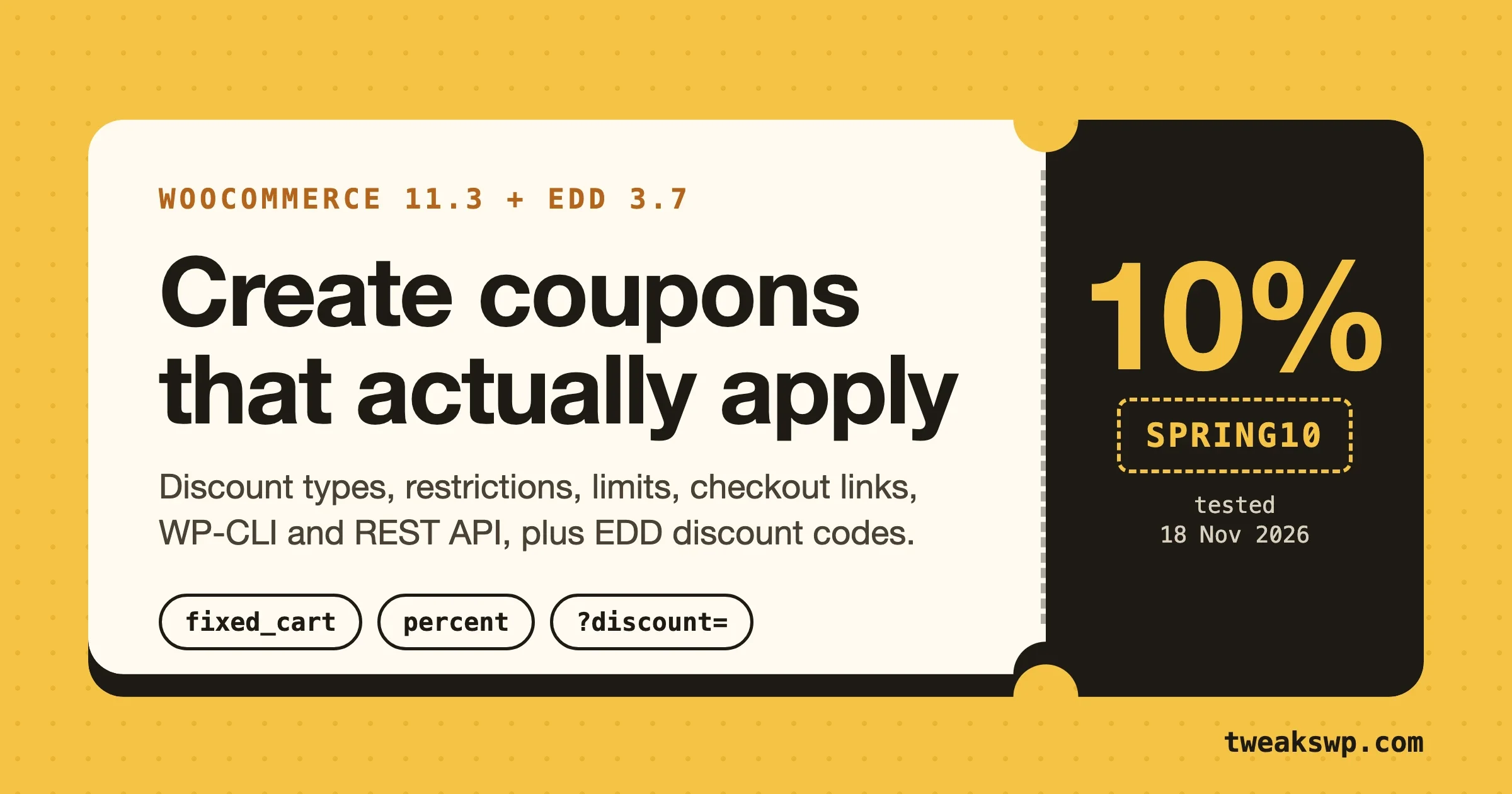
To create a coupon for WordPress products, install WooCommerce, turn on coupons under WooCommerce > Settings > General, then go to Marketing > Coupons > Add coupon. Give it a code, pick a discount type and amount, set any restrictions and limits, and click Publish. Customers type the code in the cart or at checkout, or you send them a link that applies it for them.
If you sell digital downloads with Easy Digital Downloads instead, the same job lives under Downloads > Discounts. Both plugins are free, and both handle the common cases without an add-on.
Our team checked every menu label, field name, command and API property in this guide against the WooCommerce 11.3.0 and Easy Digital Downloads 3.7.3 documentation and source on 18 November 2026, running on WordPress 7.1.4. This page has no Search Console queries recorded yet, so the headings follow the questions store owners ask the first time they set up a discount.
What do you need before you can create a coupon?
WordPress on its own has no shop and no coupons. You need an ecommerce plugin, and for physical or mixed products that is almost always WooCommerce. If you are still deciding whether WordPress is the right base for a shop at all, our guide on whether WordPress can do ecommerce covers that choice first.
With WooCommerce installed and at least one product published, check one setting before anything else:
- Go to WooCommerce > Settings > General.
- Find Enable coupons and tick Enable the use of coupon codes.
- Optionally tick Calculate coupon discounts sequentially (more on this below).
- Click Save changes.
If that box is unticked, the coupon field disappears from the cart and checkout, and every code you create sits unused. It is the first thing we check when someone says their coupons “do nothing”.
How do you create a coupon in WooCommerce, step by step?
Coupons live under the Marketing menu in current WooCommerce, not under WooCommerce itself. Older tutorials, including the first version of this one, point to WooCommerce > Coupons, which is out of date.
- Go to Marketing > Coupons and click Add coupon.
- Type a code in the title field, or click Generate coupon code for a random one. Codes are not case-sensitive, so
SPRING10andspring10are the same coupon. - Add an internal Description. Customers never see it, but six months from now you will want to know why
VIP-JUNEexists. - In the Coupon data box, open the General tab and choose the Discount type.
- Enter the Coupon amount as a plain number, with no currency symbol or percent sign.
- Tick Allow free shipping if the coupon should also give free delivery.
- Set a Coupon expiry date if the offer should end. The coupon stops working on that date.
- Work through the Usage restriction and Usage limits tabs, covered below.
- Click Publish.
Want the coupon to go live later, say on the first morning of a sale? Click Edit next to the publish date and pick a future time before you press the button. The coupon stays scheduled until then. WooCommerce has no separate “start date” field, and a request to add one is still open on GitHub, so scheduling the post is the built-in way to delay a launch.
Which discount type should you choose?
WooCommerce ships three discount types. Picking the wrong one is the source of most “the discount came out strange” complaints, so here is how each behaves.
Discount type | What it takes off | Good for | Watch out for |
|---|---|---|---|
Percentage discount | A percentage of each eligible item | Site-wide sales, “10% off your first order” | No built-in cap on the total discount for big carts |
Fixed cart discount | A set amount off the whole cart, spread across items | “$10 off orders over $50” | Rejected outright when Exclude sale items is on and the cart holds any sale item |
Fixed product discount | A set amount off each eligible item, per unit | “$5 off every T-shirt” | Multiplies with quantity, so 10 shirts means $50 off |
A quick way to decide: if the offer is about the order, use a fixed cart discount. If it is about specific products, use a fixed product discount. If you want the saving to grow with the order, use a percentage.
Many owners ask for a percentage coupon with a ceiling, such as “20% off, up to $50”. WooCommerce core cannot do that today. There is an open enhancement request for a maximum discount amount, and until it lands you need a coupon extension or a small custom filter.
How do usage restrictions work on a WooCommerce coupon?
The Usage restriction tab decides who can use a coupon and on what. Every rule you fill in must pass, or the customer sees an error instead of a discount.
- Minimum spend and Maximum spend: the cart subtotal must fall between these. From WooCommerce 11.2, the minimum must be less than or equal to the maximum, so a typo there now blocks the save instead of creating a coupon nobody can use.
- Individual use only: the coupon cannot be combined with any other coupon.
- Exclude sale items: items with a sale price get no discount. For a fixed cart coupon this is stricter than it sounds; see the mistakes section.
- Products and Exclude products: limit the coupon to, or keep it away from, specific products.
- Product categories and Exclude categories: the same idea for whole categories.
- Product brands and Exclude brands: available now that brands are part of core WooCommerce.
- Allowed emails: a list of addresses allowed to use the code, checked against the billing email. Wildcards work, so
*@yourcompany.comcovers a whole staff domain.
One rule surprises people. If you fill in both Products and Product categories, the cart has to satisfy both checks. It is not “this product or anything in that category”. A store owner reported this on GitHub in March 2026, and the behaviour still matches the current validation code we read. If you want “product A or anything in category B”, put product A into category B, or make two coupons.
How do usage limits work?
The Usage limits tab controls how many times a coupon can be redeemed.
Field | What it limits | Typical use |
|---|---|---|
Usage limit per coupon | Total redemptions across all customers | “First 100 orders get 15% off” |
Limit usage to X items | How many cart items get the discount (percentage and fixed product types only) | “20% off, up to 3 items” |
Usage limit per user | Redemptions per customer, matched by account or billing email | “One use per customer” |
Limit usage to X items does nothing on a fixed cart coupon, because that type is not counted per item. Leave any field blank for “unlimited”.
A per-user limit is not the same as “first order only”. WooCommerce counts uses of that one coupon, not whether the customer has ordered before. A returning buyer who never used the code can still use it once. True first-order coupons need an extension or a custom validation filter.
Can customers use more than one coupon at once?
Yes, unless a coupon has Individual use only ticked. When several coupons stack, the order of calculation matters. By default WooCommerce works out each discount from the full price. With Calculate coupon discounts sequentially turned on in the general settings, each coupon is applied to the price left after the previous one, so two 10% coupons give 19% off instead of 20%.
From WooCommerce 11.2, when two coupons have the same priority and the same item limit, the order customers entered them breaks the tie. If your margins are thin, keep promotional codes on Individual use only and you avoid the arithmetic altogether.
Can you send a link that applies a coupon automatically?
Yes. WooCommerce core now supports shareable checkout links. The path is always /checkout-link/, and you add products plus an optional coupon as query parameters:
https://example.com/checkout-link/?products=123:2,456:1&coupon=SPRING10
# checked on 18 November 2026 against the WooCommerce developer docs
That link puts two of product 123 and one of product 456 in the cart, applies SPRING10, and sends the customer straight to checkout. Products can be IDs or SKUs, and variations are supported.
Two limits are worth knowing. A valid checkout link clears whatever products and coupons were already in the cart, so do not use it for “add this to my basket” offers. And the coupon still has to pass every restriction; a link does not bypass a minimum spend or an email rule.
If you want a link that only applies a code and lets the customer keep shopping, that is plugin territory. Coupon extensions use their own parameter names (Smart Coupons, for example, uses coupon-code), so check the extension’s docs rather than guessing.
Sending people to a dedicated promo page instead of the shop front often converts better. Our guide to building landing pages in WordPress without plugins shows how to make one with the block editor.
How do you create WooCommerce coupons with WP-CLI?
If you need dozens of codes, say a unique code per influencer, clicking through the admin gets old fast. WooCommerce includes WP-CLI commands that wrap its REST API, so every field above is available on the command line.
# checked on 18 November 2026, WooCommerce 11.3.0
wp wc shop_coupon create \
  --code=influencer-sam \
  --discount_type=percent \
  --amount=15 \
  --individual_use=true \
  --usage_limit=200 \
  --usage_limit_per_user=1 \
  --date_expires=2026-12-31 \
  --user=1 --porcelain

# list existing coupons
wp wc shop_coupon list --fields=id,code,amount,usage_count --user=1
--code is the only required option. --porcelain prints just the new coupon ID, which is handy in a loop. The --user flag tells WooCommerce which account is doing the work; the official examples use user 1, but use any administrator or shop manager ID on your site. Discount type values on the command line and in the API are percent, fixed_cart and fixed_product.
How do you create coupons with the WooCommerce REST API?
For an outside system, such as a CRM or email platform that hands out codes, use the REST API. Create keys under WooCommerce > Settings > Advanced > REST API with read/write access, then post to the coupons endpoint:
# checked on 18 November 2026 against the WooCommerce REST API docs (wc/v3)
curl -X POST https://example.com/wp-json/wc/v3/coupons \
  -u ck_your_key:cs_your_secret \
  -H "Content-Type: application/json" \
  -d '{
    "code": "welcome-back",
    "discount_type": "fixed_cart",
    "amount": "10",
    "minimum_amount": "50.00",
    "usage_limit_per_user": 1,
    "email_restrictions": ["customer@example.com"]
  }'
Note that amount, minimum_amount and maximum_amount are strings, while the limits are integers. For many coupons at once, /wc/v3/coupons/batch accepts create, update and delete lists in one request. Keep the keys out of front-end code and give them to one integration each, so you can revoke one without breaking the rest.
How do you create a coupon in PHP?
Inside a plugin or a one-off script, the WC_Coupon class does the same job without HTTP. Every setter below exists in the current WooCommerce source.
// checked on 18 November 2026, WooCommerce 11.3.0, PHP 8.3
// Create a WooCommerce coupon in code. Run once, for example from a WP-CLI eval-file.
$coupon = new WC_Coupon();
$coupon->set_code( 'spring10' );
$coupon->set_description( 'Spring email campaign, 10% off, one use per customer' );
$coupon->set_discount_type( 'percent' );
$coupon->set_amount( 10 );
$coupon->set_individual_use( true );
$coupon->set_exclude_sale_items( true );
$coupon->set_usage_limit( 500 );
$coupon->set_usage_limit_per_user( 1 );
$coupon->set_minimum_amount( 40 );
$coupon->set_date_expires( '2026-12-31' );
$coupon->save();

echo 'Created coupon ' . $coupon->get_id() . PHP_EOL;
Save it as a file and run it once with wp eval-file create-coupon.php. Do not leave code like this in functions.php, or it will try to create the coupon on every page load. Our guide to changing WooCommerce product tab titles walks through where small WooCommerce snippets belong if you have not added one before.
How do discount codes work in Easy Digital Downloads?
Easy Digital Downloads (EDD) is the common choice for selling software, ebooks and other files, and it calls coupons “discount codes”. The flow is close to WooCommerce:
- Go to Downloads > Discounts and click Add Discount.
- Fill in the Name (shown to customers at checkout), the Code (letters and numbers only) and the Amount, as a percentage or a flat rate. These three are required.
- Optionally limit it with Download Requirements, Downloads Excluded and Categories.
- Set a Start date and Expiration date if needed. EDD stores both in UTC, so a code set to start at midnight may go live in the evening for American customers.
- Add a Minimum Amount, Max Uses and the Use Once Per Customer toggle as needed.
- Click Create Discount.
Unlike WooCommerce, EDD has a real start date field, and a 100% amount makes a product free, which is a simple way to give reviewers a copy. The random Generate Code helper is limited to EDD Pro.
EDD also supports discount links natively. Add ?discount=CODE to any URL on your site and the code is saved in the customer’s session and applied at checkout. If the link already has a query string, such as a direct add-to-cart link, use & instead:
https://example.com/?discount=LAUNCH20
https://example.com/?edd_action=add_to_cart&download_id=123&discount=LAUNCH20
# checked on 18 November 2026 against the EDD docs, EDD 3.7.3
One small catch: the discount field only appears at EDD checkout when at least one discount is active. If you deactivate your last code, the field disappears, which is intended.
WooCommerce coupons or EDD discount codes: which fits your store?
Feature | WooCommerce 11.3 | Easy Digital Downloads 3.7 |
|---|---|---|
Menu | Marketing > Coupons | Downloads > Discounts |
Discount types | Percentage, fixed cart, fixed product | Percentage or flat amount |
Start date | No field; schedule the coupon’s publish date | Yes, in UTC |
Expiry date | Yes | Yes, in UTC |
Free shipping | Yes, with a free shipping method | Not applicable to downloads |
Email restriction | Yes, wildcards allowed | Not in the core form |
Per-customer limit | Yes, any number | Once per customer toggle |
Link that applies a code | /checkout-link/ with products, clears the cart | ?discount=CODE on any page |
Bulk creation | WP-CLI and REST API | Admin screen; random codes need Pro |
If you sell physical goods, or a mix, WooCommerce is the obvious pick. If everything you sell is a file or a licence, EDD is lighter and its discount link is simpler to use in emails. Running both on one site is possible but rarely worth the extra plugins; our piece on how many plugins a WordPress shop can carry covers what that weight costs.
How do you check whether a coupon is working?
In WooCommerce, open Analytics > Coupons. The report lists each coupon code with the number of orders it was used on and the amount discounted, for any date range you choose. The old WooCommerce > Reports > Coupons by date screen mentioned in older guides is the legacy report and is not where new stores should look.
Before you announce a code, test it yourself:
- Open the shop in a private browser window, logged out.
- Add a product that should qualify and apply the code in the cart.
- Add a product that should not qualify and check the message you get.
- Go through checkout with a test payment method, using an email that matches any email restriction.
- Check the order in the admin shows the coupon line and the right total.
Testing logged out matters. Logged-in admins often skip the page cache, so a caching problem only shows up for real customers. If coupons work for you but not for shoppers, read our guide on the cookies that should bypass a WordPress page cache, because cart and session cookies must skip the cache for coupons to behave.
Common mistakes people report
These come up again and again in the WordPress.org support forums and the WooCommerce GitHub tracker. Sources checked on 18 November 2026.
- A fixed cart coupon with Exclude sale items fails whenever one sale item is in the cart. Store owners expect the sale item to be skipped, but WooCommerce rejects the whole coupon with “not valid for sale items”. Owners have asked about this on WordPress.org since 2021, and the current validation code still behaves this way. Percentage and fixed product coupons skip sale items instead, so switch the type if that is what you want.
- Product and category restrictions combine as AND, not OR. Filling in both fields narrows the coupon rather than widening it, as a store owner reported on GitHub in March 2026.
- An email-restricted coupon throws an error in the cart for guests. The cart does not know the shopper’s billing email yet, so WooCommerce asks for one at checkout. A store owner hit this in May 2024, and the support reply also pointed at page caching. Tell customers to apply restricted codes at checkout.
- Expecting a start date or a maximum discount in core. Neither exists yet. Both are open requests (start date, October 2026, maximum discount, September 2026). Schedule the coupon’s publish date for a delayed start, and use an extension for a cap.
- A 100% coupon on a zero-total order. A free-order checkout with a 100% coupon was reported in November 2026 to restore the cart afterwards on WooCommerce 11.2.2. The issue is open, so test any “free with this code” offer end to end before you send it out.
- Individual use only not rechecked on saved carts. A coupon already sitting in a saved cart is not revalidated when an individual-use coupon is added later (open since October 2026). Check order totals during big promotions.
Frequently asked questions
Are WooCommerce coupon codes case-sensitive?
No. SUMMER, summer and Summer all match the same coupon.
Can I make a coupon that only works on one product?
Yes. Choose the fixed product or percentage type and add that product under Usage restriction > Products. Variations of a variable product qualify when you add the parent product.
Can a coupon give free shipping only?
Yes. Set the amount to 0, tick Allow free shipping, and make sure a Free shipping method in your shipping zone requires a valid free shipping coupon. Without that shipping method, the box has no effect.
How do I stop people sharing a coupon code?
Use Usage limit per user together with Allowed emails, or create unique single-use codes with WP-CLI or the REST API so each customer gets their own.
Do coupons work with the block-based cart and checkout?
Yes. The Cart and Checkout blocks have a built-in coupon field, and the same validation rules apply as on the classic shortcode pages.
Can I give coupons on a WordPress site without WooCommerce or EDD?
Not with WordPress alone. Membership, course and booking plugins often include their own coupon screens, so check the plugin that takes payment on your site; the coupon always belongs to whichever plugin runs the checkout.
Our take
For most stores, the built-in coupon screen is enough. Start with one clear offer, test it logged out, and watch Analytics > Coupons for a week before adding more. Reach for an extension only when you hit a real gap, such as a discount cap, first-order-only codes or auto-applied cart rules, and check the open GitHub issues above before assuming a strange result is your own setup.
Plugins we build and run
We maintain these ourselves, which is why we can support them on your site.
- BuddyNextThe self-hosted community engine for WordPress
- BuddyXFree community theme, Pro when you outgrow it
- ReignPremium community theme. Add pieces, build anything
- JetonomyCommunity forum and Q&A for WordPress
- EventonomyEvents and RSVPs for WordPress communities
- LearnomyCourses and learning communities on WordPress
- ListoraDirectories and listings your members can browse
- SnipShareCode sharing built for developer communities
- WB Ad ManagerAd placements that turn traffic into revenue
- WP Career BoardA job board your community actually uses
- WP Sell ServicesSell services with offers, orders, and payouts
- MediaVersePhotos, video, and media albums for members
- WB GamificationPoints, badges, and rewards that keep members active
- Product RoadmapPublic roadmaps with voting your users trust