Understanding the is_plugin_active WordPress Action

WordPress is an incredibly versatile CMS, and a lot of that comes down to plugins. But managing plugins well means knowing what’s actually active on a site, and one of the most common tasks developers run into is checking whether a specific plugin is turned on. That’s where is_plugin_active() comes in - here’s what it does, how to use it, and how to use it well.

What is is_plugin_active?
is_plugin_active() is a WordPress core function that lets developers check whether a specific plugin is currently active on a site. It’s worth being precise here: despite the name of this post, it’s a conditional function, not an action hook in the WordPress hooks sense - it doesn’t fire other code the way do_action() does, it just returns a boolean. It checks the plugin’s status and returns true if active, false if not, which makes it useful for conditionally loading scripts, styles, or features based on whether a given plugin is present.
Syntax
The basic syntax:
is_plugin_active( $plugin );- $plugin: The plugin’s file path relative to the
wp-content/pluginsdirectory. To check WooCommerce, for example, you’d usewoocommerce/woocommerce.php.
Example Usage
Say you want to enqueue a script only if WooCommerce is active:
if ( is_plugin_active( 'woocommerce/woocommerce.php' ) ) {
    // Enqueue your custom script here
    wp_enqueue_script( 'my-custom-script', plugin_dir_url( __FILE__ ) . 'js/my-script.js', array( 'jquery' ), '1.0.0', true );
}
Here, my-script.js only loads if WooCommerce is active, avoiding errors from a script that depends on WooCommerce functions that don’t exist otherwise.
Also Read: What’s a Bold New Font Style Used in WordPress?
When to Use is_plugin_active
Conditional Loading
The most common use case is conditionally loading resources. If your plugin or theme depends on another plugin’s features, checking for its activation first keeps the experience smooth and avoids front-end errors.
Custom Functionality
is_plugin_active() is also handy for enabling or disabling functionality based on what else is active. If your plugin integrates with Jetpack, for instance, you might adjust its features depending on whether Jetpack is active.
Administrative Notices
Another practical use is admin notices - if a required plugin isn’t active, show a notice telling users:
function my_admin_notice() {
    if ( ! is_plugin_active( 'woocommerce/woocommerce.php' ) ) {
        ?>
        <div class="notice notice-error">
            <p><?php _e( 'WooCommerce must be activated for this plugin to work.', 'my-text-domain' ); ?></p>
        </div>
        <?php
    }
}
add_action( 'admin_notices', 'my_admin_notice' );
This shows an error notice in the admin area if WooCommerce isn’t active, pointing users toward the plugin they need to turn on.
Best Practices for Using is_plugin_active
1. Check at the Right Time
Call is_plugin_active() from the appropriate hook. Using it inside plugins_loaded is good practice, since it guarantees every plugin has finished loading before the check runs.
2. Avoid Hardcoding File Paths Where You Can
Where possible, avoid hardcoding raw file paths - use the plugin’s slug or a predefined constant instead, so things keep working if the plugin’s folder structure ever changes.
3. Build in Fallbacks
If your plugin depends on another, consider fallback functions or alternative functionality for when the required plugin isn’t active. It keeps the experience intact and avoids a hard loss of functionality.
4. Watch Performance
is_plugin_active() is lightweight, but excessive checks - especially on every page load - can add up. Limit checks to where they’re actually needed, inside the conditionals or hooks where they matter.
Also Read: How to Restore WordPress Category
Troubleshooting Common Issues
1. Function Not Found Error
A “function not found” error usually means you’re calling is_plugin_active() outside the right context. It lives in wp-admin/includes/plugin.php, which isn’t loaded on the front end by default - make sure you’re calling it after WordPress has loaded its core functions, typically within plugins_loaded or admin_init, or that you’ve required the file directly if you need it earlier.
2. Incorrect Plugin Path
If you’re getting unexpected results, double-check the plugin path - it needs to match the actual file structure in wp-content/plugins exactly.
3. Caching Issues
Caching plugins can sometimes serve stale states. If your check needs to be real-time, clear caches or use a cache-busting approach.

Putting It to Work
is_plugin_active() is a small but genuinely useful tool in the WordPress developer’s toolkit - it lets you conditionally load resources, surface helpful admin notices, and keep functionality stable depending on what else is active on a site. Check at the right time, avoid hardcoding what you don’t need to, and build in fallbacks where it matters, and you’ll get a more stable, predictable WordPress project out of it.
Interesting Reads:
How to Turn Off Distraction Free WordPress
Plugins we build and run
We maintain these ourselves, which is why we can support them on your site.
- BuddyNextThe self-hosted community engine for WordPress
- BuddyXFree community theme, Pro when you outgrow it
- ReignPremium community theme. Add pieces, build anything
- JetonomyCommunity forum and Q&A for WordPress
- EventonomyEvents and RSVPs for WordPress communities
- LearnomyCourses and learning communities on WordPress
- ListoraDirectories and listings your members can browse
- SnipShareCode sharing built for developer communities
- WB Ad ManagerAd placements that turn traffic into revenue
- WP Career BoardA job board your community actually uses
- WP Sell ServicesSell services with offers, orders, and payouts
- MediaVersePhotos, video, and media albums for members
- WB GamificationPoints, badges, and rewards that keep members active
- Product RoadmapPublic roadmaps with voting your users trust














Related Posts
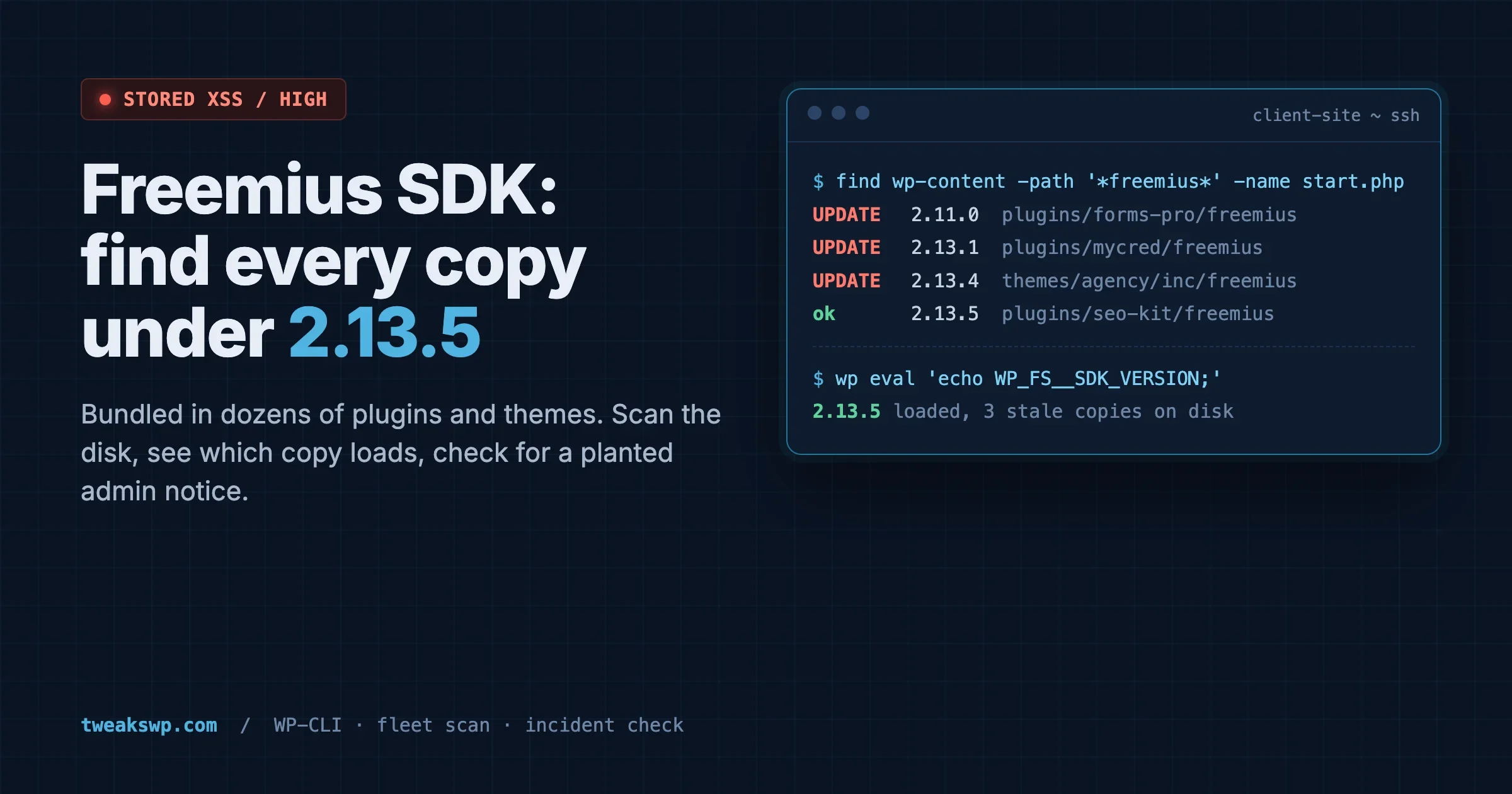
Freemius SDK Stored XSS: How to Find Every Bundled Copy on a Client Site (Anything Under 2.13.5)
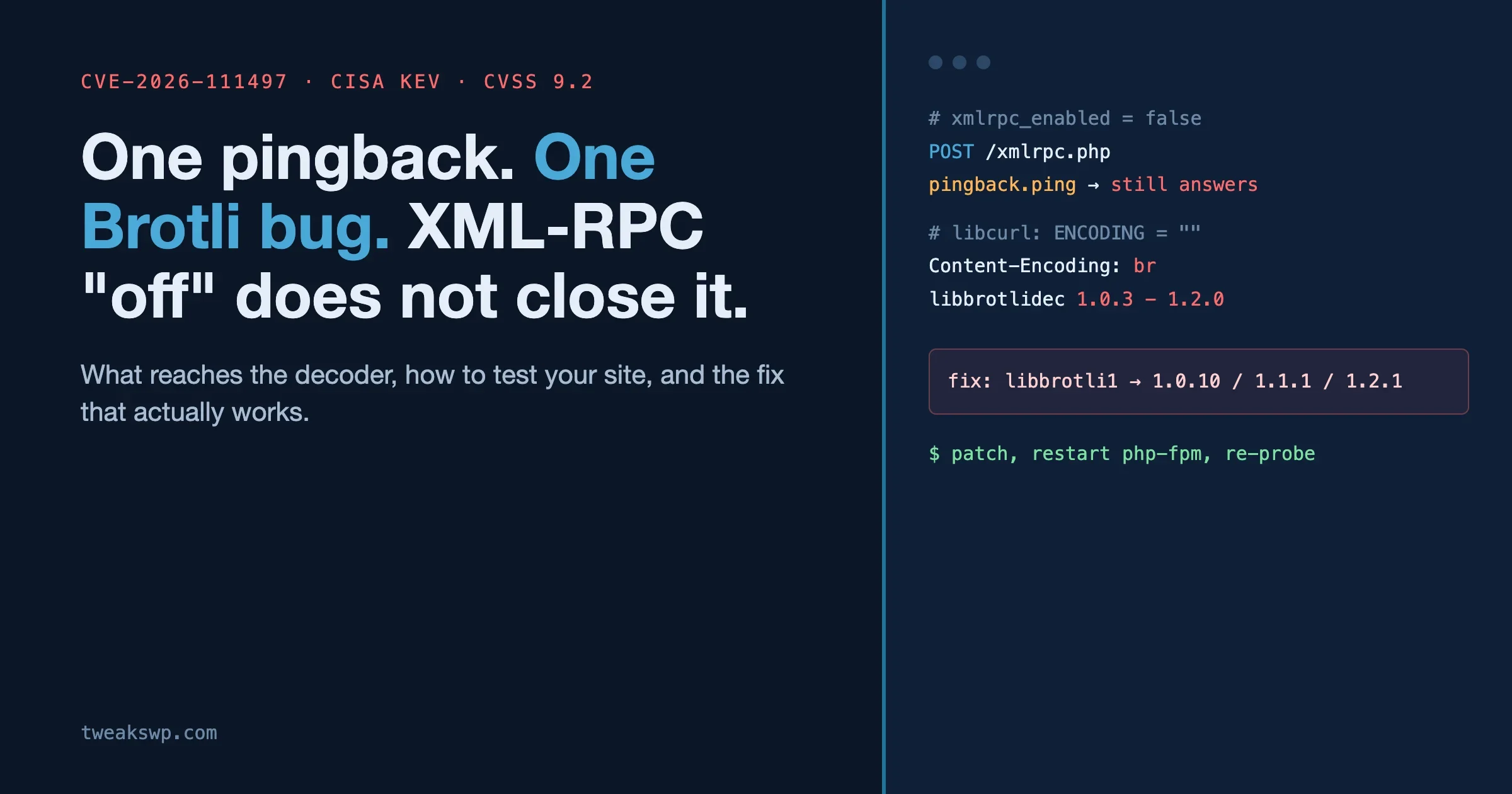
CVE-2026-111497: The Brotli Bug One xmlrpc.php Pingback Can Reach, and Why Turning Off XML-RPC the Usual Way Does Not Close It