How to Access WordPress Admin with a Fatal Error Warning
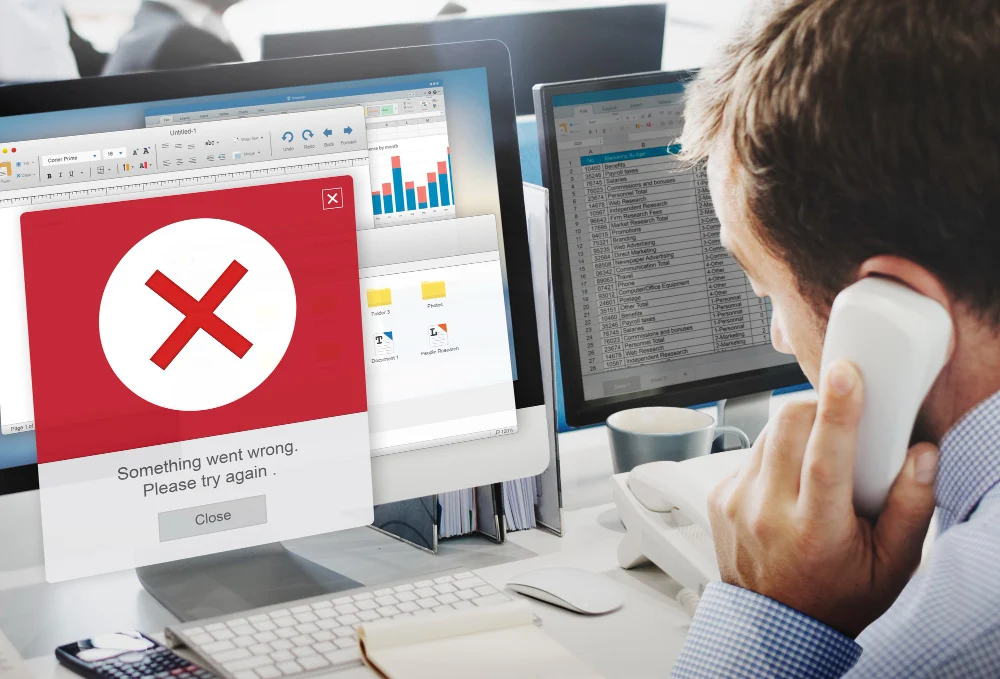
Hitting a fatal error when you try to access your WordPress admin dashboard is genuinely stressful. It usually points to something wrong with your site’s configuration, a plugin, a theme, or the core files themselves. Here’s how to get back into your admin area and actually fix what’s causing it.

Understanding Fatal Errors in WordPress
A fatal error usually happens when a script hits something it can’t recover from and stops executing. Common causes include:
- Plugin Conflicts: A newly installed or updated plugin that’s incompatible with your theme or other plugins.
- Theme Issues: Problems with your active theme.
- PHP Version Mismatch: Running a PHP version that isn’t compatible with your WordPress version or your themes/plugins.
- Memory Exhaustion: Your site exceeding the memory limit your hosting provider allocates.
Pinning down the actual cause is the key to fixing it. Here are the methods that work.
Also Read: How to Change the Background Color of Your Header in WordPress
Method 1: Accessing via FTP
One of the most reliable ways in is an FTP client like FileZilla:
Step 1: Install an FTP Client
Download and install an FTP client such as FileZilla. You’ll need your FTP credentials, usually available in your hosting account.
Step 2: Connect to Your Server
Open the FTP client and enter your credentials (hostname, username, password, port) to connect.
Step 3: Navigate to Your WordPress Installation
Once connected, navigate to the directory where WordPress is installed, usually public_html or similar.
Step 4: Disable Plugins
To check if a plugin is causing the error, go to wp-content/plugins and rename each plugin’s folder to deactivate it - something like plugin-name-deactivated works fine. Try the admin area after renaming each one. If the error clears, reactivate plugins one by one to find the culprit.
Step 5: Switch to a Default Theme
If disabling plugins doesn’t fix it, your active theme might be the problem. Navigate to wp-content/themes and rename your active theme’s folder - WordPress will automatically fall back to a default theme (like Twenty Twenty-Three).
Step 6: Check for PHP Errors
Still stuck? Check the PHP error logs. Enable error logging by editing wp-config.php and adding these lines before /* That's all, stop editing! Happy blogging. */:
define('WP_DEBUG', true);
define('WP_DEBUG_LOG', true);
define('WP_DEBUG_DISPLAY', false);
Method 2: Use cPanel File Manager
If you’d rather work in a browser, cPanel gets you there too:
Step 1: Log into cPanel
Access your hosting account’s cPanel dashboard.
Step 2: Open File Manager
Navigate to the “File Manager” section - it lets you manage files directly from your browser.
Step 3: Follow the Same Steps as FTP
From File Manager, navigate to your WordPress installation directory and follow the same steps as the FTP method - disabling plugins and switching themes.
Method 3: Increasing PHP Memory Limit
If memory exhaustion looks like the cause, try raising the PHP memory limit:
Step 1: Access the wp-config.php File
Using FTP or cPanel, find wp-config.php in the root directory of your WordPress installation.
Step 2: Add Memory Limit Code
Add this line just before “That’s all, stop editing!”:
define('WP_MEMORY_LIMIT', '256M');This raises the memory limit to 256MB. Save the file and check whether you can access the admin area.
Also Read: Are WordPress Hooks Coding Mechanisms?
Method 4: Reinstall WordPress Core Files
If none of that works, reinstalling WordPress core files is the next step:
Step 1: Download WordPress
Go to the official WordPress.org site and download the latest version.
Step 2: Extract Files
Extract the downloaded ZIP file on your local machine.
Step 3: Upload Core Files
Using your FTP client, upload the wp-admin and wp-includes folders from the extracted files to your server. Don’t upload the wp-content folder - that holds your themes, plugins, and uploads.
Step 4: Refresh Your Site
Once the upload finishes, try the admin area again. This overwrites any corrupted core files without touching your content.

Getting Back In and Staying In
A fatal error locking you out of WordPress admin is unsettling, but it’s usually fixable. Work through FTP or cPanel access, disabling plugins, switching themes, raising memory limits, or reinstalling core files, and you’ll get your site back under control.
Keep WordPress updated and maintain regular backups - it’s the best insurance against this happening again, and it means you can recover fast when it does. If you’re still stuck, your hosting provider’s support team can often spot things you can’t from the outside.
Interesting Reads:
How to Push Specific Pages Within WordPress?
Plugins we build and run
We maintain these ourselves, which is why we can support them on your site.
- BuddyNextThe self-hosted community engine for WordPress
- BuddyXFree community theme, Pro when you outgrow it
- ReignPremium community theme. Add pieces, build anything
- JetonomyCommunity forum and Q&A for WordPress
- EventonomyEvents and RSVPs for WordPress communities
- LearnomyCourses and learning communities on WordPress
- ListoraDirectories and listings your members can browse
- SnipShareCode sharing built for developer communities
- WB Ad ManagerAd placements that turn traffic into revenue
- WP Career BoardA job board your community actually uses
- WP Sell ServicesSell services with offers, orders, and payouts
- MediaVersePhotos, video, and media albums for members
- WB GamificationPoints, badges, and rewards that keep members active
- Product RoadmapPublic roadmaps with voting your users trust