WordPress Must-Use Plugins: The Complete mu-plugins Guide
Must-use plugins load before regular plugins, cannot be deactivated from the admin, and are the correct container for security headers, environment config, and maintenance mode.

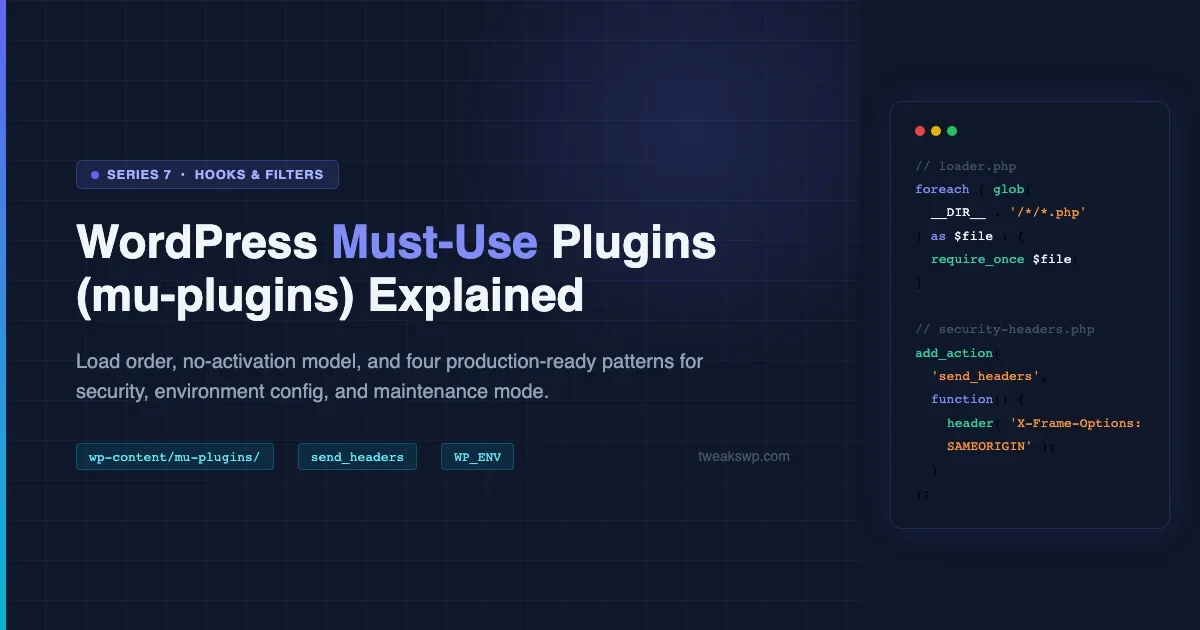
WordPress must-use plugins solve a specific problem: code that must run on every request, cannot be accidentally deactivated, and should load before any regular plugin or theme. If you have ever had a client turn off a plugin that enforces security headers or disables debug output on production, mu-plugins are the answer. This guide covers exactly what they are, how WordPress loads them, when they are the right tool, and four production-ready examples you can drop in today.
What Are Must-Use Plugins?
Must-use plugins, commonly referred to as mu-plugins, are PHP files placed directly in the wp-content/mu-plugins/ directory. WordPress loads every PHP file in that directory automatically on every request. There is no activation step, no deactivation option in the admin panel, and no entry in the regular Plugins list where a user could toggle them off.
They appear in the WordPress admin under Plugins > Must-Use, but that screen is read-only. You can see what is loaded; you cannot interact with it. The only way to disable a must-use plugin is to physically remove or rename the file on the server.
This is a deliberate design. Must-use plugins are for site-level infrastructure code: security rules, environment configuration, maintenance mode, redirect tables, and anything else that the site simply cannot run correctly without. Code that belongs in a regular plugin (user-facing features, settings pages, admin tools) does not belong in mu-plugins.
Here is the minimal structure. A single PHP file with a proper header comment is all that is required.
How WordPress Must-Use Plugins Load: The Bootstrap Sequence
The load order distinction is the core reason mu-plugins exist. Understanding it prevents a whole class of timing bugs.
WordPress bootstraps in a fixed sequence on every request. Must-use plugins load at step 4. Regular plugins load at step 5. The active theme’s functions.php loads at step 8. This means mu-plugin code runs before any regular plugin has been included, which gives you a guaranteed position in the execution order that no plugin conflict can disrupt.
Step | What Happens | Your Code Position |
|---|---|---|
1 | wp-config.php loaded | Constants defined here |
2 | WordPress core included | |
3 | Object cache initialized | |
4 | Must-use plugins loaded | mu-plugins run here |
5 | Regular plugins loaded | Regular plugin PHP files |
6 | pluggable.php loaded | |
7 | plugins_loaded fires | Plugin init callbacks |
8 | Active theme functions.php | Theme setup |
10 | init fires | CPT/taxonomy registration |
The practical consequence: if you add a callback to plugins_loaded from a must-use plugin, it runs before any regular plugin’s plugins_loaded callback, because regular plugins have not been loaded yet when mu-plugins fire. The gist below demonstrates this load order and shows a pattern for forcing a constant before any regular plugin can define it.
This is also why understanding hook priority matters when you are writing code that interacts with mu-plugin callbacks. If you have not read the full breakdown of how WordPress hook priority and execution order works, that context is directly relevant to the timing patterns mu-plugins create.
When to Use Must-Use Plugins
The right question is not “could I do this in a regular plugin?” but “does this code need to be unkillable and guaranteed to load first?” Here are the use cases where the answer is consistently yes.
Security enforcement
Security headers, login restrictions, and file access rules belong in mu-plugins because they protect the site even if every other plugin is disabled. A security plugin that can be deactivated by an admin who does not know better provides weaker protection than a mu-plugin that requires SSH access to remove.
Environment configuration
Switching behavior between development, staging, and production environments (different email routing, debug output, admin notices, API endpoint overrides) should never depend on a plugin toggle. A mu-plugin reads a constant from wp-config.php and applies the right configuration unconditionally.
Maintenance mode
Maintenance mode via mu-plugin fires before any regular plugin output, which means it intercepts requests even if a broken plugin would otherwise cause a fatal error. A regular plugin providing maintenance mode could itself be the thing that breaks.
Site-wide constants and configuration
Any constant that should be available to both mu-plugins and regular plugins must be defined in wp-config.php or a mu-plugin. Defining it in a regular plugin means it is unavailable until step 5, which is too late for anything that runs earlier.
Code that must survive theme switches
If a site behavior is tied to the active theme via functions.php, switching themes removes that behavior. Moving it to a mu-plugin makes it theme-independent. The twelve WordPress filters covered in the companion article are specifically recommended for placement in a mu-plugin over functions.php for exactly this reason.
When NOT to use must-use plugins
- Features with settings pages or user-facing controls, those need a proper plugin with activation/deactivation hooks.
- Code specific to one theme or post type that might not apply to future site configurations.
- Anything that needs WordPress’s update mechanism to keep it current.
- Features that other developers on the project might legitimately need to disable during debugging.
The Subdirectory Loader Pattern
WordPress scans only the root of wp-content/mu-plugins/ for PHP files. It does not recurse into subdirectories. This is a significant limitation when your mu-plugin collection grows: a flat directory of ten single files becomes hard to maintain.
The standard solution is a loader file. You place a single PHP file, typically loader.php, directly in mu-plugins/. WordPress auto-loads that one file, and it in turn loads PHP files from your organized subdirectories.
There are two common conventions for the subdirectory layout. The first uses a plugin.php entry point in each subdirectory, this is useful when a single mu-plugin is complex enough to have multiple files loaded by that entry point. The second loads every PHP file from each subdirectory, simpler, but less flexible if a subdirectory contains helper files that should not be loaded directly.
One important note: the loader.php pattern does not make subdirectory plugins appear in the Must-Use admin screen. WordPress’s detection only looks one level deep. The admin screen will list loader.php but not the individual loaded files. If visibility in that screen matters for your setup, keep each mu-plugin as a single root-level file.
Real Example: Security Headers
HTTP security headers are the canonical mu-plugin use case. They protect every response the server sends, they must be present before any output is written, and they should never be removable by a non-technical admin. A plugin deactivation should not be able to expose the site to clickjacking or disable HTTPS enforcement.
The gist below adds five headers via the send_headers action: HSTS to enforce HTTPS for one year, X-Content-Type-Options to block MIME-type sniffing, X-Frame-Options to prevent iframe embedding, Referrer-Policy to limit cross-origin data leakage, and Permissions-Policy to disable browser APIs this site does not need.
Two things to adjust before deploying: the HSTS preload flag commits your domain to the HTTPS preload list permanently, do not set it unless your site is fully HTTPS including all subdomains. And the Permissions-Policy header should reflect your actual site. If you embed Google Maps, you need geolocation=(self). The gist is a conservative default that disables everything; enable what you use.
For a full walkthrough of which headers to set for a WordPress site and the reasoning behind each value, the dedicated WordPress security headers guide covers Content Security Policy, HSTS, and X-Frame-Options configuration in depth, including how to test that the headers are actually being served.
Real Example: Environment Toggles
WordPress itself has no built-in environment concept beyond WP_DEBUG. Sites that deploy to multiple environments (local development, staging, production) need to route emails differently, show or hide debug output, and notify developers when they are looking at a staging server. Doing this with plugin settings means the settings can drift between environments. Doing it with a mu-plugin and a constant in wp-config.php means it is infrastructure, not configuration.
The pattern is straightforward: define WP_ENV in each environment’s wp-config.php, then read it once in a mu-plugin and branch on the value. The gist implements three environment behaviors: redirect all email to a dev address and enable error display on development; redirect email to a staging inbox and add a visible admin bar badge on staging; and do nothing on production (it runs with its own wp-config.php settings).
One detail worth noting: the email redirect uses the wp_mail filter rather than directly modifying PHPMailer settings. This keeps the implementation compatible with any SMTP plugin that is also modifying the mail pipeline. The filter approach sits above the transport layer, it redirects the destination before the message is handed off to whatever delivery mechanism is active.
Real Example: Maintenance Mode with Proper HTTP Headers
Maintenance mode seems simple but has two details that most implementations get wrong. First, the response must use HTTP status 503 (Service Unavailable), not 200. A 200 response during maintenance tells search engines the page is live, and they index the maintenance screen instead of your actual content. Second, the 503 should include a Retry-After header telling crawlers when to come back. Without it, some crawlers deindex the URL after seeing repeated 503s.
The gist below implements maintenance mode as a mu-plugin with both headers set correctly. It bypasses administrators (so you can log in and work on the site), bypasses WordPress cron (so scheduled tasks continue), and bypasses the login page itself (so you can get in if you are logged out).
Toggle maintenance on and off by setting define( 'MAINTENANCE_MODE', true ); in wp-config.php. The mu-plugin checks for that constant at the top and returns immediately if it is false or undefined, so on normal requests, the entire callback stack is skipped.
This pattern is far more reliable than maintenance mode plugins, which load after WordPress has already processed a portion of the request stack. A mu-plugin fires at template_redirect, before any theme template is loaded, which means it intercepts requests even on pages that would otherwise produce a fatal error due to theme bugs.
Gotchas and Limitations
No activation or deactivation hooks
Must-use plugins do not support register_activation_hook() or register_deactivation_hook(). Those hooks fire when a plugin is activated or deactivated through the admin, a mechanism that does not exist for mu-plugins. If your code needs to run setup logic once (create a custom table, seed default options), you need to handle that with an installed flag in the options table or via WP-CLI, not with activation hooks.
The same applies to register_uninstall_hook(). Cleanup logic for a mu-plugin is a manual process: you remove the file and handle any cleanup with a one-time script or WP-CLI command.
No automatic updates
Must-use plugins are outside WordPress’s update mechanism. There is no “check for updates” entry, no auto-update toggle, and no notification when a new version is available. This is intentional, mu-plugins are site infrastructure that should be version-controlled in your repository and deployed deliberately, not auto-updated. If you are using a third-party mu-plugin distributed via Composer or a private repository, update management is your responsibility.
Multisite behavior
On a WordPress multisite network, must-use plugins in wp-content/mu-plugins/ are network-wide. They load for every site in the network on every request. There is no per-site mu-plugin directory. If a mu-plugin should only apply to specific subsites, you need to add your own subsite check inside the plugin using get_current_blog_id() or the ms_site_check filter.
This makes multisite mu-plugins more impactful and more dangerous. A misconfigured security header mu-plugin on a multisite network breaks every site simultaneously. Test on a staging network before deploying.
No subdirectory scanning by default
As covered in the subdirectory loader section, WordPress only loads PHP files from the root of mu-plugins/. PHP files in subdirectories are invisible to WordPress unless a root-level loader file explicitly includes them. A common mistake is placing a plugin in a subdirectory and wondering why it never runs, the file does not exist from WordPress’s perspective.
Errors are silent and fatal
A syntax error or uncaught exception in a must-use plugin produces a white screen or fatal error with no admin-panel escape route. You cannot deactivate the broken file from the WordPress admin because the admin itself fails to load when a mu-plugin errors. Recovery requires SFTP or SSH access to rename or fix the file. This is another reason to version-control mu-plugins and test changes in staging before pushing to production.
What Belongs in a Must-Use Plugin vs. functions.php vs. a Regular Plugin
The placement decision comes down to three questions: Can this legitimately be disabled? Does it need to survive a theme switch? Does it need to load before regular plugins?
Code Type | Best Location | Reason |
|---|---|---|
Security headers, maintenance mode | mu-plugins/ | Cannot be disabled; must load first |
Environment config, API keys | mu-plugins/ or wp-config.php | Infrastructure; no toggle needed |
Site-wide filters (theme-independent) | mu-plugins/ | Survives theme switch; no activation needed |
Theme layout, design filters | functions.php | Specific to active theme |
Features with settings pages | Regular plugin | Needs activate/deactivate; user-controllable |
Features that might be disabled for debug | Regular plugin | Needs admin toggle during troubleshooting |
Organizing a Growing Must-Use Plugin Collection
On sites that accumulate mu-plugins over time, the directory can become unwieldy. Here is the structure that scales well and stays readable:
- One file per concern. Do not pack unrelated functionality into a single file because “it is short.” Security headers in one file, environment config in another, maintenance mode in a third. This makes it easy to remove or update one piece without touching others.
- Use the subdirectory loader once you have more than four or five mu-plugins. Group related files (e.g.,
security/,environment/,redirects/). - Version control everything. Treat
mu-plugins/as part of your site’s Git repository. Changes should go through the same review process as regular plugin or theme code. - Document each file’s purpose and the constant that controls it (if any) in the file header comment. Future you and your team will thank you.
Put Infrastructure Code Where It Cannot Be Accidentally Removed
Must-use plugins are the right tool for site-level infrastructure that must be on, must load first, and must survive any plugin or theme change. Start with security headers and environment config, those are the two highest-value placements on any production WordPress site. The gists in this article are production-ready starting points.
Plugins we build and run
We maintain these ourselves, which is why we can support them on your site.
- BuddyNextThe self-hosted community engine for WordPress
- BuddyXFree community theme, Pro when you outgrow it
- ReignPremium community theme. Add pieces, build anything
- JetonomyCommunity forum and Q&A for WordPress
- EventonomyEvents and RSVPs for WordPress communities
- LearnomyCourses and learning communities on WordPress
- ListoraDirectories and listings your members can browse
- SnipShareCode sharing built for developer communities
- WB Ad ManagerAd placements that turn traffic into revenue
- WP Career BoardA job board your community actually uses
- WP Sell ServicesSell services with offers, orders, and payouts
- MediaVersePhotos, video, and media albums for members
- WB GamificationPoints, badges, and rewards that keep members active
- Product RoadmapPublic roadmaps with voting your users trust