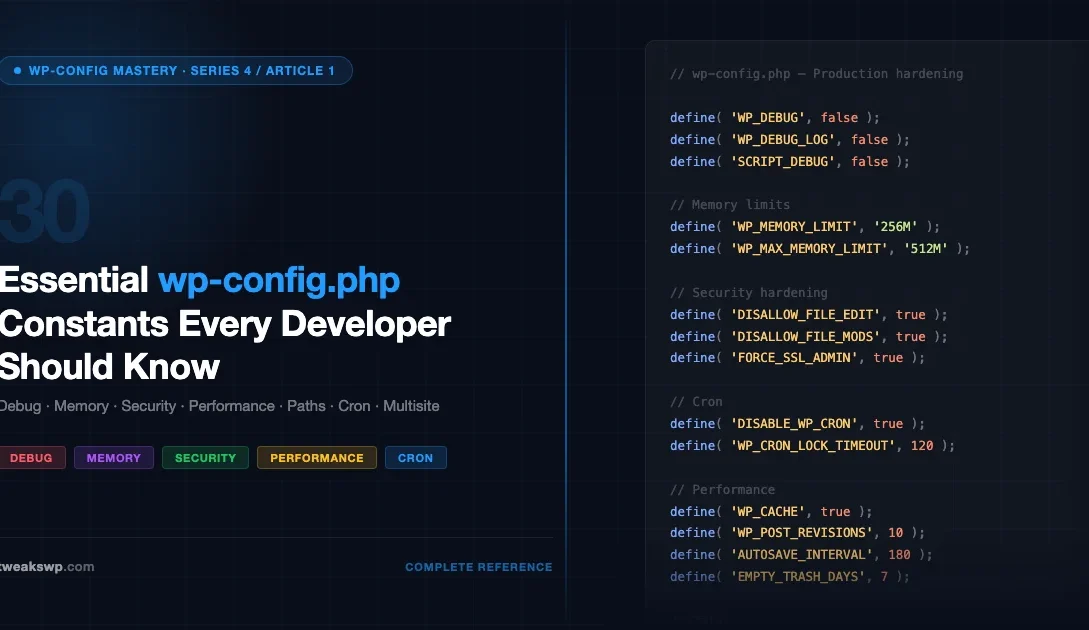
Every WordPress installation has a wp-config.php file, and most developers interact with it only twice: once during setup to enter database credentials, and again to flip WP_DEBUG on when something breaks. That is leaving a significant amount of control on the table. WordPress exposes 30+ PHP constants in this file that govern memory allocation, security hardening, database behavior, cron scheduling, multisite network setup, and more. If you are looking for lesser-known options beyond this list, see our guide to 15 hidden wp-config.php settings. This reference documents every essential constant, categorized by function, with the exact syntax and the decision logic you need to choose the right value for each environment.
How wp-config.php Constants Work
WordPress reads wp-config.php during bootstrap, before loading any plugins or themes. Constants defined here are available for the entire request lifecycle. They are set using PHP’s define() function, which makes them immutable, once set, no plugin or theme code can override them with a second define() call.
All constants must appear before the line that includes wp-settings.php. That line looks like this in a standard install: require_once ABSPATH . 'wp-settings.php';. Placing a constant after that line has no effect because WordPress has already read the values it needs.
Constants set in wp-config.php override values stored in the WordPress database. A constant for
WP_HOMEorWP_SITEURLmeans Settings > General becomes read-only, the database value is ignored.
Category 1: Debug Constants
The debug group is the most-used set of constants. Together they control whether PHP errors are reported, where they are written, and whether scripts are loaded in minified form. Understanding how they interact is essential, misconfiguring them leaks server paths and variable names to visitors on production sites.
WP_DEBUG
WP_DEBUG is the master switch. Setting it to true changes PHP’s error reporting level to E_ALL, which surfaces every notice, warning, and deprecated message, including those from plugins and themes that would otherwise be silently swallowed. It also enables WordPress’s internal deprecation notices via _deprecated_function() and _doing_it_wrong().
Default: false. Set true only in development and staging environments, never on live production sites without also setting WP_DEBUG_DISPLAY to false.
WP_DEBUG_LOG
WP_DEBUG_LOG redirects PHP error output to a file. When set to true, errors go to wp-content/debug.log. When set to an absolute file path string, errors go to that location instead. The string form is strongly preferred for production logging because the default path inside wp-content/ is publicly accessible if directory listing is enabled or if a misconfigured server serves .log files.
WP_DEBUG_LOG works independently of WP_DEBUG. When WP_DEBUG is false, setting WP_DEBUG_LOG to true still enables logging, useful for capturing errors on staging without displaying them to visitors.
WP_DEBUG_DISPLAY
WP_DEBUG_DISPLAY controls whether errors are printed to the browser. Default: true when WP_DEBUG is enabled. Set to false to suppress screen output while still logging. This is the combination you want on staging: errors logged to a file, nothing shown to users.
SCRIPT_DEBUG and SAVEQUERIES
SCRIPT_DEBUG tells WordPress to load the unminified versions of its own JavaScript and CSS files from the /src/ or /js/ subdirectories of each asset. This makes debugging WordPress-core JS issues significantly easier because you get readable source instead of minified output. It has no effect on plugin or theme scripts, those load from wherever the plugin registers them.
SAVEQUERIES records every database query fired during the request, along with the call stack that triggered it and the execution time in microseconds. The data is stored in $wpdb->queries and is accessible to debugging tools like Query Monitor. Never enable this on production, it stores the full query log in memory for every request, which bloats RAM usage dramatically on busy sites.
| Constant | Default | What It Controls | Use In |
|---|---|---|---|
WP_DEBUG | false | PHP E_ALL error reporting | Dev / Staging |
WP_DEBUG_LOG | false | Write errors to debug.log | Dev / Staging / Prod |
WP_DEBUG_DISPLAY | true | Print errors to browser | Dev only |
SCRIPT_DEBUG | false | Load unminified core JS/CSS | Dev only |
SAVEQUERIES | false | Record all DB queries in memory | Dev only |
Category 2: Memory Constants
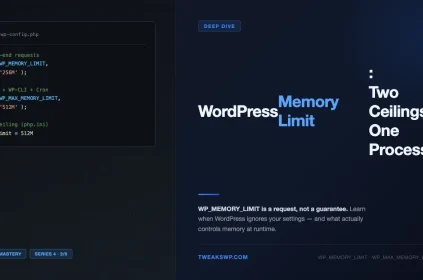
WordPress runs on shared hosting plans that often cap PHP memory at 64MB or 128MB. Two constants let you instruct WordPress to request more memory from PHP, up to the hard ceiling set by the server’s php.ini.
WP_MEMORY_LIMIT
WP_MEMORY_LIMIT sets the PHP memory limit for front-end page requests. WordPress default is 40MB, which is insufficient for most modern sites with active plugins. The practical minimum for a site with WooCommerce or a page builder is 256MB. Set this too low and you get “Allowed memory size exhausted” fatal errors on product pages or complex templates.
WP_MAX_MEMORY_LIMIT
WP_MAX_MEMORY_LIMIT sets the PHP memory limit specifically for wp-admin requests. WordPress default is 256MB. Admin operations, bulk post operations, media library imports, plugin updates, are significantly more memory-intensive than front-end rendering. 512MB is a reasonable value for sites with large media libraries or high plugin counts.
One important caveat: these constants call ini_set('memory_limit'...) internally. If the server’s PHP configuration sets memory_limit with a hard cap in php.ini, WordPress cannot exceed it regardless of what these constants say. Check your actual limit with phpinfo() or wp cli eval 'echo ini_get("memory_limit");'.
Category 3: Performance Constants
This group controls how WordPress handles its page cache, script concatenation, and asset compression in the admin. These are less frequently needed than debug constants but important when diagnosing performance regressions or configuring a caching layer.
WP_CACHE
WP_CACHE tells WordPress to load the drop-in caching file at wp-content/advanced-cache.php during bootstrap. Most popular page caching plugins (W3 Total Cache, WP Super Cache, LiteSpeed Cache) write this file and set the constant automatically when you activate caching. You rarely need to set this manually, but if a plugin is not caching pages despite being configured correctly, verify this constant is true. For object-level caching beyond pages, see our guide on setting up Redis object cache for WordPress.
CONCATENATE_SCRIPTS, COMPRESS_SCRIPTS, COMPRESS_CSS
These three constants control wp-admin asset loading. CONCATENATE_SCRIPTS combines multiple JavaScript files into a single request, reducing HTTP round trips. It defaults to true on single sites and false on multisites. If you experience blank admin screens or broken JavaScript in the editor after enabling it, disable it, some admin scripts have ordering dependencies that concatenation breaks.
COMPRESS_SCRIPTS and COMPRESS_CSS enable gzip compression on those concatenated files. Enable both when your server does not already handle gzip compression at the nginx or Apache level.
Category 4: Security Constants
The security constants provide server-level hardening that cannot be bypassed by plugins or compromised admin accounts. These are the most impactful constants for locking down a production WordPress site.
DISALLOW_FILE_EDIT
DISALLOW_FILE_EDIT removes the theme and plugin file editors from wp-admin. When set to true, the Appearance > Theme File Editor and Plugins > Plugin File Editor menu items disappear entirely. This is a critical hardening step because a compromised admin account would otherwise be able to inject arbitrary PHP into active files through the browser. Enable this on every production site.
DISALLOW_FILE_MODS
DISALLOW_FILE_MODS goes further: it prevents all file system modifications through wp-admin. This includes plugin installations and updates, theme installations and updates, and WordPress core auto-updates. Use this on hardened production servers where all updates are managed through a CI/CD pipeline using WP-CLI. It implies DISALLOW_FILE_EDIT, you do not need both.
FORCE_SSL_ADMIN
FORCE_SSL_ADMIN forces wp-admin and wp-login.php to use HTTPS. On a properly configured modern server with an HTTPS redirect rule in nginx or Apache, this constant is redundant but harmless. It becomes important on servers where the root domain is on HTTPS but the redirect rule does not cover /wp-login.php specifically, or on reverse-proxy setups where the SSL termination happens upstream.
WP_HTTP_BLOCK_EXTERNAL and WP_ACCESSIBLE_HOSTS
WP_HTTP_BLOCK_EXTERNAL blocks all outbound HTTP requests made by WordPress’s HTTP API (wp_remote_get(), wp_remote_post(), etc.). This is extreme hardening intended for high-security environments. It breaks update checks, Akismet, remote plugin installations, and any plugin that makes API calls. When using it, pair it with WP_ACCESSIBLE_HOSTS to whitelist the specific domains that WordPress needs to reach.
Authentication Keys and Salts
The eight authentication keys and salts are not constants you set to control a feature, they are cryptographic secrets WordPress uses to sign login cookies, password reset tokens, and nonces. They must be unique, random 64-character strings. Generate fresh values at https://api.wordpress.org/secret-key/1.1/salt/.
Changing these values invalidates all active sessions immediately, logging out every user including administrators. This makes them a useful incident response tool: if you suspect a session has been hijacked, regenerating the keys kills all active logins at once. Never store real keys in version control, load them from environment variables in production.
Category 5: Paths and URL Constants
WordPress stores its site URL and home URL in the database. Setting them as constants in wp-config.php overrides those database values, makes them immutable, and eliminates a database lookup on every request. They are also critical for recovering a site after a domain change when database access is unavailable.
WP_HOME and WP_SITEURL
WP_HOME is the URL that visitors use to access your site, the address in their browser. WP_SITEURL is where WordPress core files are installed. On a standard install they are the same URL. They differ only when WordPress core is installed in a subdirectory (e.g., WP_SITEURL is https://example.com/wordpress) while the site is served from the root (WP_HOME is https://example.com).
WP_CONTENT_DIR, WP_CONTENT_URL, WP_PLUGIN_DIR, WP_PLUGIN_URL
These constants let you move wp-content and the plugins directory to a different location on disk or serve them from a different URL. The most common use case is moving wp-content outside the core WordPress directory to make it easier to manage WordPress core as a Composer dependency or Git submodule without complicating the content directory.
When overriding these paths, set both the _DIR (filesystem path) and _URL (public URL) variants. Missing one causes assets to load from the wrong URL or PHP to look for files in the wrong directory.
Category 6: Cron Constants
WordPress’s built-in scheduling system, WP-Cron, is not a real server cron. It fires scheduled tasks by piggy-backing on incoming page requests. On low-traffic sites this means tasks can miss their scheduled time by hours. On high-traffic sites it means every popular page can simultaneously spawn a background cron process, creating a denial-of-service effect on the database.
DISABLE_WP_CRON
Setting DISABLE_WP_CRON to true stops WordPress from spawning background cron processes on page loads. Scheduled tasks will not run automatically after this, you must provide a real server cron job that calls wp-cron.php directly or uses WP-CLI. This is the recommended configuration for any production site with reliable hosting access. For a look at scheduling pitfalls, see common WordPress cron job mistakes developers make.
WP_CRON_LOCK_TIMEOUT and ALTERNATE_WP_CRON
WP_CRON_LOCK_TIMEOUT sets the minimum seconds between duplicate cron spawns. The default of 60 seconds works on most sites, but on sites with very high concurrency (thousands of requests per minute), even 60 seconds can result in multiple simultaneous cron processes hitting the database. Increasing this value to 120 or 300 reduces that pressure.
ALTERNATE_WP_CRON switches the cron-firing mechanism from a background loopback HTTP request to a redirect. Some shared hosting environments block loopback connections, causing WP-Cron to silently fail. Setting this constant to true works around that restriction by using a redirect-based trigger instead.
Category 7: Multisite Constants
WordPress Multisite turns a single WordPress install into a network of sites. The multisite constants are added to wp-config.php in two stages: enabling the setup wizard, then locking in the network configuration after the wizard completes.
WP_ALLOW_MULTISITE
WP_ALLOW_MULTISITE adds the “Network Setup” page to Tools in wp-admin. Set it to true on an existing single-site install to expose the network setup wizard. After running the wizard and completing the configuration steps, remove this constant and replace it with the full set of multisite constants.
MULTISITE, SUBDOMAIN_INSTALL, and Network Constants
After the wizard completes, WordPress gives you a block of constants to paste into wp-config.php. MULTISITE activates the network. SUBDOMAIN_INSTALL determines whether sites on the network use subdomains (site1.example.com) or subdirectories (example.com/site1/).
The network constants, DOMAIN_CURRENT_SITE, PATH_CURRENT_SITE, SITE_ID_CURRENT_SITE, and BLOG_ID_CURRENT_SITE, identify the primary domain and the database IDs of the root network and its main site. These are almost always set automatically by the wizard. You would set them manually only when moving a multisite network to a new domain or restoring from backup.
Category 8: Database Constants
The database constants are the only ones every developer knows. They connect WordPress to its MySQL or MariaDB database. Despite being familiar, there are several less-obvious options worth understanding.
DB_HOST Variations
The default value localhost uses a UNIX socket connection, which is faster than TCP. If you need to force a TCP connection (for example, when connecting to a database on a different internal IP, or when the socket is unavailable), use 127.0.0.1 instead. For a remote database host, specify the hostname with an optional port: db.example.com:3307. For an explicit socket path: localhost:/var/run/mysqld/mysqld.sock.
DB_CHARSET and the Table Prefix
Always use utf8mb4 as the charset. The older utf8 alias in MySQL is actually a 3-byte variant that cannot store 4-byte Unicode characters, including most emoji. utf8mb4 is the proper 4-byte UTF-8 implementation. Most WordPress installs since 4.2 use utf8mb4 by default.
The $table_prefix variable (not a constant, it is a PHP variable) sets the prefix for all WordPress database tables. Changing it from the default wp_ is a minor security measure that makes automated attacks guessing table names slightly less effective. It must be set before WordPress is installed; changing it on an existing install requires renaming every table and updating prefix references in the wp_options and wp_usermeta tables.
Category 9: Content Management Constants
This group covers constants that control how WordPress manages post revisions, the trash, and the autosave interval. They are primarily relevant for sites with high editorial volume where database size and storage efficiency matter.
WP_POST_REVISIONS
WordPress stores a copy of every post version in the wp_posts table as a row with post_type = 'revision'. By default it stores every revision indefinitely. On high-volume editorial sites, news sites, documentation wikis, multi-author blogs, this can balloon the wp_posts table to hundreds of thousands of rows, slowing down queries even though revision rows are never displayed to visitors.
Set WP_POST_REVISIONS to an integer to cap the number of stored revisions per post. A value of 5 to 10 provides enough rollback history for most editorial workflows. Set to false to disable revisions entirely, useful on sites where posts are managed programmatically rather than by human editors.
AUTOSAVE_INTERVAL and EMPTY_TRASH_DAYS
AUTOSAVE_INTERVAL defaults to 60 seconds. The Gutenberg editor sends an autosave request every minute by default, which writes a revision to the database on every autosave tick. Increasing this to 180 or 300 seconds reduces database writes without meaningfully affecting content safety for most editors.
EMPTY_TRASH_DAYS sets how long posts, pages, and media stay in the trash before being permanently deleted. Default is 30 days. Sites with large media libraries may benefit from a shorter interval (7 days) to keep storage under control. Set to 0 to bypass the trash entirely, deletions become immediate and permanent.
Category 10: Cookie Domain Constants
Cookie constants are rarely needed on standard single-site installs but become important on architectures with multiple subdomains or reverse-proxy setups where authentication state needs to persist across domain boundaries.
COOKIE_DOMAIN tells WordPress what domain to use when setting authentication cookies. Setting it to .example.com (with a leading dot) makes cookies available to all subdomains, useful for a headless architecture where the admin is at cms.example.com and the front-end is at www.example.com, and you want a single login to work across both.
Environment-Specific Configuration Templates
The right approach to managing constants across development, staging, and production environments is to split your wp-config.php into environment-specific files and load the correct one based on a server environment variable or hostname check. This prevents production credentials from existing on developer laptops, keeps debug constants off live servers, and makes the active configuration explicit rather than relying on manual edits per deployment.
A common pattern is a wp-config-local.php for development settings that is listed in .gitignore. The shared wp-config.php checks for the local file and includes it if present; otherwise it loads production defaults. Another approach is using an environment variable (WP_ENV) set in nginx or Apache to select from wp-config-dev.php, wp-config-staging.php, and wp-config-production.php.
Complete Constants Reference
The following table lists all 30 constants covered in this guide with their defaults and primary use case at a glance.
| Constant | Category | Default | Primary Use |
|---|---|---|---|
WP_DEBUG | Debug | false | Enable E_ALL PHP error reporting |
WP_DEBUG_LOG | Debug | false | Write errors to debug.log |
WP_DEBUG_DISPLAY | Debug | true | Print errors to browser |
SCRIPT_DEBUG | Debug | false | Load unminified core scripts |
SAVEQUERIES | Debug | false | Record all DB queries |
WP_MEMORY_LIMIT | Memory | 40M | Front-end PHP memory limit |
WP_MAX_MEMORY_LIMIT | Memory | 256M | Admin PHP memory limit |
WP_CACHE | Performance | false | Load advanced-cache.php drop-in |
CONCATENATE_SCRIPTS | Performance | true | Combine admin JS files |
COMPRESS_SCRIPTS | Performance | false | Gzip admin JS |
COMPRESS_CSS | Performance | false | Gzip admin CSS |
DISALLOW_FILE_EDIT | Security | false | Remove theme/plugin editors |
DISALLOW_FILE_MODS | Security | false | Block all file system changes |
FORCE_SSL_ADMIN | Security | false | Force HTTPS on wp-admin |
WP_HTTP_BLOCK_EXTERNAL | Security | false | Block outbound HTTP requests |
WP_ACCESSIBLE_HOSTS | Security | , | Whitelist for HTTP_BLOCK_EXTERNAL |
AUTH_KEY / Salts (×8) | Security | , | Cookie signing cryptographic secrets |
WP_HOME | Paths | DB value | Front-end site URL |
WP_SITEURL | Paths | DB value | WordPress core install URL |
WP_CONTENT_DIR | Paths | ABSPATH/wp-content | Filesystem path to wp-content |
WP_CONTENT_URL | Paths | Site URL/wp-content | Public URL for wp-content |
WP_PLUGIN_DIR | Paths | WP_CONTENT_DIR/plugins | Filesystem path to plugins |
DISABLE_WP_CRON | Cron | false | Disable pseudo-cron on page loads |
WP_CRON_LOCK_TIMEOUT | Cron | 60 | Seconds between cron spawn attempts |
ALTERNATE_WP_CRON | Cron | false | Redirect-based cron trigger |
MULTISITE | Multisite | false | Activate multisite network |
SUBDOMAIN_INSTALL | Multisite | false | Subdomain vs subdirectory network |
WP_POST_REVISIONS | Content | Unlimited | Limit stored revisions per post |
AUTOSAVE_INTERVAL | Content | 60 | Autosave frequency (seconds) |
EMPTY_TRASH_DAYS | Content | 30 | Days before trash is emptied |
Common Mistakes to Avoid
- WP_DEBUG on production with no display suppression. Leaving
WP_DEBUG_DISPLAYat its defaulttruevalue on a live site exposes full PHP stack traces, file paths, and variable contents to every visitor who triggers an error. - Writing debug.log inside wp-content without access controls. The default
wp-content/debug.logpath is publicly accessible on many shared hosts. Always setWP_DEBUG_LOGto an absolute path outside the webroot, or block access to*.logfiles in your server config. - Setting WP_MEMORY_LIMIT without checking the server hard cap. If the server’s
php.inisets a hard memory limit, WordPress cannot exceed it viaini_set. Verify the effective limit with WP-CLI:wp eval 'echo ini_get("memory_limit");' - Using DISALLOW_FILE_MODS without a deployment pipeline. This constant blocks core and plugin auto-updates. If you enable it without setting up a separate update mechanism, your site’s plugins and WordPress core will fall behind on security patches.
- Placing constants after the wp-settings.php include. Constants defined after
require_once ABSPATH . 'wp-settings.php';are ignored. WordPress has already bootstrapped using the values it found before that line. - Committing salt keys to version control. Every repository that has ever contained your real
AUTH_KEYand salt values has exposed them. Rotate keys immediately using the WordPress.org generator and load new keys from environment variables.
Next in the wp-config Mastery Series
This is Article 1 in the six-part wp-config Mastery series on TweaksWP. The full series covers every area of wp-config.php in depth:
- Article 1 (this post), Complete constants reference, categorized
- Article 2, Debug workflows: reading debug.log, using Query Monitor, diagnosing database performance with SAVEQUERIES
- Article 3, Performance tuning: memory, caching constants, and when to replace WP-Cron with real cron
- Article 4, Security hardening: locking down wp-admin, salts rotation, blocking external requests
- Article 5, Multisite configuration: network setup, subdomain vs subdirectory, domain mapping
- Article 6, Environment management: splitting wp-config.php per environment, managing secrets with environment variables
Conclusion
The wp-config.php file is one of the most powerful levers available to WordPress developers, and most of its capability goes unused. The 30 constants documented here cover every major operational category: debugging errors without exposing them to users, allocating appropriate memory per environment, hardening admin access against compromised credentials, replacing the unreliable pseudo-cron with real scheduling, and structuring configuration so it can be version-controlled safely.
The practical takeaway is the environment-specific template from Category 10. Use it as the base for every WordPress project: development gets full debug output, staging gets file logging with no screen output, production gets all file-modification locks and SSL enforcement in place. The constants that differ between environments are the ones that matter most, get them right at the configuration level and you eliminate an entire class of deployment mistakes.
Working on a complex wp-config.php setup for a multisite network or a headless WordPress architecture? The TweaksWP WordPress developer tutorials section has detailed guides for both. If you are troubleshooting a specific constant behavior in a production environment, the wp-config Mastery series continues with deep dives into each category.
WordPress configuration WordPress Developer Guide WordPress Performance Tweaks WordPress Security Hardening wp-config.php
Last modified: April 9, 2026