The Right Way vs Wrong Way: WordPress Cron Jobs Developers Get Wrong
WordPress cron jobs are widely misused: events registered on every page load, no race condition protection, long-running tasks blocking the main process, and missing server cron configuration. This guide shows the exact mistakes developers make and how to fix each one with working code examples.
WordPress cron jobs look simple. Call wp_schedule_event(), hook your callback, done. But in production, poorly configured cron jobs cause some of the most frustrating problems on WordPress sites: missed scheduled posts, duplicate event execution, database timeouts, and PHP memory exhaustion from long-running tasks. Most of these problems come from a handful of recurring mistakes that are easy to avoid once you understand how WP-Cron actually works. For more on optimizing background processes, see our performance optimization guides.
WP-Cron is not a real cron system. It is a pseudo-cron triggered by page requests. When a visitor loads your WordPress site, WordPress checks whether any scheduled events are due and runs them during that page request. The event runs in the same PHP process as the page load, blocking completion until the event finishes.
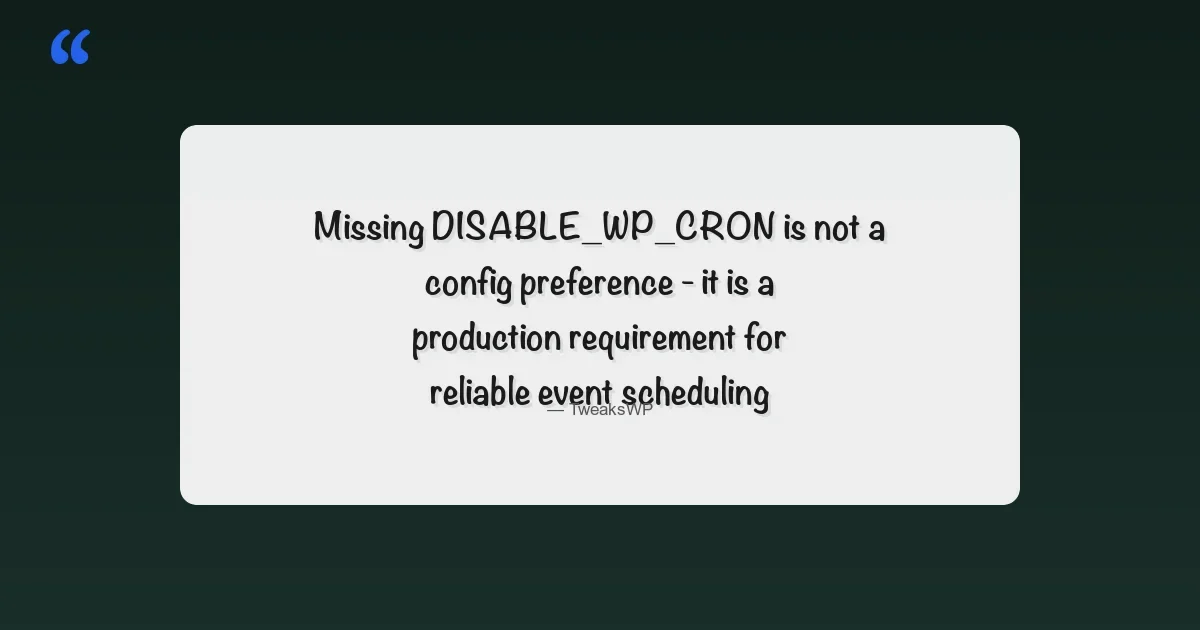
Understanding this explains every WP-Cron limitation you will encounter. Events only fire when pages are requested. Long events slow down page loads. Multiple concurrent requests can trigger the same event twice. And on sites where you set DISABLE_WP_CRON without configuring a real server cron, events stop running entirely - silently, with no error messages anywhere.
WP-Cron (Default) | Server Cron (Recommended for Production) |
|---|---|
Triggered by page loads | Triggered by system scheduler |
Unreliable on low-traffic sites | Runs on exact schedule regardless of traffic |
Race conditions possible | Single process per invocation |
Blocks visitor page loads | Runs in separate background process |
Subject to PHP max_execution_time | Can set separate limits per job |
Zero additional configuration | Requires server access to configure |
The most common cron mistake: calling wp_schedule_event() inside an add_action('init') callback without checking if the event is already scheduled. This registers a new event on every page load, creating hundreds of duplicate entries in the cron option over time. When these events eventually fire, they all execute - sometimes causing hundreds of duplicate operations in seconds.
The correct approach is to schedule on plugin activation using register_activation_hook() and check wp_next_scheduled() before scheduling. Always pair this with register_deactivation_hook() to unschedule events on deactivation - otherwise events remain in the database after the plugin is deactivated and WordPress attempts to run them against a non-existent callback.
Check whether your cron option has duplicate entries using wp option get cron | grep event_name. Multiple entries with the same hook name and similar timestamps is the fingerprint of the init registration bug.WP-Cron has a known race condition: if two concurrent page requests arrive when an event is due, both processes can execute the event before the first one marks it as running. For most events this is a minor annoyance (duplicate emails, duplicate database records). For events that make irreversible changes - sending payments, posting to external APIs, deleting old data - duplicate execution is a serious bug.
The fix is a transient-based lock acquired at the start of the callback. The lock expires automatically after your maximum expected runtime, so if the process crashes it auto-releases and the next cron run can proceed normally. The gist above shows the complete pattern with a finally block to guarantee lock release even when the work throws an exception.
Running long tasks through the default WP-Cron mechanism blocks visitor page loads. The fix is two-part: disable the HTTP-triggered cron and replace it with a real server cron job running on a reliable schedule.
Setting DISABLE_WP_CRON to true stops WordPress from triggering wp-cron.php on page loads. But this alone does nothing to run your scheduled events - you must configure an actual server cron to call wp-cron on a fixed schedule. Without the server cron configured, all your scheduled events stop running entirely, including WordPress core events like checking for plugin updates and sending password reset emails.
The preferred approach for production sites is WP-CLI, which handles WordPress bootstrapping cleanly and exits gracefully after running due events:
Run this every 5 minutes for reliable event firing without relying on page traffic. The --due-now flag runs only events that are currently due, not all scheduled events. The --quiet flag suppresses output - remove it temporarily when debugging to see which events are running and how long each takes.
Important: use the full path to WP-CLI. Cron jobs run with a minimal environment that does not include your normal shell PATH. Always verify your cron entry works by running it manually first as the web server user. On most servers this is www-data or nginx – check your PHP-FPM configuration to confirm which user your WordPress site runs as.
Even with a real server cron, a PHP process running for 5 minutes on every cron tick creates server load problems and is vulnerable to the PHP execution time limit. The correct pattern for long-running tasks is batch processing: divide the work into small units and process a fixed number per cron run.
For example, if you need to process 10,000 records daily: do not process all 10,000 in one cron run. Schedule a frequent cron (every 5 minutes) that processes 100 records per run and tracks progress in a database option or transient. After 100 runs spread over about 8 hours, all 10,000 records are processed without any single PHP execution exceeding a few seconds. Each run is fast, lock-friendly, and PHP-timeout-proof.
Action Scheduler (included with WooCommerce, available standalone) implements this pattern as a proper queue. For simpler cases, a custom option tracking the last processed record ID combined with the transient lock pattern is sufficient and requires no additional dependencies. For more reusable patterns like this, browse our WordPress code snippets collection.
WordPress has four built-in cron schedules: hourly, twicedaily, daily, and weekly. To use a custom interval, you must register it via the cron_schedules filter before scheduling any event that uses it. The filter receives the existing schedules array and must return the modified array with your additions.
If you reference an unregistered schedule name in wp_schedule_event(), WordPress will silently refuse to schedule the event. The call returns false with no error output in production mode. Always verify schedule registration by checking the return value of wp_schedule_event() and confirming with wp cron event list after activation.
When cron events are not firing, these are the tools to reach for:
- WP-CLI list:
wp cron event listshows all scheduled events with their next run time and the hook name - WP-CLI run:
wp cron event run event_nametriggers a specific event immediately for testing without waiting for the schedule - WP Crontrol plugin: A browser-based view of all scheduled cron events with manual run capability - useful for clients and non-CLI environments
- Option inspection:
wp option get cronshows the raw data structure - look for events with past-due timestamps that never ran, or duplicate entries with the same hook name - Query Monitor: Shows which cron events ran during the current page request and their execution time
A common debugging scenario: an event shows as scheduled but never runs. This usually means either DISABLE_WP_CRON is set but no server cron is configured, or the event callback function no longer exists because the plugin was deactivated without proper cleanup. In the second case, WordPress skips the event silently - there is no error, the event just never fires.
Another debugging technique that saves significant time: add temporary logging to your cron callback. Use error_log() with a timestamp and the event name to write to the PHP error log every time the callback fires. This lets you verify the exact timing and frequency of execution. On shared hosting where you cannot access the PHP error log directly, write to a custom log file in wp-content/ using file_put_contents() with the FILE_APPEND flag. Remove this logging after debugging is complete, cron events that write to disk on every run create unnecessary I/O load in production.
The default WP-Cron mechanism exposes wp-cron.php as a publicly accessible endpoint. Any external request to this URL triggers cron processing. While this is by design, it creates a potential attack vector: an attacker can hammer wp-cron.php with rapid requests to force repeated execution of resource-intensive cron callbacks, creating a denial-of-service condition without exploiting any vulnerability, just abusing the intended behavior.
After setting DISABLE_WP_CRON and configuring a server cron, block direct access to wp-cron.php from external requests. In Apache, add a rule to your .htaccess that denies access to wp-cron.php from all IPs except localhost. In Nginx, add a location block that returns 403 for /wp-cron.php requests that do not originate from 127.0.0.1. Your server cron running via WP-CLI bypasses the web server entirely, so blocking HTTP access to wp-cron.php has no impact on your scheduled events.
Cron callbacks themselves can be security-sensitive. An event that deletes old user accounts, purges expired data, or modifies file permissions should validate its own preconditions before executing. If the callback relies on a plugin option for configuration (like a retention period), verify that the option exists and contains a sane value before acting on it. A missing or corrupted option should cause the callback to skip execution and log a warning, not silently delete all data because the retention period defaulted to zero.
For events that interact with external APIs, sending data to webhooks, syncing with third-party services, posting to social media, sanitize all outgoing data and validate API responses. A cron callback that posts user data to an external endpoint without validation can leak sensitive information if the endpoint URL was modified by an attacker who gained options table access. Treat cron callbacks with the same security rigor as any other code that handles user data or external communication.
WP-Cron handles simple scheduled tasks well: once-daily cleanup, weekly digest emails, hourly cache warming. It starts to break down when you have large volumes of work, need strong reliability guarantees, or need to process items in parallel. Action Scheduler, developed by the WooCommerce team and available as a standalone library, addresses these limitations with a proper database-backed queue.
Action Scheduler uses a dedicated database table instead of the cron option. It supports concurrent processing with configurable worker counts, has a built-in admin UI for monitoring and manually triggering actions, handles failed actions with automatic retries, and tracks execution history. For any task that processes user-submitted data, sends external API requests, or needs to run reliably even when the site has no organic traffic, Action Scheduler is the right tool.
For simpler use cases - running a maintenance task once per day, checking for expired content weekly, sending a single scheduled notification - WP-Cron with proper activation hook registration and a server cron fallback is completely adequate. The overhead of Action Scheduler is not justified for tasks that run infrequently and have low complexity.
One important distinction: Action Scheduler stores its queue in a custom database table (wp_actionscheduler_actions), while WP-Cron stores everything in the cron option in the wp_options table. On sites with thousands of scheduled events, the WP-Cron option becomes a massive serialized array that must be unserialized on every page load, consuming memory and CPU time. Action Scheduler avoids this by using indexed database rows that can be queried efficiently. If your site has more than 50 recurring cron events, the performance benefit of Action Scheduler alone justifies the migration.
Migrating from WP-Cron to Action Scheduler is straightforward: replace wp_schedule_event() calls with as_schedule_recurring_action(), replace wp_schedule_single_event() with as_schedule_single_action(), and update your deactivation cleanup to use as_unschedule_all_actions(). The callback function itself remains unchanged, Action Scheduler calls it with the same arguments. Run both systems in parallel during the transition period, then remove the old WP-Cron registration once you confirm Action Scheduler is handling the events correctly.
Every time a plugin that registers cron events is updated, deactivated, or deleted, there is a risk of orphaned events - scheduled events in the cron option whose callback functions no longer exist. WordPress silently skips these events, but they still appear in the cron table and create confusion when debugging scheduling problems.
Run wp cron event list periodically and look for hook names that do not match any active plugin or theme function. If you find orphaned events, delete them with wp cron event delete hook_name. A clean cron table also makes it much easier to debug timing issues since you are not wading through dead entries from plugins that were removed months ago.
On agency-managed sites, run this audit as part of your monthly maintenance checklist. Sites that have gone through multiple plugin experiments over the years often have cron tables cluttered with dozens of orphaned entries. None of them cause active harm (since the callbacks are missing), but they do slow down the cron option parsing on every page load since the cron option is stored as a serialized PHP array.
On WordPress multisite networks, WP-Cron runs per-site. Each sub-site maintains its own cron option and runs its own events independently. This means that on a network with 100 sites, you have 100 independent cron queues, each triggered by page loads on that specific site. Low-traffic subsites on the network face the same reliability problems as standalone low-traffic sites.
For multisite networks, the recommended approach is to run WP-CLI cron with the --url flag to specify individual sites, or use the --network flag (if your WP-CLI version supports it) to process all sites in one command. Some site operators set up one server cron entry per sub-site for precise control; others run a single entry for the main site and accept that subsites fire cron via page load for low-priority tasks. The right choice depends on the traffic patterns of your specific sub-sites and how time-sensitive the events they schedule are.
Managed Hosting Cron Behavior
Managed WordPress hosts like WP Engine, Kinsta, Flywheel, and Cloudways each handle WP-Cron differently. Some hosts automatically set DISABLE_WP_CRON and run their own server-level cron at fixed intervals, typically every 1 or 5 minutes. Others leave the default behavior intact and let WP-Cron trigger via page loads. Before configuring your own server cron, check your host’s documentation to avoid running duplicate cron processes.
On hosts that provide their own cron runner, you generally should not add your own crontab entry because the host’s process already calls wp-cron.php or uses WP-CLI on a schedule. Adding a second cron runner creates the same race condition problem described in Mistake 2, two processes executing the same event simultaneously. Instead, focus on writing robust cron callbacks with proper locking and let the host manage the scheduling infrastructure.
Cloudways specifically provides a cron job manager in its control panel where you can define custom cron entries with precise schedules. This is the ideal approach for Cloudways-hosted sites: disable WP-Cron in wp-config, then add a Cloudways cron entry running wp cron event run --due-now every 5 minutes. The Cloudways cron runs as the application user, avoiding the permission issues that plague manually configured crontab entries on shared hosting.
One final consideration that catches developers off guard: time zones. WP-Cron stores event timestamps in UTC. If you schedule an event at 9am and your site timezone is UTC-5, the event runs at 2pm UTC - which is 9am local time only when your server is also in UTC. Always use time() or strtotime() with UTC offsets when scheduling time-sensitive events, or use WordPress date functions that respect the site timezone setting. This is particularly important for scheduled post publishing and time-triggered notifications where a 5-hour offset creates serious problems for site visitors expecting content at a specific local time.
On sites handling thousands of daily visitors or running WooCommerce stores with frequent orders, cron architecture matters more than on a simple blog. The typical production setup separates cron concerns into three categories: WordPress core events (update checks, trash cleanup, transient expiration), plugin events (WooCommerce order processing, email queue, cache warming), and custom business logic (report generation, data syncing, content scheduling).
For high-traffic WooCommerce stores, the recommended architecture uses Action Scheduler for all order-related processing, subscription renewals, webhook deliveries, scheduled sales, and inventory sync with external systems. Action Scheduler processes these as individual queue items with retry logic, which is far more reliable than WP-Cron for operations where a single failure should not block subsequent operations. The standard WP-Cron schedule handles the lighter housekeeping tasks that run once or twice daily.
Task Category | Recommended Engine | Frequency | Error Handling |
|---|---|---|---|
Core WordPress housekeeping | WP-Cron + server cron | Twice daily | Built-in, self-correcting |
Plugin maintenance (cache clear, cleanup) | WP-Cron + server cron | Hourly to daily | Transient lock |
Order processing, webhooks | Action Scheduler | Continuous queue | Automatic retry with backoff |
Report generation | WP-Cron with batch pattern | Daily, off-peak hours | Progress tracking + resume |
External API sync | Action Scheduler | Per-event queue | Retry with exponential backoff |
For sites that generate reports or process large data exports, schedule these tasks during off-peak hours. Use the wp_schedule_single_event() function with a timestamp set to 3am or 4am local time rather than a recurring schedule. This avoids competing with daytime traffic for PHP workers and database connections. The cron callback generates the report and stores it as a file or transient, ready for the admin to download when they log in the next morning. This pattern keeps daytime server resources fully focused on serving visitor requests and moves heavy computation to hours where server utilization is typically below 10 percent on most WordPress installations.
- Always schedule events on activation hooks, never on
init - Always unschedule on deactivation - clean up after your plugin
- Use transient locks for any event that must not run concurrently
- Set
DISABLE_WP_CRONin wp-config.php and configure real server cron on production sites - Process long tasks in batches with progress tracking, not in a single long-running execution
- Register custom schedules via
cron_schedulesfilter before scheduling events that reference them - Test events with
wp cron event runbefore deploying to production - Monitor your cron option for duplicate entries - they indicate the init registration mistake
- Block external access to
wp-cron.phpafter configuring server cron to prevent abuse - Check your managed hosting provider’s cron documentation before adding your own server cron entries
- For high-traffic sites with 50+ cron events, consider migrating to Action Scheduler for better database performance
For more on WordPress admin performance, the guide on controlling the WordPress Heartbeat API covers another major source of unnecessary server load from poorly tuned polling. For security considerations around wp-config.php constants including DISABLE_WP_CRON, see our guide on protecting WordPress from malware and crypto miners.
Plugins we build and run
We maintain these ourselves, which is why we can support them on your site.
- BuddyNextThe self-hosted community engine for WordPress
- BuddyXFree community theme, Pro when you outgrow it
- ReignPremium community theme. Add pieces, build anything
- JetonomyCommunity forum and Q&A for WordPress
- EventonomyEvents and RSVPs for WordPress communities
- LearnomyCourses and learning communities on WordPress
- ListoraDirectories and listings your members can browse
- SnipShareCode sharing built for developer communities
- WB Ad ManagerAd placements that turn traffic into revenue
- WP Career BoardA job board your community actually uses
- WP Sell ServicesSell services with offers, orders, and payouts
- MediaVersePhotos, video, and media albums for members
- WB GamificationPoints, badges, and rewards that keep members active
- Product RoadmapPublic roadmaps with voting your users trust