How to Move WordPress Content Directory (WP_CONTENT_DIR, UPLOADS, Plugin Paths)
<p>Step-by-step guide to relocating WordPress wp-content, uploads, and plugin directories using WP_CONTENT_DIR, UPLOADS, and WP_PLUGIN_DIR constants, plus the gotchas that break themes and plugins after the move.</p>

WordPress expects /wp-content, /wp-content/uploads, and /wp-content/plugins to live inside the WordPress install root by default. For most sites this works fine and you should never touch it. For some sites, multi-site farms, sites on restricted hosting where the web root is locked down, sites moving uploads to a separate disk because the main one is filling up, sites with specific compliance requirements about path layout, you actually need to relocate one or more of these directories. WordPress supports this, the constants are well-named, but the path is fiddly and the failure modes are not obvious until they bite you in production at 2 AM.
I have done this relocation work on probably twenty client sites over the years, and the patterns of what goes wrong are remarkably consistent. This guide covers exactly how to relocate each directory, which constants control what, the order of operations that matters, and the plugin and theme compatibility issues that surface after the move and surprise people who thought they were done. If you are about to do this on a production site, read the whole post before you start touching anything.
What each constant actually controls
Constant | Controls | Default value |
|---|---|---|
| Filesystem path to |
|
| URL to |
|
| Filesystem path to plugins |
|
| URL to plugins |
|
| Relative path to uploads from ABSPATH |
|
Three critical points to internalize about how these interact:
- Each pair of DIR plus URL constants must be consistent with each other. Changing
WP_CONTENT_DIRwithout also changingWP_CONTENT_URLis the single most common mistake, and it breaks images, scripts, and stylesheets in ways that look like a hosting problem at first. WP_PLUGIN_DIRis independent ofWP_CONTENT_DIR. You can movewp-contentbut keep plugins in the default location, or vice versa, depending on what you actually need.UPLOADSis the odd constant out. It is a relative path fromABSPATH, not an absolute path, and it does not have a corresponding URL constant because WordPress derives the upload URL internally fromWP_CONTENT_URLat runtime.
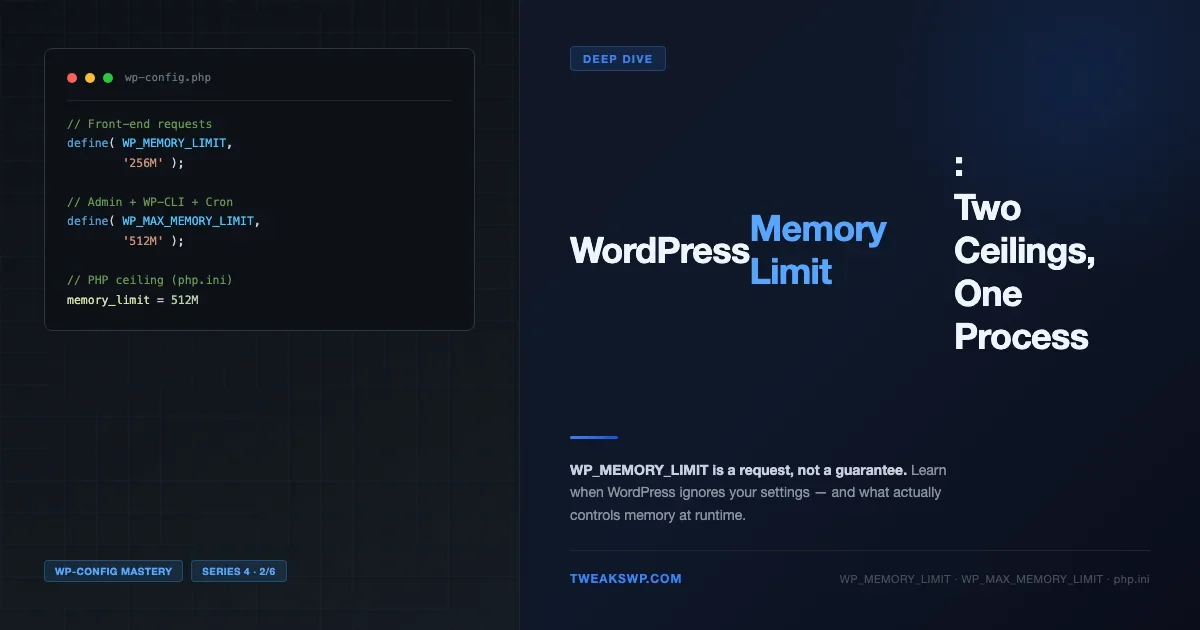
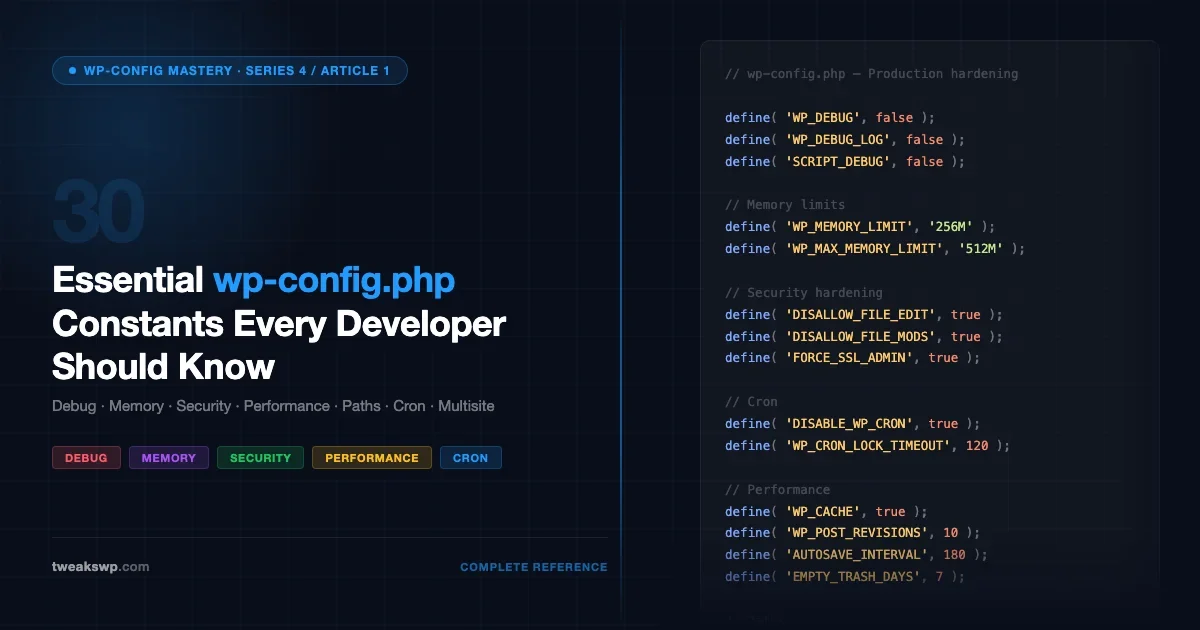
If you are about to start dropping these constants into wp-config.php, also worth reading my complete reference of 30 essential wp-config.php constants, because the path constants here interact with the debug, memory, and security constants documented there in ways that you should know about before making changes.
The order of operations that matters
Always follow this order. Out-of-order changes leave the site in a broken state between steps, and “broken state between steps” on a production site is a fast way to find yourself restoring from a backup at midnight.
- Confirm the current state and take a backup before touching anything
- Physically move the directory on disk to its new location
- Update file permissions on the new location to match what your web server user expects
- Add the constants to
wp-config.phppointing at the new location - Clear any caching layer, including object cache, page cache, and PHP opcache
- Verify the site works on the front end and the admin
- Update any hardcoded paths in plugin or theme configuration that reference the old location
Skip the backup step once and you will skip it the last time you ever do this work, because something will eventually break and you will need to roll back.
Moving wp-content
Scenario: you want to move wp-content to /home/user/assets/ at the web server level, keeping WordPress core in /home/user/public_html/. This is a common layout for hosting setups that want to separate dynamic content from the WordPress core files for backup or security reasons.
Step 1, move the directory on disk.
Step 2, update file permissions on the new location.
Adjust the user and group to match your hosting environment, which is often nobody:nobody, apache:apache, www-data:www-data, or similar depending on your distro and web server. Get this wrong and WordPress will not be able to write to the new location, which means uploads will fail silently and plugin updates will throw permission errors.
Step 3, update wp-config.php. Add this before the require_once ABSPATH . 'wp-settings.php'; line, not after, because wp-settings.php is what consumes these constants and they need to be defined before it runs.
Note that WP_CONTENT_URL assumes you have a web server rewrite or a symlink that makes the filesystem path reachable at the URL you specified. If the directory is outside the web root (which is recommended for security), you need to either move it back under the web root or configure the web server to alias the URL to the filesystem location. The web server config is the part most people forget.
Apache example, in .htaccess at the web root or in your VirtualHost configuration:
Nginx example for the same scenario:
Step 4, verify everything still works. Visit the admin and load the dashboard. Load a public page that has images on it. Check the browser devtools Network panel for any 404s on /wp-content/* URLs, which would indicate that a plugin or theme has hardcoded the old path somewhere and needs fixing. If you see 500 errors instead of 404s, the issue is usually a permissions problem on the new directory rather than a path problem in the constants.
Moving the uploads directory specifically
Scenario: keep wp-content in place but move the uploads directory to a dedicated disk at /mnt/uploads/ because the uploads have grown past the size of the main disk and you do not want to migrate everything else.
Step 1, move the directory.
Step 2, set up permissions and web server access using the same patterns as the wp-content section.
Step 3, update wp-config.php. The UPLOADS constant is special, it is a path relative to ABSPATH, not an absolute path:
That sets the uploads directory to ABSPATH . 'uploads', which would put it at /var/www/html/uploads/. But that is a different location from where we just moved the files. To use a path outside ABSPATH, the cleanest and most compatible approach is to use a symlink:
WordPress follows the symlink transparently, and all URLs remain at the standard https://example.com/wp-content/uploads/* structure. This is the simplest, most compatible way to relocate uploads onto a separate disk without breaking anything else, and it is what I recommend for almost every uploads-relocation scenario I get asked about.
If you prefer to move the uploads URL entirely, for example to a CDN domain like https://cdn.example.com/, use the upload_dir filter rather than the UPLOADS constant:
This is more flexible than the constant-based approach and is what most CDN integration plugins use under the hood when they rewrite upload URLs to a CDN host.
Moving the plugins directory
Scenario: move plugins to a shared directory so multiple WordPress sites on the same server use the same plugin files. This is an enterprise or agency pattern, not something a single-site owner would typically do.
Step 1, move the directory and set permissions exactly as before.
Step 2, update wp-config.php with the plugin path constants:
Step 3, configure the web server alias for the plugin URL, using the same pattern as for wp-content above.
Caveat worth knowing: plugin auto-updates write to WP_PLUGIN_DIR. If multiple WordPress installs share the same plugin directory, then auto-updates from one install will update plugins for all of the installs sharing the directory. This is good for consistency across an agency portfolio, but you need to coordinate plugin activation and deactivation per site, because the file is shared but the active state is per-install. This pattern is more common in enterprise or agency deployments than on single sites, and I would not recommend it unless you have a specific reason and the operational maturity to handle the coordination.
The gotchas that will catch you out after the move
- Hardcoded paths in plugins. Some badly written plugins reference
wp-content/uploadsas a string literal in PHP code instead of usingwp_get_upload_dir(). Their uploads will go to the wrong place after the move. Fix the plugin or replace it with a better one. - Relative path assumptions in themes. Some theme
functions.phpfiles useABSPATH . 'wp-content/themes'instead ofget_template_directory(). Those need to be patched, or you need to switch themes if the theme author is unresponsive. - Composer autoloader cache. If you are using Composer with a WordPress install, the generated autoloader cache can hold stale paths to the old locations. Regenerate it after the move.
- PHP opcache and object cache. PHP opcache caches file paths, so after moving directories you should restart PHP-FPM or reload opcache to clear the stale path entries. Redis or Memcached object cache keys may also reference old paths in cached data, so flush the object cache too.
- WP Cron URL self-requests. If WP Cron triggers via a URL that the server makes requests to itself, make sure the new URL structure is reachable from the server’s own perspective, not just from external clients.
- Security plugins. Wordfence, iThemes Security, and similar plugins often scan hardcoded paths for malicious files. After a move, they may need reconfiguration so they scan the new location instead of the old one.
If you start seeing white screens after the move and cannot figure out why, the likely culprit is a permissions issue or a memory limit problem rather than a path constant problem, and my WordPress White Screen of Death troubleshooting guide covers the diagnostic flow for that specific failure mode in detail.
Backup and restore sanity checking before touching production
Before doing any of this work on production, do it on staging first. Specifically test:
- Upload a media file through the admin and confirm it lands in the new location on disk
- Install a plugin and confirm it lands in the new plugin location
- Activate a theme and confirm the front end renders correctly
- Run WP-CLI commands to confirm they resolve paths correctly:
wp option get siteurl,wp media list,wp plugin list - Check the PHP error logs for any path-related warnings that did not surface in the browser
If anything is off on staging, it will be off on production. Fix it in staging before touching production, no exceptions. And if you are running into memory pressure during testing, the interplay between memory limits and large directory operations can cause subtle issues that I covered in my WordPress memory limit guide, which is worth reading if directory operations are timing out or hitting memory ceilings during the move.
When not to move directories at all
For 90 percent of WordPress sites, the default paths are fine and you should not touch them. The security-through-obscurity argument that “hackers scan for /wp-content/uploads/*.php“ is real but weak as a defence. A site with valid plugins and up-to-date core is not meaningfully more vulnerable because of default paths, and a site with bad plugins is not meaningfully safer because the paths got renamed. Defence is patches and disable_functions and proper input validation, not file renames that break compatibility with the rest of the ecosystem.
Valid reasons to move directories that I would actually recommend:
- Uploads have grown past the main disk size and you genuinely need a separate disk for them
- You are running an agency portfolio and want a shared plugin directory across multiple sites for consistency
- Hosting provider constraints on a restricted shared hosting setup mandate specific paths
- Migration from an existing custom layout that you inherited from a previous developer
Vague concerns about “hardening” are not good reasons to move directories. The complexity cost is real, the maintenance cost compounds over years, and the security benefit without significant complexity is marginal. Be honest with yourself about why you are doing this work before you start.
The short version
WP_CONTENT_DIR and WP_CONTENT_URL together move wp-content. WP_PLUGIN_DIR and WP_PLUGIN_URL independently move plugins. UPLOADS moves uploads relative to ABSPATH, or use a symlink or the upload_dir filter for full flexibility outside the web root. Do all the constant changes in wp-config.php before wp-settings.php is required at the bottom of the file. Test the entire flow on staging before touching production. Watch for hardcoded paths in plugins and themes after the move. And do not move anything just because you read a security blog post that suggested obscurity as a defence layer, because it is not.
Plugins we build and run
We maintain these ourselves, which is why we can support them on your site.
- BuddyNextThe self-hosted community engine for WordPress
- BuddyXFree community theme, Pro when you outgrow it
- ReignPremium community theme. Add pieces, build anything
- JetonomyCommunity forum and Q&A for WordPress
- EventonomyEvents and RSVPs for WordPress communities
- LearnomyCourses and learning communities on WordPress
- ListoraDirectories and listings your members can browse
- SnipShareCode sharing built for developer communities
- WB Ad ManagerAd placements that turn traffic into revenue
- WP Career BoardA job board your community actually uses
- WP Sell ServicesSell services with offers, orders, and payouts
- MediaVersePhotos, video, and media albums for members
- WB GamificationPoints, badges, and rewards that keep members active
- Product RoadmapPublic roadmaps with voting your users trust