bbPress Tutorial 2026: Complete Setup Guide from Zero to Live Forum
Step-by-step bbPress tutorial for 2026. Install, configure, theme, secure, and launch a real WordPress forum — based on setting up bbPress on 50+ client sites.

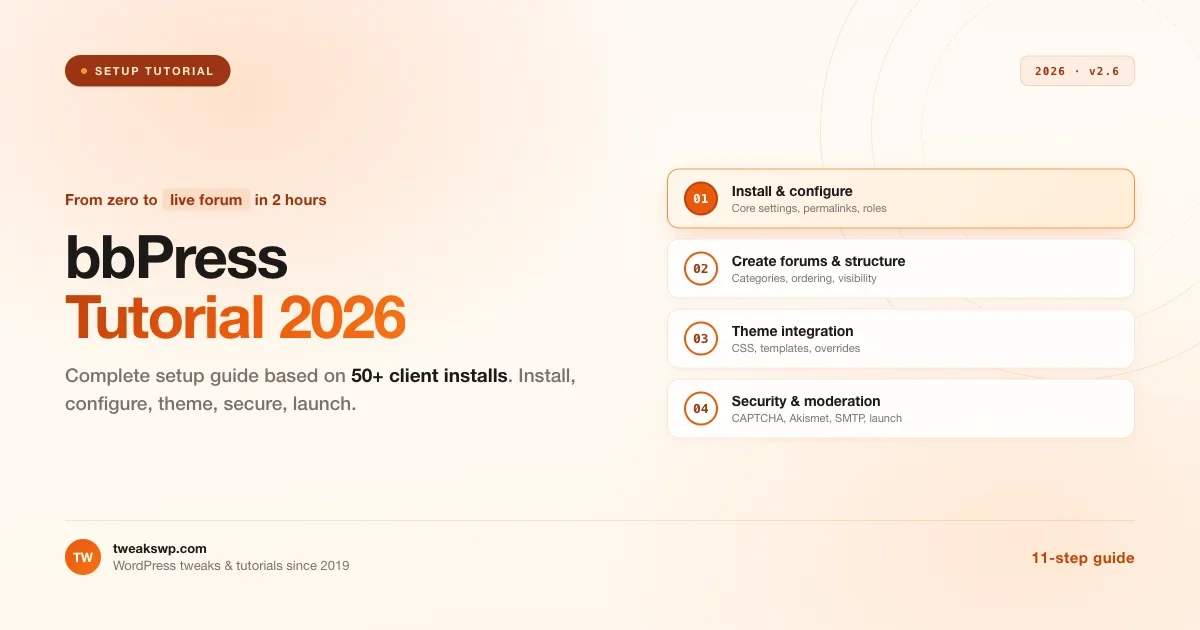
The bbPress tutorial I wish someone had written for me in 2018
I’ve set up bbPress on more than 50 client sites since I started running this blog. That’s five years of watching the same mistakes play out over and over, forum pages that don’t style, rewrite rules that break the first time you flush permalinks, CAPTCHA plugins that don’t know about bbPress so new accounts can’t register, themes that look fine until you actually load a topic page.
Most bbPress tutorials stop at “activate the plugin, create a forum, you’re done.” That gets you to a demo. It doesn’t get you to a forum you can actually hand to members. This tutorial is the full walkthrough: install, configure, theme, secure, moderate, and launch. By the end of it, you’ll have a working bbPress forum that’s actually ready for real users.
If you’re on a tight timeline, jump to the section you need. If you’re building a serious community site and this is your first bbPress install, read top to bottom, I’ll save you several hours of “why isn’t this working” debugging.
Before you install anything
bbPress is a 2004-era plugin and it has some opinions. Understand these before you start so you don’t waste time unsetting defaults later.
- bbPress stores forums as a custom post type, topics as another custom post type, and replies as a third. All three live in your WordPress
wp_poststable. This matters for performance at scale but doesn’t affect setup. - bbPress needs pretty permalinks. Go to Settings → Permalinks and set it to “Post name” or any non-default option. Forum URLs will break on the default ugly permalinks.
- bbPress adds 20+ user capabilities across 5 roles (Spectator, Participant, Moderator, Keymaster, Blocked). It will add a Forum Role selector to the user profile page after activation.
- bbPress will rewrite a URL prefix. By default, all forum URLs live under
/forums/. You can change this in bbPress settings but do it before you create any content.
Nothing here is a showstopper. Just don’t be surprised when these things happen.
Step 1: Install bbPress
Three ways to install. Pick one.
Option A: From wp-admin (easiest)
- Go to Plugins → Add New
- Search for “bbPress”
- Click Install Now on the plugin by “The bbPress Community”
- Click Activate
Option B: Upload a ZIP
Download from wordpress.org/plugins/bbpress, then upload via Plugins → Add New → Upload Plugin.
Option C: WP-CLI (fastest if you have SSH)
wp plugin install bbpress --activateAfter activation, bbPress creates three new post types in your WordPress admin: Forums, Topics, Replies. You’ll see them in the left sidebar.
Step 2: Configure core settings
Before you create your first forum, walk through the settings. Doing this first saves you from having to reconfigure things after you’ve already got content.
Go to Settings → Forums.
Main Settings
- Disallow anonymous posting, check this. Anonymous posts are a spam vector you don’t want to deal with on day one.
- Disallow editing after, set to 60 minutes. Long enough to fix typos, short enough that members can’t edit history to hide rule violations.
- Throttle posting every, set to 10 seconds. This is your basic anti-spam rate limit.
Forum User Settings
- Default role, set to Participant. This lets new members post topics and replies but nothing more.
- Auto role, check “Automatically give registered visitors a forum role.” Without this, new WordPress users have no forum permissions until you manually assign them.
Forum Features
Turn these on for a basic forum:
- Favorites, members can bookmark topics
- Subscriptions, members get email notifications on new replies
- Topic tags, taxonomy-based categorization beyond forums
- Revisions, tracks edits (useful for moderation)
- Fancy editor, gives members a visual editor with bold/italic/list buttons
Turn off:
- Allow topic-and-reply HTML, leave this off unless you trust every member. HTML in user content is an XSS vector.
Topics and Replies Per Page
Default is 15 topics per page and 15 replies per page. Bump topics to 25 and keep replies at 15. More than 25 topics per page gets visually overwhelming; fewer than 25 forces too much pagination.
Forum Root Slug
By default, bbPress puts all forum URLs under /forums/. You can change this to /community/, /discuss/, /support/, or any slug you want. Do this before you create any forums because existing URLs won’t auto-redirect.
Save settings. Go to Settings → Permalinks and click Save Changes (without changing anything). This flushes WordPress rewrite rules so bbPress’s URL patterns register correctly. If you skip this step, your forum URLs will 404 on the first page load.
Step 3: Create your first forum
Go to Forums → Add New.
Fill in:
- Title, the forum name. Use descriptive names (“General Discussion”, “Support Questions”, “Feature Requests”) not cute names. Descriptive names help search.
- Description, one or two sentences explaining what belongs in this forum. Members rely on this to figure out where to post.
In the Forum Attributes box on the right:
- Type: Forum (the other option, Category, is for forums that contain sub-forums but no topics of their own)
- Status: Open
- Visibility: Public (for now, we’ll cover Private and Hidden later)
- Order: Leave at 0 for now; we’ll reorder later
Click Publish. Your first forum is live.
Step 4: Add your forum to a page
bbPress doesn’t automatically put your forum anywhere on your site. You have to create a page and embed the forum using a shortcode.
- Go to Pages → Add New
- Title: Community (or whatever you want to call it)
- Slug: something short like
communityorforums - In the content area, add a Shortcode block containing:
[bbp-forum-index]Click Publish.
Visit the page URL. You should see your forum listed with the title, description, and zero topics.
If you see “No forums found” instead, you either have no published forums (go back to Step 3) or you’re viewing the page as an unauthenticated user and your forum visibility is set to something other than Public.
For a deeper look at every shortcode bbPress ships with, the bbPress Shortcodes Complete Reference has working examples for all 18 of them.
Step 5: Create your second forum and establish structure
One forum is not enough. Even small communities need at least 3-5 forums so members know where to post different kinds of content. Common starting structure:
- Announcements, admin posts only, members can reply
- General Discussion, catch-all
- Support & Questions, help threads
- Feedback & Suggestions, feature requests, bug reports
- Off-Topic, everything else
Create these as separate forums. Use the Order field in Forum Attributes to control the display order (lower numbers = higher on the page). Set Announcements to Order 1, General Discussion to 2, and so on.
Categories (optional structure)
If you have more than 8 forums, organize them into categories. A category is a special forum type that contains other forums but no topics of its own. To create one:
- Go to Forums → Add New
- Title: “Support” (or whatever groups your forums)
- Description: short category description
- In Forum Attributes, change Type to Category
- Publish
Then edit each child forum and set its Parent field to the new category. The forum index page will now show categories with their child forums indented below.
Step 6: Set up user roles and permissions
bbPress ships with 5 user roles plus the default WordPress roles. Understanding them is important because the wrong role assignment is the single most common bbPress problem I see on client sites.
Role | Can do | Use for |
|---|---|---|
Keymaster | Everything: create/edit/delete forums, topics, replies; moderate; manage users | Site admin (you) |
Moderator | Create/edit/delete topics and replies; moderate; cannot create forums | Trusted members who enforce rules |
Participant | Create topics and replies; favorite; subscribe | Default role for new members |
Spectator | Read-only access to forums | Unusual, a “view but don’t post” role |
Blocked | Cannot post or reply | Problem users you haven’t fully banned yet |
New WordPress users automatically get the Participant role if you enabled “Auto role” in Step 2. Existing users (from before you installed bbPress) need to be upgraded manually:
- Go to Users → All Users
- Select the users you want to update
- Use the Change forum role to... bulk action at the top of the list
- Select Participant and click Change
For individual users, you can also edit the user profile and change the Forum Role in the bbPress section.
Step 7: Theme integration (the painful step)
This is where most bbPress setups go wrong. bbPress has its own stylesheet and template hierarchy. When you drop it into a modern theme, it usually looks wrong, wrong fonts, wrong spacing, wrong colors, wrong layout.
There are three paths depending on your theme.
Path A: Your theme has built-in bbPress support
Some themes explicitly style bbPress (BuddyX, Reign, Astra Pro, GeneratePress Premium, OceanWP with the Ocean bbPress add-on). If you’re using one of these, bbPress will look correct out of the box. No extra work needed.
I usually recommend BuddyX for community sites because it’s free and built specifically for bbPress+BuddyPress communities.
Path B: Your theme doesn’t style bbPress (most themes)
You’ll need to add custom CSS. The good news: bbPress uses predictable class names, so the CSS is mostly copy-paste.
Go to Appearance → Customize → Additional CSS and paste:
/* Basic bbPress cleanup */
.bbp-forums.bbp-topics.bbp-replies {
  max-width: 1200px;
  margin: 2rem auto;
  font-family: inherit;
}

.bbp-forum-title.bbp-topic-title.bbp-reply-title {
  font-family: inherit;
  color: inherit;
}

.bbp-forum-info.bbp-topic-info {
  padding: 1rem;
  border-bottom: 1px solid rgba(0, 0, 0, 0.1);
}

#bbpress-forums .bbp-body > ul {
  background: transparent;
}

.bbp-topic-meta.bbp-forum-info {
  font-size: 0.9em;
  color: rgba(0, 0, 0, 0.6);
}

#bbpress-forums .bbp-reply-header {
  background: rgba(0, 0, 0, 0.03);
  padding: 0.75rem 1rem;
}

#bbpress-forums .bbp-reply-content {
  padding: 1rem;
}
This gets you to 80% of “looks okay.” The other 20% depends on your specific theme and you’ll iterate on it over a few hours.
Path C: Override bbPress templates in your theme
For maximum control, copy bbPress’s template files into your theme and modify them directly:
- Go to
wp-content/plugins/bbpress/templates/default/bbpress/ - Copy the folder to
wp-content/themes/your-theme/bbpress/ - Edit the templates in your theme’s copy, bbPress will use yours instead of the plugin’s default
This is more work but gives you unlimited customization. It’s also how WooCommerce template overrides work, so if you’ve done that before, the pattern is familiar.
Step 8: Security and spam prevention
The number one reason small bbPress forums die in month 2 is spam. A new bbPress forum with open registration is a magnet for automated spam bots. You need to set this up on day one, not day 30.
Install Akismet (free and built-in)
Akismet comes with WordPress by default but isn’t activated. Activate it, get a free API key from akismet.com, and bbPress will automatically send new topics and replies through it. Blocked posts go to the spam queue instead of getting published.
Disable self-registration if your community is small
Go to Settings → General and uncheck “Anyone can register.” New members will need to be added manually by an admin. This eliminates spam registrations entirely but adds friction for real members.
If your forum is meant to grow through public signup, leave registration enabled but add a CAPTCHA (next step).
Add a CAPTCHA to the registration form
bbPress doesn’t include CAPTCHA out of the box. Install one of:
- reCAPTCHA for bbPress, adds Google reCAPTCHA v2 or v3 to forum forms
- Cloudflare Turnstile, privacy-friendly alternative, simpler setup
reCAPTCHA v3 is invisible to real users. Bots get scored and blocked automatically. Turnstile is similar but runs on Cloudflare instead of Google.
Enable topic moderation for new members
bbPress doesn’t have a built-in “hold new user posts for approval” feature. Workaround: install bbPress Moderation or use a plugin like Forum Moderator that adds this capability. Without it, every new account can post publicly immediately, which is how spam forums are born.
Step 9: Email notifications
By default, bbPress sends email notifications when someone replies to a topic the user subscribed to. This works, but you have to make sure your WordPress site can actually send email.
Test your email sending
Install the Check Email plugin, go to Tools → Check Email, and send a test email to yourself. If it arrives, bbPress notifications will work. If it doesn’t, you have a deliverability problem that affects all WordPress email, not just bbPress.
Use an SMTP plugin for reliability
The default WordPress wp_mail() function uses PHP’s mail() function, which is unreliable on most hosting. Install WP Mail SMTP and connect it to a transactional email service:
- Mailgun (generous free tier)
- Postmark (best deliverability)
- SendGrid (free 100/day)
- Amazon SES (cheapest at scale)
Without this, about 30% of your notification emails will end up in spam folders or not get delivered at all.
Step 10: Moderation setup
Before you invite members, decide how moderation works. This saves you from scrambling when the first problem post arrives.
Designate moderators
Go to Users → All Users, edit a trusted user’s profile, and set their Forum Role to Moderator. Moderators can:
- Edit any topic or reply
- Move topics between forums
- Close or spam topics
- Mark replies as spam
They cannot delete forums, change settings, or manage users. Keymasters (that’s you) have those permissions.
Where the moderation queue lives
bbPress doesn’t have a dedicated moderation queue page like WooCommerce or BuddyPress. Moderation happens via:
- Topics → Pending, topics held for approval
- Topics → Spam, topics marked as spam
- Replies → Pending, replies held for approval
- Replies → Spam, replies marked as spam
You’ll check these daily for the first few weeks. After that, Akismet catches most spam and you check weekly.
Post the rules somewhere visible
Create a page called Forum Rules, write 5-10 short rules, and link it from the footer and the forum index. Not optional. When a rule violation happens, you need to be able to point at the rules. Without a published rules page, moderation feels arbitrary to members.
Step 11: Launch checklist
Before you send anyone to your new forum, run through this checklist:
- [ ] At least 3 forums created, ordered logically
- [ ] Forum rules page published
- [ ] Registration enabled with CAPTCHA
- [ ] Akismet active with valid API key
- [ ] SMTP plugin configured and test email verified
- [ ] Default Forum Role set to Participant
- [ ] At least one trusted moderator assigned
- [ ] Forum index page visible in main navigation
- [ ] CSS customization applied so bbPress matches your theme
- [ ] First 3-5 seed topics posted by admin so the forum isn’t empty
- [ ] Privacy policy updated to mention forum data collection
Seed topics matter. An empty forum looks dead. Before you invite members, post 5-10 starter topics yourself, welcome message, FAQ, how to introduce yourself, common questions. Gives new members something to read and engage with on their first visit.
Common problems and fixes
Forum pages show 404 after activation
Go to Settings → Permalinks and click Save Changes without modifying anything. This flushes rewrite rules. 95% of “bbPress 404” problems fix themselves this way.
Forum looks completely unstyled (no CSS)
bbPress auto-enqueues its stylesheet only on pages it recognizes as “a bbPress page.” Sometimes block themes don’t trigger this detection. Force it by adding to your theme’s functions.php:
add_action( 'wp_enqueue_scripts', function() {
    if ( function_exists( 'bbp_enqueue_style' ) ) {
        wp_enqueue_style( 'bbp-default' );
    }
}, 20 );
New users can’t post (“You are not allowed”)
Their forum role is missing. Either auto-assignment isn’t enabled (Step 2) or they registered before you enabled it. Bulk-update existing users to Participant via Users → All Users → Change forum role.
Email notifications are not being sent
Three possibilities: (1) WordPress can’t send mail at all (install WP Mail SMTP), (2) the user isn’t subscribed to the topic, or (3) the email is going to spam. Start with Check Email to confirm WordPress sends mail, then test subscription emails separately.
Forum index page shows “No forums found”
Either you haven’t created any forums yet, or all your forums are set to Private/Hidden and you’re viewing as a logged-out user. Check Forums in wp-admin and confirm you have at least one with Visibility: Public.
Performance is getting slow as the forum grows
This is bbPress hitting its architectural limit. bbPress stores all forum content in wp_posts and wp_postmeta, and at around 10,000 topics the postmeta table bloat starts affecting site-wide performance. You have three options:
- Throw hosting at it, managed WordPress hosting with Redis object cache. Buys you time.
- Install a database cleanup plugin, helps but doesn’t fix the root cause.
- Migrate to a plugin with custom database tables, the architectural fix. More on this at the end of this tutorial.
Frequently asked questions
How long does a full bbPress setup take?
Following this tutorial end to end, expect 2-4 hours for a fresh site. Most of that time is CSS theming in Step 7, the install and configuration itself takes about 45 minutes. If you’re using a theme that already supports bbPress (like BuddyX), skip Step 7 and the whole setup is under 90 minutes.
Is bbPress still actively maintained in 2026?
Yes, technically. The last major release was bbPress 2.6 in 2020, but security patches ship occasionally. Feature development has slowed to near-zero, no Q&A mode, no trust levels, no REST API, no block editor support. It works for what it does but it’s maintenance-mode software. For a full assessment, see the 2026 bbPress review on wbcomdesigns.com.
Do I need BuddyPress to run bbPress?
No. bbPress works as a standalone forum plugin. BuddyPress is a separate plugin for social networking (profiles, activity streams, groups) and the two work well together, but neither depends on the other. See the bbPress vs BuddyPress guide if you’re deciding.
Can bbPress handle large forums?
Small to medium forums (under 5,000 topics) work fine. Above 10,000 topics, you’ll start hitting performance issues because bbPress stores content in wp_posts and wp_postmeta. Throwing hosting at it helps for a while. Past 50,000 topics, I’d seriously consider a plugin built with custom database tables.
Can I import content from another forum?
bbPress has a built-in importer (Tools → Forums) for bbPress 1.x (older versions), Drupal Phorum, Phorum, vBulletin 3.x/4.x/5.x, SimpleMachines Forum, Vanilla, AEF, XMB, XenForo, and WordPress Comments. Each has its quirks, test on staging first. bbPress cannot directly import from Discord, Slack, or Circle.
How do I back up my bbPress data?
bbPress data lives in your standard WordPress database tables (wp_posts, wp_postmeta, wp_terms). Any WordPress backup plugin (UpdraftPlus, BackWPup, Duplicator) captures it. No special bbPress backup needed.
Can I use bbPress with Elementor or Divi?
Yes, but not as a native widget. bbPress shortcodes work inside Elementor/Divi shortcode widgets. Elementor has a Pro bbPress widget for forum content if you’re on Elementor Pro. For deeper integration, you’ll need to override bbPress templates.
What’s the best theme for bbPress in 2026?
Purpose-built community themes: BuddyX (free), Reign (paid). General-purpose themes with bbPress support: Astra, GeneratePress, OceanWP, Kadence. Avoid themes that don’t explicitly mention bbPress compatibility in their feature list, you’ll spend hours fighting CSS.
When you outgrow bbPress
bbPress is a solid starter forum plugin. I’ve shipped 50+ bbPress sites and most of them are still running fine today. But I want to be honest about where bbPress hits walls, because you’ll probably hit them too if your community grows.
The main ones:
- Performance at scale. Past 10,000 topics, bbPress slows the whole WordPress site because of the
wp_postmetastorage model. - No Q&A mode. If you want Stack-Overflow-style accepted answers, bbPress doesn’t do this natively.
- No Ideas or roadmap space type. Same issue for feature-voting forums.
- No trust levels. Manual moderation workload doesn’t scale.
- Theme integration fight. Every modern block theme needs CSS overrides.
- No REST API worth using. Building a mobile app or custom frontend is painful.
When you hit these walls, the modern replacement I recommend is Jetonomy, a WordPress forum plugin built for 2026 with custom database tables, Q&A and Ideas space types, trust levels, a full REST API, and theme.json integration. It also includes a built-in bbPress importer that migrates your forum data in about 40 minutes with dry-run mode and resume-on-failure.
This isn’t a “ditch bbPress today” pitch. If your bbPress forum works for you, don’t migrate for migration’s sake. But when you hit one of the walls above, it’s worth knowing that the modern alternative exists and that migration is low-risk.
Further reading:
- bbPress Review 2026, full honest assessment of where bbPress wins and loses
- bbPress Shortcodes Complete Reference, every shortcode with examples
- 9 Best bbPress Alternatives for 2026, dedicated alternatives breakdown
- 9 Best WordPress Forum Plugins for 2026, broader landscape
That’s the full bbPress tutorial. If this saved you time, bookmark it for the next time you set up a forum. And if you run into a problem this guide doesn’t cover, drop a comment and I’ll update it.
Plugins we build and run
We maintain these ourselves, which is why we can support them on your site.
- BuddyNextThe self-hosted community engine for WordPress
- BuddyXFree community theme, Pro when you outgrow it
- ReignPremium community theme. Add pieces, build anything
- JetonomyCommunity forum and Q&A for WordPress
- EventonomyEvents and RSVPs for WordPress communities
- LearnomyCourses and learning communities on WordPress
- ListoraDirectories and listings your members can browse
- SnipShareCode sharing built for developer communities
- WB Ad ManagerAd placements that turn traffic into revenue
- WP Career BoardA job board your community actually uses
- WP Sell ServicesSell services with offers, orders, and payouts
- MediaVersePhotos, video, and media albums for members
- WB GamificationPoints, badges, and rewards that keep members active
- Product RoadmapPublic roadmaps with voting your users trust