Every WordPress developer has seen the message: “Fatal error: Allowed memory size of 67108864 bytes exhausted.” The instinct is to open wp-config.php, add define('WP_MEMORY_LIMIT', '256M'), and move on. It works, sometimes. Other times nothing changes, because the constant you set is not the only memory ceiling in play. Understanding why requires knowing what WP_MEMORY_LIMIT actually does at the PHP level, how it interacts with the server’s own memory_limit directive, what the separate WP_MAX_MEMORY_LIMIT constant handles for admin requests, and, critically, the four situations where WordPress silently ignores everything you configure.
Two Memory Ceilings, One PHP Process
Before looking at any WordPress constant, it helps to understand what PHP’s own memory_limit directive means. It is set in php.ini (or via .htaccess, php-fpm pool config, or server control panels) and represents the absolute maximum amount of memory any single PHP script, including WordPress, is permitted to allocate in one request. If the limit is 128M, no plugin, theme, or WordPress core code can push past it. The OS will kill the process first.
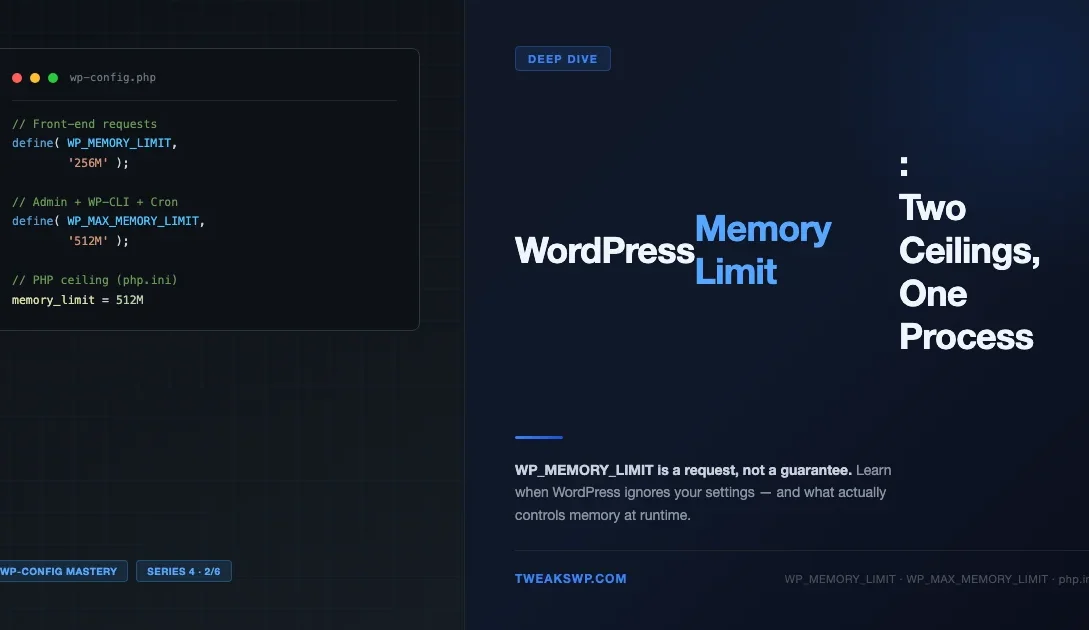
WordPress adds a second layer on top: WP_MEMORY_LIMIT. This constant does not create a new ceiling. It is a request, a polite ask to PHP, via ini_set('memory_limit', WP_MEMORY_LIMIT), that WordPress sends early in its bootstrap sequence. If the PHP server allows runtime ini_set calls (most do), the limit is temporarily raised for that request. If the server has a hard ceiling lower than what WordPress requests, the request is silently ignored and the server limit remains in effect.
That distinction, “request” vs “ceiling”, is the most important thing to understand in this whole topic. WP_MEMORY_LIMIT cannot exceed what the server allows. It can only ask up to that ceiling.
The PHP Server Limit: memory_limit in php.ini
The PHP memory_limit directive is configured on the server, not in WordPress. On most hosting environments you will find it in one of these places: the global php.ini file, a per-directory .user.ini, an .htaccess directive (Apache only), or a PHP-FPM pool configuration file. On managed hosts like Kinsta, WP Engine, or Cloudways, there is usually a dashboard slider that writes to one of these locations for you.
The value you set here is the hard boundary. A 256M PHP limit means every WordPress request, including all plugins, themes, and media processing, must stay under 256 megabytes of combined memory use. This limit is enforced by the PHP engine itself, not by WordPress. Knowing this value is the starting point for any memory troubleshooting session.
PHP’s
memory_limitis the server’s word.WP_MEMORY_LIMITis WordPress’s polite request. The server always wins when they conflict.
WP_MEMORY_LIMIT: What It Does (and How)
WP_MEMORY_LIMIT is a constant you define in wp-config.php. WordPress reads it during bootstrap and uses it to call ini_set() to request a higher memory ceiling for that PHP process. If you do not define it, WordPress uses a built-in default: 40M in older versions, and 256M in WordPress 6.x and later (the default was raised in recent releases to match modern server norms).
The constant exists because WordPress historically ran on shared hosting where php.ini was set conservatively (often at 32M or 64M), and WordPress needed a way to request more headroom without requiring server admin access. By calling ini_set() early in bootstrap, WordPress could work on servers where the host allowed runtime limit increases even if the php.ini default was low.
The Bootstrap Sequence Step by Step
To see exactly how the request is made, here is what happens inside WordPress’s bootstrap in the order it executes:
The key detail in the bootstrap sequence is step 4: WordPress only calls ini_set() if the requested value is larger than the current limit. It never tries to lower the memory limit. This means if your server already has memory_limit = 512M set in php.ini, defining WP_MEMORY_LIMIT = '256M' does absolutely nothing, the 512M ceiling stays in effect regardless.
WP_MAX_MEMORY_LIMIT: The Admin Upgrade
WordPress maintains a second memory constant for administration requests: WP_MAX_MEMORY_LIMIT. When a request is made to the admin area (any /wp-admin/ URL), the WordPress Cron runner, or a WP-CLI command, WordPress uses WP_MAX_MEMORY_LIMIT instead of WP_MEMORY_LIMIT as the value to pass to ini_set(). The default is 256M.
The rationale is practical: admin operations are consistently more memory-intensive than front-end page loads. Regenerating image thumbnails, running bulk plugin updates, processing WooCommerce order exports, or running database migration scripts during plugin upgrades, all of these can consume far more than what a standard front-end request needs. Giving the admin context its own higher limit means you can keep the front-end limit modest while still handling heavy admin operations without crashing.
| Constant | Default (WP 6.x) | When Applied | Can Exceed PHP Ceiling? |
|---|---|---|---|
WP_MEMORY_LIMIT | 256M | All front-end requests | No |
WP_MAX_MEMORY_LIMIT | 256M | Admin, WP-CLI, Cron | No |
PHP memory_limit | Varies by host | Always, the hard ceiling | N/A (it is the ceiling) |
One important rule: WP_MAX_MEMORY_LIMIT should always be set equal to or greater than WP_MEMORY_LIMIT. Setting it lower makes no practical sense and can cause memory errors specifically during admin operations while front-end requests work fine, a confusing symptom pattern to debug.
WordPress determines admin context using is_admin(), which evaluates to true for any request that loads the admin bootstrap (wp-admin/admin.php). WP-CLI also evaluates is_admin() as true, so command-line operations always get the WP_MAX_MEMORY_LIMIT allocation.
memory_get_peak_usage(): The Diagnostic You Should Always Check First
Before adjusting any memory constant, the right first step is to measure what is actually being used. PHP provides memory_get_peak_usage() for exactly this purpose. It returns the highest memory allocation recorded at any point during the current request, not just the amount in use at the moment it is called.
The function takes one optional boolean parameter: true returns the real allocation from the system (what the OS actually gave to PHP), while false (the default) returns the Zend memory manager’s internal estimate. The true value is almost always what you want for troubleshooting, because it reflects what actually gets charged against the memory_limit ceiling.
The diagnostic snippet above shows three approaches. The admin footer bar is the most practical for quickly checking admin page load overhead, install the snippet via a must-use plugin during a debugging session, browse the pages you suspect are heavy, and read the overlay numbers. The shutdown hook combined with SAVEQUERIES makes it easy to spot high-memory front-end pages by searching the debug log for [memory] entries. The WP-CLI one-liners let you inspect all three constants at once from the command line without loading a browser.
What the Numbers Tell You
Once you have peak usage numbers, the interpretation is straightforward. A peak of 45 MB on a page served with a 256M limit means you have plenty of headroom and the memory constants are not your problem. A peak of 245 MB on a 256M limit means you are 11 MB from a fatal error, raising the limit to 512M gives breathing room, but the real question is why 245 MB is being consumed. A peak that equals the limit exactly means you already hit the ceiling and PHP likely killed the request, what you measured is just where the counter stopped.
Common sources of excessive memory consumption on WordPress sites include: WooCommerce product catalog queries that load full post objects into memory, REST API endpoints that build large arrays without pagination, image regeneration routines that load multiple full-resolution originals simultaneously, and poorly written plugins that cache large datasets in global variables for the lifetime of the request.
Four Situations Where WordPress Ignores Your Settings
This is the part most tutorials skip. There are four specific conditions under which WordPress’s memory configuration has no effect at all, and in each case, WordPress does not throw a warning or log an error. It simply runs with whatever limit is actually in force.
Situation 1: The Server Ceiling Is Below Your Request
If php.ini sets memory_limit = 64M and you define WP_MEMORY_LIMIT = '256M', most managed hosting environments will not allow ini_set() to exceed the server ceiling. PHP calls ini_set() and it appears to succeed (returns the old value rather than false), but the operating system memory allocator enforces the server-configured cap. The practical limit remains 64M. You will only discover this by reading ini_get('memory_limit') after WordPress bootstrap, not before it.
Situation 2: ini_set Is Disabled on the Server
Some security-hardened hosting environments list ini_set in the disable_functions php.ini directive. WordPress’s entire memory request mechanism depends on calling ini_set(), if the function does not exist, the call never fires and the server default remains in force for the entire request. This is more common on government, financial, and healthcare hosting environments where hardened PHP configurations are standard policy. You can test for this condition with var_dump(function_exists('ini_set')).
Situation 3: PHP Memory Limit Is Already -1
A memory_limit value of -1 means unlimited. It is common in Docker containers, local development environments like Local by Flywheel, and WP-CLI contexts where it is often set explicitly to prevent CLI operations from hitting arbitrary limits. WordPress treats -1 as “already at maximum” and skips the ini_set() call entirely. WP_MEMORY_LIMIT and WP_MAX_MEMORY_LIMIT are both no-ops in this context, which is fine, since the process can already use whatever memory it needs.
Situation 4: Your Constant Is Lower Than the Current PHP Limit
As noted in the bootstrap sequence earlier, WordPress only calls ini_set() when the requested value is higher than the current limit. If a managed host already sets memory_limit = 512M in php.ini (common on high-tier plans), and your WP_MEMORY_LIMIT = '256M' is lower, WordPress skips the call. The 512M limit stays. This is actually the best outcome, your constant is a floor request, not a cap, but it can cause confusion when developers expect the constant to be the governing value and find ini_get('memory_limit') returns something different.
The wp_raise_memory_limit Filter
WordPress exposes a filter hook, wp_raise_memory_limit, that lets plugins and themes request a higher memory limit for specific contexts without modifying the wp-config.php constants covered in the full constants reference. WordPress itself uses this filter internally for image processing operations, passing the context string 'image' when regenerating thumbnails. The filter receives two arguments: the current filtered limit value and a context string identifying the operation.
The filter pattern is particularly useful for plugin authors building memory-intensive features. Rather than documenting “add this constant to wp-config.php,” you can hook into the filter with your plugin’s own context string and call wp_raise_memory_limit('my_plugin_import') before the expensive operation. This approach is more discoverable, easier to test, and keeps memory configuration concerns inside the plugin rather than in the site’s configuration file.
One critical note: wp_raise_memory_limit() still has the same limitations as WP_MEMORY_LIMIT. It calls ini_set() under the hood. All four situations described above where WordPress ignores the constant also apply here. The filter does not bypass server ceilings.
Per-Environment Configuration
Memory requirements differ meaningfully across development, staging, and production. A local environment typically runs PHP without a ceiling (memory_limit = -1 or 1G), a staging environment should mirror production limits to catch memory problems before they reach users, and production needs carefully chosen values that match the hosting plan’s actual ceiling.
The environment-aware pattern above reads a WP_ENV environment variable that most deployment platforms (Bedrock, DeployHQ, Envoyer, Kinsta’s staging environments) set automatically. If your platform does not set it, you can define it in your server’s environment configuration or in a .env file loaded by a library like phpdotenv.
The most important rule for staging: use the same WP_MEMORY_LIMIT and WP_MAX_MEMORY_LIMIT values as production. Running staging with 512M while production uses 128M creates a scenario where operations that work perfectly in testing fail in production, which is exactly what staging is supposed to prevent.
Recommended Values by Hosting Tier
The right value for WP_MEMORY_LIMIT depends on what the server actually allows, what plugins are installed, and what operations the site performs. There is no universal “correct” answer, but there are practical starting points based on site complexity:
| Site Type | WP_MEMORY_LIMIT | WP_MAX_MEMORY_LIMIT | PHP php.ini Minimum |
|---|---|---|---|
| Simple blog, no ecommerce | 128M | 256M | 128M |
| Standard WordPress site, 10–20 plugins | 256M | 512M | 256M |
| WooCommerce store, moderate catalog | 256M | 512M | 512M |
| WooCommerce + heavy plugins (Elementor, WPML, etc.) | 512M | 1G | 1G |
| Membership, LMS, enterprise multisite | 512M | 1G | 1G+ |
These are starting points, not hard rules. Always verify actual peak usage with memory_get_peak_usage(true) before deciding on a final value. Setting limits higher than needed does not cause performance problems, memory is only allocated when actually used, but it can mask underlying memory leaks in plugin code that should be fixed rather than worked around.
Debugging Memory Exhaustion Errors Step by Step
When a memory exhaustion fatal error occurs, the instinct to immediately raise the limit is understandable but often premature. Before touching wp-config.php, run through this diagnostic sequence to understand what is actually happening.
- Read the error message carefully. The fatal includes the byte limit that was exceeded and usually the file/line where the allocation failed. The file path often points directly at the plugin or theme causing the overallocation.
- Check what the actual PHP limit is. Use the
?check_memory=1diagnostic snippet from the Gist above, or adderror_log(ini_get('memory_limit'));in a must-use plugin. Confirm whetherWP_MEMORY_LIMITis being applied or silently ignored. - Measure peak usage on the affected page. Install the admin footer overlay from the diagnostic Gist. Load the page that crashes. If you cannot load it due to the crash, add the shutdown hook to log peak usage to the debug log instead.
- Identify the culprit. Query Monitor’s Memory tab shows memory consumption per plugin hook. If Query Monitor itself cannot load due to the crash, use a process of elimination: deactivate plugins in batches and test after each batch until the crash stops.
- Decide: fix or raise? If a single plugin is consuming 200 MB on a page load, that is a bug in the plugin, raising the limit is a temporary workaround, not a solution. Report the issue upstream. If peak usage is legitimately high because the operation is complex (large import, image batch processing), raising the limit is appropriate.
- Set the limit correctly. Choose a value that is 50–100 MB above your measured peak usage (buffer for minor variations). Verify that the PHP server ceiling allows it. Test with the diagnostic overlay.
Quick Lookup: Constants, Defaults, and Behavior
| Constant / Directive | Where Set | Default | Scope | Can Override Server php.ini? |
|---|---|---|---|---|
memory_limit | php.ini / .htaccess / hosting panel | Varies (commonly 128M) | All PHP scripts | N/A, it is the server limit |
WP_MEMORY_LIMIT | wp-config.php | 256M (WP 6.x) | Front-end requests | Only if server allows ini_set() raises |
WP_MAX_MEMORY_LIMIT | wp-config.php | 256M (WP 6.x) | Admin, WP-CLI, Cron | Only if server allows ini_set() raises |
Common Myths Worth Clearing Up
Myth: Higher is Always Better
A memory_limit of -1 (unlimited) on production sounds appealing until a single bad request consumes all available server RAM and triggers the OOM killer, taking down the entire server including other sites on a shared host. On a VPS or dedicated server it can cause the server to swap heavily or crash. Production memory limits should be set high enough to handle your workload with buffer, not infinite.
Myth: WP_MEMORY_LIMIT Solves All Memory Errors
The constant can only raise a limit that the server allows to be raised. It does nothing on servers where the php.ini ceiling is enforced at a lower value and runtime ini changes are blocked. In these cases, you need to contact hosting support to raise the server-level limit, no WordPress configuration change will help.
Myth: The Value in wp-config.php Is What PHP Actually Uses
As demonstrated throughout this article, the value in wp-config.php is a request, not a guarantee. Always verify the actual runtime limit with ini_get('memory_limit') after WordPress has bootstrapped. The two values can differ, and the discrepancy is always silent.
This Article Is Part of the wp-config Mastery Series
This is Article 2 of 6 in the wp-config Mastery series on TweaksWP. The series covers the full breadth of what wp-config.php can control in a WordPress installation. If you found this breakdown of memory constants useful, the related articles cover overlapping territory:
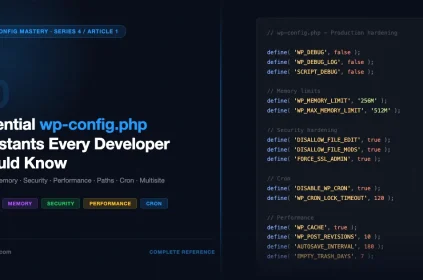
- 30 Essential wp-config.php Constants Every Developer Should Know, the complete reference that this memory-focused article expands on
- WP_DEBUG, WP_DEBUG_LOG, and SCRIPT_DEBUG Explained, the debug constants that pair with memory configuration during troubleshooting
Key Takeaways
memory_limitin php.ini is the absolute server ceiling. Nothing in WordPress can exceed it.WP_MEMORY_LIMITis a runtime request, sent viaini_set(), for front-end requests. It only works if the server allows runtime increases up to or beyond the requested value.WP_MAX_MEMORY_LIMITis the same mechanism applied to admin, WP-CLI, and cron requests, always set it equal to or higher thanWP_MEMORY_LIMIT.memory_get_peak_usage(true)tells you what is actually being consumed. Always measure before configuring.- WordPress silently ignores
WP_MEMORY_LIMITin four situations: when the server ceiling is lower, whenini_setis disabled, when the PHP limit is already-1, and when the constant is set lower than the current PHP limit. - Use the
wp_raise_memory_limitfilter for operation-specific requests from plugin code. - Staging should mirror production memory limits, the point of staging is to catch production problems, not run in more generous conditions.
Audit Your Memory Configuration Right Now
Drop the diagnostic snippet from Gist file 04-memory-get-peak-usage-diagnostic.php into a must-use plugin on any WordPress site you manage. Browse the admin area for five minutes. You will have real peak usage numbers, and the knowledge to set memory limits based on evidence rather than convention. If you find a page consuming more than 80% of its configured limit, that is the one to investigate first.
Have you encountered a case where WP_MEMORY_LIMIT was silently ignored on a specific host? Drop it in the comments, edge cases in hosting configurations are always useful context for the community.
PHP memory_limit WordPress Memory Limit WordPress Performance WP_MEMORY_LIMIT wp-config.php
Last modified: April 10, 2026